MIDI Output
Last updated October 27, 2026
Flat can play your score on any synthesizer, sampler or music software that accepts MIDI, instead of its own sounds. An orchestral library in your DAW, Kontakt, or the synthesizer on your desk: choose it as the MIDI output, press play, and it performs your score, following the cursor.
MIDI output is part of Flat Power. It works in the Flat desktop app and in Google Chrome, Microsoft Edge, Firefox and Opera. Safari doesn't support MIDI.
What your instrument plays
Each instrument of your score plays on its own MIDI channel, in the order of your score, with its General MIDI sound. Drums play on channel 10. Beyond the notes, Flat sends:
- Dynamics, at the same velocities as a MIDI file exported from Flat.
- Volume and pan from the mixer and the stage, updated as you move them. Muting or soloing an instrument in the mixer silences it on the output too.
- Hairpins under held notes, so a long note swells or fades instead of staying at one level.
- The sustain pedal, as the pedal itself: the notes keep their written length and your instrument rings them.
- Quarter tones, bends and glissandos, as pitch bend.
- The notes you enter and play: notes added while writing and the notes of your MIDI keyboard go to the output too.
The metronome and the count-in keep playing in Flat's own sounds.
Connect a DAW or a sample library
This is the most common setup: your score plays with the sounds of a DAW (Logic Pro, Ableton Live, Cubase, FL Studio…) or of a sampler like Native Instruments Kontakt. Flat sends MIDI to the other app through a virtual MIDI port, a cable inside your computer.
Create a virtual MIDI port
On macOS
macOS has virtual ports built in: the IAC Driver.
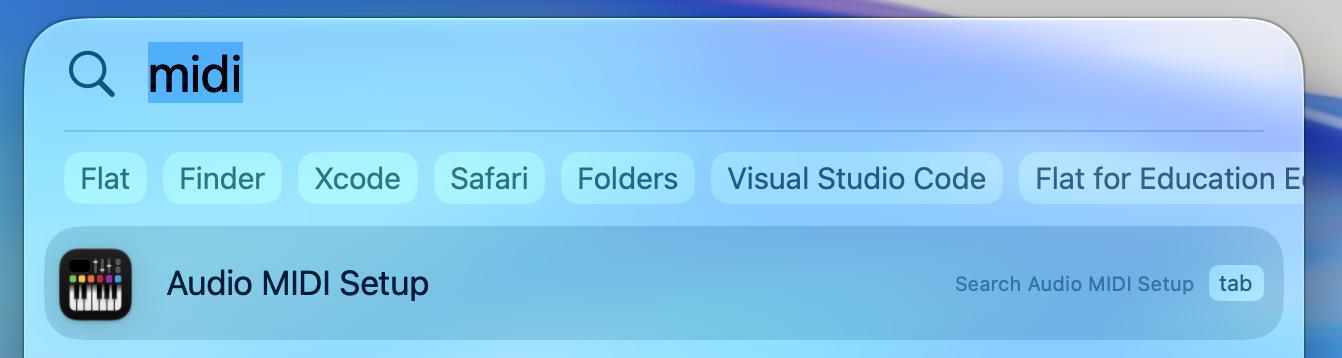
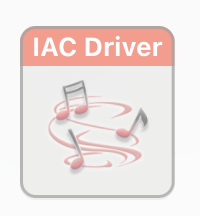
Turn the port on
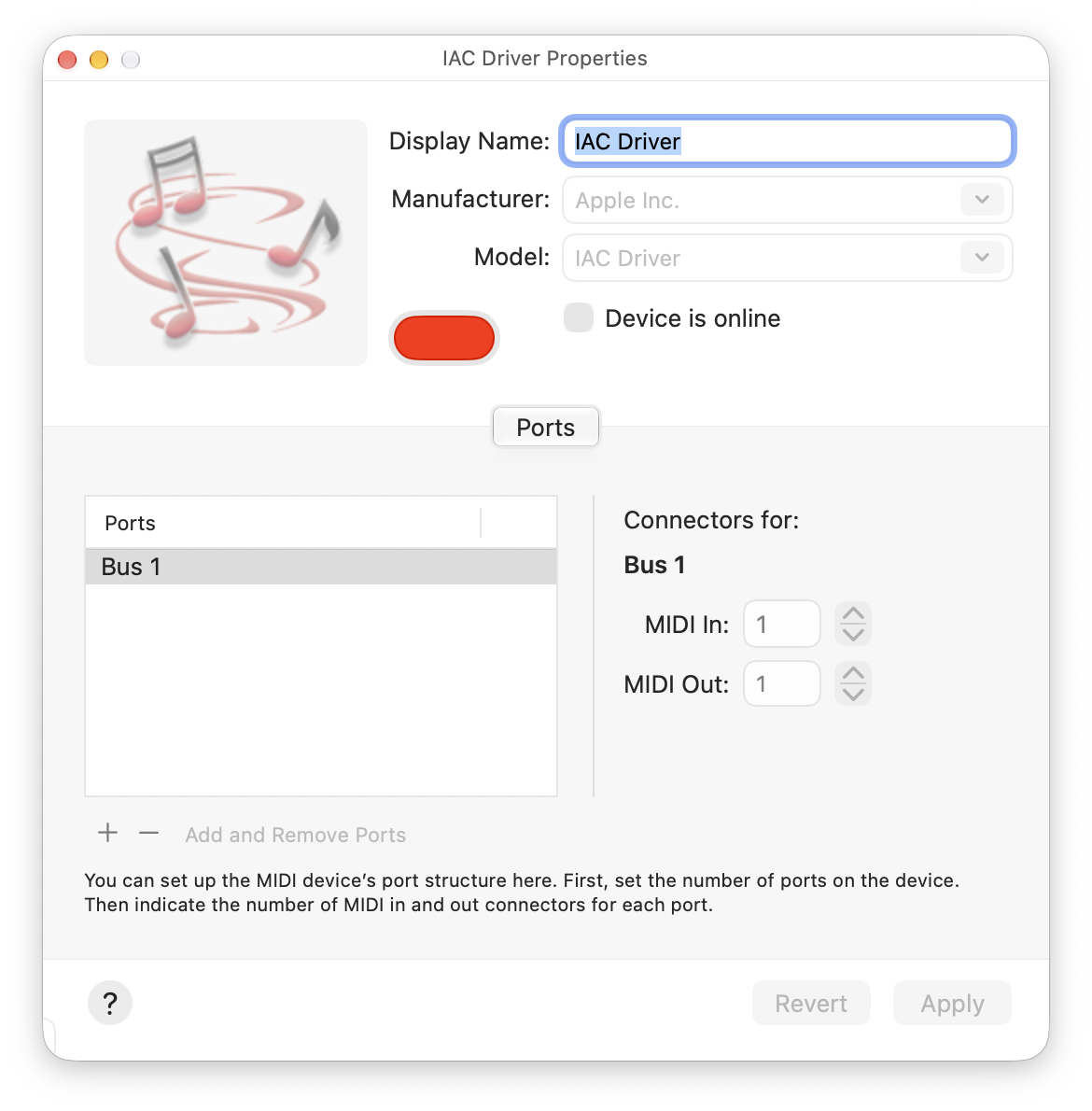
Check Device is online. If the Ports list is empty, click + to add a port and name it, for example Flat.
On Windows
Windows has no virtual ports built in. The free loopMIDI, by Tobias Erichsen, adds them.
Install loopMIDI
Download loopMIDI, install it and open it.
Add a port
Type a name for the port at the bottom, for example Flat, and click +.
Keep it open
The port exists only while loopMIDI runs: keep it open while you use Flat.
On ChromeOS
ChromeOS can't create virtual MIDI ports. You can still play on a MIDI device plugged into your Chromebook.
Route the port to your instruments
- In Flat, click MIDI Settings and select the virtual port in the MIDI Output list.
- In your DAW, choose the same port as the MIDI input of your instrument tracks.
- Arm the tracks for recording, or turn on their input monitoring, so they play what they receive.
How you set up the tracks depends on your score:
| Your score | In your DAW |
|---|---|
| One instrument | One track, receiving on any channel (All or Omni). |
| Several instruments | One track per instrument, each receiving the instrument's channel: channel 1 for the first instrument of your score, 2 for the second, and so on. |
| A multitimbral instrument (Kontakt, a General MIDI player) | One instance with one sound per channel. |
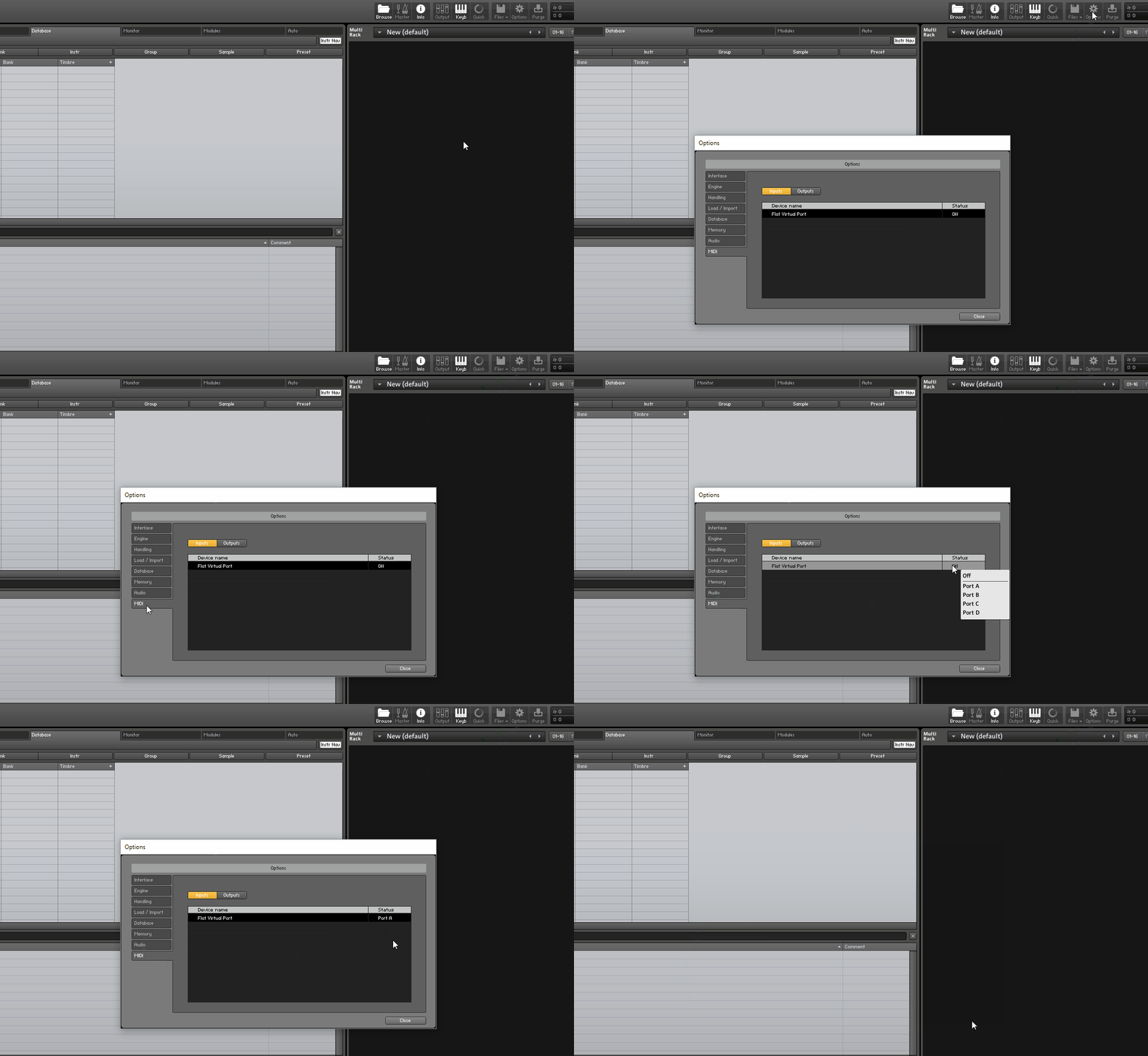
Kontakt, with the virtual port as its MIDI input.
Connect a hardware synthesizer
A digital piano, a synthesizer or a sound module plugged into your computer can play your score with its own sounds, no virtual port needed.
Plug in your device
Connect it with a USB cable, or a MIDI to USB adapter for older devices. If your computer doesn't see it, see MIDI troubleshooting.
Choose it in Flat
Click the MIDI Settings button in the editor toolbar and select your device in the MIDI Output list.
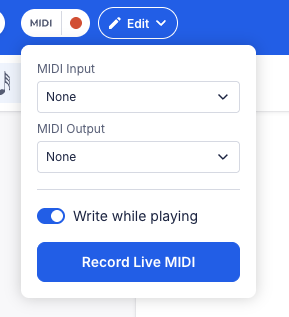
Select your device or port in the MIDI Output list.
Press play
Your device plays the score. If it plays only one instrument, set it to receive on all channels (often called Omni or Multi mode in its settings).
MIDI output settings
Open MIDI Settings in the editor toolbar and select an output: a settings button appears next to the MIDI Output list. A dot on it means a setting is changed from its default.
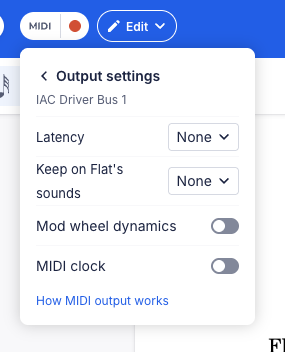
The settings of the selected MIDI output.
Flat remembers these settings for your next scores. Latency is remembered for each output, so a Bluetooth keyboard and a DAW each keep their own; the other settings apply to every output.
Latency
Bluetooth MIDI, some synthesizers and DAWs with a large audio buffer take a moment to play what they receive, so the sound comes late compared with the cursor. Choose the delay in Latency and Flat sends everything that much earlier, so the sound lines up with the cursor and with any part kept on Flat's sounds. It is None by default; Bluetooth MIDI usually needs 10 to 30 ms.
Mod wheel dynamics
By default, a note's dynamic sets how hard it is played (its velocity), and a crescendo or diminuendo raises or lowers the expression controller while the note holds.
Most orchestral sample libraries (Spitfire, Vienna, Kontakt libraries) ignore velocity on held instruments like strings and brass: they play loudness from the mod wheel. Turn on Mod wheel dynamics so each note moves the mod wheel to its dynamic, and hairpins sweep it. Notes keep their velocity too, for the libraries that use it on the attack.
Keep on Flat's sounds
Every instrument of your score plays on the MIDI output by default. Check instruments in Keep on Flat's sounds to play them on Flat's own sounds instead, while all the others go to the output. Use it when your DAW has no good sound for some of your instruments: your orchestral library plays the strings and brass, and Flat plays the choir. Uncheck them all to send every instrument to the output again.
MIDI clock
Turn on MIDI clock to make your DAW, a drum machine or an arpeggiator follow your score's tempo. It then gets:
- the tempo, tempo changes and playback speed included;
- start, stop and continue;
- the position: start playback in the middle of the score and your DAW starts from the same bar.
In your DAW, set the sync source to external MIDI clock from the virtual port (in Logic Pro: File > Project Settings > Synchronization; in Ableton Live: the port's Sync switch in Preferences > Link, Tempo & MIDI).
Limits
- 16 channels. MIDI has 16 channels per port. From the 17th instrument on, instruments share a channel with an earlier one and play with its sound.
- No articulation switching. Flat doesn't send keyswitches, so a sample library stays on the articulation it is set to (for example, arco when the score switches to pizzicato).
- Your instrument's sounds. Each instrument's sound comes from your DAW or synthesizer: a DAW track keeps the sound you loaded on it, and a synthesizer that ignores program changes keeps its current sound.
Troubleshooting
MIDI output questions
My port or synthesizer isn't in the MIDI Output list
Check that it is plugged in, or that its virtual port is online (on Windows, loopMIDI must be running). Then reload the Flat page. Safari doesn't support MIDI: use the Flat desktop app or another browser.
Playback runs but I hear nothing
Check the MIDI input of your DAW tracks and that the tracks are armed or monitoring. On a synthesizer, check its volume and that it receives on the instruments' channels.
A note keeps sounding after playback stops
Select None in the MIDI Output list, then your output again: Flat ends every note and lifts the pedal on all channels.
The sound is late compared with the cursor
Set the latency to the delay you hear.
Glissandos and bends sound out of tune
Set your instrument's pitch bend range to 12 semitones.
For connection issues, see MIDI troubleshooting.
MIDI implementation
What Flat sends, for mapping a DAW or setting up a synthesizer.
| What | MIDI message |
|---|---|
| Notes | Note on and note off, one channel per instrument in score order (drums on channel 10) |
| Dynamics | Note velocity, as in a MIDI file export (mf is 90, f is 103) |
| Instrument sound | Program change, at each playback start |
| Volume | CC 7, full volume at 100 |
| Pan | CC 10 |
| Hairpins under held notes | CC 11 (expression), or CC 1 (mod wheel) with Mod wheel dynamics |
| Sustain pedal | CC 64 |
| Quarter tones, bends, glissandos | Pitch bend, range set to 12 semitones (RPN 0) before a channel's first bend |
| Stop | All Notes Off (CC 123) on every channel, and the pedal, expression and pitch bend reset |
| Tempo sync | MIDI clock (24 per quarter note), Start, Continue, Stop and Song Position Pointer |