MIDI Input / MIDI Output
Last updated October 30, 2026
Flat makes use of built-in solutions to connect to your MIDI devices, DAW and sequencers through MIDI ports. This help page explains how to use both the MIDI input and MIDI output features.
Troubleshooting
You can find here our dedicated page for MIDI troubleshooting.
Implementation notes
The MIDI Input and Output features are still at an early development stage and several critical features aren't supported yet.
For the MIDI input:
- Automatic voice splitting (Live MIDI splits the notes of a piano part between its two staves)
- Dynamics / effects recognition
- Tempo changes, and triplets mixed with straight rhythms in the same take
For the MIDI output:
- Keyswitches (to switch from Arco mode to Pizzicato mode for example)
We are aware of these missing features and will work on improving them in the near future.
MIDI port selection
Click the MIDI button at the top of the editor to open the MIDI menu. It has two lists, MIDI Input and MIDI Output, and each list selects one port.
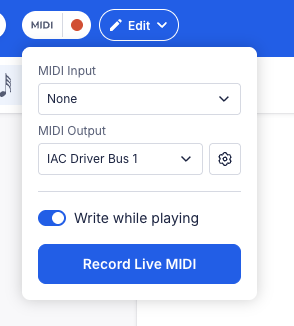
The MIDI menu also offers a way to disable writing on the score with the Write while playing toggle. It can be useful when you want to play with the MIDI device and Flat sounds, without having notes being written on the score.
MIDI Input
Two different modes are available while using your MIDI devices to input notes on a score:
Step mode
The step mode is the default input mode, automatically activated as soon as you connect a MIDI device to Flat.
Once a note has been pressed and released on the device, this note will be set at the cursor location, taking the same duration as the previous note or rest. The cursor will then automatically move to the next position in the same voice.
Chords are also supported and will make the composition process frictionless.
Real-time recording
To record a passage in real time, use Live MIDI: click the red record button next to MIDI at the top of the editor, or Record Live MIDI in the MIDI menu, and play. Flat snaps your take to a rhythmic grid, lets you review and fix the notes, then places them at the measure you choose. See how to record with Live MIDI for every step.
MIDI Output
MIDI output plays your score on a synthesizer, a DAW or a sample library like Native Instruments Kontakt, instead of Flat's sounds. Select a device or a virtual MIDI port in the MIDI Output list of the MIDI menu: each instrument plays on its own MIDI channel, in the order of your score, with its dynamics, volume, pan, pedal and pitch bends.
See MIDI Output to connect a device or a DAW, choose the settings and sync your DAW to Flat's tempo.