How to play back your score in Flat
Last updated October 13, 2026
Playback in Flat interprets the sheet music you write and plays it back directly in your web browser, without any plugins. Flat plays the full score or resumes from where you stopped, and gives you control over the volume, the instruments' reverb, the playback speed, swing, and the metronome.
How do I play back my score?
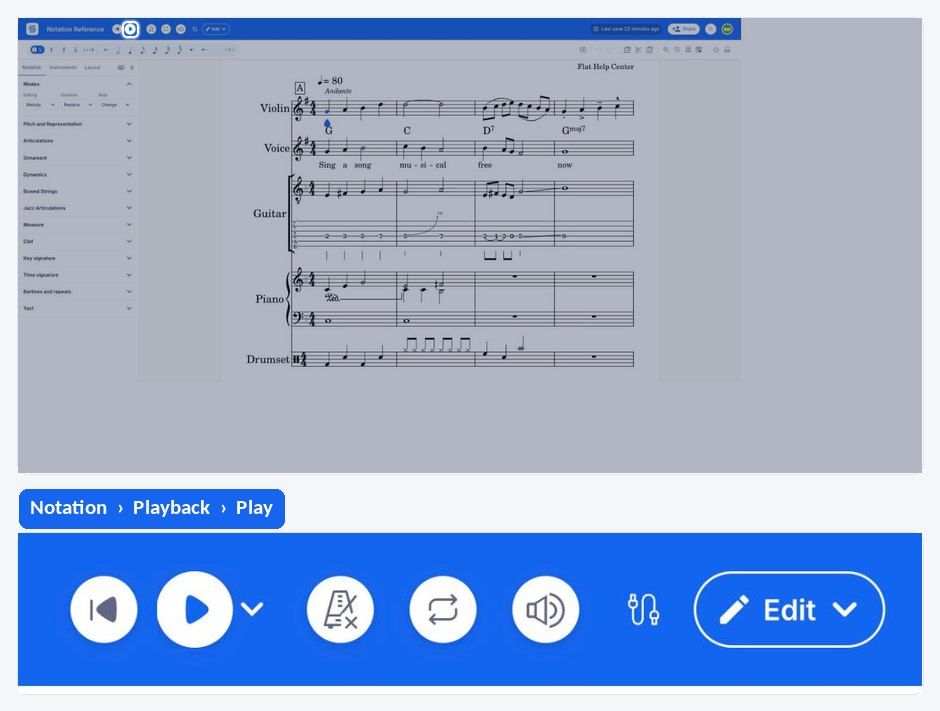
To play your composition, click the play button at the top of the editor. While the playback is active, you can stop, pause, and resume the playback at will, and restart from the beginning of the score, using the three buttons displayed in place of the initial play button.
Which notations does the playback interpret?
Our goal is to provide a good trade-off between performance and interpretation quality, so the playback works well even with a low amount of memory. You might not have the best experience with a large number of instruments.
At this time, most of the notations are interpreted, except:
- Bowing Directions
- Nested repeat barlines
- Text
How do I change the volume and reverb?
Flat stores a volume and a reverb level for every instrument in the score, and both are edited from the audio settings in the top bar. You can find how to change the volume and reverb for a score on our dedicated help page.
How do I change the playback speed?
The playback speed is a global multiplier applied on top of the tempo markings written in the score, so changing it never alters the notation. You can find how to change the global playback speed on our dedicated help page.
How do I enable the swing?
The swing includes the notation and the playback interpretation, so the written rhythm and the way Flat plays it stay in agreement. Discover how to use it in our dedicated help page.
I have an issue with the playback
Playback problems are usually caused by the device or the browser rather than by the score itself — a phone left in silent mode, or a stuck Web Audio API timer. Please see our playback troubleshooting page for the fixes.
Does the Crescendo and Diminuendo affect both parts of a piano score?
Like all the dynamics on Flat, they only affect the stave where they are added. To hear a crescendo in both hands of a piano score, add one to each stave.
How do I play back my score?
Tap the play button in the top bar. While the score is playing, the same place offers pause, stop, and restart from the beginning.
Which notations does the playback interpret?
Our goal is to provide a good trade-off between performance and interpretation quality, so the playback works well even with a low amount of memory. You might not have the best experience with a large number of instruments.
At this time, most of the notations are interpreted, except:
- Bowing Directions
- Nested repeat barlines
- Text
How do I change the volume and reverb?
Flat stores a volume and a reverb level for every instrument in the score, and the mix is saved with the score itself, so it is the same on every device. You can find how to change the volume and reverb on our dedicated help page.
How do I change the playback speed?
The playback speed is a global multiplier applied on top of the tempo markings written in the score, so changing it never alters the notation. You can find how to change the global playback speed on our dedicated help page.
How do I enable the swing?
The swing includes the notation and the playback interpretation, so the written rhythm and the way Flat plays it stay in agreement. Discover how to use it in our dedicated help page.
I have an issue with the playback
Playback problems are usually caused by the device rather than by the score itself — a phone left in silent mode is the most common one. Please see our playback troubleshooting page for the fixes.
Does the Crescendo and Diminuendo affect both parts of a piano score?
Like all the dynamics on Flat, they only affect the stave where they are added. To hear a crescendo in both hands of a piano score, add one to each stave.
Frequently asked questions
Do I need a plugin to hear my score?
No. Flat interprets your sheet music and plays it directly in your web browser, with no plugin and nothing to install. The same playback engine is used in the editor and in the public sheet music viewer.
Why does playback sound rough on a score with many instruments?
The playback is tuned as a trade-off between performance and interpretation quality so that it runs on devices with a low amount of memory. A score with a large number of instruments pushes that budget, so you might not get the best experience on it.
Why is one of my markings not played back?
Most notations are interpreted, but a few are not yet: bowing directions, nested repeat barlines, and text. If a marking in one of those categories is silent, it is a known limit rather than an error in your score.
Can everyone who opens my score hear the same mix?
Yes. The volume and reverb you set are stored in the score data and synchronized to every device with access to the score, so everyone visiting it gets the audio mix you saved. See the audio settings for the details.