How to play your score in a room and arrange the stage in Flat
Last updated November 9, 2026
A room is the space where Flat plays your score. Instead of setting a reverb on each instrument, you pick a room (a studio, a concert hall or a cathedral) and every part is played inside it. You can then place each instrument on a map of the stage to decide where it sits, from left to right (its panning) and from front to back, and how wide it sounds in stereo.
Rooms and the stage are in beta in the editor on the website, with its new side rail. Join the beta to try them. The desktop app and the Flat apps for iOS and Android keep the reverb of each instrument.
Join or leave the beta
The rooms and stage beta is open to accounts with Flat Power. Join or leave it on this page of the help center:
Rooms and stage beta: the Room section of the audio panel and the stage screen, in the editor on the website. Joining also turns on the editor's new side rail, where the audio panel lives.
Checking your Flat account…
How do I choose a room?
- Open your score and click Audio in the left rail.
- In the Room section, click Off, Studio, Hall or Cathedral.
- Press play to hear the difference.
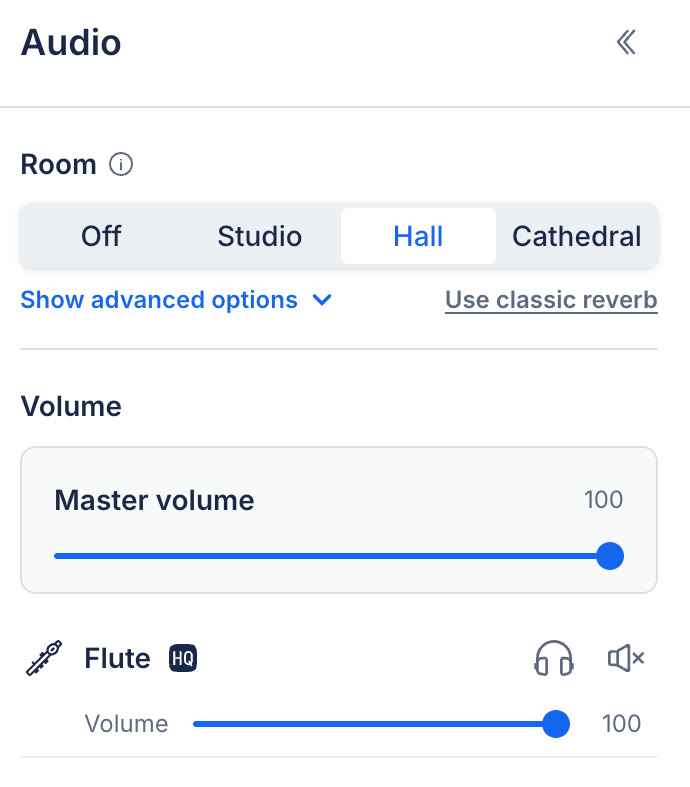
The Room section at the top of the Audio panel.
Each room has its own acoustics: its size, the walls that reflect the sound, and how long the reverberation lasts.
| Room | What it sounds like |
|---|---|
| Off | No reverb: the score plays dry. |
| Studio | A short reverb, about 1 second, and a close sound. |
| Hall | A concert hall, for orchestra and choir, with a reverb of about 2 seconds. |
| Cathedral | A long, spacious reverb of about 4 seconds. |
Click the information icon next to Room in the panel to read this list again.
Like the rest of the audio settings, the room and the seats are saved with the score: everyone who opens it hears the room you picked, on every device.
Changing the room, the microphones, the reverb or a seat is part of Flat Power, like the reverb of each instrument. Without it, you still hear the room saved with the score.
How do I change the microphones and the reverb of the room?
Click Show advanced options under the rooms.
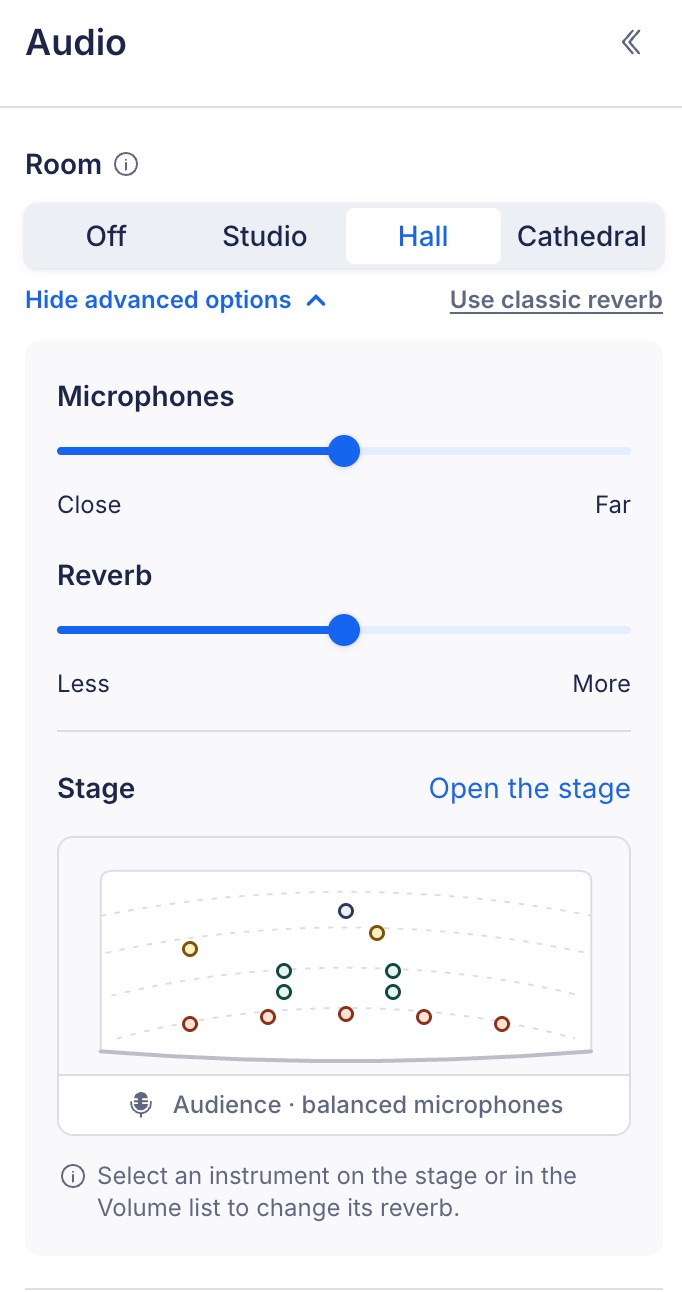
The advanced options, with the small stage overview at the bottom.
- Microphones moves the listening position between Close (a direct, detailed sound and a wide stereo image) and Far (a more distant sound, with more of the room's reflections and a narrower stage).
- Reverb sets how much of the room you hear, from Less to More.
- Stage shows a small overview of where the instruments sit. Click Open the stage to work on it full screen.
Click Hide advanced options to fold them away again.
How do I arrange the instruments on the stage?
Click Open the stage in the advanced options. The stage screen shows a map of the stage with one seat for each instrument of the score.
Flat seats every instrument for you, following the usual orchestral seating: in an orchestra the strings are in front, the woodwinds behind them, then the brass, with the percussion at the back. Pianos and harps sit on the left, a choir stands behind the orchestra, and a solo singer stands at the front. A small group is spread across the whole stage.
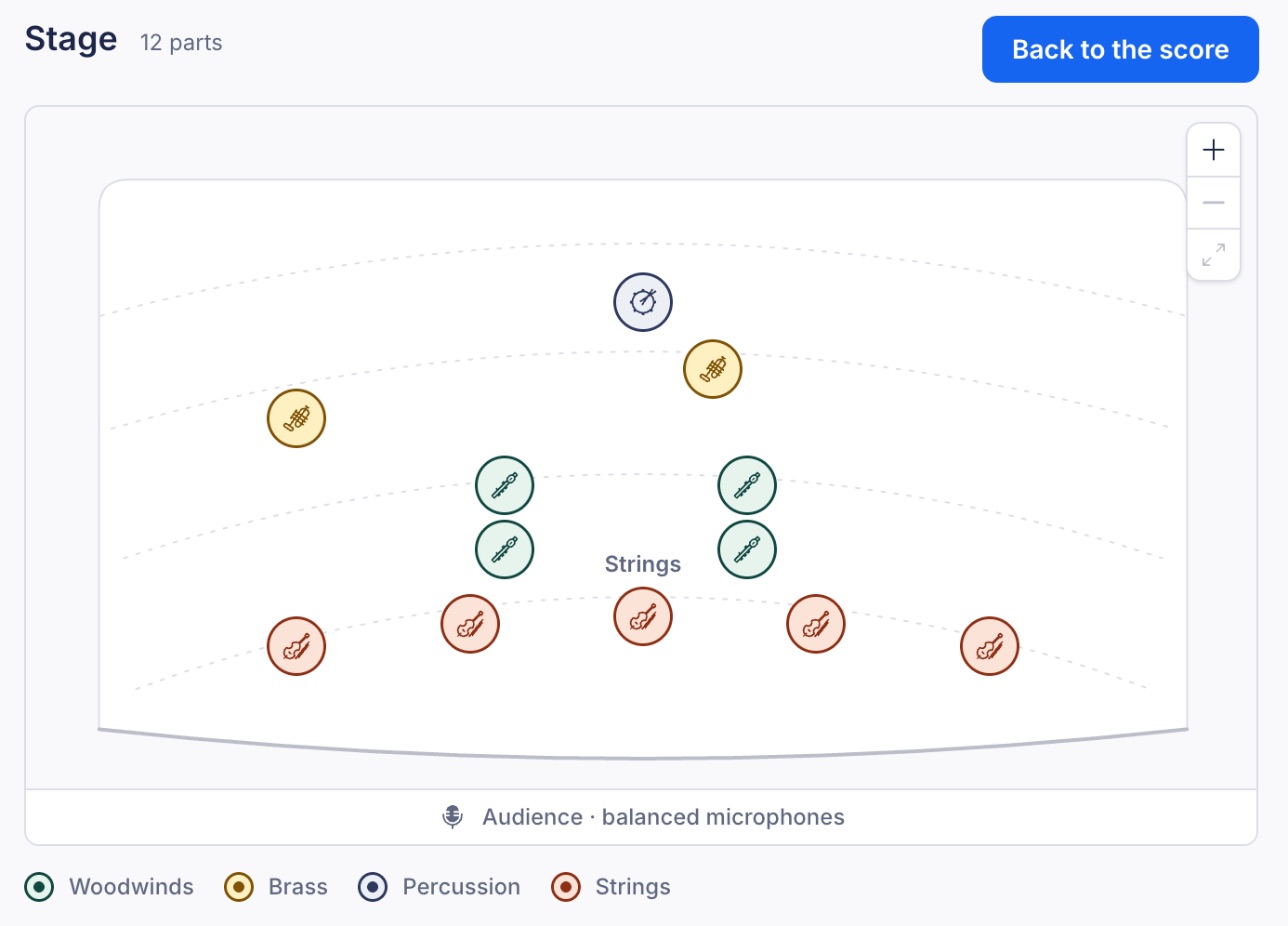
The stage screen. Each seat carries the icon of its instrument.
- Seats carry the icon of the instrument and the color of its family. The legend under the map names the families that the score uses, such as Woodwinds, Brass, Percussion or Strings. Parts of the same section that sit together are grouped under the section name, for example Strings.
- The audience strip at the bottom of the map names where the microphones listen from: close, balanced or far back. It follows the Microphones slider.
- Move a seat by dragging it on the map. To move a selected seat with the keyboard, use the arrow keys.
- Zoom with the + and - buttons in the corner of the map, and use Fit the whole stage to see every seat again.
- Select a seat by clicking it, or by clicking the instrument in the Volume list of the panel.
What changes when I move a seat?
The seat places the instrument in the room, the way a real stage does:
- Left and right set its panning: an instrument on the left of the stage comes out of the left speaker.
- Front and back set its depth: the further back a seat is, the later, softer and slightly duller the instrument sounds, and the more of the room you hear on it.
- The room answers every seat on its own: each instrument gets its own early reflections from the walls and the ceiling, then shares the reverb of the room with the others.
How do I change the width and the reverb of one instrument?
Select a seat. A card opens under the map with two sliders for that instrument.
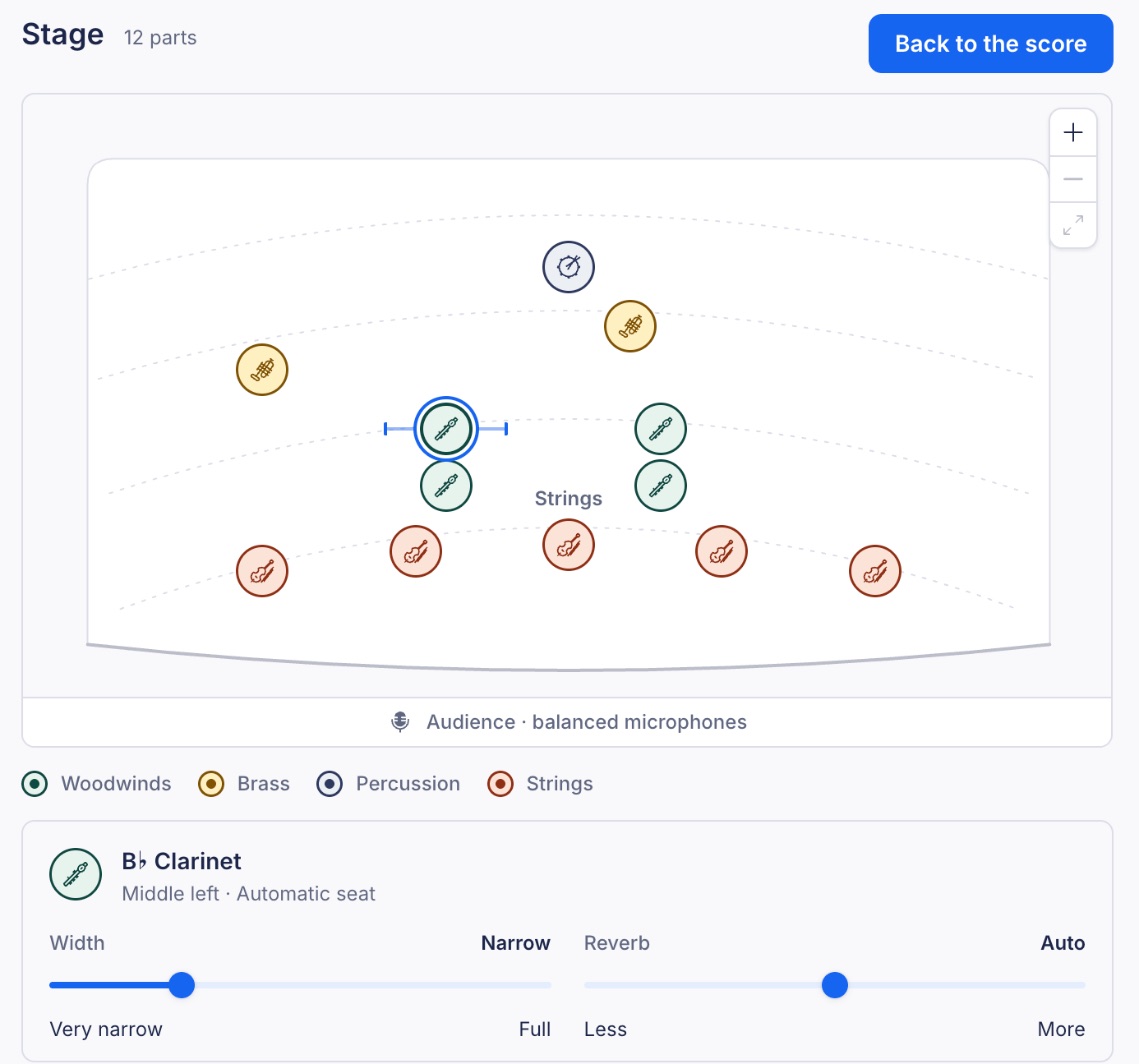
A selected seat and its card.
- Width sets the stereo width of the instrument: how much space it takes between the left and the right speaker, from Very narrow (a single point) to Full.
- Reverb is Auto by default, so the instrument gets the reverb its seat calls for. Move it toward Less or More to make that instrument drier or wetter than its neighbors.
How do I put a seat back?
Select the seat and click Reset seat to bring it back to the place Flat gave it, with its default width and reverb. Reset all seats does the same for every instrument. Flat confirms how many seats it reset and lets you undo it.
How do I leave the stage?
Click Back to the score, or press Esc. The first press deselects the selected seat, and the next one closes the stage.
What is the classic reverb?
Scores made before rooms existed keep the reverb of each instrument. Their audio panel says Classic reverb, set per instrument below. Pick a room to try one. The sliders in the Volume list keep working as before until you pick a room.
Once you pick a room, it replaces the per-instrument reverb for the whole score. Click Use classic reverb next to Room to go back to the reverb of each instrument.
What if I can only view the score, or I am offline?
- If you can open a score but not edit it, you can still try the rooms and move the seats to hear the difference. Nothing is saved: the change plays for you only, and the score keeps the room its owner chose.
- If you can edit a score but you are offline, or the score has a newer revision than the one you have open, Flat says Not saved: your changes play for this session only. Reload the score when you are back online and make the change again.
Frequently asked questions
Why is there no Room section in my audio panel?
Rooms and the stage are in beta, in the editor on the website. Join the beta to see them. The desktop app and the Flat apps for iOS and Android do not have them yet. Without them, the audio panel shows the volume and the reverb of each instrument, as described in the audio settings.
Can I pan an instrument to the left or the right?
Yes, in a room. Open the stage and drag the instrument's seat to the left or the right: its position sets its panning. Its Width slider sets how wide it sounds in stereo.
Do the rooms change my notation?
No. A room changes how the score sounds, not what it says. It adds no marking to the notation and does not change what you print.
What does Off do?
Off plays the score dry, with no reverb at all. Your seats are kept, so they are there when you pick a room again.
Why does one instrument sound drier than the others?
Open the stage and select its seat. A part with Less on its Reverb slider is drier on purpose. Reset seat brings it back to Auto.
Can I use a room and the reverb of each instrument together?
No. A room replaces the reverb of each instrument. Use Use classic reverb to go back to the per-instrument reverb.