How to record from a MIDI keyboard with Live MIDI in Flat
Last updated October 30, 2026
Live MIDI in Flat records what you play on a MIDI keyboard and turns it into notation. Flat captures your take, snaps it to a rhythmic grid you choose, and lets you fix notes, staves, and timing in a review screen before placing the music at the measure you pick in your score.
What do I need to use Live MIDI?
Live MIDI needs a MIDI keyboard connected to your computer, the Flat editor in your browser, and a browser that supports MIDI devices: Chrome, Edge, or Firefox. The first time you use a MIDI device, your browser asks whether flat.io can use it: click Allow.
Safari does not support MIDI devices, so Live MIDI does not work there. Open Flat in Chrome, Edge, or Firefox instead.
If Flat does not find your keyboard, or if you blocked the browser's request, see MIDI troubleshooting to allow MIDI for flat.io and check your drivers.
How do I record with Live MIDI?
Click the red record button next to MIDI at the top of the editor, or open the MIDI menu and click Record Live MIDI. The recording panel opens under your score. Choose your keyboard in MIDI device and start playing: the take starts on your first note, so there is no need to press anything before you play.
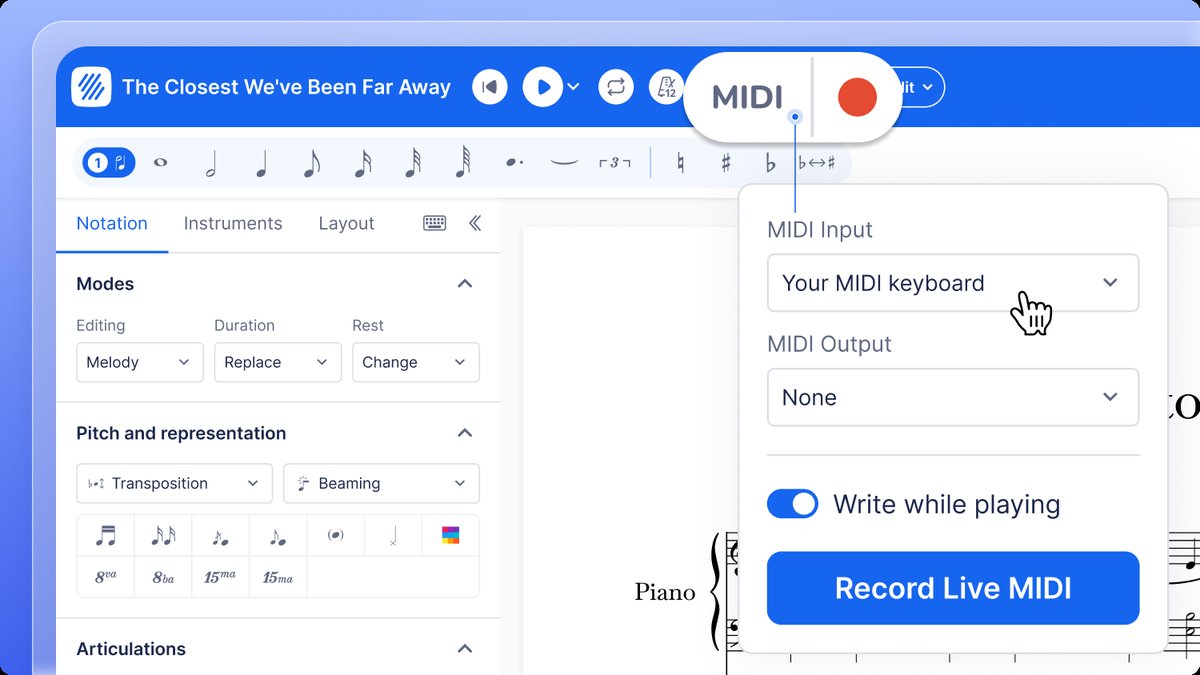
Open the recording panel
Click the red record button next to MIDI, click Record Live MIDI in the MIDI menu, or press Shift + R.
Choose your keyboard
Pick your keyboard in the MIDI device menu at the top right of the panel. When the panel shows LIVE, Flat is listening.
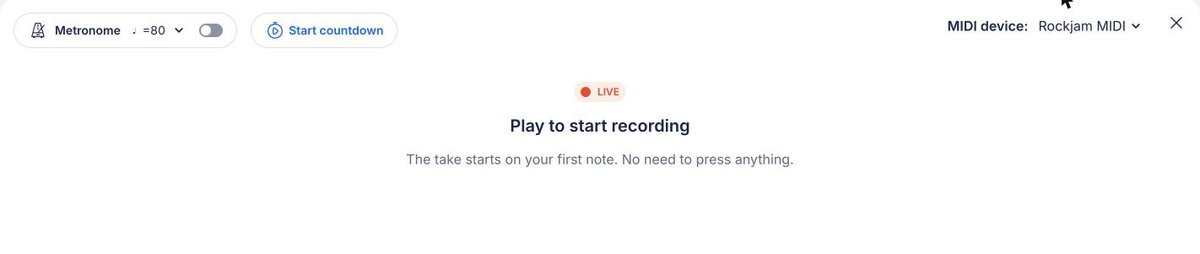
Set the metronome and the countdown
Turn on the Metronome to play along with a click, and use the arrow next to it to change the tempo. Click Start countdown if you want the metronome to count you in before the take starts.
Play, then stop
Play your passage. Your notes appear in the panel as you play. Press Space to stop the recording, or Esc to discard it and start over.
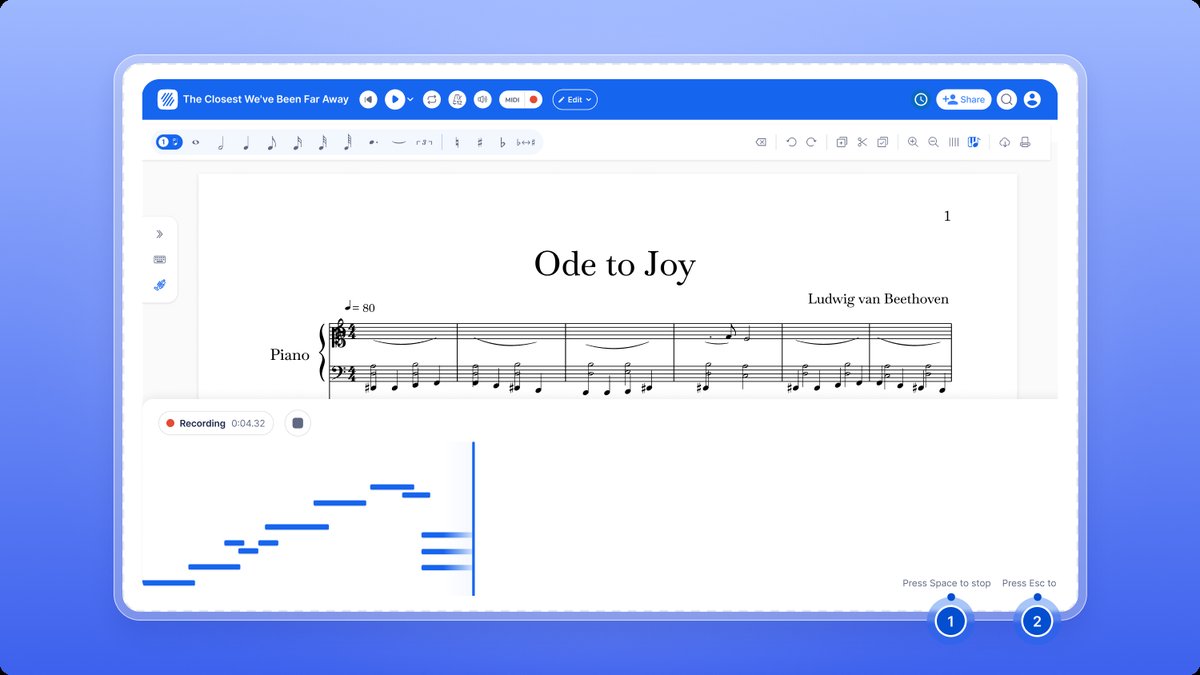
If the panel shows No notes captured, Flat did not receive any note from your keyboard. Play again to start a new take, and check the MIDI device menu if it happens again.
How do I read the review screen?
When you stop recording, your take opens in Review your recording. Nothing is in your score yet. The notation at the top is a preview that updates as you edit, and the note grid below shows every note you played, one row per pitch.
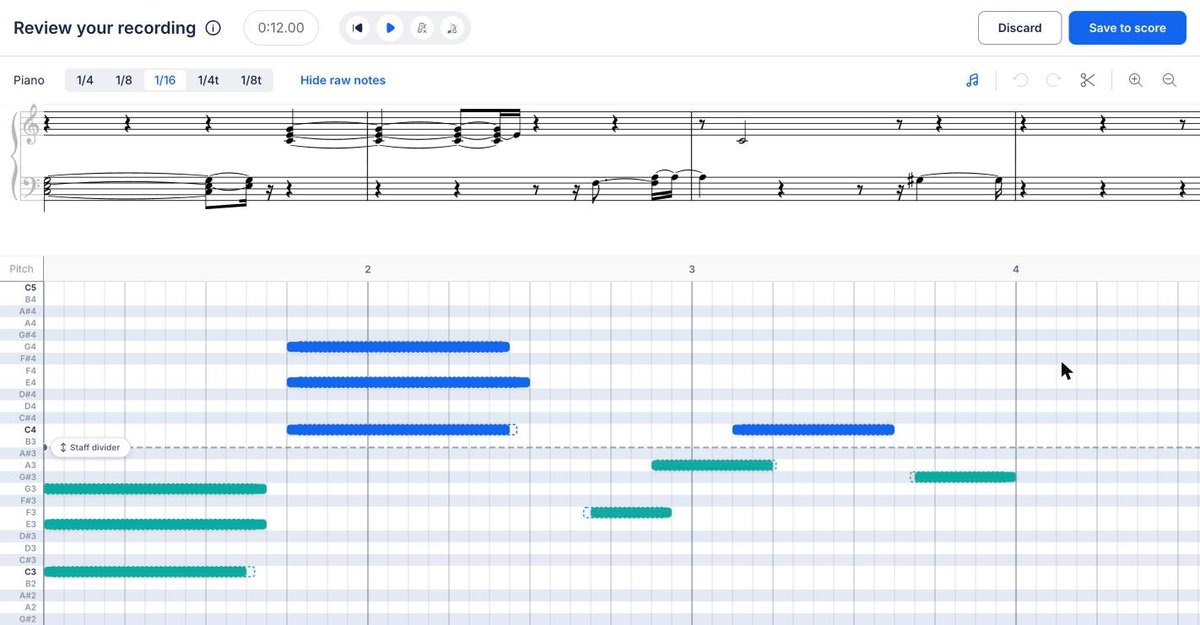
In the note grid:
- Solid bars are your notes snapped to the grid you chose.
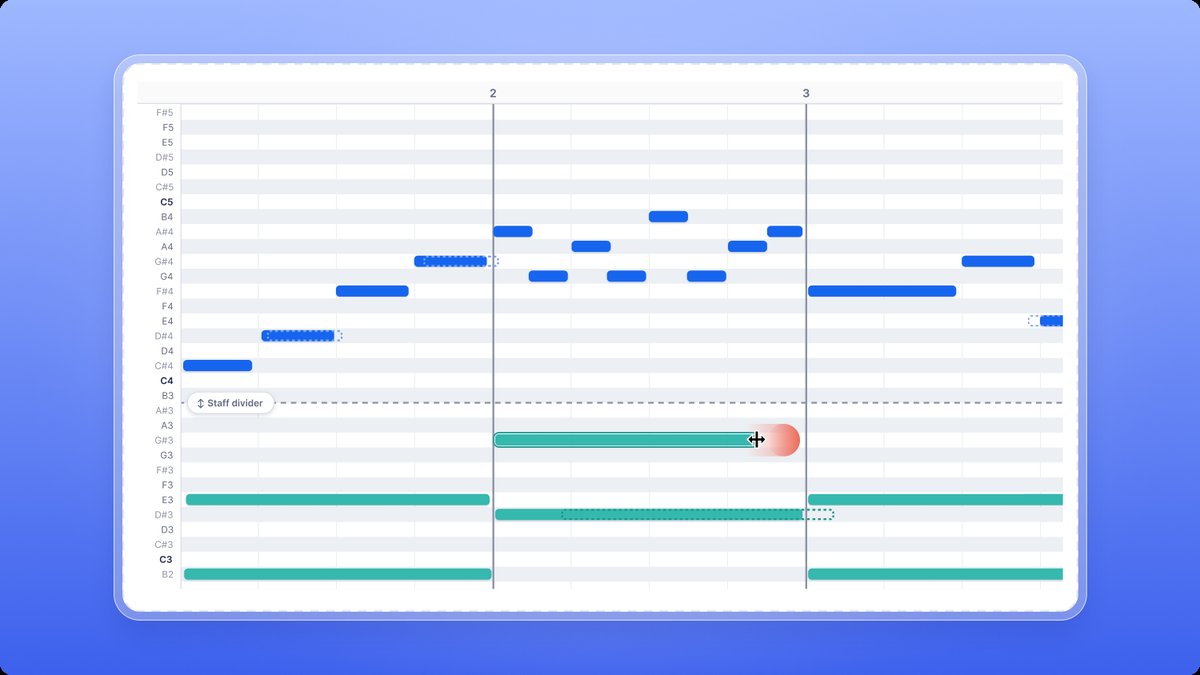
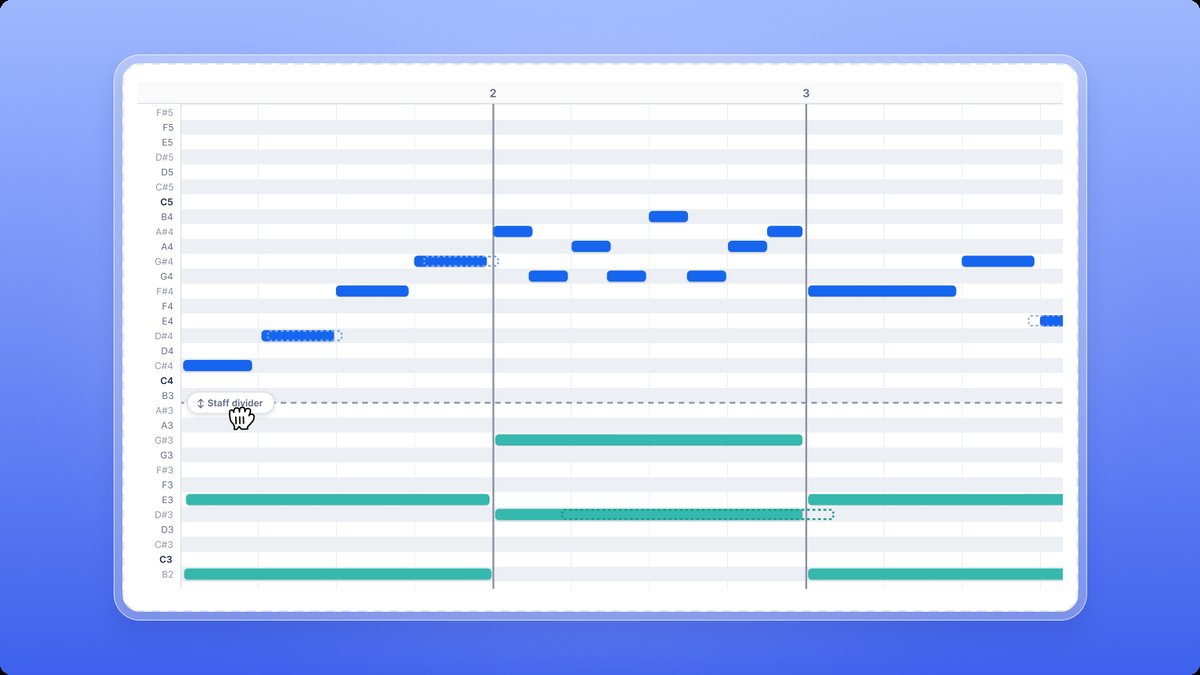
- Dashed outlines show the notes exactly as you played them. Click Hide raw notes to see only the snapped notes, and Show raw notes to bring the outlines back.
- On a piano part, blue notes go to the top staff and green notes to the bottom staff.
Click play to hear the take before it goes into your score. The playback starts from the selected note, the same way as in the editor.
Which grid should I choose?
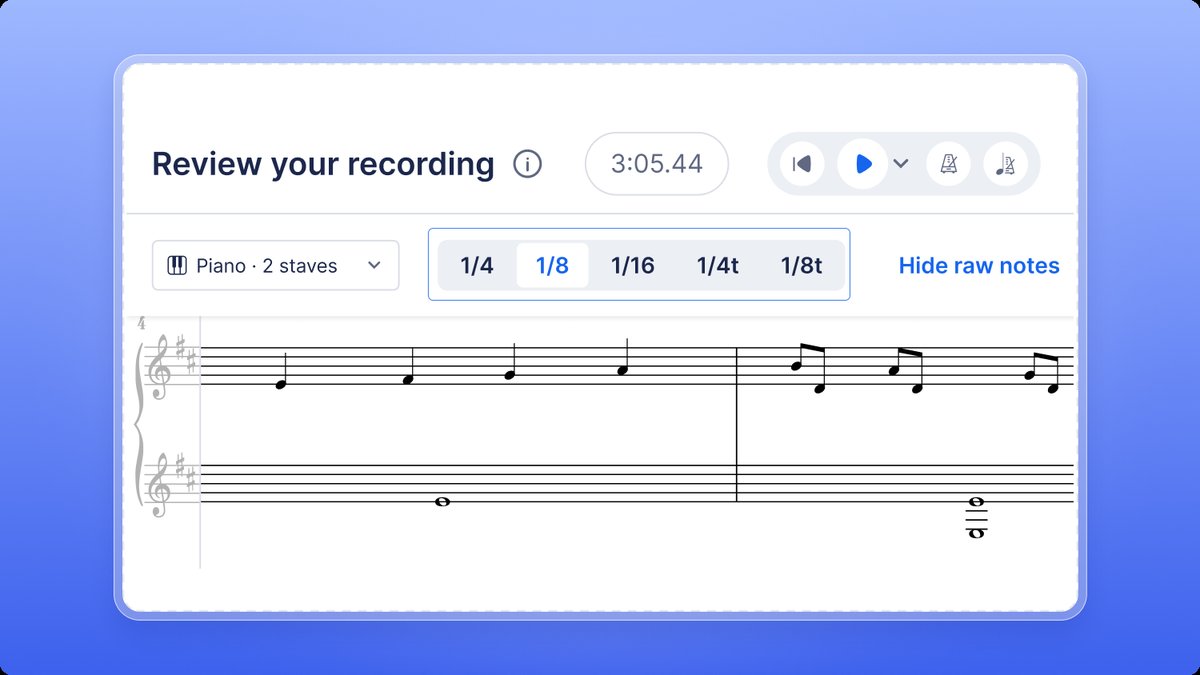
Your timing is never exactly on the beat when you play, so Live MIDI moves each note to the nearest line of a grid. This is called quantizing. Choose the grid at the top of the review screen with 1/4, 1/8, 1/16, 1/4t, or 1/8t, and match it to the shortest notes you played.
| Grid | Shortest note it keeps | Choose it for |
|---|---|---|
| 1/4 | Quarter note | Simple music in quarter notes |
| 1/8 | Eighth note | Music with eighth notes |
| 1/16 | Sixteenth note | Fast passages with sixteenth notes |
| 1/4t | Quarter-note triplet | Three quarter notes in the time of two |
| 1/8t | Eighth-note triplet | Three eighth notes in the time of one beat |
A grid with fewer lines gives a simpler score but pulls short notes onto the beats: a run of eighth notes recorded with 1/4 becomes quarter notes. If the preview does not look like what you played, try another grid. You can change it as many times as you like before you save.
How do I fix the notes before saving?
Click a note in the grid to select it, or drag around several notes. A bar opens under the grid with the number of selected notes and these tools:
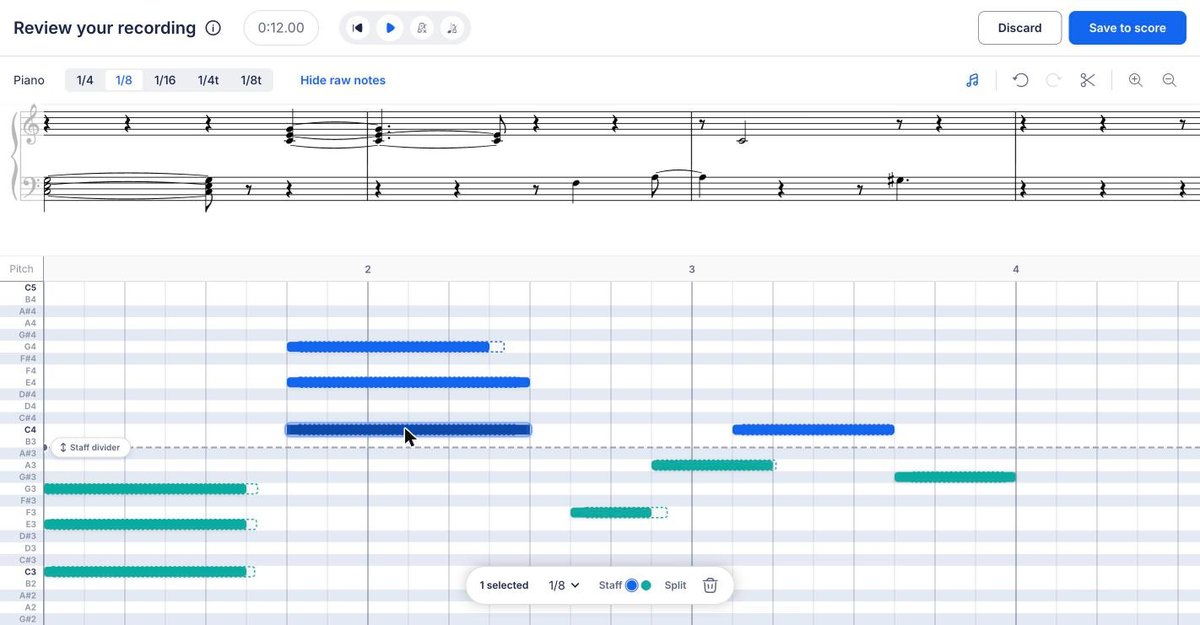
- Grid menu: choose the grid used for the selected notes.
- Staff: move the selected notes to the top or the bottom staff.
- Split: cut a note into two notes of half its length.
- Bin: delete the selected notes.
To change the length of a note, drag its right edge in the grid. Use undo and redo at the top right to step back through your changes.
How do I trim the recording or change its tempo?
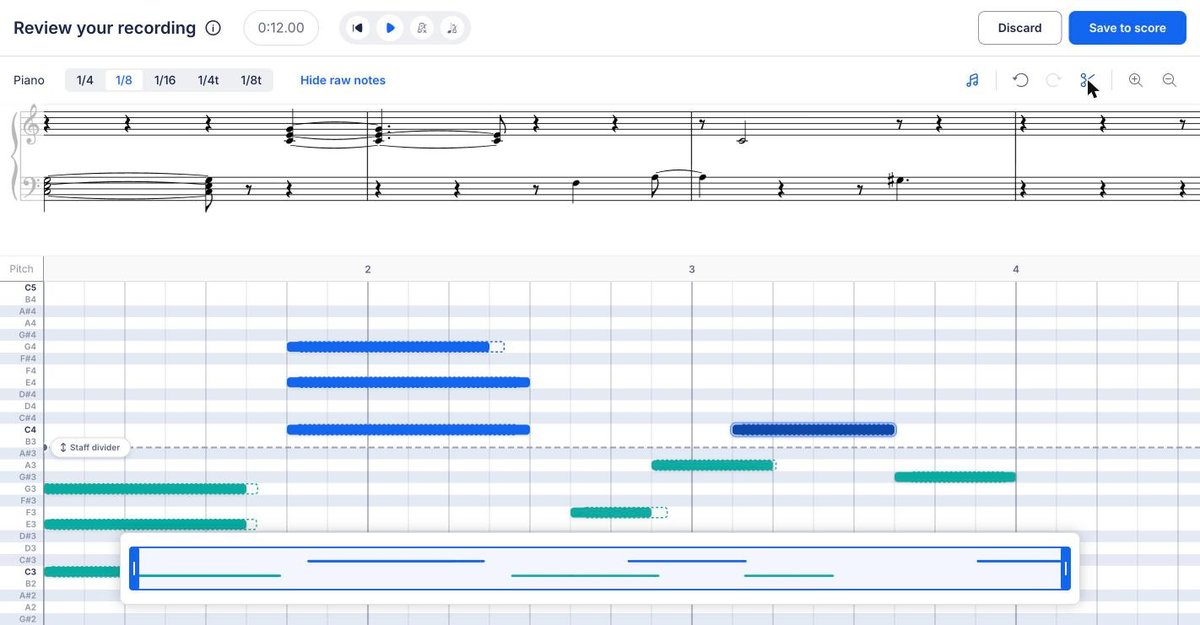
Click the scissors at the top right to trim the start or the end of the take: drag the handles of the strip that opens under the grid. Change the tempo of the take with the tempo button at the top of the screen, next to play.
How do I split the notes between the two staves of a piano?
On a part with two staves, a dashed Staff divider line splits the notes between the right and the left hand. Drag it up or down to change which notes go to each staff, or select notes and use Staff in the editing bar for the exceptions.
A note shown in red is outside the range of the instrument and will not sound. Play it in another octave, or move it in the grid.
How do I place the recording in my score?
Click Save to score. Flat shows your score with a Starting point flag and the number of measures the recording adds. Click any measure to move the starting point there, then click Done to add the recording, or Back to return to the review screen.
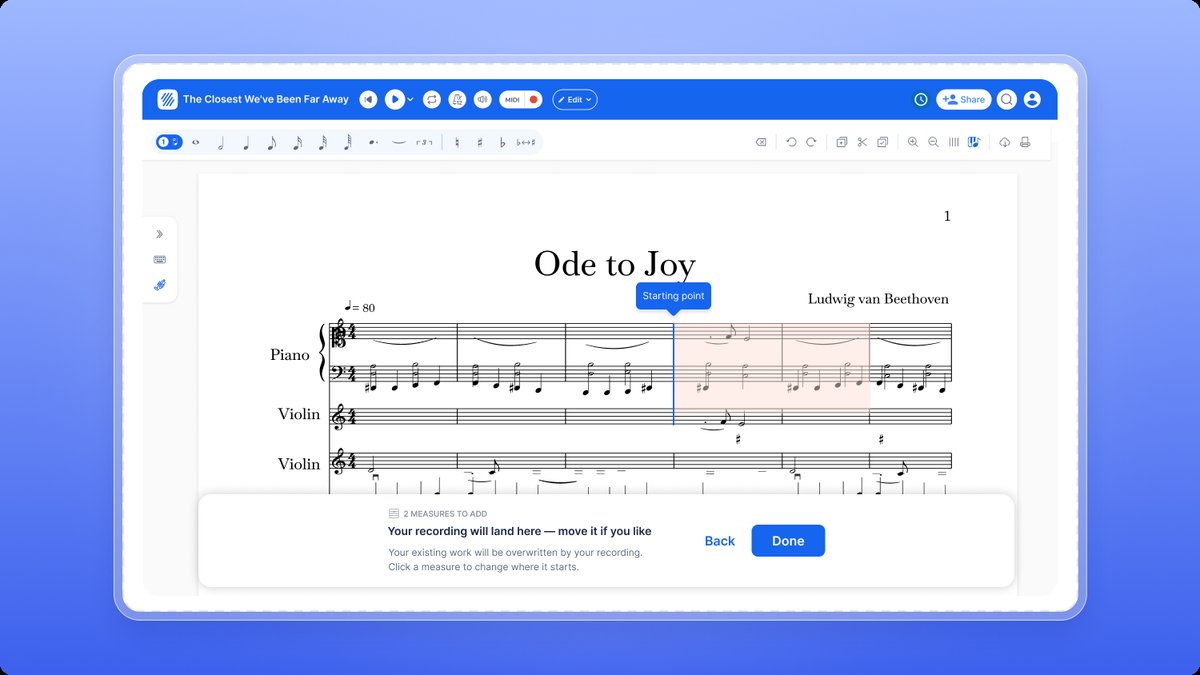
The measures highlighted in red are overwritten: anything already written in them is replaced by your recording. Once it is placed, the recording is ordinary notation that you can edit, transpose, play back, and export like the rest of your score.
To leave the review screen without adding anything, click Discard and confirm. The take is deleted.
Frequently asked questions
Why doesn't Flat see my MIDI keyboard?
Check that the keyboard is plugged in and turned on before you open the panel, and that you use Chrome, Edge, or Firefox. If you clicked Block when the browser asked for MIDI access, allow MIDI for flat.io in your browser's site settings and reload the page. The MIDI troubleshooting page also covers drivers and MIDI to USB adapters.
Will recording replace what's already in my score?
Only in the measures where you place it. Before you confirm, Flat highlights in red the measures your recording covers, and their content is replaced when you click Done. Move the starting point to empty measures, or add measures at the end of the score, to keep what you already wrote.
Can I see exactly what I played?
Yes. In the review screen, the dashed outlines show every note exactly as it was captured, next to the notes snapped to the grid. Click Hide raw notes to hide them and Show raw notes to bring them back, and press play to hear the result before you save.
What is the difference between Live MIDI and entering notes with my MIDI keyboard?
With step mode, each key you press writes one note at the cursor, with the duration you selected. With Live MIDI, you play freely in time and Flat works out the rhythm for you, then you review the take before it goes into the score.