How to write guitar tablature (tabs) in Flat
Last updated October 21, 2026
Tablature in Flat is a string-and-fret notation that stays synced with the standard notation of the same part. Flat writes tabs (tablatures) for any instrument, from 3 to 14 strings, with the tuning and capo you want, and can generate a tab from notation you have already written.
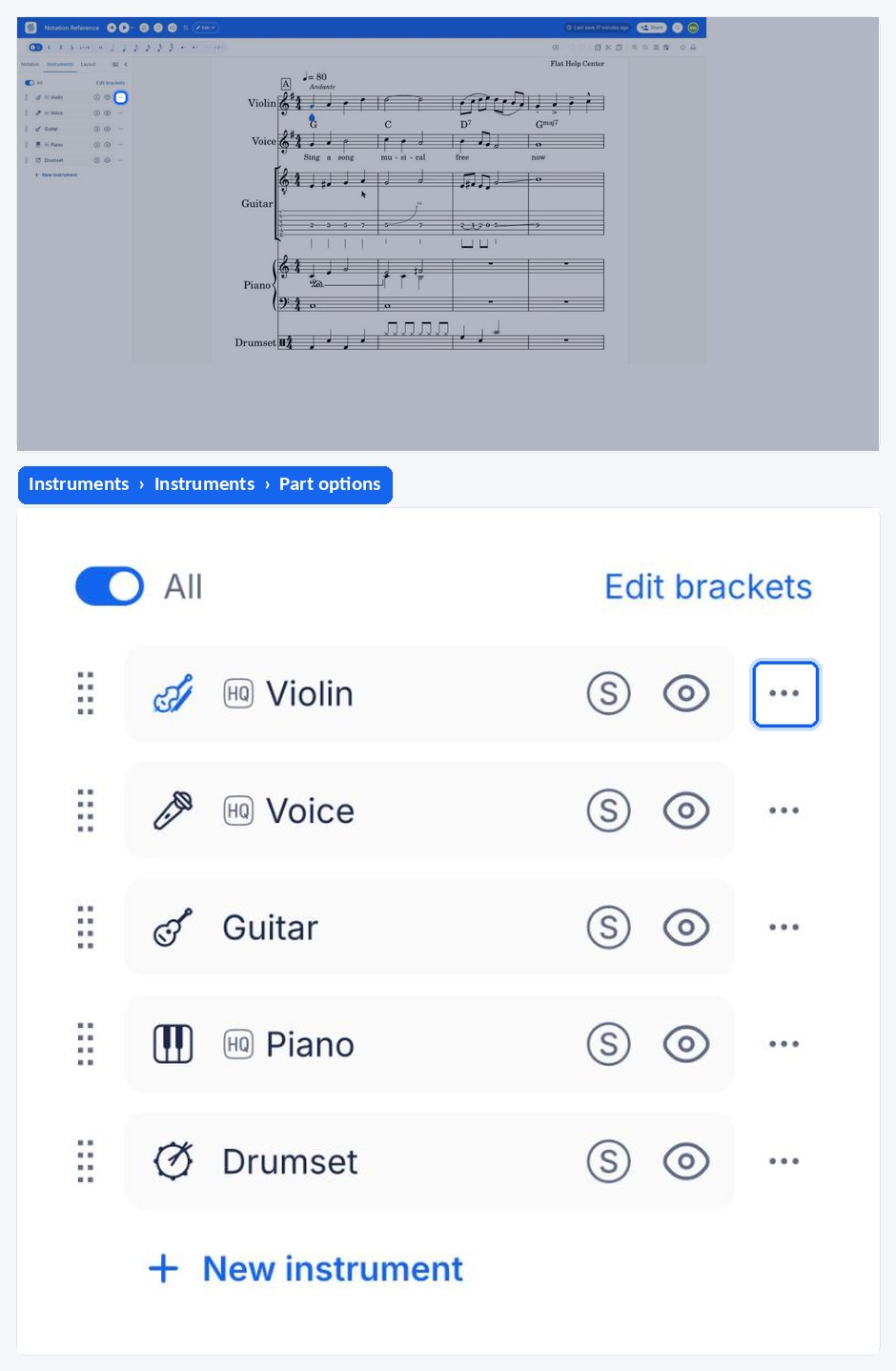
How do I enable tabs?
Tabs are added automatically when you create a new score: if you choose a plucked instrument (e.g. Guitar, Ukulele, Banjo, Mandolin), its part gets a tab by default.
They can also be enabled any time in the editor, in the instrument settings. You can enable a tab for a part and choose the tuning and capo of the part.
How do I set the tuning and capo?
Once your score is created, the tuning and capo of a tab can be configured in the instrument settings. Changing the tuning or capo configuration on an existing score will update the tab to reflect the update. Learn more on the dedicated tuning help page.
How do I input notes on a part with a tab?
On Flat, the tab content is always synced with the music notation, so you can either input your music by inserting the notes on the notation, or on the tab. To learn how to insert notes on the music notation, check out the previous tutorial page. We will focus here on adding notes using the tablatures.
Your tab can be edited using your computer keyboard, by pressing the digits to input the frets. Click at the position and on the string where you want to input the first fret, then press the digit corresponding to the fret you want to add. If you want to input frets above 9, quickly type the two digits of the fret you want to insert.
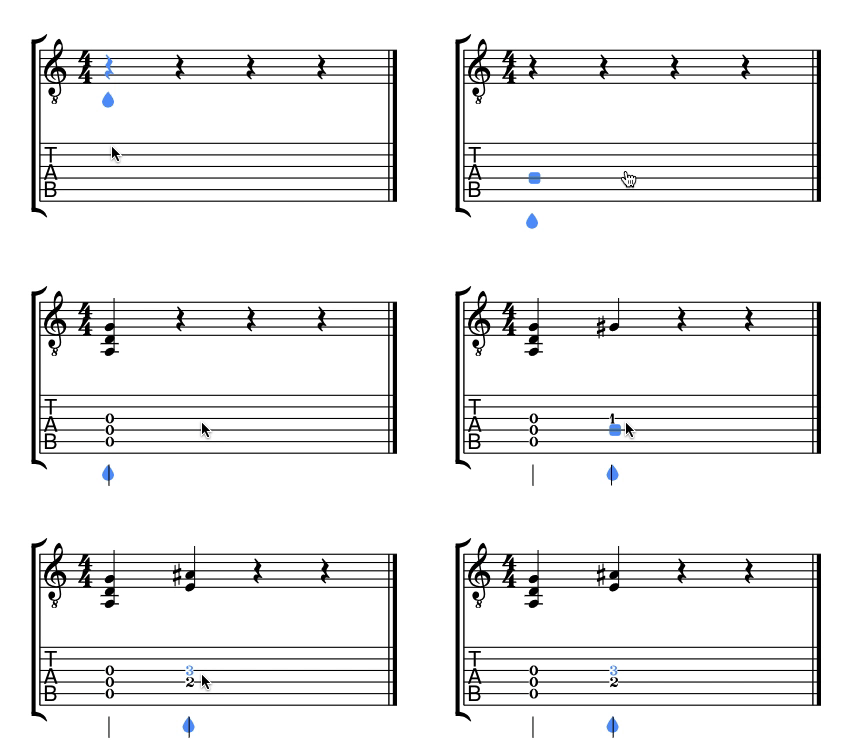
Here is a list of the shortcuts that you can use to input tabs (the complete shortcuts list is available on this page):
| Action | Shortcut |
|---|---|
| Go to next string | ↑ |
| Go to previous string | ↓ |
| Go to the previous note | ← |
| Go to the next note | → |
| Inputting frets | 0 to 9 |
| Whole Duration | ⇧ + 1 |
| Half Duration | ⇧ + 2 |
| Quarter Duration | ⇧ + 3 |
| Eighth Duration | ⇧ + 4 |
| Sixteenth Duration | ⇧ + 5 |
| Thirtysecond Duration | ⇧ + 6 |
| Sixtyfourth Duration | ⇧ + 7 |
| Move note to the next string | Ctrl + ↑ |
| Move note to the previous string | Ctrl + ↓ |
The last two shortcuts keep the pitch and change the string it is played on. See change the string assigned to a note for what happens when the target string is already taken.
Can I generate a tab from an existing score?
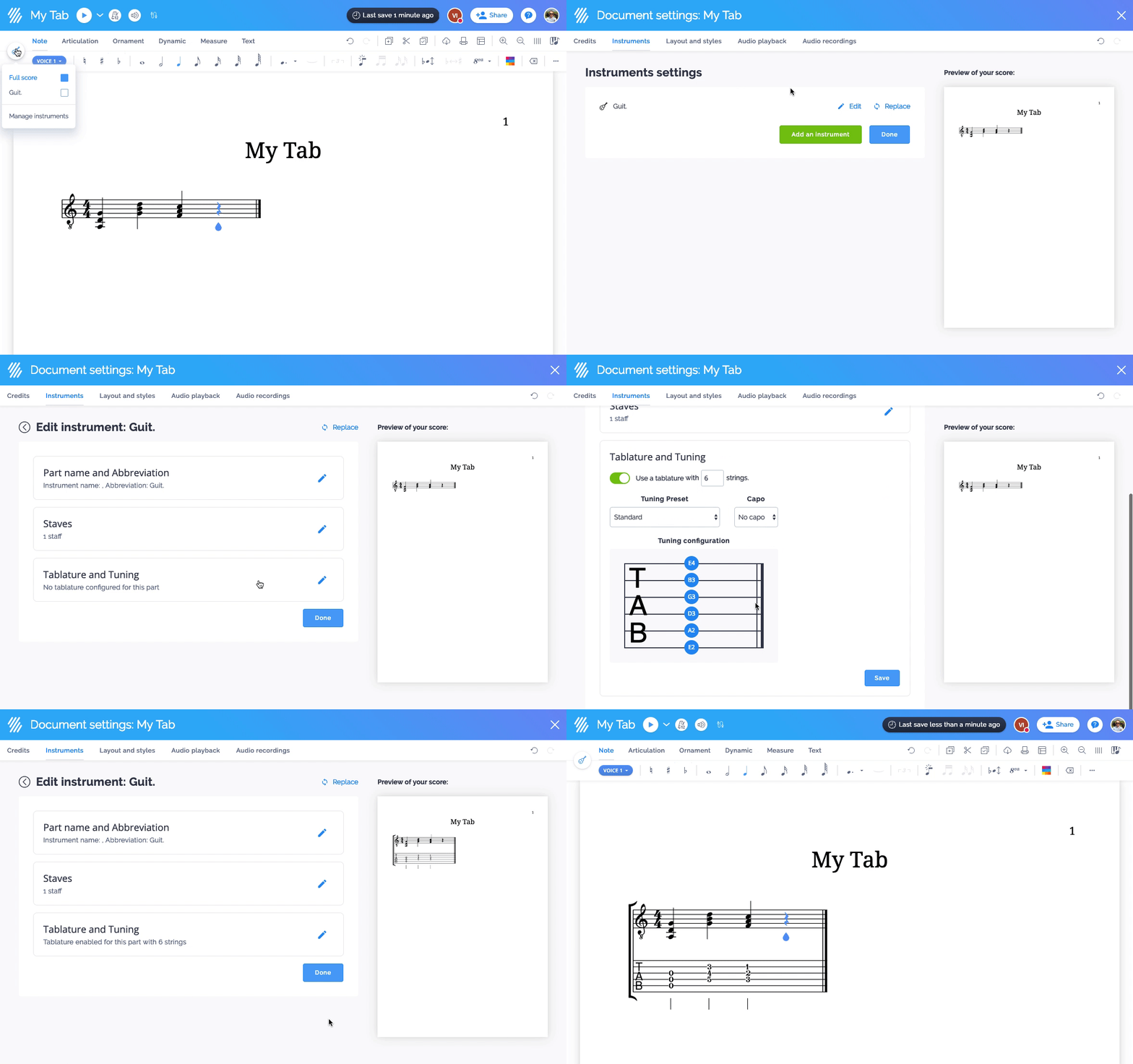
Since the tab is always synced with the notation, you can quickly generate a tablature from an existing score. Simply enable it in the instrument settings, and the staff will be updated to add the tab.
Can I print only the tabs?
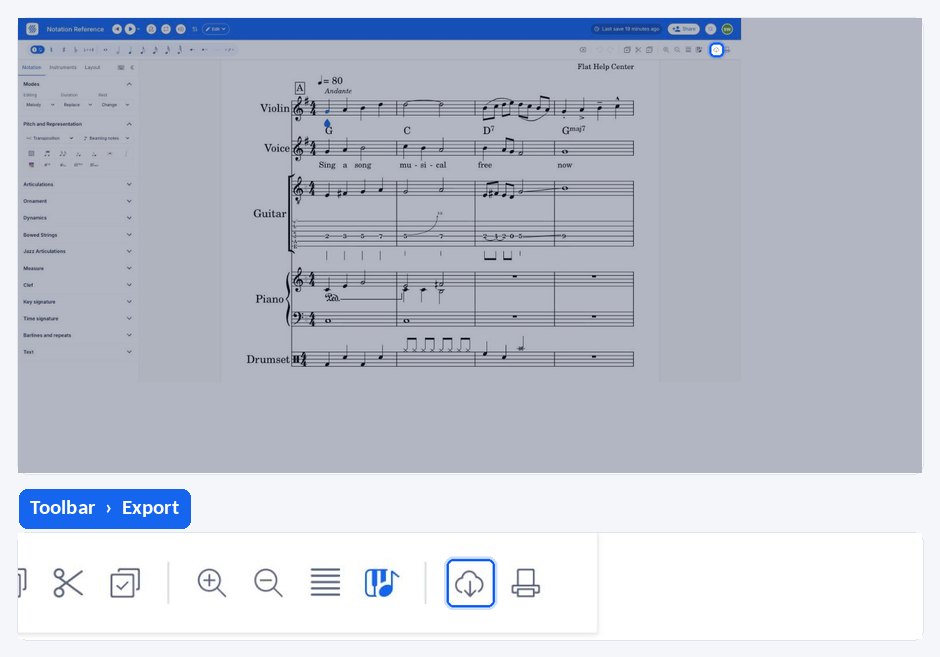
If you want to only print or export the tabs, you can enable the option while printing/exporting:
How do I enable tabs?
Tabs can be enabled when you create a new score: if you choose a plucked instrument (e.g. Guitar, Ukulele, Banjo, Mandolin), a tab is added to your score by default. A tab can also be enabled for a part at any time, together with the tuning and the capo you want to use.
Open the menu at the top right and tap Manage instruments, tap the pencil next to the part, and open Tablature. The Use tablature switch turns the tab on and off for that part. A plucked instrument - guitar, ukulele, banjo, mandolin - comes with one already.
How do I set the tuning and capo?
Setting the tuning and the capo of a tablature is not available in the Flat mobile app yet. You can still do it on the Flat website with your account: open the score there, set the tuning and capo in the instrument settings, and the tablature is rewritten on every device, the mobile app included.
We are working on bringing this feature to the mobile app.
How do I input notes on a part with a tab?
On Flat, the tab content is always synced with the music notation, so you can either input your music by inserting the notes on the notation, or on the tab. A fret written on the tab appears as a note on the standard staff immediately, and a note written on the staff appears as a fret on the tab.
Tap the string you want on the tab and enter the fret number. The notation above updates at the same time, because the two are the same music.
Can I generate a tab from an existing score?
Yes. Since the tab is always synced with the notation, enabling a tablature on a part that already has music written on it generates the tablature from that notation, and the staff is updated to add the tab. You can then adjust the frets and strings on the tab itself.
Nothing to generate by hand: the tab and the notation are always in sync, so notes written on the staff appear on the tab as you go.
Can I print only the tabs?
Yes. The print and export options include an option to output only the tablature, so a guitarist gets the tab alone instead of the tab paired with the standard notation. See print and export your scores for the full set of options.
Exporting the tab on its own is an export option rather than a part setting.
Frequently asked questions
How many strings can a tab have in Flat?
From 3 to 14. The number of strings is part of the instrument configuration, alongside the tuning and the capo, so a ukulele, a six-string guitar, and a fourteen-string harp guitar are all writable. See tablature tuning and capo for how to set them.
Do I have to write the notation and the tab separately?
No. The tab and the standard notation of a part are always synced, so whatever you write on one appears on the other. Write on whichever staff you find faster - frets with the number keys on the tab, or notes on the standard staff - and Flat keeps both in step.
How do I type a fret above 9?
Quickly type the two digits of the fret you want. Flat reads two digits typed in quick succession as a single fret number, so typing 1 then 2 without pausing gives fret 12 rather than fret 1 followed by fret 2.
Which guitar techniques can I write on a tab?
Flat writes the usual fretted-instrument markings: hammer-ons and pull-offs, slides, bends, pre-bends, and releases, palm mute and let ring, and up and down strokes. Each has its own article with the details.