Assign & Schedule Assignments
Last updated April 9, 2026
Once you've created an assignment and saved it to your Assignment Library, you can easily reuse it across multiple classes.
How to Assign an Assignment:
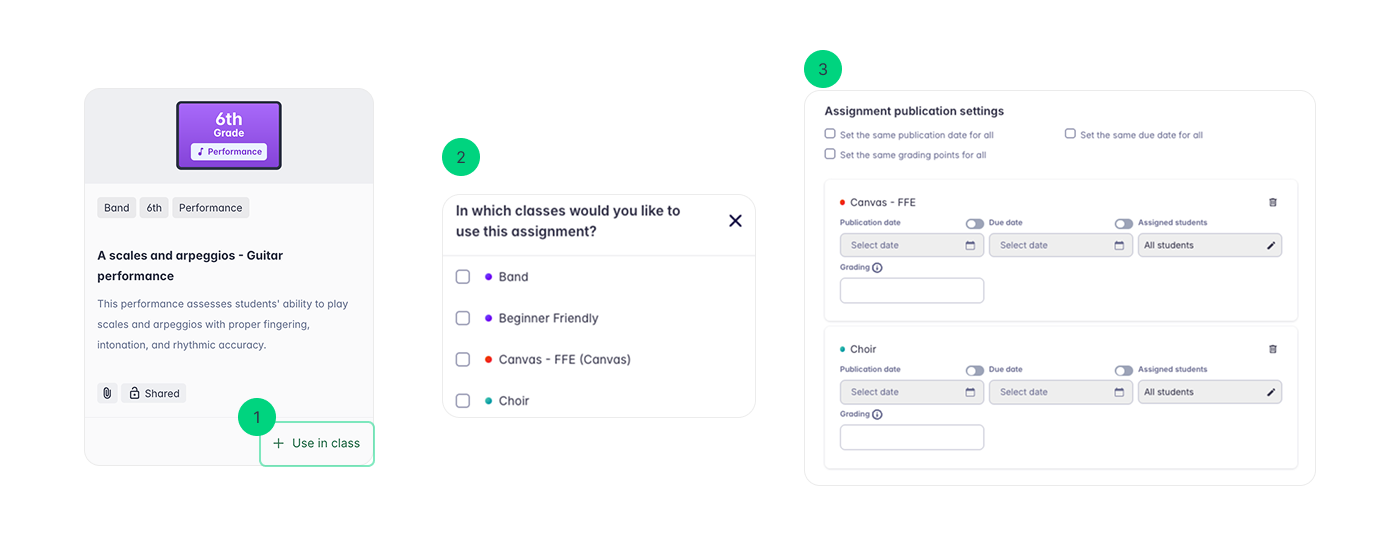
- Locate the assignment: Go to the Assignment Library and select the desired assignment.
- Choose classes: Click "Use in Class" and select the class(es) that should receive the assignment.
- Schedule and assign:
- Publication Date: Set the date and time when the assignment will become available to students (the default is "Now").
- Due Date: Set a deadline for students to submit their work.
- Assign Students: Select individual students or groups to receive the assignment. You can also provide the assignment to all students in the class.
- Bulk Assignment: When assigning to multiple classes, use the checkbox to apply the same publication and/or due date to all selected classes.
- Publish: Click "Publish" to assign the assignment to the selected class(es).
Assigning to individual students or groups
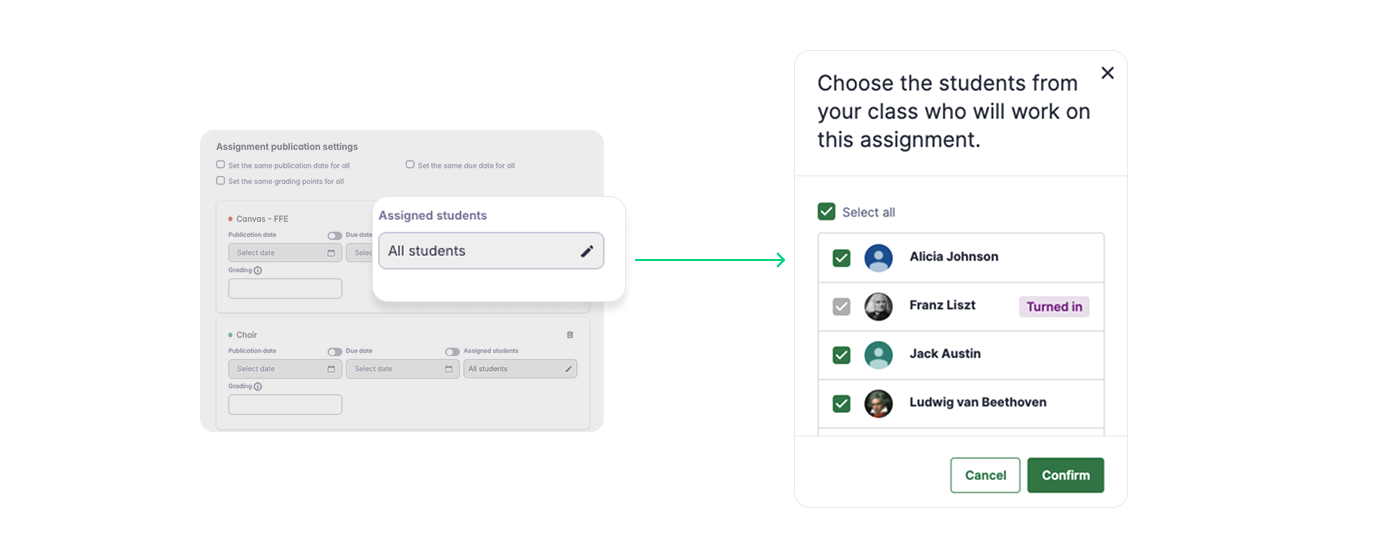
You can easily use specific assignments with individual students or groups within a class. This is helpful for creating differentiated learning experiences.
- Select Students: When dispatching the assignment to a class, click on the pen icon to select the specific students or groups that will receive the assignment.
Automatic Assignment Translation
At our core, we believe that music is a universal language—but we also know that instructions for a theory lesson or a practice routine shouldn't be a barrier to learning. We are thrilled to introduce Automatic Assignment Translation, a tool designed to ensure every student understands their goals, regardless of their native language.
What is it?
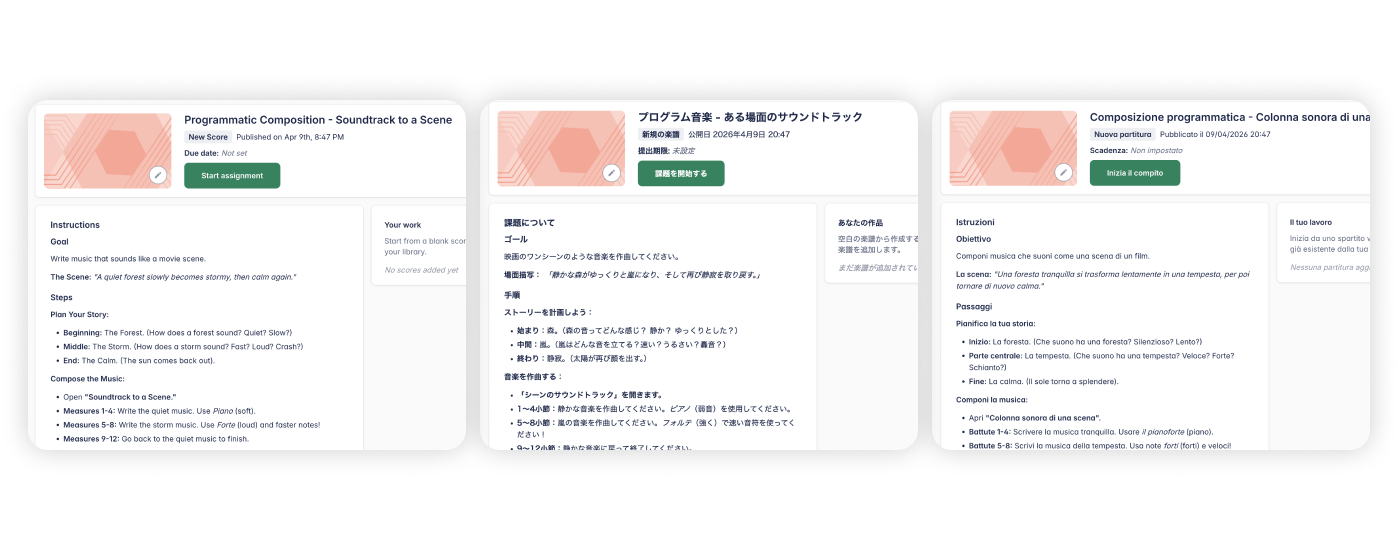
This feature acts as your personal classroom interpreter. When you share an assignment, the platform automatically translates the title and your written instructions into the language the student uses for their account.
Why this helps
We know that many classrooms are vibrant, multilingual environments. A student might be a brilliant musician but still developing their proficiency in the classroom's primary language. By removing this barrier, you ensure that every student can jump straight into the music without getting lost in the instructions.
How to use it
The best part? There are no extra steps! You simply assign your work as you always do.
If a student’s account is set to a different language than yours, the platform will handle the translation for them the moment they open the task.
Things to keep in mind
- ⚙️ Organization Settings: If your school has "forced" the platform to stay in one specific language for everyone, the automatic translation will not trigger. This feature relies on the student having a different language selected in their own settings.
- 🌎 What gets translated: Currently, the translation only applies to the assignment title and the text instructions. Any annotations made directly on a music score will remain in the original language they were written in.