Creating Assignments and Activities in Flat for Education
Last updated September 2, 2026
In this guide, you will learn how to create an assignment in Flat for Education — from choosing the right assignment type to posting it to your class.
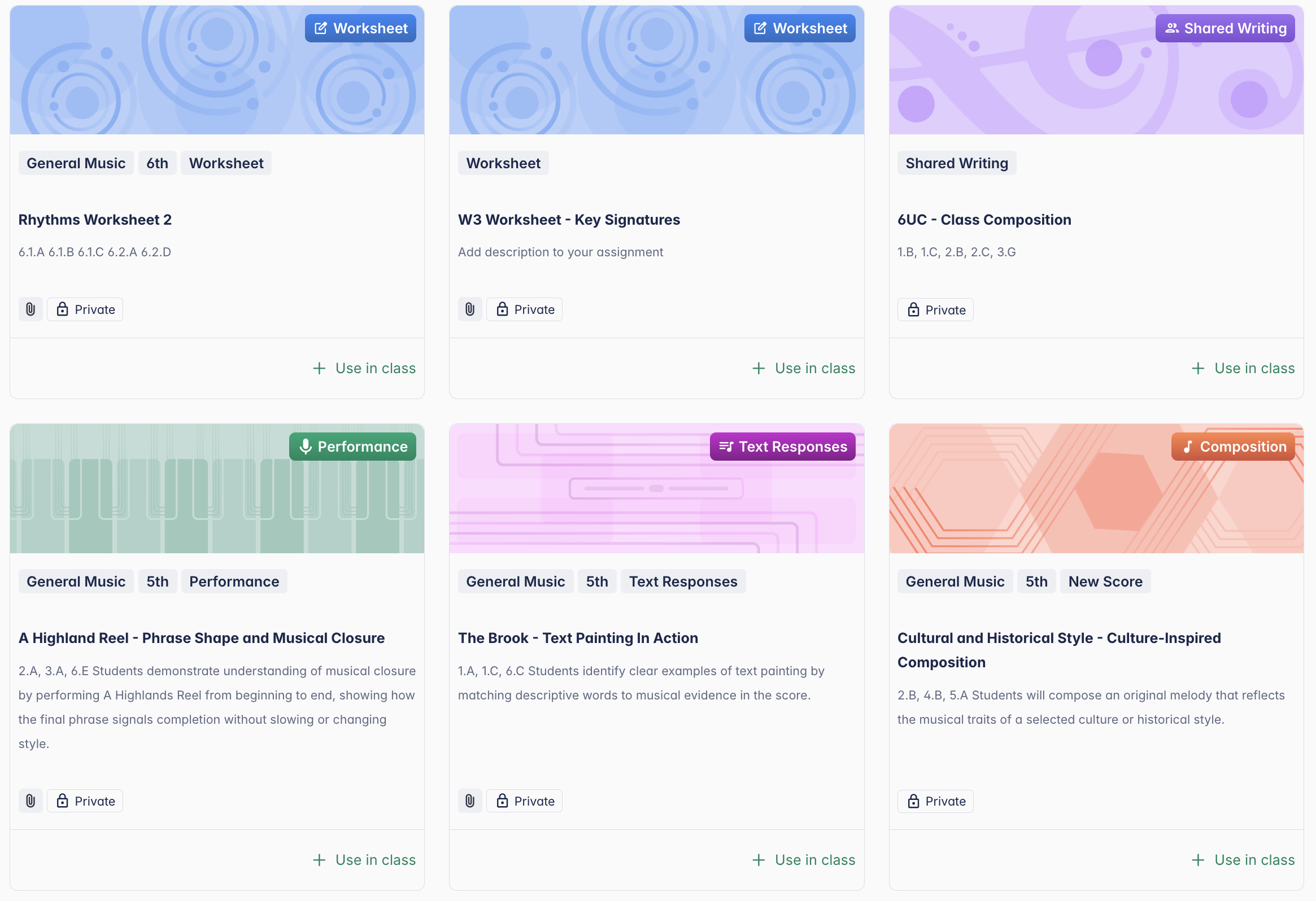
Five assignment types. One place to manage them all.
Create Composition, Worksheet, Performance, Shared Writing, or Text Response assignments — then post them to one or more classes in seconds. Grades sync automatically with Google Classroom and other LMS platforms.
Creating an Assignment
Launch your assignment
Go to your My assignments page and click + New assignment.
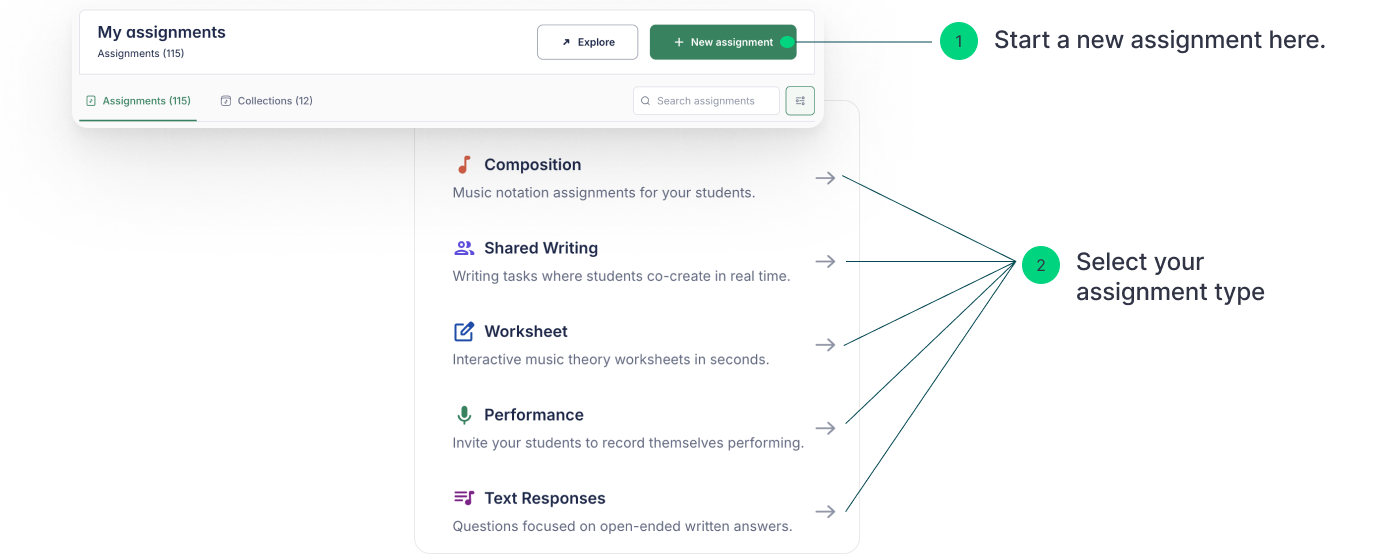
You can also launch a new assignment directly from inside a specific class, or by clicking + New assignment at the top of the editor page while working on a specific score.
Choose your assignment type
After clicking + New assignment, you'll see a menu with five assignment types. Select the one that best fits your teaching goal.
- Composition — Ideal for creative notation-based projects. Students explore music theory, develop composition skills, and deepen their understanding of musical concepts.
- Worksheet — Auto-graded music theory exercises covering pitch, rhythm, keys, chords, ear training, and more.
- Performance — Students submit audio recordings of their performances so you can provide targeted feedback.
- Shared Writing — Groups of students co-create and edit the same score in real time, building teamwork and creative expression.
- Text Response — Open-ended written reflections and analysis, ideal for evaluating musical understanding through prose.
Adjust extra settings
Depending on the assignment type, you can customize additional settings to match your teaching goals:
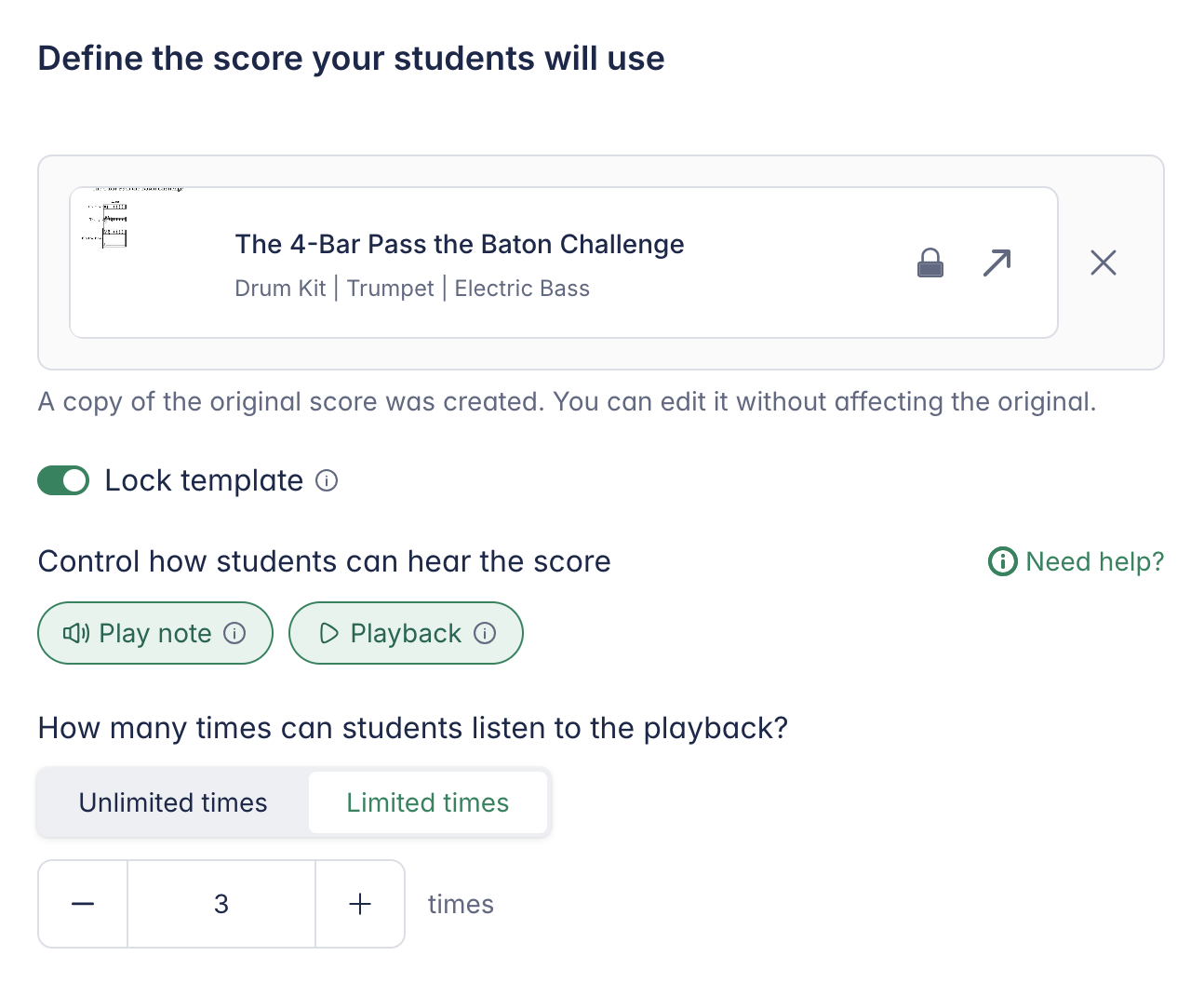
- Template locking — Prevent students from modifying the original notes of a template score.
- Playback limits — Restrict how many times students can listen to the score, useful for dictation exercises.
- Playback restrictions — Disable automatic playback or limit it to specific audio tracks.
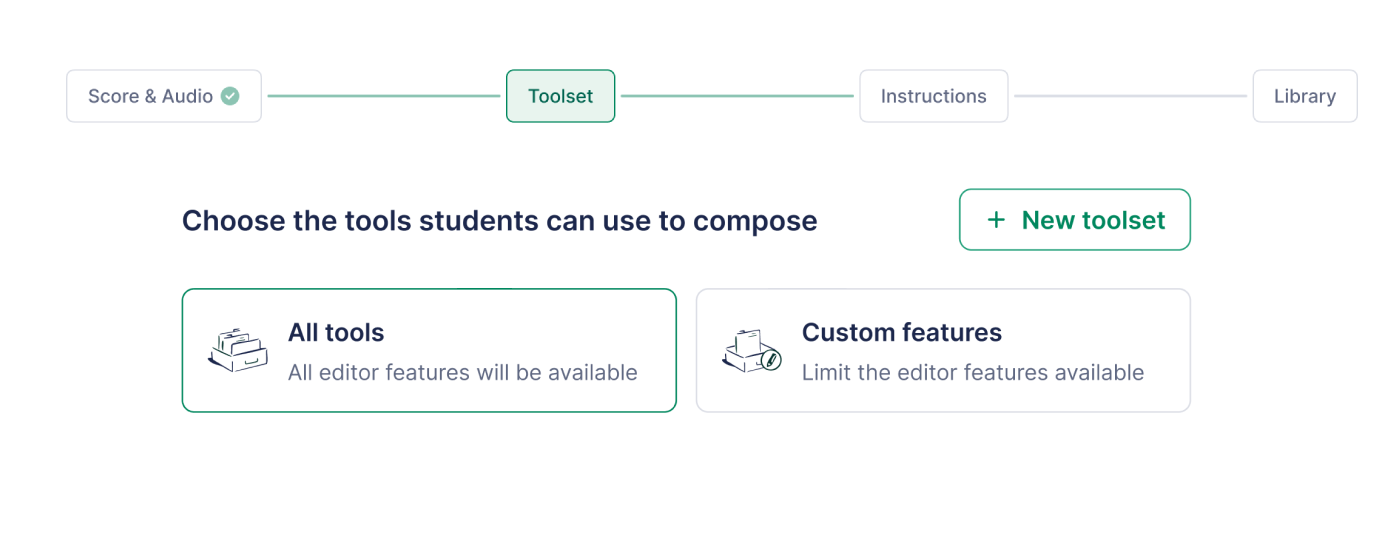
- Toolset restrictions — Control which notation tools students can access.
Fill in the assignment details
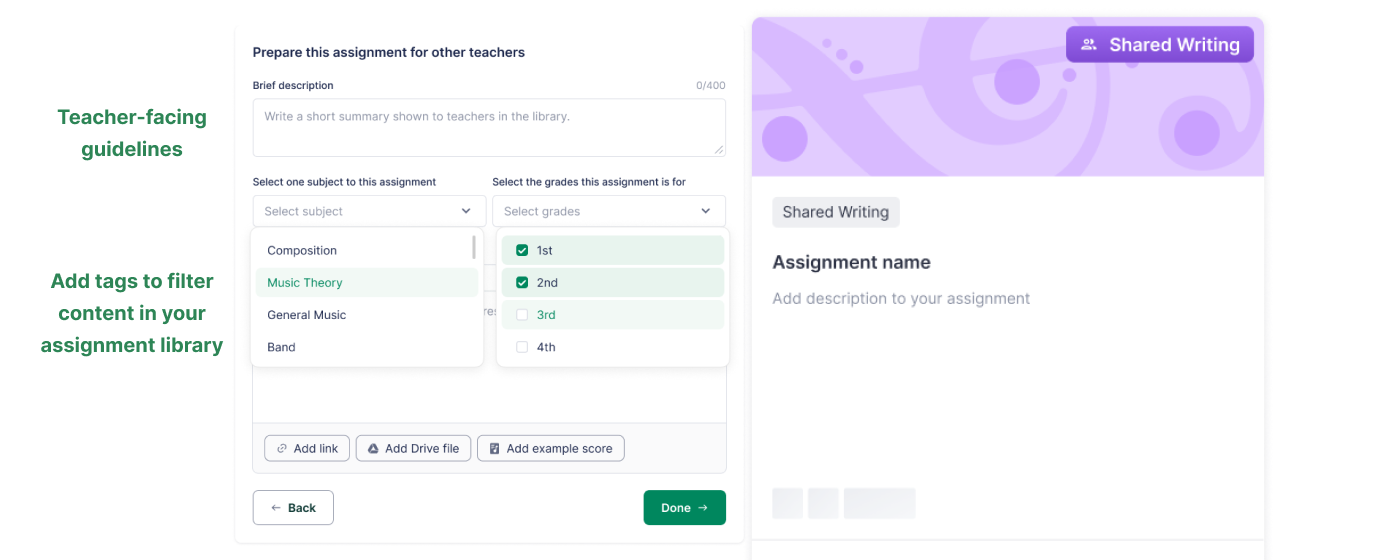
Once the extra settings are configured, you can add the following information to make your assignment easier to organize in your library or to share with your colleagues.
- Instructions — Guidance for students, including written directions and attached files (PDFs, images, audio, or external links).
- Description — Teacher-facing notes, especially useful when sharing assignments with colleagues.
- Tags — Organize by grade level and topic for easy searching on the My assignments page.
Save and post your assignment
When you're ready, click Done to save the assignment to your My assignments page.
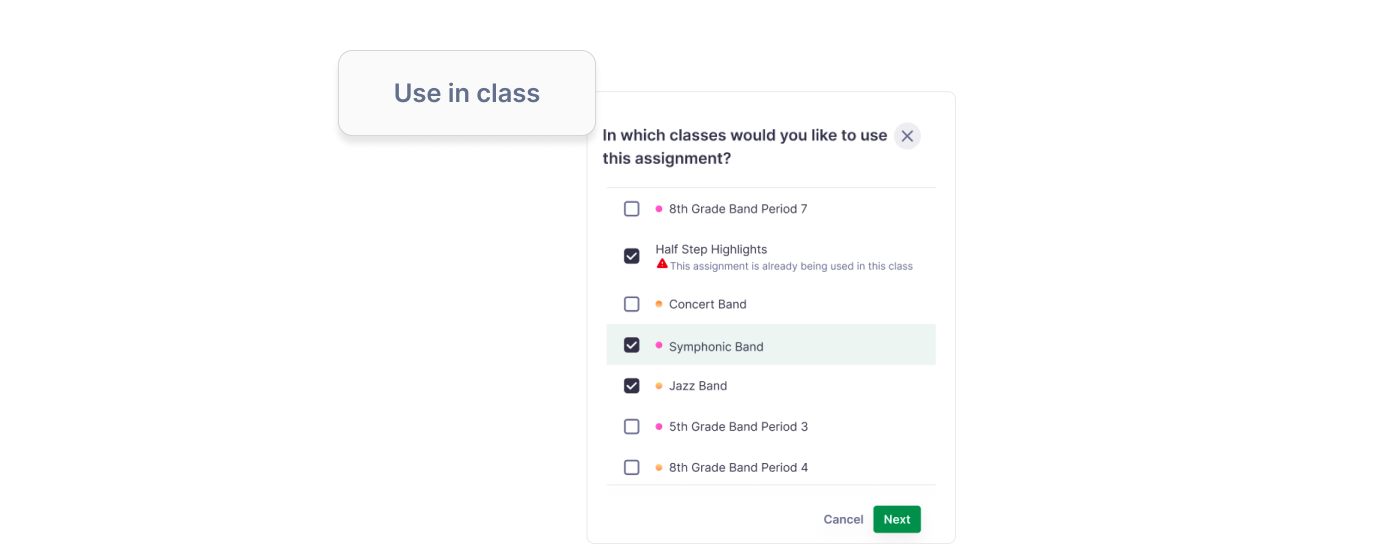
Then click Use in class to choose which classes to assign it to.
Reviewing Student Work
Once students start working, you can track their progress, leave feedback, and release grades — all from the assignment page. See the grading and feedback guide for a full walkthrough.
Video walkthrough
Watch these step-by-step tutorials for a full overview of creating assignments in Flat for Education: