Auto-graded Worksheet Assignments in Flat for Education
Last updated September 2, 2026
In this guide, you will learn how to create auto-graded music theory worksheets in Flat for Education, customize the exercise types and settings, and review student results — all from your teacher account.
Auto-graded music theory practice, ready in minutes.
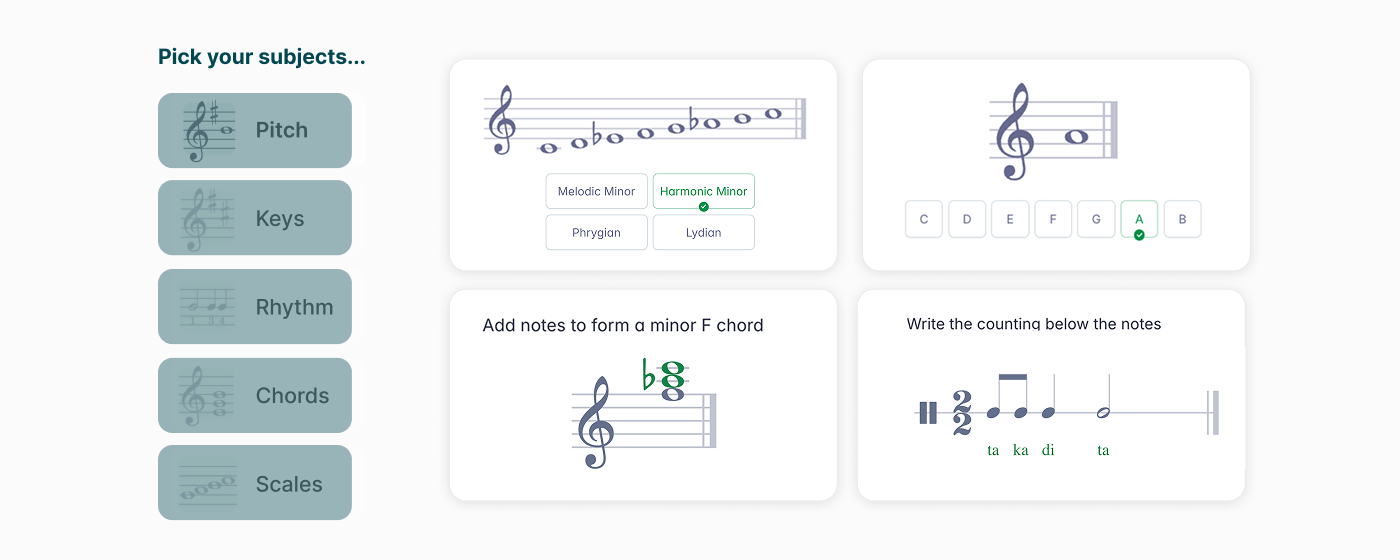
Build customizable worksheets covering pitch, rhythm, keys, chords, ear training, and more. Students complete them online and get instant feedback — saving you time on grading.
Creating a Worksheet Assignment
Launch your assignment
Go to your My assignments page and click + New assignment. Then select Worksheet as the assignment type.
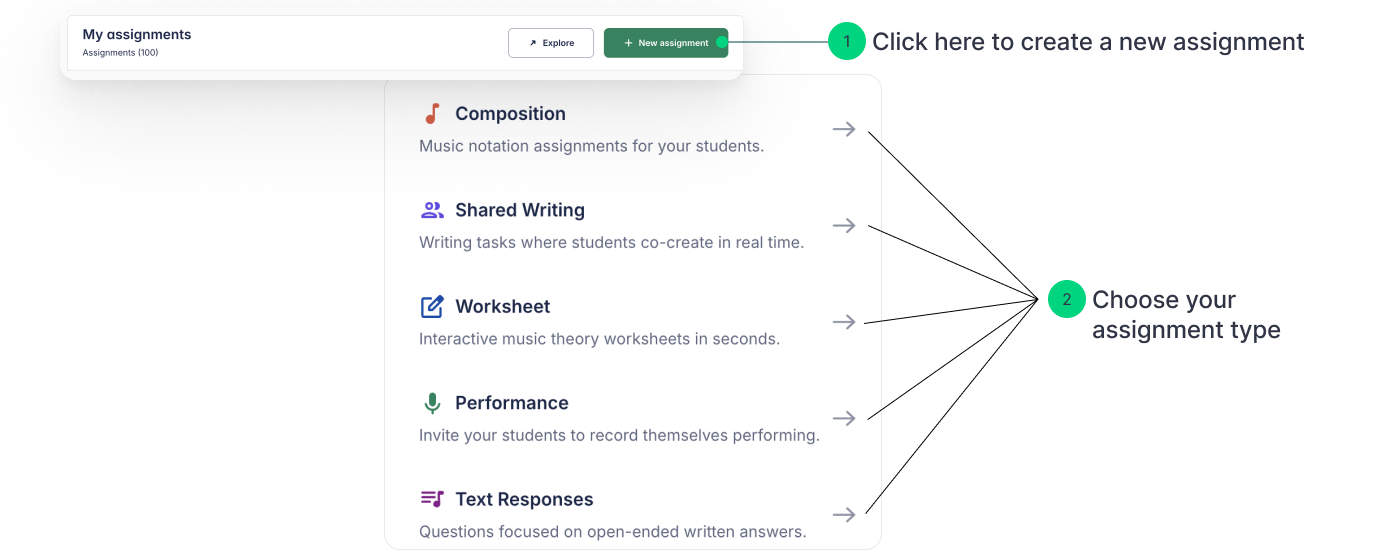
You can also launch a new assignment directly from inside a specific class.
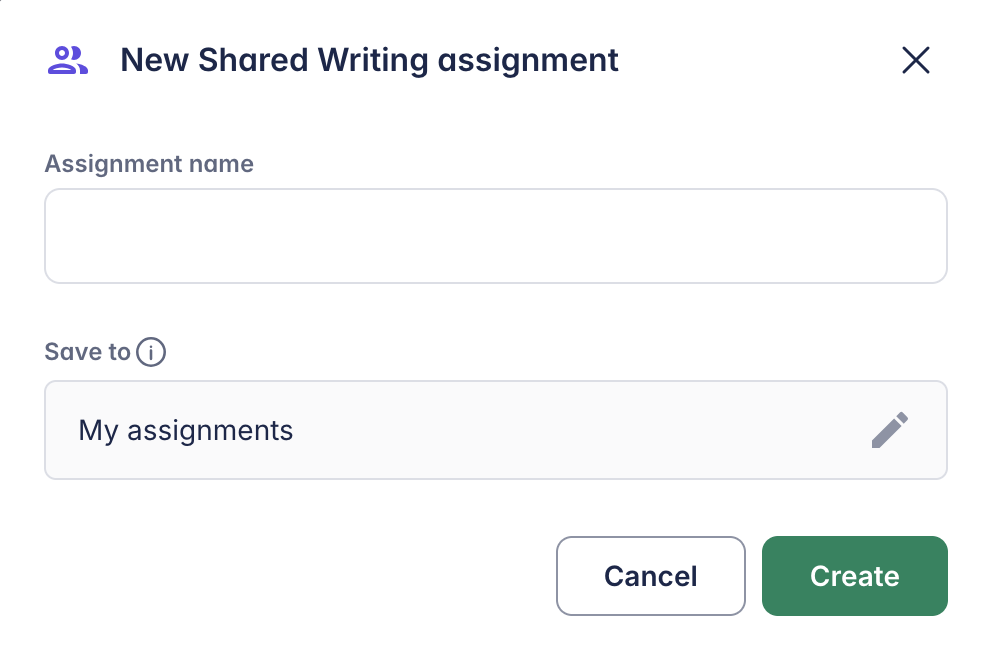
Name your assignment
Choose a clear and descriptive name that both you and your students will recognize. Once you’ve named it, you’ll be guided through the step-by-step configuration.
Configuring your assignment
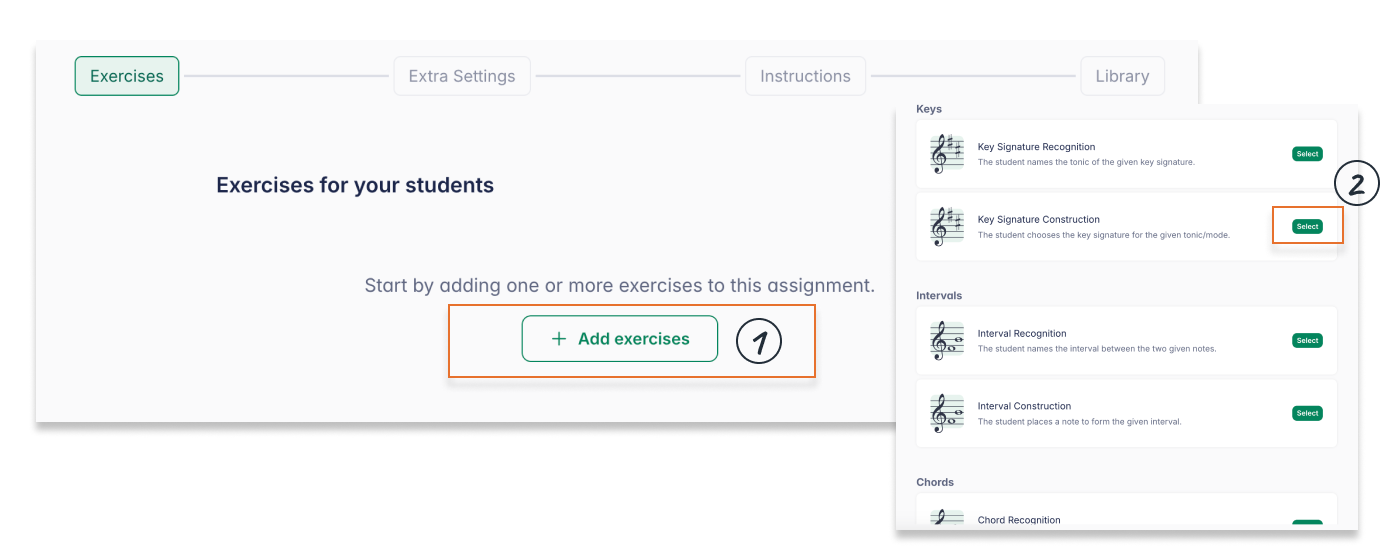
Add exercises
Click Add exercise to open the sidebar and select from the available exercise types. See the Exercise Types section below for the full list of available topics.
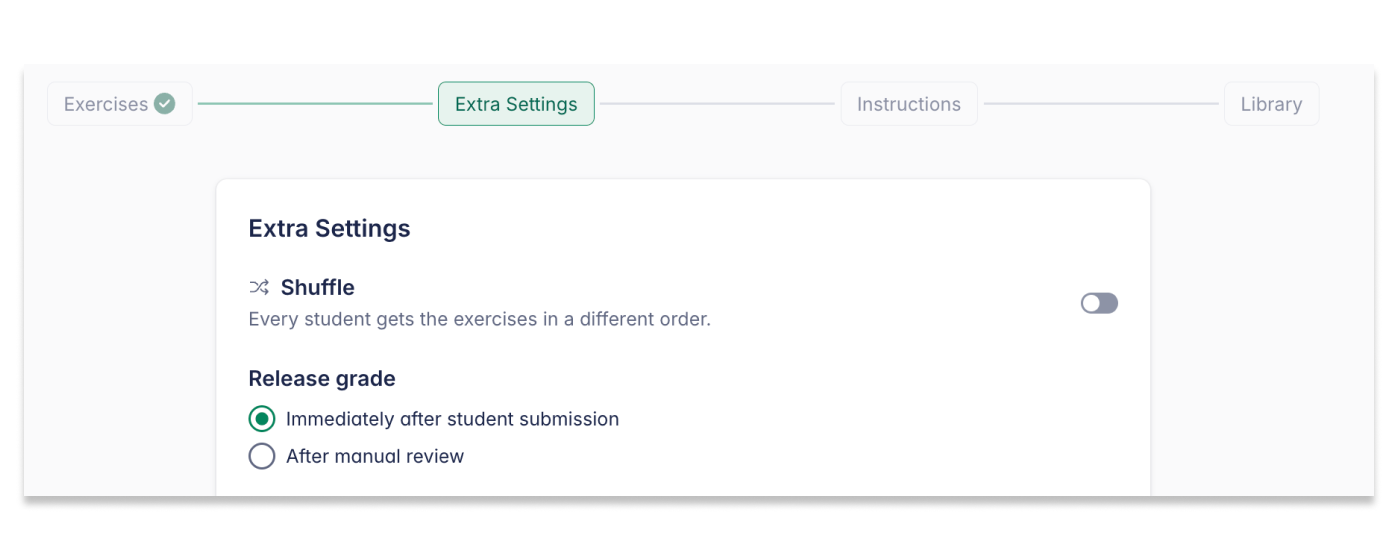
Customize worksheet settings
Adjust how your worksheet behaves based on your teaching goals:
- Shuffle questions — Randomize question order for each student, ideal for quizzes and exams.
- Release grades — Choose when students can see their results:
- Instantly — Automatically released upon submission
- After teacher review — You manually review and release grades
Add instructions
Provide clear instructions to guide students through the assignment. You can also attach supporting resources — documents, presentations, videos, audio files, or read-only scores for reference.
The instructions editor supports rich-text formatting including bold, italic, and bullet points — use it to make your instructions clear so students understand their goal and can work without confusion.
Sharing options and library organization
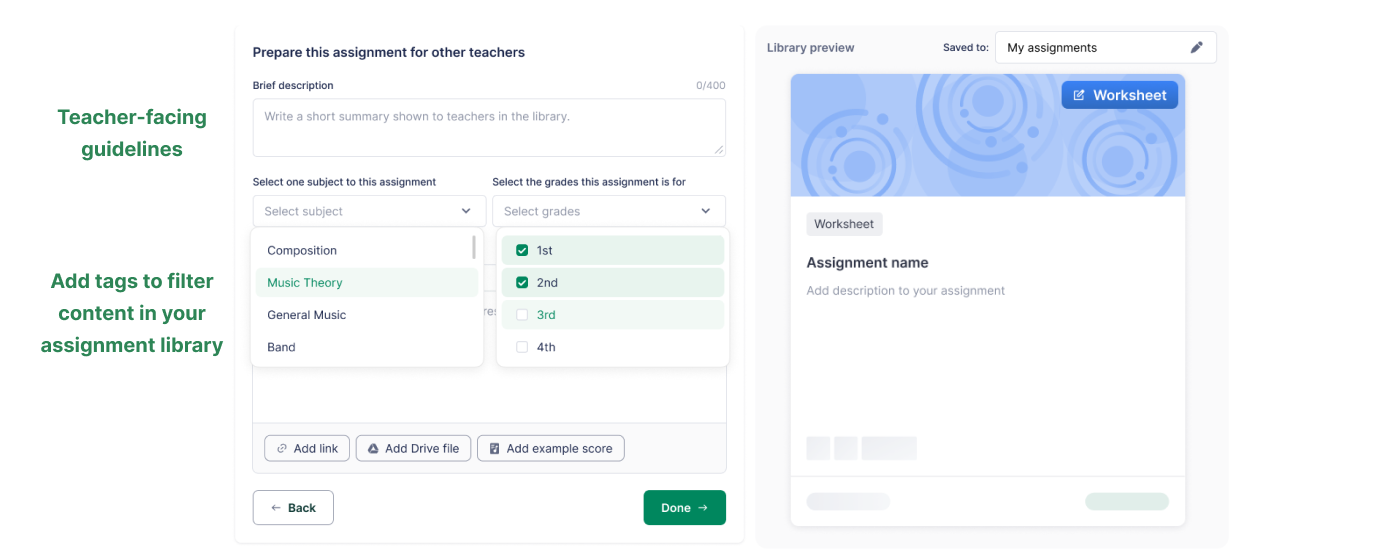
All assignments are saved in your My assignments page and can be shared with other teachers in your organization.
To make sharing easier:
- Add teacher-facing guidelines to explain how the assignment should be used
- Add tags such as topics and grade levels to help you (and colleagues) find it quickly
Post your assignment
Once everything is ready, click Publish to assign it to one or more classes. Use Student Preview to see exactly what your students will experience before they do.
Exercise Types
Worksheet assignments cover a wide range of music theory topics — suitable for all levels, from basic music literacy to advanced theory.
Pitch & keyboard
- Pitch recognition — Identify pitches using letter names or solfège (fixed or movable Do)
- Pitch construction — Place notes on the staff with correct accidentals
- Keyboard pitch construction — Identify notes on a piano keyboard
Keys, scales, and intervals
- Key recognition — Identify the tonic of a given key signature
- Key construction — Create the correct key signature for a given tonic and mode
- Interval recognition — Name given intervals
- Interval construction — Place notes to form specified intervals
- Scale recognition — Identify the mode of a given scale
- Scale construction — Add accidentals to create a scale in a given mode
Chords
- Chord identification — Identify the type of a given chord
- Chord construction — Build chords from a given root and chord type
Rhythm
- Beat counting — Notate the beat count below a given rhythm
- Beats identification — Identify the correct beat count for a rhythm
- Duration identification — Name the duration of rhythmic symbols
- Duration construction — Select the correct rhythmic symbol for a given duration
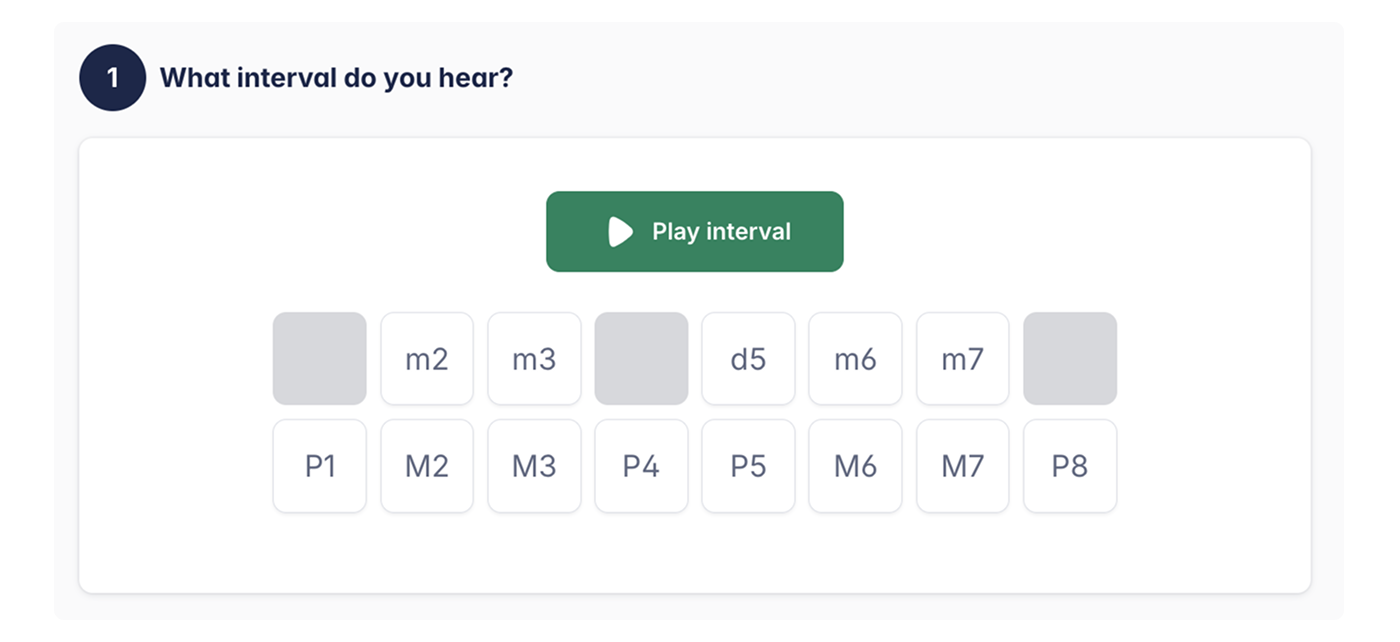
Ear Training (New)
Students listen to a short audio excerpt and identify the interval — great for building aural skills.
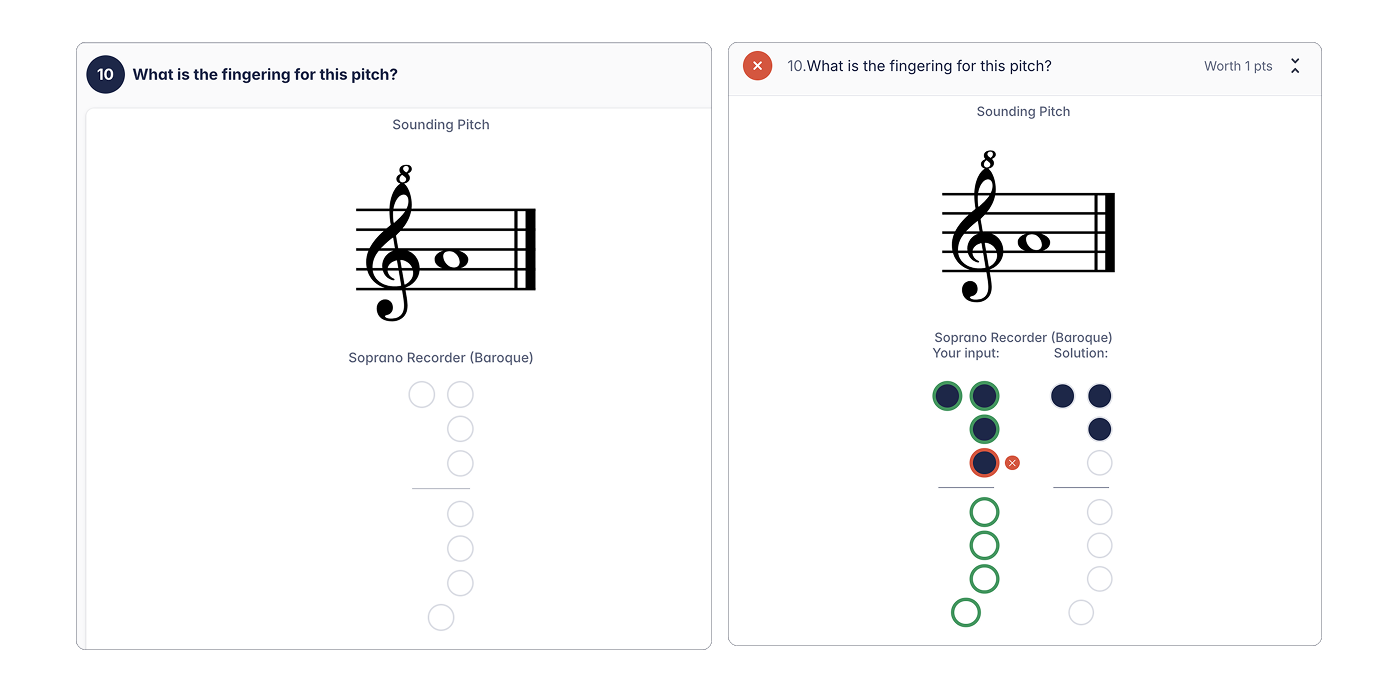
Recorder Fingering Construction (New)
Students click to toggle the holes on a recorder diagram to find the correct fingering.
Reviewing Student Work
- View submissions in the Students' Work section.
- Click on a student's name for direct access to their responses.
- If you selected After teacher review, you'll need to evaluate each response before the grade is finalized.
- Use the built-in feedback tools to leave comments and scores.
Automated Grading & Analytics
Flat for Education grades worksheet responses automatically, so results are ready the moment a student submits. For a deeper look at how your class is doing, open the Analytics tab.
To access the Analytics tab:
- Open the class containing the worksheet assignment.
- Click on the assignment and select Analytics.
- Review student progress and performance data.
The Analytics tab shows:
- Class performance summaries (average scores, participation rates)
- Detailed breakdowns of student responses per exercise type
- Trends in student learning to help you identify areas for improvement
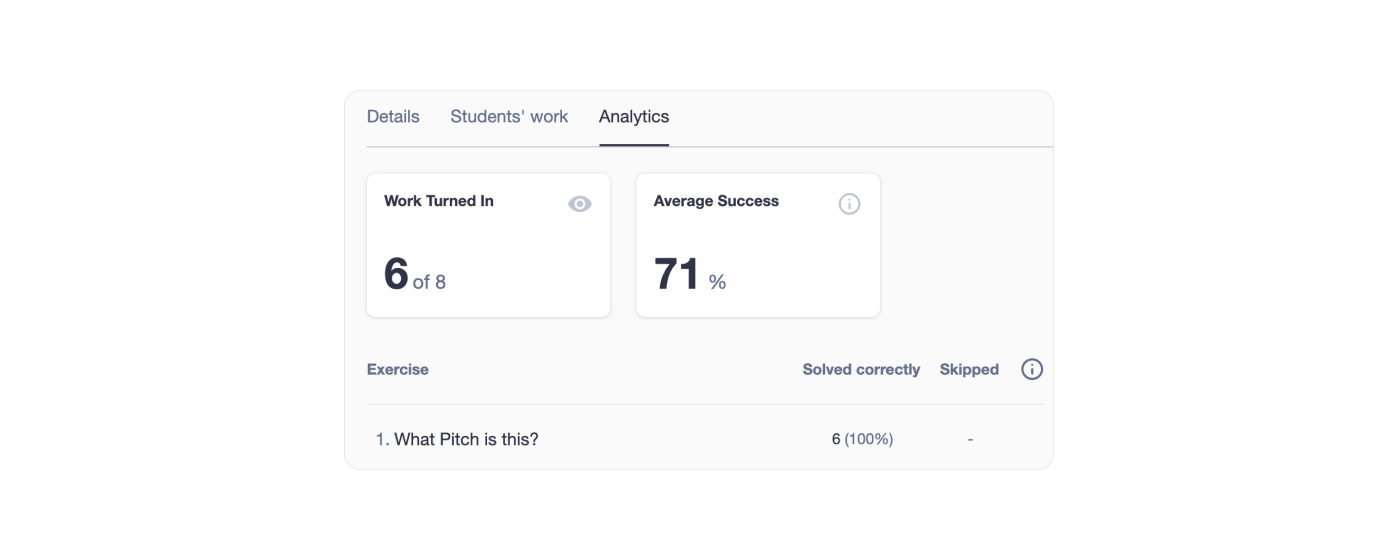
Grades are automatically synchronized with Google Classroom and other supported learning management systems (LMS) including Microsoft Teams, Canvas, Schoology, and Moodle. Learn more about LMS integrations.
Other grading and reviewing features work the same as for other assignment types — see the grading and review guide for details.
How to Print your Worksheets
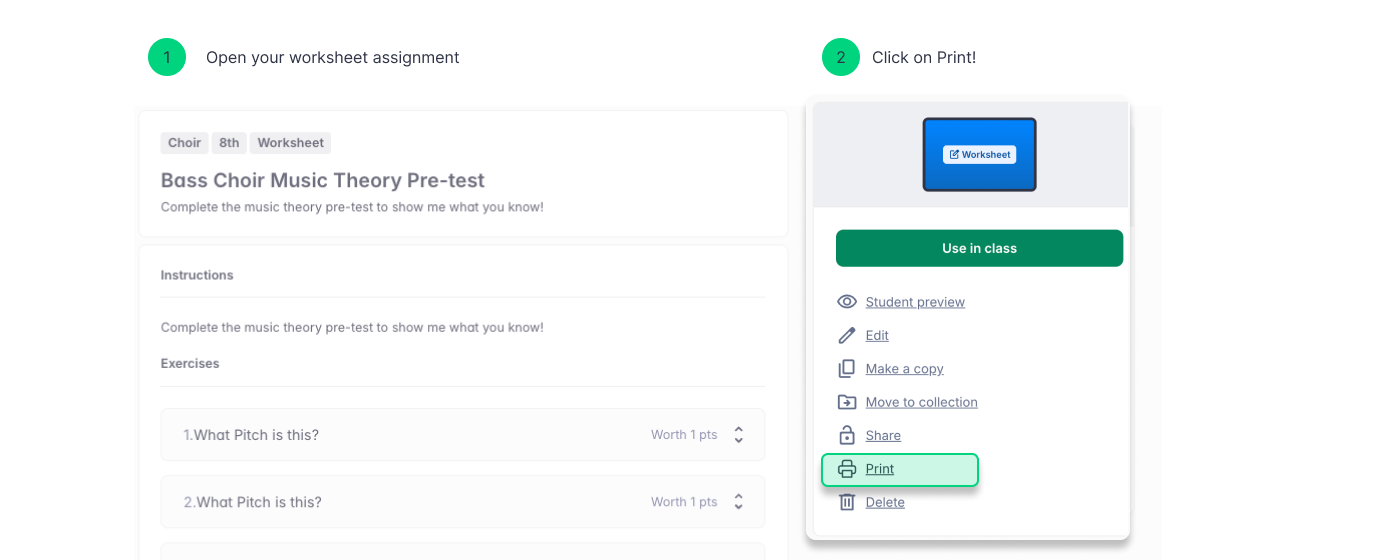
We understand how important flexibility is for educators. That’s why any worksheet you create in Flat for Education can also be printed for offline use. Here's how:
- Open or create a worksheet in My assignments page
- Click More actions and select Print.
Your worksheet is ready to print.
Tutorials and links
For more information on how to use worksheet assignments, watch this video tutorial!
Looking for inspiration? Open your My assignments page, go to the Sample folder, and explore ready-made worksheet examples you can adapt for your class.