How to Reset a Student's Password
Last updated June 24, 2026
We know that a forgotten password can bring a great music lesson to a sudden halt. To help you keep your class moving without a hitch, you can reset your students' passwords directly from the People page.
Note: Password reset only applies to accounts that sign in with an email + password. If your student signs in via Google, Microsoft, or an LMS (Canvas, Schoology, etc.), their password is managed by that provider — ask your school IT admin to reset it there instead.
1. How to reset a student's password
Step 1: Open the People page
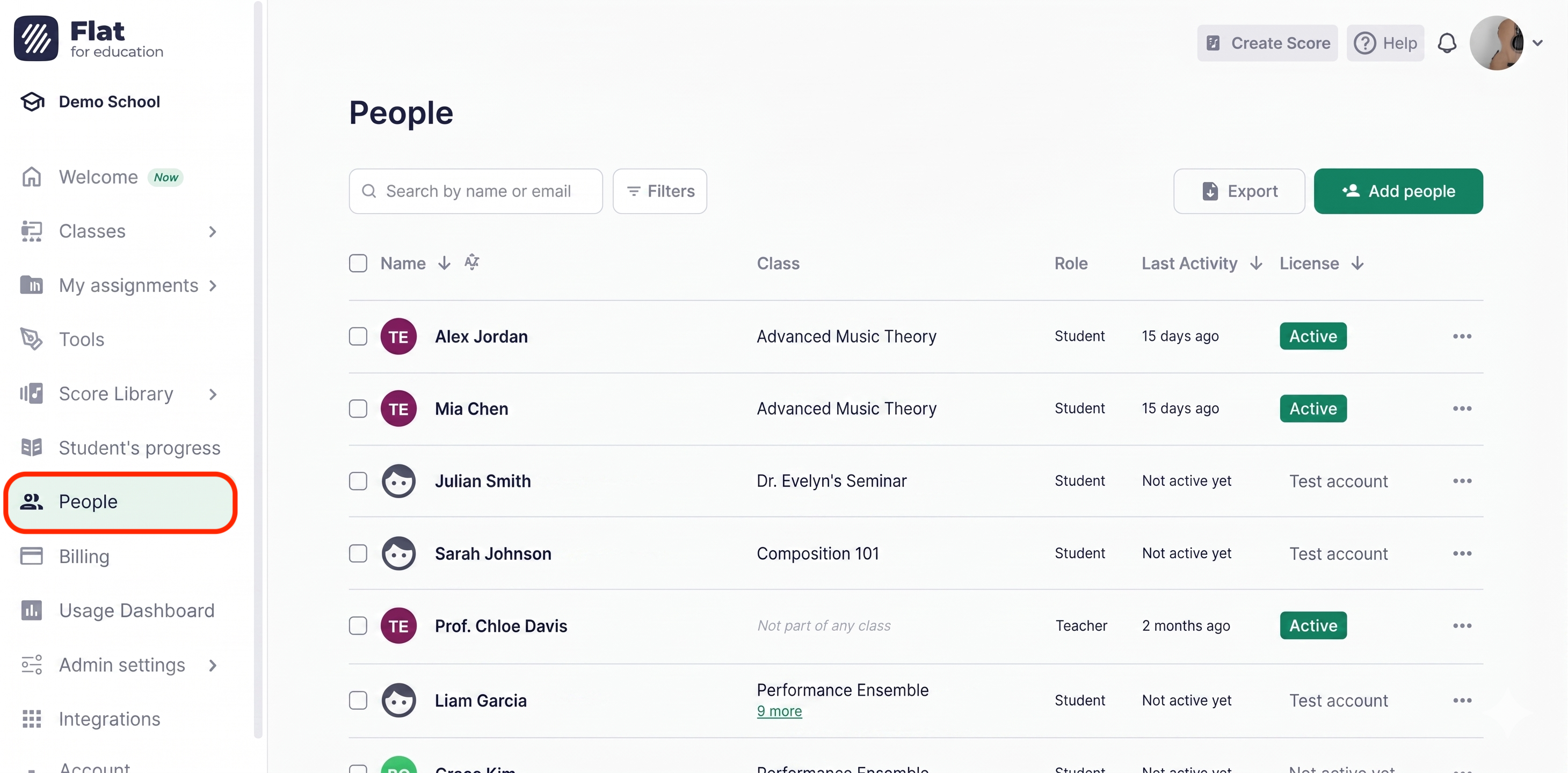
From your main dashboard, click on People in the left-hand navigation.
Step 2: Find the student
Use the search bar to look up the student by name or email address.
Step 3: Open their options menu
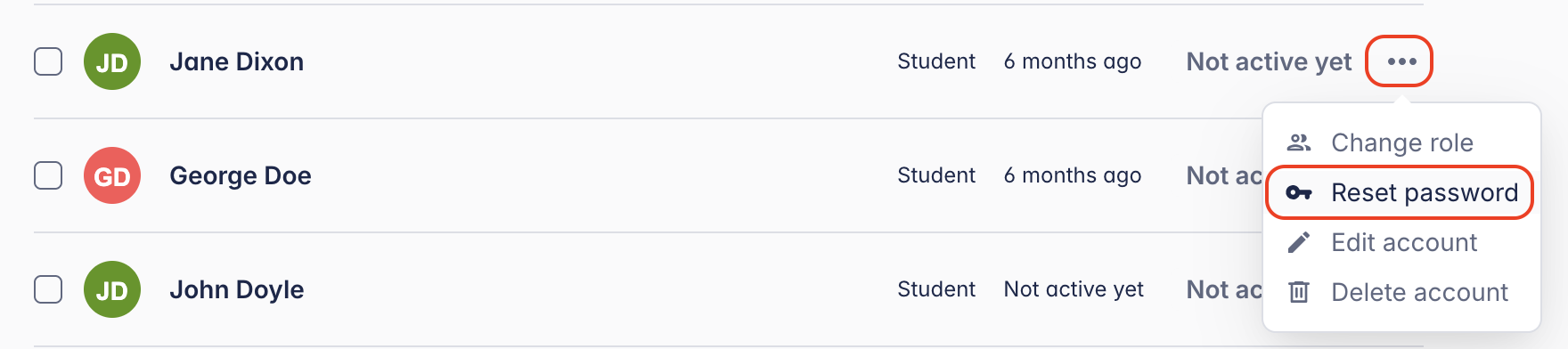
Click the ⋯ (more options) button next to the student's name.
Step 4: Select "Reset password"
Choose Reset password from the dropdown.
Step 5: Set and share the new password
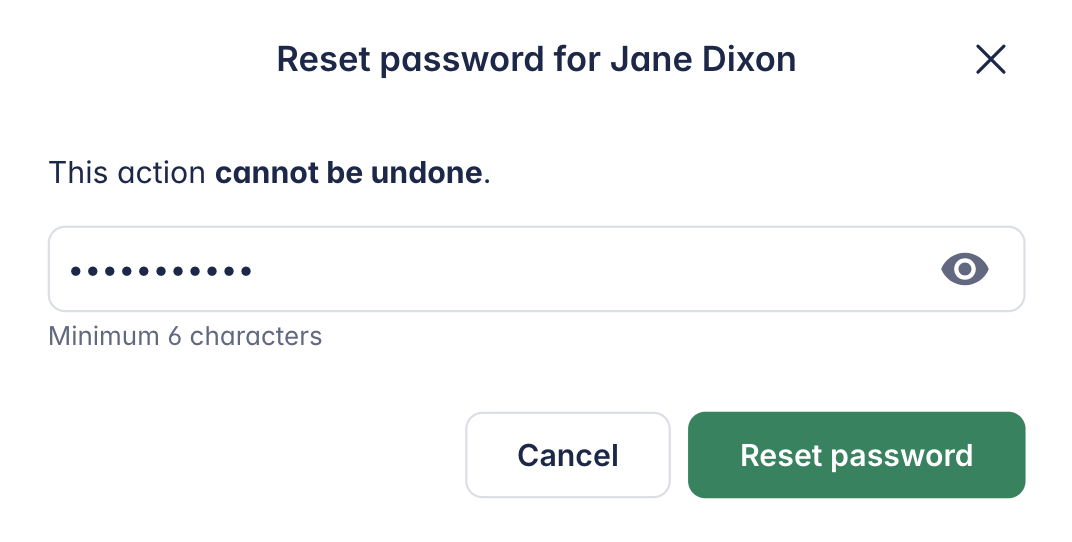
Type a new temporary password and click Save. Then share it securely with your student — they can update it themselves once they are logged back in.
Who can reset a student's password?
| Role | Can reset student passwords? |
|---|---|
| Admin | ✅ Yes — any student in the organization |
| Teacher | No |
| Student | ✅ Yes — their own password only, from Account Settings |
How students can update their password
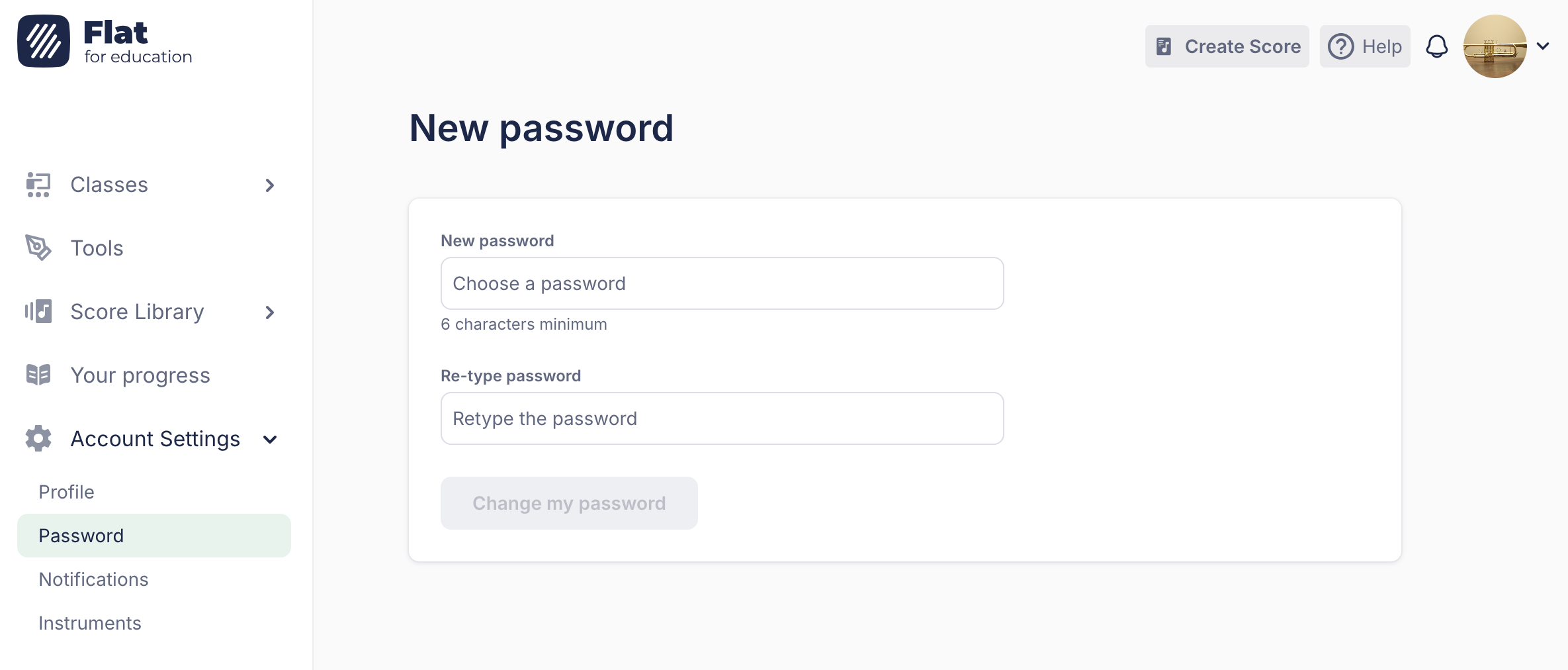
If a student needs to change their password from within their account, they can easily do so by following these steps:
- Open Account settings.
- Navigate to the Password section on the menu.
- Type in their new password and save the changes.
Need more help? Our team is always here — contact us.