The Assignment Library
Last updated September 2, 2026
Efficiently manage and organize your assignments in Flat for Education
The Assignment Library is your central hub for creating, organizing, and sharing resources. Unlike a specific class's feed, the Library acts as a permanent storage space for your "Master Templates," making it effortless to reuse materials year after year.
Creating Assignments
The Library is the best place to draft your "Master Templates" before sending them to a class.
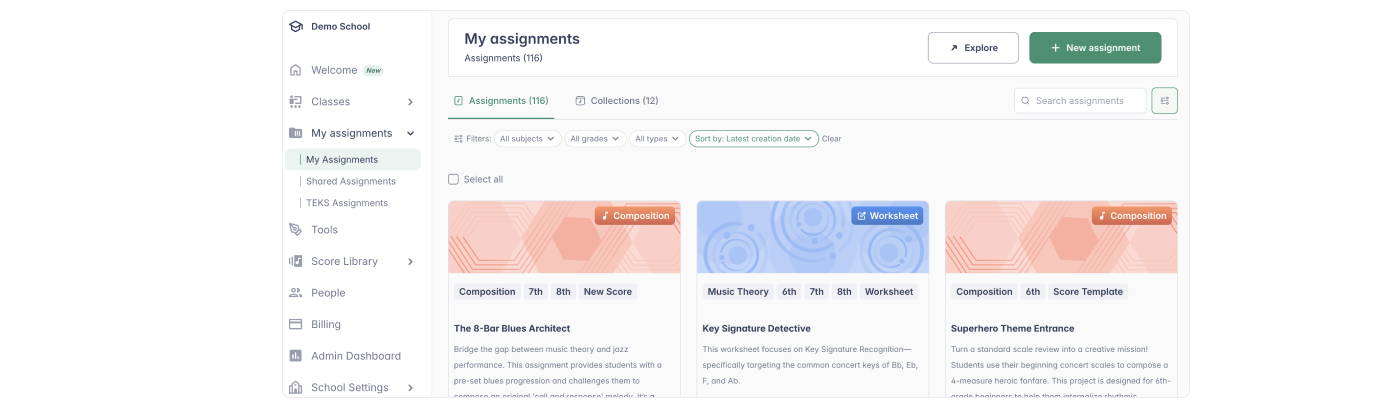
See how to create each specific assignment type on our dedicated guide pages:
- Composition assignment: For original notation and creative projects.
- Shared writing: For real-time collaboration between students.
- Worksheet assignment: For theory exercises and automated grading.
- Performance assignment: For recording and evaluating student performances.
- Text responses: For reflections, analysis, and written answers.
3 Sections to Organize, Collaborate, and Stay Inspired
The library is organized into three distinct tabs to help you find exactly what you need:
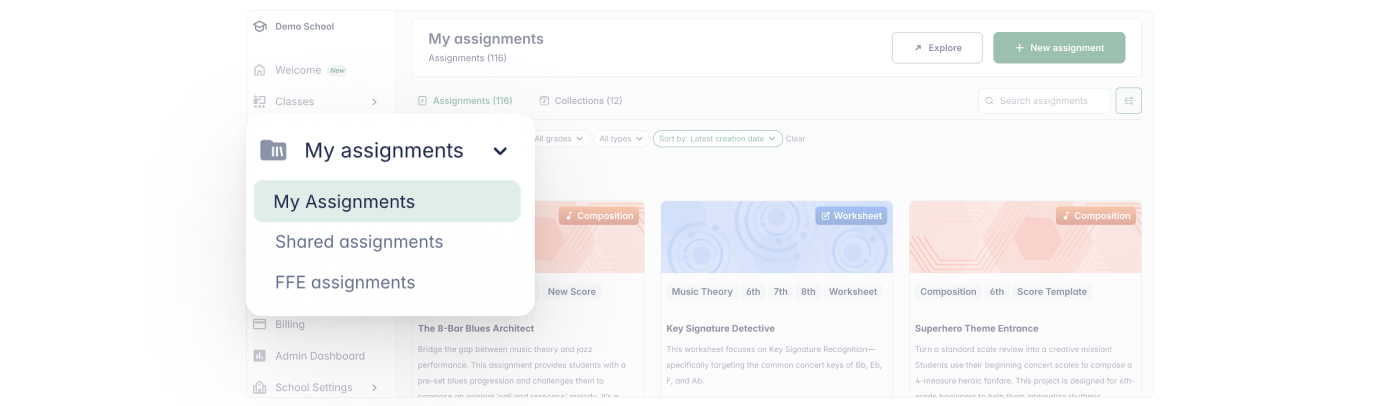
- My Assignments (Your Personal Workspace)
Use this to build your curriculum and organize assignments into custom folders. - Shared Assignments (Your Team Workspace)
Collaboration made easy. Access resources shared by colleagues within your organization or view what you’ve shared with others. - FFE Assignments (Your Inspiration Hub)
Ready-to-use templates created by the Flat for Education team. Perfect for quick lessons or inspiration. Use them as-is or customize them to fit your needs.
1. Organizing for Easy Reuse
Use Collections to folder your assignments and keep your workspace clean. By grouping related work together, you ensure your curriculum is future-proof—rather than digging through old classes, you can instantly find and re-deploy your "Greatest Hits" in seconds.
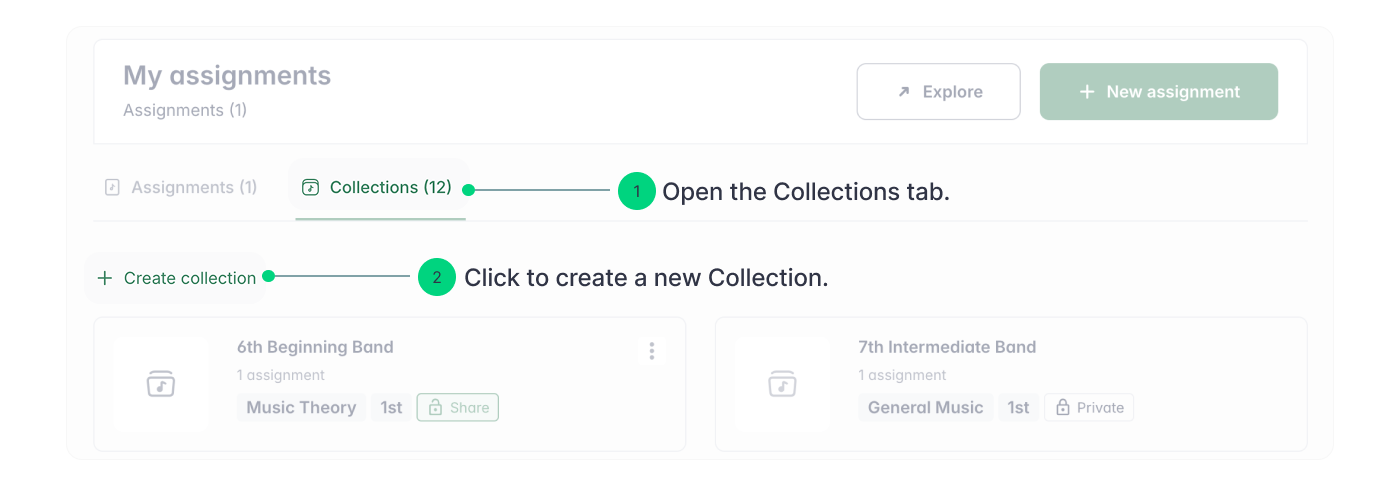
How to Create a New Collection
If you haven't created a collection yet:
- Open the Collections tab.
- Click "+ Create Collection"
How to Add Assignments to a Collection
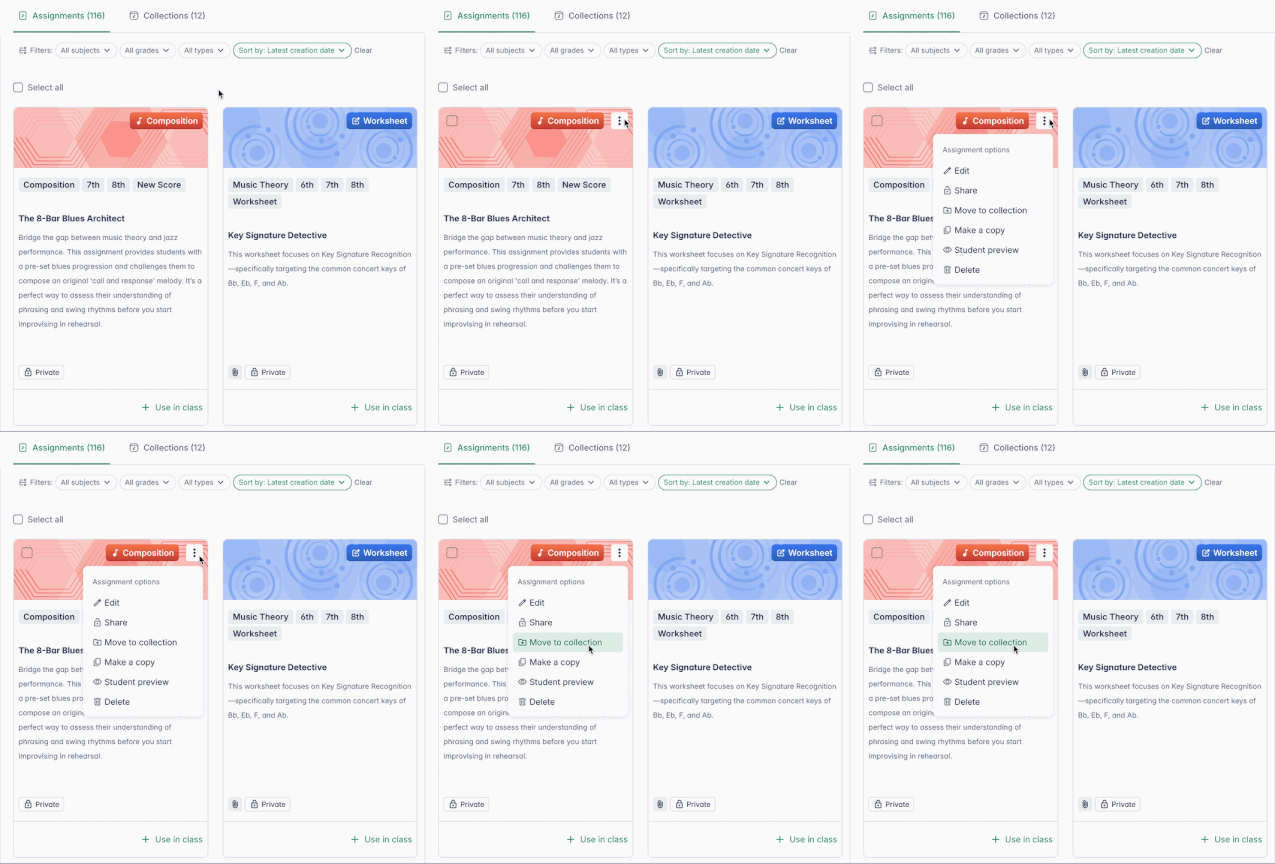
Hover over the assignment card you wish to move.
- Click the three dots (⋮) in the top right corner.
- Select "Move to Collection" from the menu.
- Select the specific collection you want to move the assignment to.
2. Search & Filtering
Find exactly what you need in seconds, no matter how large your library grows.
Search Bar
Located at the top of the Library. Type any keyword from the assignment title to filter results instantly.
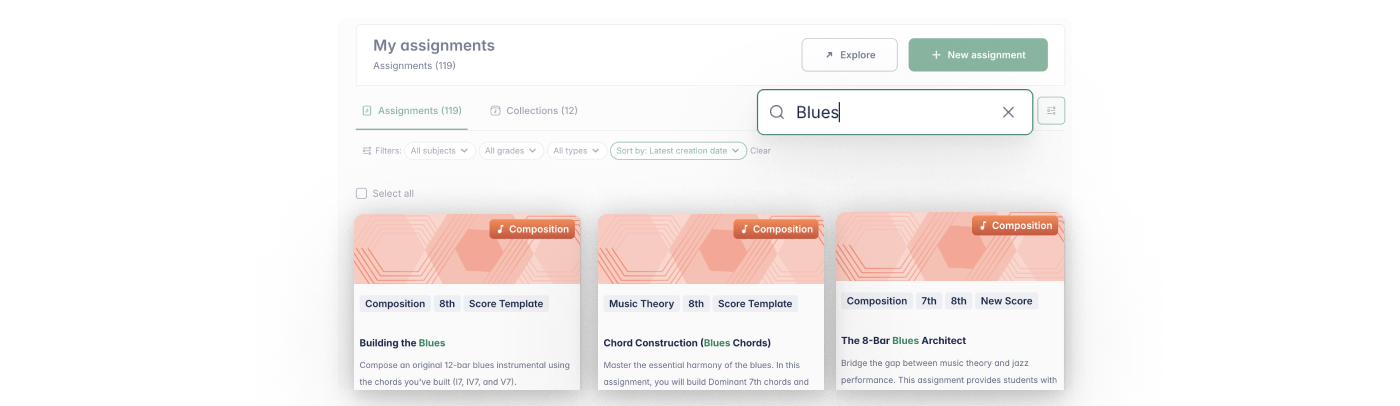
Filters
A powerful filtering system allows you to quickly find specific assignments. Filter by subject, grade level, or assignment type to navigate your library more efficiently.
To maximize filter effectiveness, be sure to tag assignments when creating them.

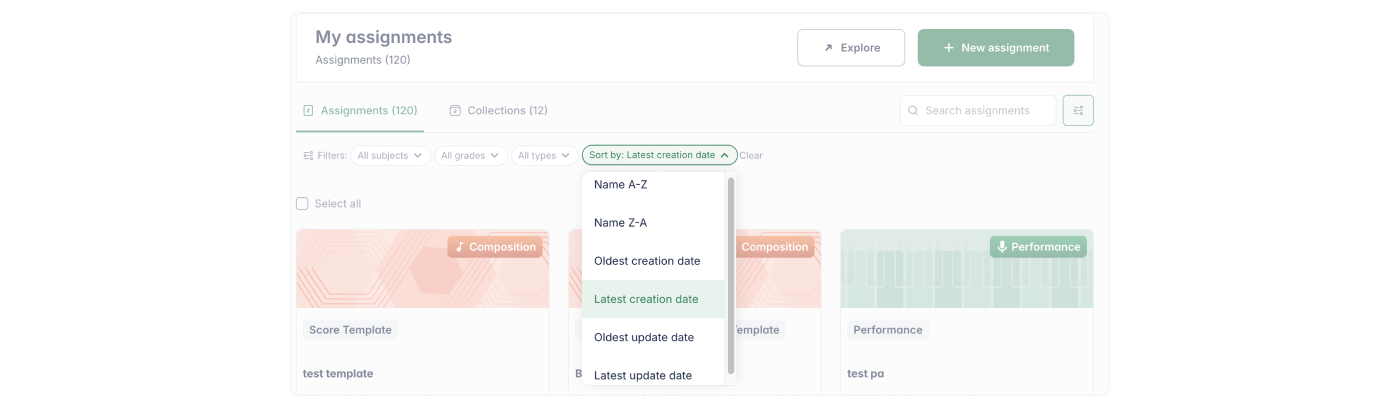
Sorting
Toggle between "Last Modified" to find your recent work or "Alphabetical" for a structured view.
**
3. Sharing and Collaboration
The Assignment Library fosters collaboration, making it easy to share assignments and access resources from colleagues.
Sharing Assignments
Easily share individual assignments with other teachers.
- To Share: In My Assignments, hover over an assignment, click the three dots (⋮) , and select "Share". Fill in the details and confirm.
The assignment will now appear in "Shared Assignments" and be marked as shared.
- To Unshare: Hover over a shared assignment, click the three dots, and select "Unshare". Users who previously saved it will still have access in their libraries.
💡 Pro-Tip: You can also hover over the lock icon on any assignment for an instant toggle between shared and private modes.
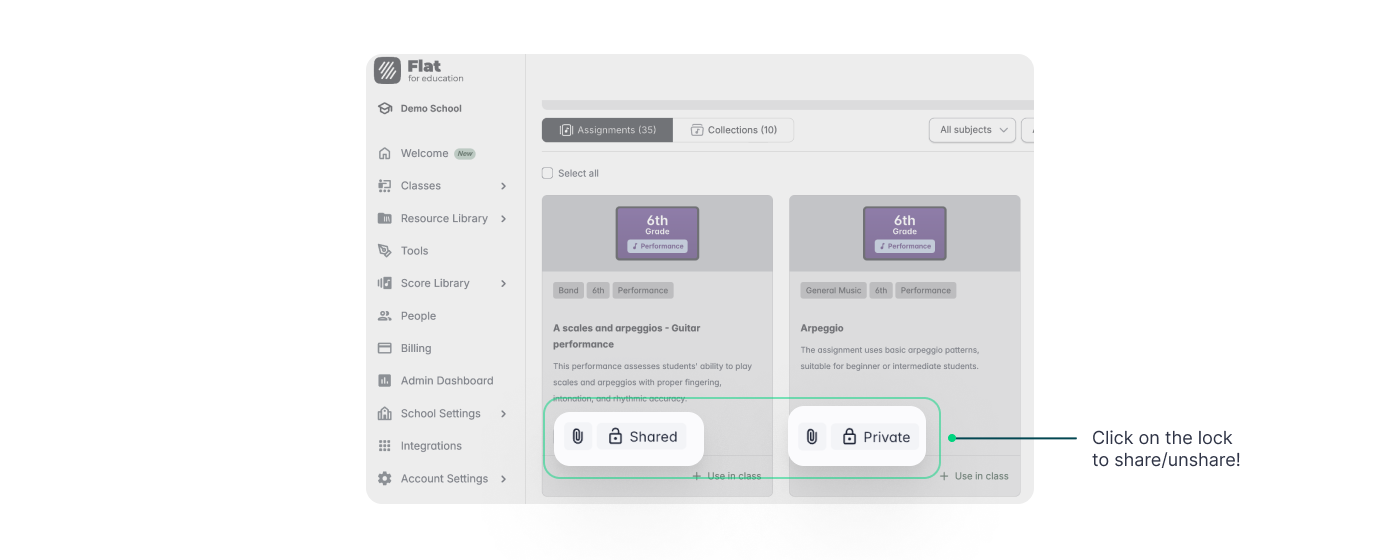
Sharing Collections
Share entire folders of assignments with colleagues to share entire units or curriculum groups at once.

- To Share a Collection: Hover over a collection, click the three dots (⋮) in the top right corner, and select "Share". This grants colleagues access to all assignments in the folder. These assignments will appear in two places:
- Collections Section: Grouped within the shared collection.
- Assignments Section: Listed individually alongside other assignments for easy browsing.
💡 Pro-Tip: You can also hover over the lock icon on any collection for an instant toggle between shared and private modes—just like with individual assignments!
Use Shared Assignments
Found an inspiring assignment? Quickly add it to your own library so you can use it in your classes.

- To Add an Assignment: Locate the shared assignment and click "+ Add".
- Make it Yours: Once added to My assignments, you can open and edit your own copy without affecting the original. This allows you to customize the instructions or difficulty level for your specific students before assigning it to your class.