Creating engaging Text Response Assignments for your students
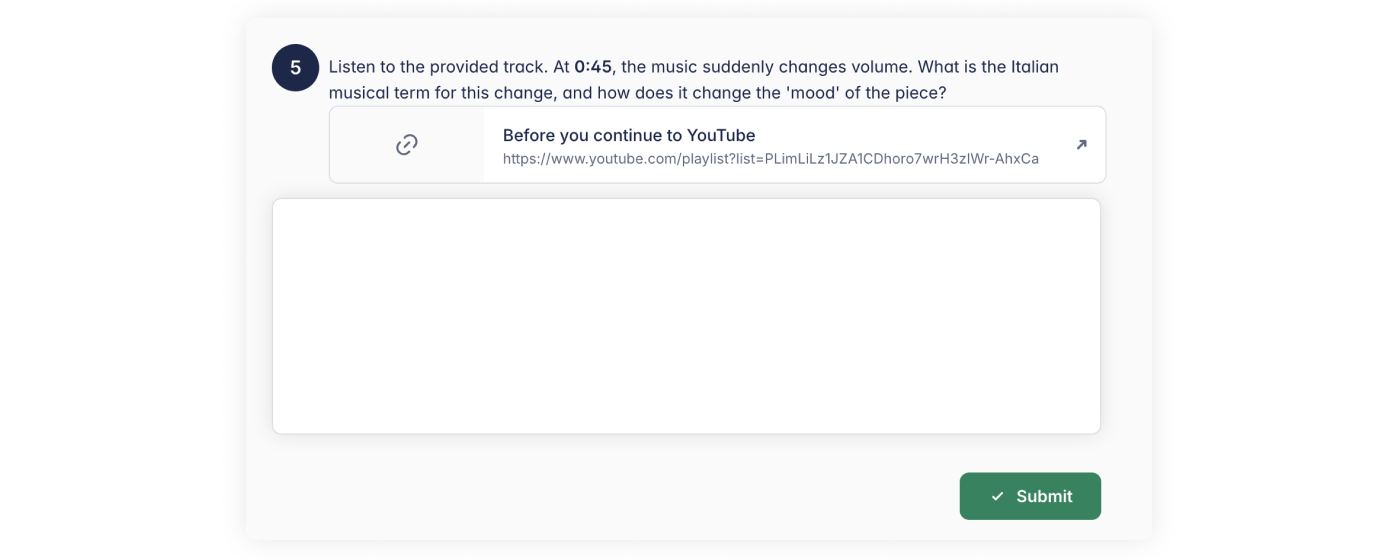
While music is often about the notes on the page, sometimes you need to hear your students’ voices in a different way. Text Response Assignments allow you to move beyond simple "multiple choice" and give your students the space to explain their musical journey, analyze a piece, or reflect on a lesson in their own words.
Why use Text Response Assignments?
- All-in-One Workflow: No need to switch between different apps or paper worksheets.
- Total Customization: Ask specific questions tailored to exactly what you taught in class.
- Deeper Reflection: Encourage students to express unique understanding rather than just picking from a list.
Getting Started
Where to Create Your Assignment
You can start a text response assignment in two ways:
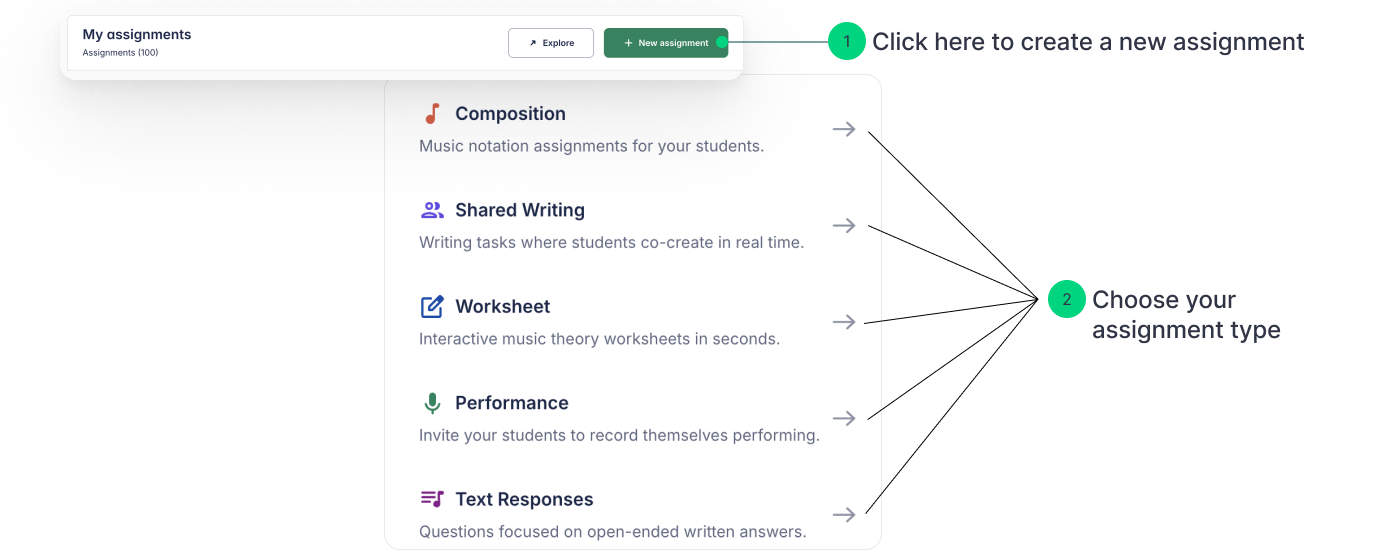
- From the Assignment Library Go to your Assignment Library and click + New assignment. Then select Text Responses as the assignment type.
- From within a class
Create an assignment directly inside a class.
💡Note: Assignments created within a class are saved to your Library only after they are published.
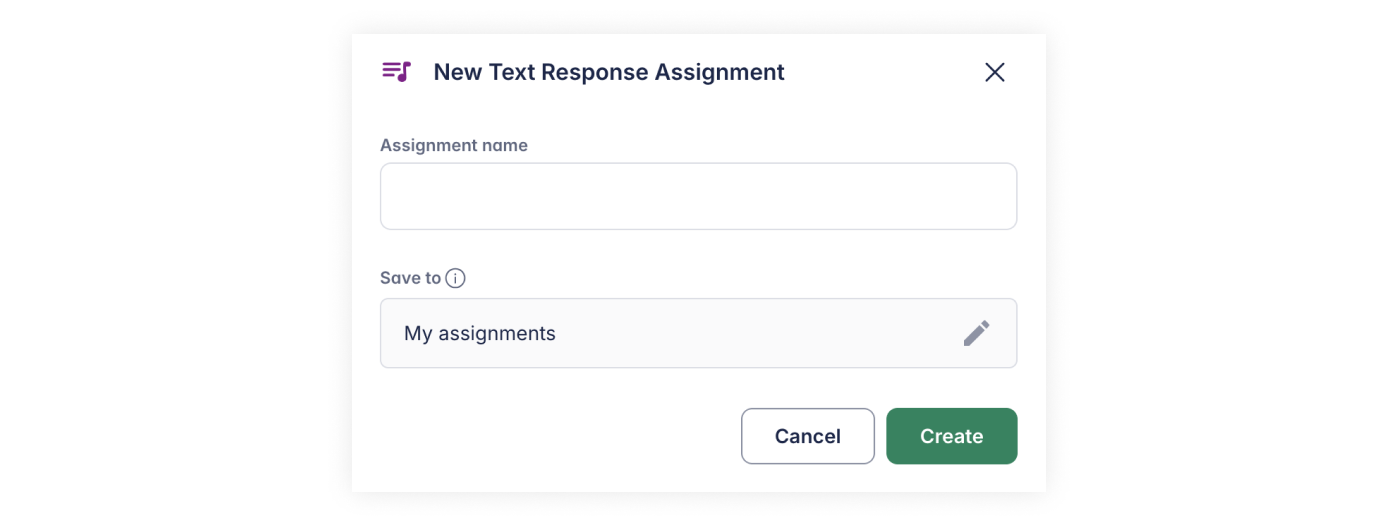
Name Your Assignment
Choose a clear and descriptive name. Once named, you’ll be guided through the step-by-step setup.
Step-by-Step Setup
Step 1. Add Exercises (Mandatory)
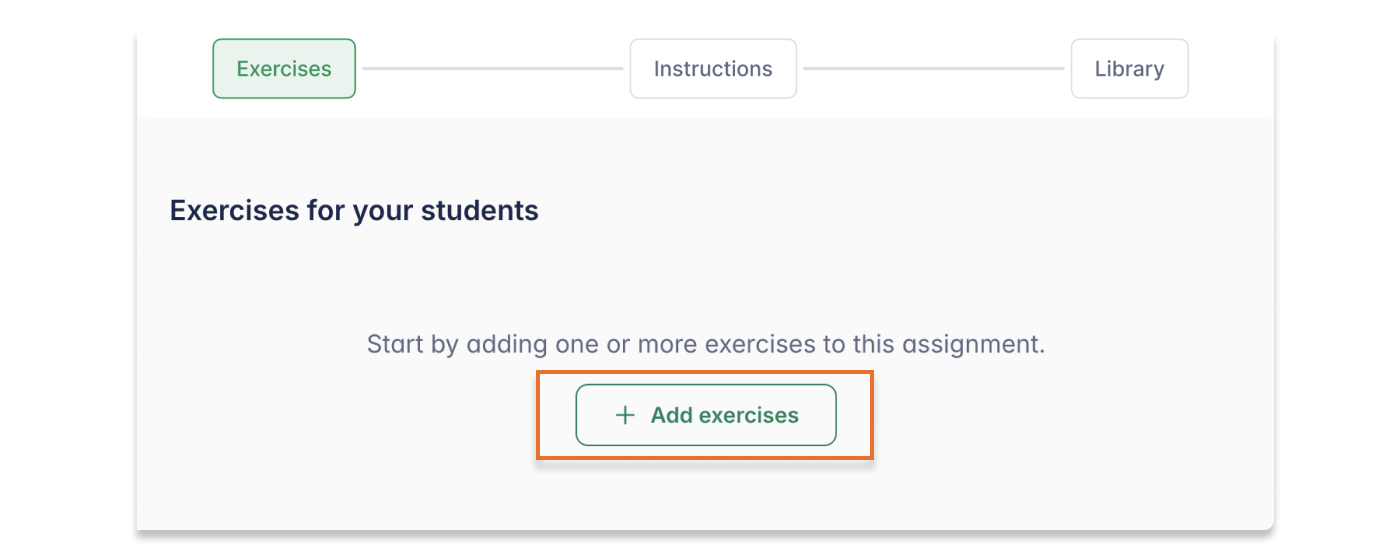
Click Add exercises. A text box will appear where you can type your question. You can use bold or italics to highlight important words, just like in a word document.
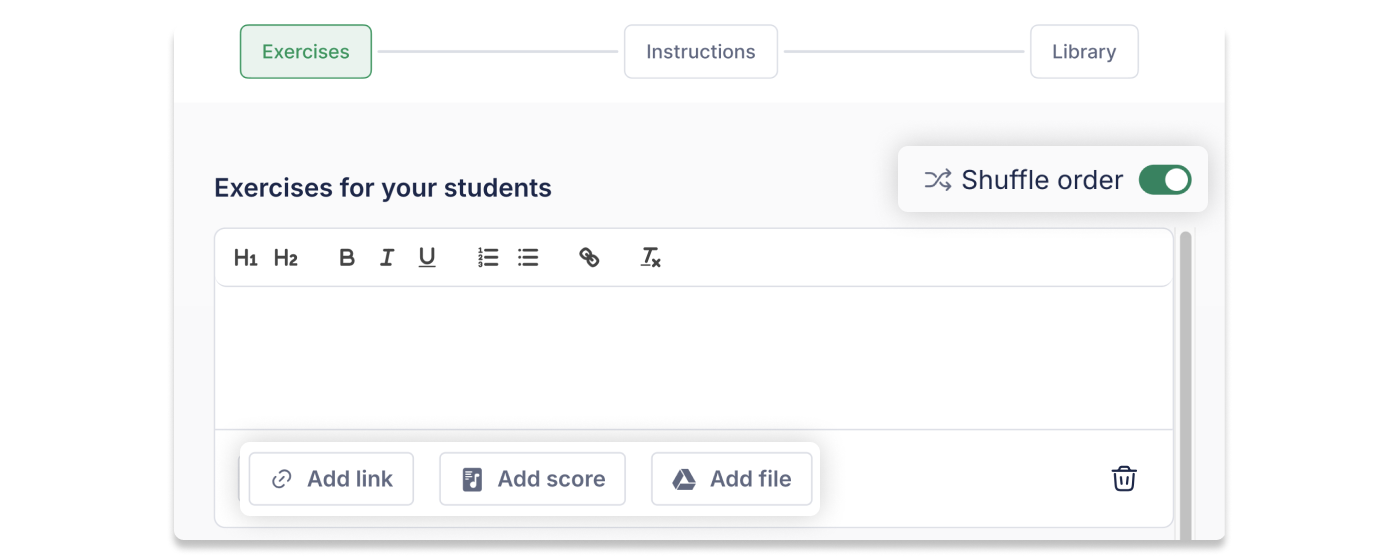
- ✨Helpful Tip: You can attach a Link, Score, or File if you want students to analyze a specific piece of music or video.
- 🚀Pro-Tip: Toggle Shuffle Order to ensure each student focuses on their own unique work.
Step 2. Add Instructions
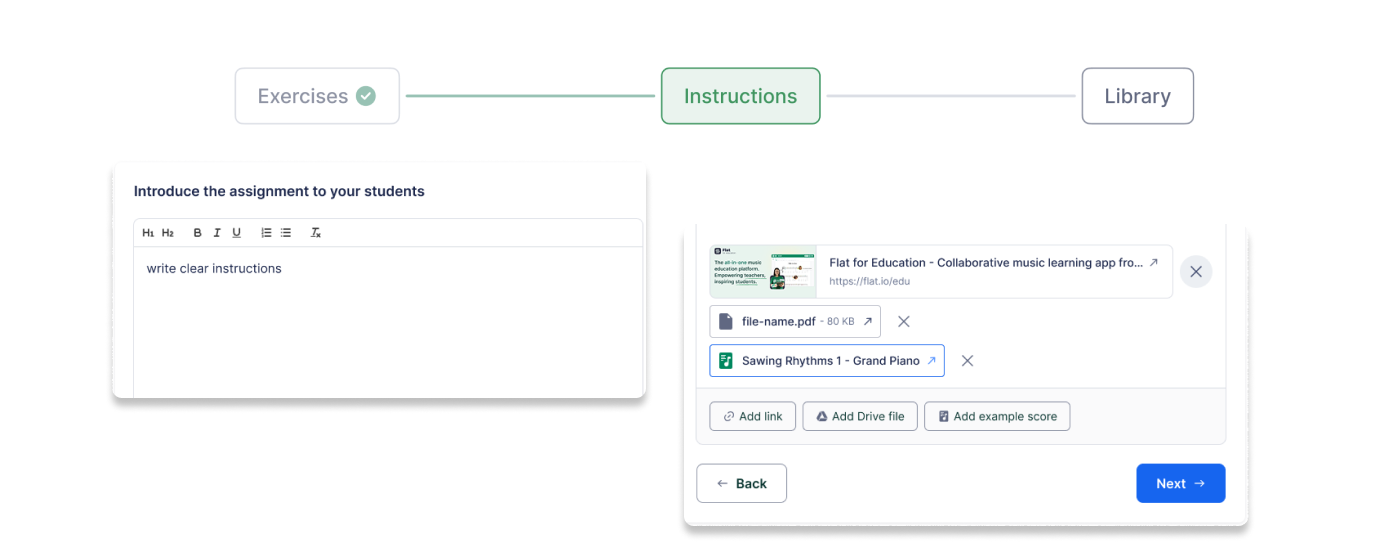
Provide specific guidance for the overall task. You can also attach supporting resources:
- Documents and presentations.
- Videos and audio files.
- Read-only scores for reference.
Step 3. Sharing & Organization
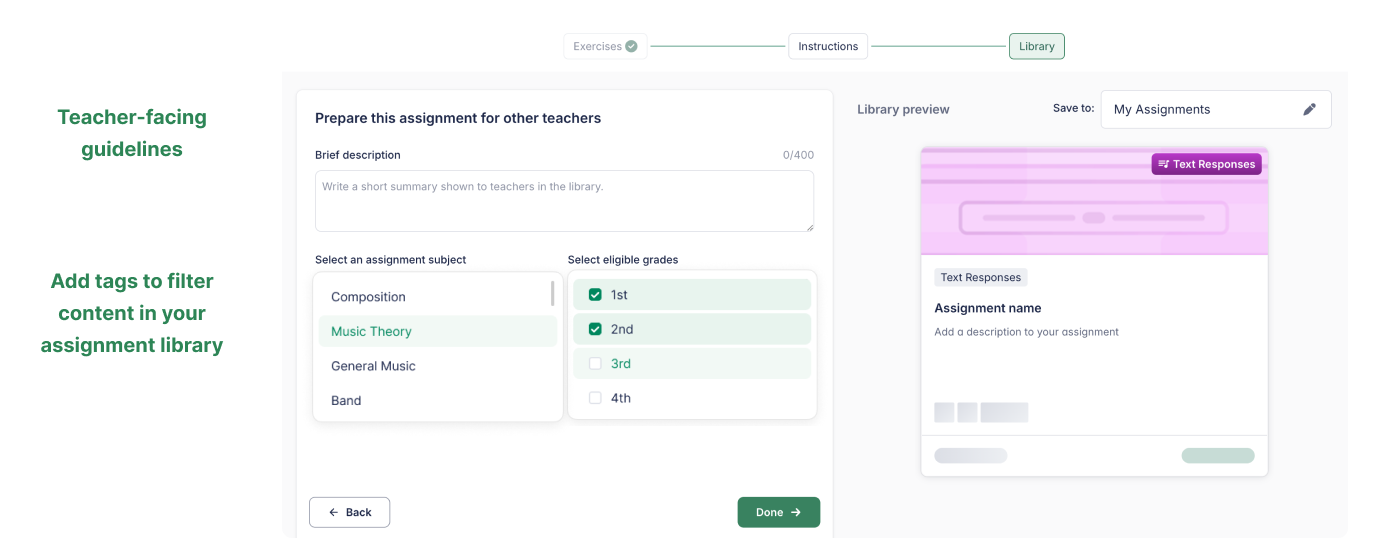
We believe great teaching should be shared!
All assignments created in Flat for Education are saved in your Assignment Library and can be shared with other teachers in your organization. To keep things organized:
- Brief description: Add teacher-facing guidelines to explain how the assignment should be used
- Tags: Add subject or grade levels to find the assignment quickly later.
Click Done to save your masterpiece!
Post Your Assignment
Your assignment will be stored in My assignments.
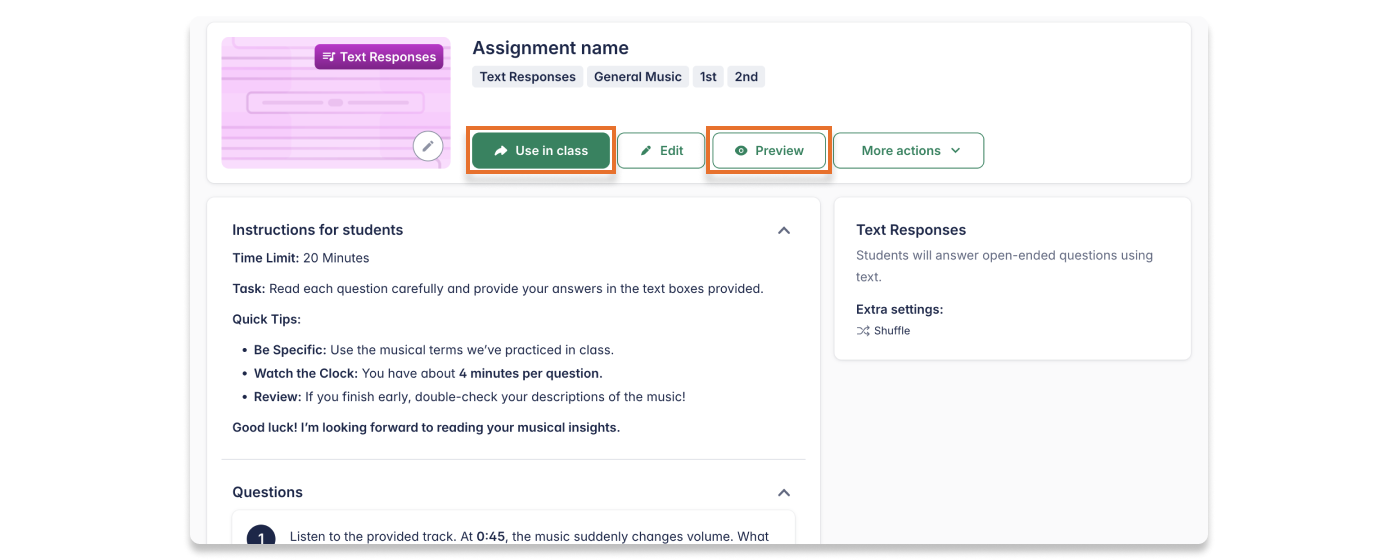
Once everything is ready:
- Click Use in class to assign it to one or more classes.
- Use Student Preview to see exactly what your students will experience.