Connect Flat to ChatGPT
Last updated October 19, 2026
The Flat plugin for ChatGPT lets ChatGPT create scores in your Flat account, search your library and read the notation of your scores. Read what it can and cannot do before you start.
You need an active Flat Power subscription and a ChatGPT account. Any ChatGPT plan works, including the free one. Flat for Education accounts cannot connect yet.
Add the Flat plugin
Add a custom MCP server
Open ChatGPT's plugins. Click Add, then Add custom MCP server.
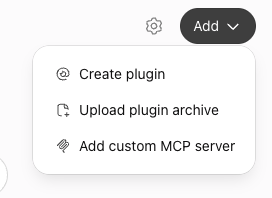
The Add menu, in the top right corner of the plugin settings.
Enter Flat's server details
Fill in the form:
- Name:
Flat - Connection: keep Server URL selected and enter
https://mcp.flat.io/mcp - Authentication:
OAuth
Leave the other fields as they are. Tick I understand and want to continue, then click Create as a plugin.
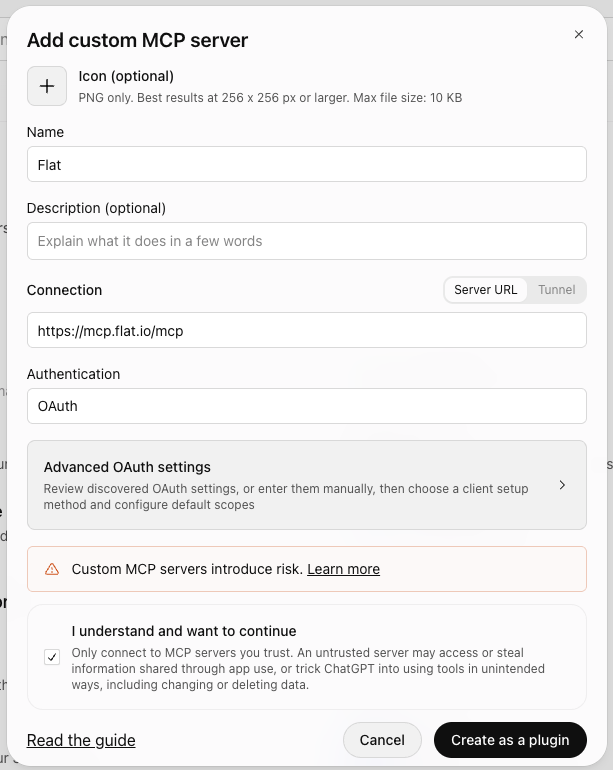
The form filled in for Flat.
Connect and approve the access in Flat
ChatGPT asks you to connect Flat. Click Connect Flat: ChatGPT sends you to Flat, where you sign in if needed and see the permission page. It names ChatGPT as the app asking for access and lists the single permission it needs. Click Allow access to come back to ChatGPT.
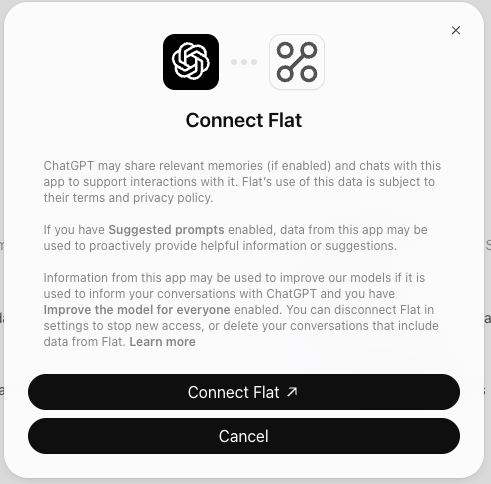
ChatGPT's confirmation before it sends you to Flat.
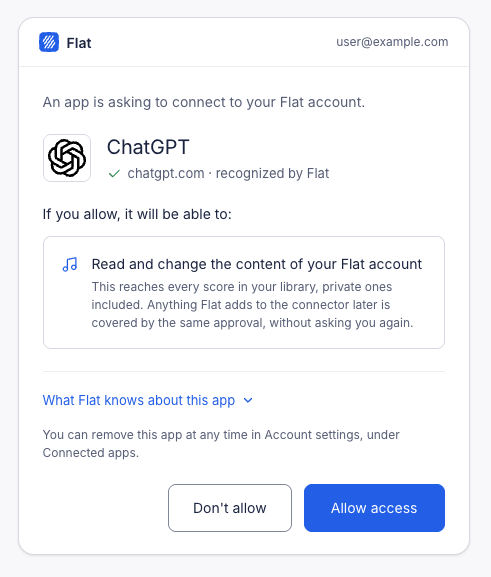
Flat's permission page. Nothing is shared until you click Allow access.
Use Flat in a conversation
Start a new conversation and ask for something that involves your Flat scores, for example "Which of my Flat scores are for string quartet?" or "Write a four-bar melody for flute and save it to my Flat account as Morning Study". ChatGPT picks the Flat plugin by itself when your request needs it.
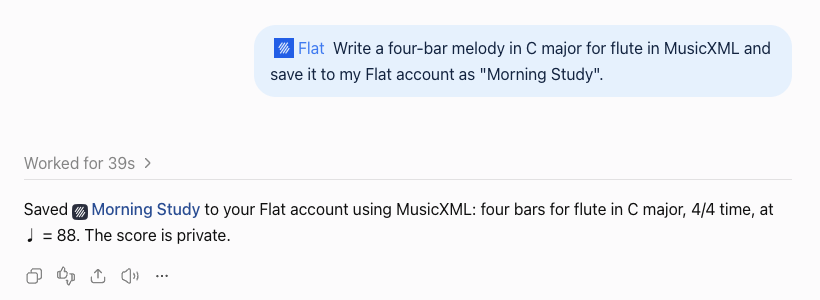
ChatGPT creates the score and gives you a link to open it in Flat.
Disconnect
You can remove the connection from either side:
- In ChatGPT: open ChatGPT's plugins, then Plugin Management, select Flat and choose Disconnect or Remove.
- In Flat: open your account settings, find ChatGPT under Link external accounts and apps, click Unlink and confirm.
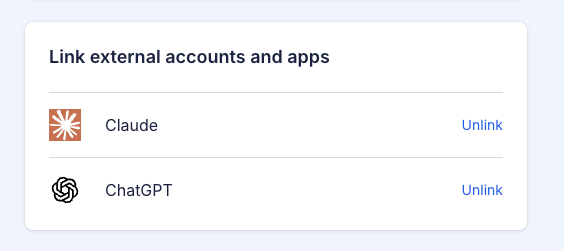
ChatGPT under Link external accounts and apps in your Flat account settings.
Either way, ChatGPT loses access to your account immediately. Scores it created stay in your library.
Troubleshooting
"Connecting an AI assistant to Flat requires an active Flat Power subscription."
The connector is included with Flat Power. Upgrade, then connect again from ChatGPT.
"Connecting an AI assistant is not yet available for Flat for Education accounts."
Flat for Education accounts cannot use the connector for now. Use an individual Flat account with a Flat Power subscription.
ChatGPT asks you to connect Flat again
After 30 days without using the plugin, the connection expires and ChatGPT asks you to sign in to Flat again. Approve the access as you did the first time.
ChatGPT says the Flat plugin is not working
If your Flat Power subscription ended after you connected, Flat refuses the requests and ChatGPT reports the reason. Renew your subscription and try again. Otherwise, disconnect and connect again.
"Something is missing from this request."
The link that brought you to Flat was incomplete. Go back to ChatGPT and start the connection again from the Flat plugin. If it happens again, check that your account meets the requirements above: this message can also appear when an account is not eligible for the connector.
Still stuck? Contact us - we are always one message away.