How do I report a bug in Flat?
Last updated November 19, 2026
If something does not work in Flat, contact our support and send the details below. The more of them you send in your first message, the faster we can reproduce the problem and fix it.
What should I send when I report a bug?
- What happened, and what you expected. For example: "I tap Play and there is no sound. I expected to hear the score."
- Where it happens: the Flat website (and which browser), the iPhone or iPad app, the Android app, or the desktop app.
- Your device and its system version, for example iPad Air with iPadOS 18, or Pixel 8 with Android 15, or Chrome on Windows 11.
- The details of your app, if you use the mobile app: open the app Settings and tap the version number. This copies the app versions and your Account ID, so you can paste them in your message. Updating the app to the latest version first can already solve the problem.
- The link to your score, so we can open the exact score. See below.
- A screen recording of the problem, if you can. It is the most useful thing you can send.
- The steps to repeat it, in order, if you know them.
Can I send feedback from the editor?
Yes, on the Flat website on a computer, with the new editor layout. Click Feedback at the bottom of the rail on the left of the editor to tell the team that something's wrong, suggest an idea, or say what works well, without leaving your score.
- Choose the type of feedback: Something's wrong, Idea or Works well.
- Describe it. Your score and device details are included automatically; click See details to check what is sent.
- Optionally, click Take a screenshot to capture the editor (your browser asks to share the tab), or upload an image.
- Tick Allow the Flat team to email you about this feedback if you want an answer, then click Send feedback.
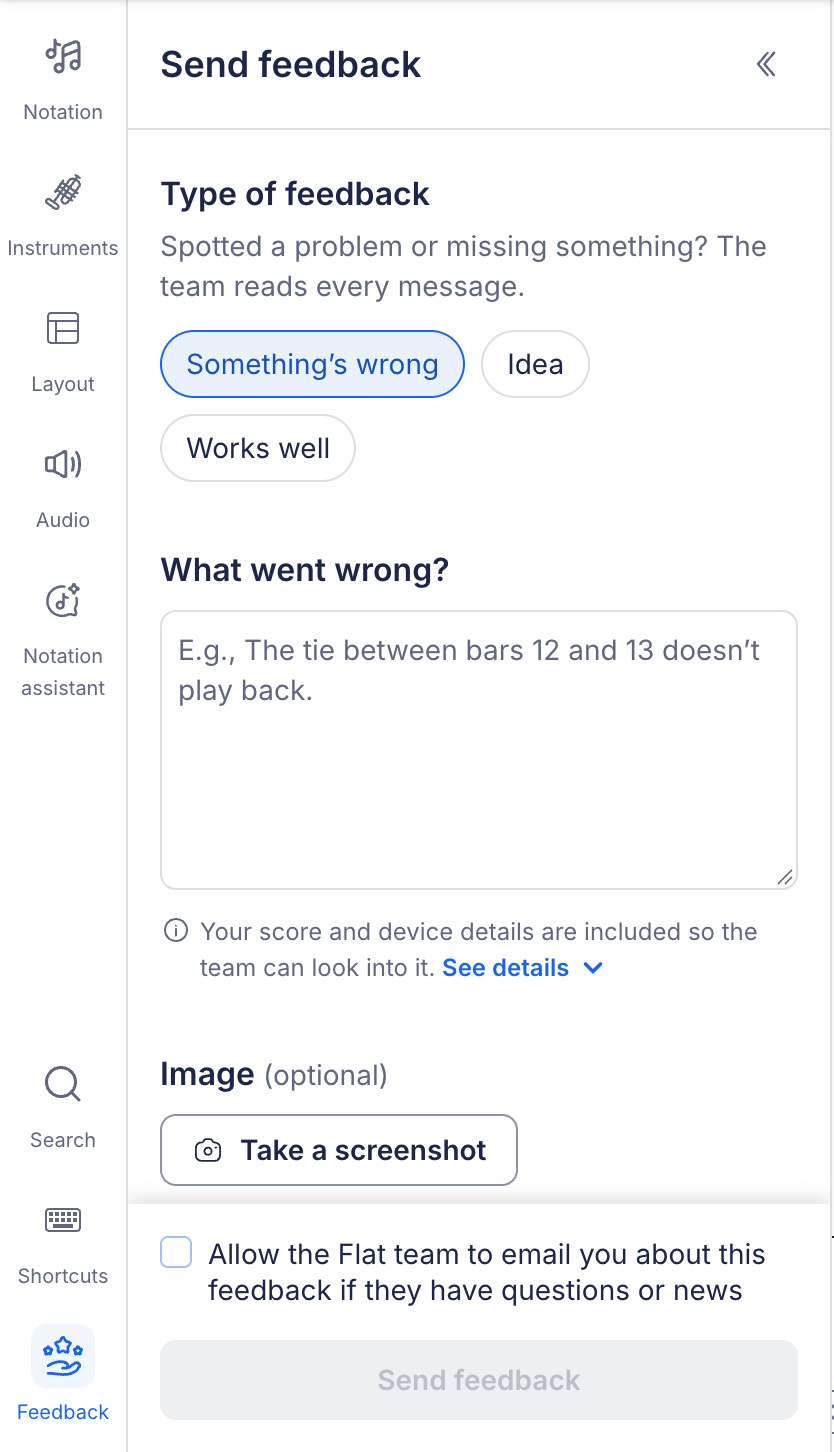
The team reads every message. For a problem you want followed up, or if you don't use the new layout, contact our support instead.
How do I get the link to my score?
- On the Flat website: open your score and copy the address from your browser's address bar.
- In the mobile app: open your library, tap the three dots next to the score, choose Share, then copy the link.
If the problem is with your account and not with a score, send the email of your Flat account or your Account ID instead, see I have two accounts or I can't find my scores.
How do I record my screen?
- iPhone and iPad: add Screen Recording to the Control Center in Settings, then open the Control Center and tap it. Stop the recording from the red indicator.
- Android: swipe down from the top of the screen and tap Screen record. The name and place of the button depend on your phone.
- Mac: press Shift + Command + 5 and choose a recording.
- Windows: press the Windows key + G, then use the Capture panel.
Send the video with your message. If the file is too large to attach, send a link to it.
What happens after I report a bug?
We reply to the email address you wrote from. If we can reproduce the problem, we pass it to the team. App updates reach everyone progressively, so a released fix can take up to a week to arrive on your device.