How to switch between the new and the previous editor layout in Flat
Last updated November 13, 2026
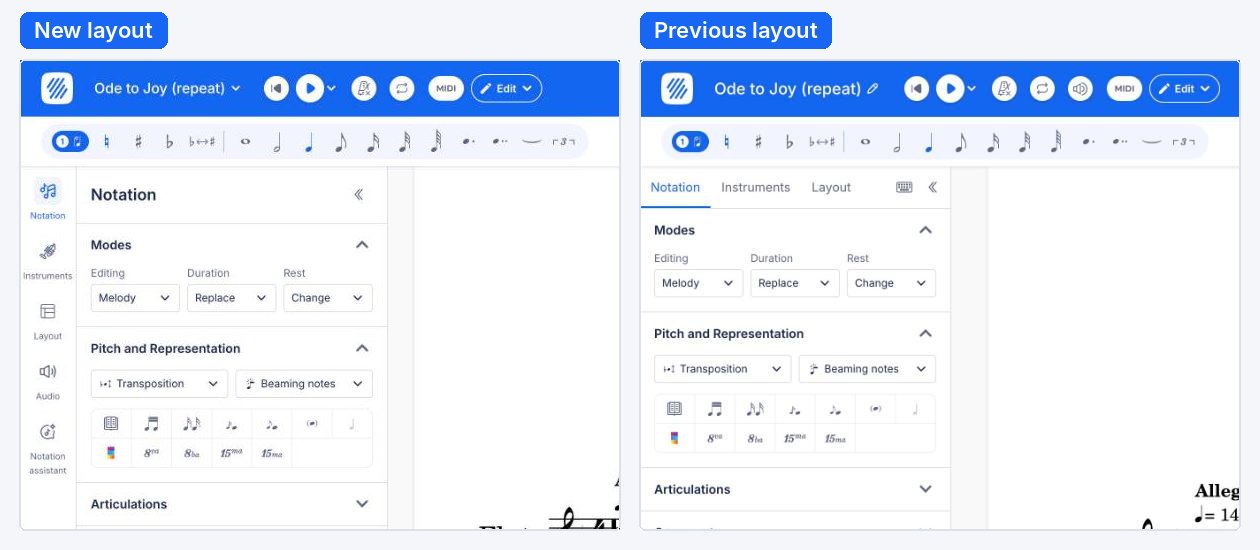
Flat's editor comes in two versions, and you can switch between them at any time. On the website, the new layout adds a rail on the left with the notation assistant. In the mobile app, the new editor brings a new toolbar. Switching only changes how the editor looks: your scores stay exactly the same.
How do I go back to the previous layout?
On the Flat website, open the File menu by clicking the title of your score at the top left of the editor, then choose Back to the previous layout. The editor switches at once, without a confirmation, and keeps your score open where you were.
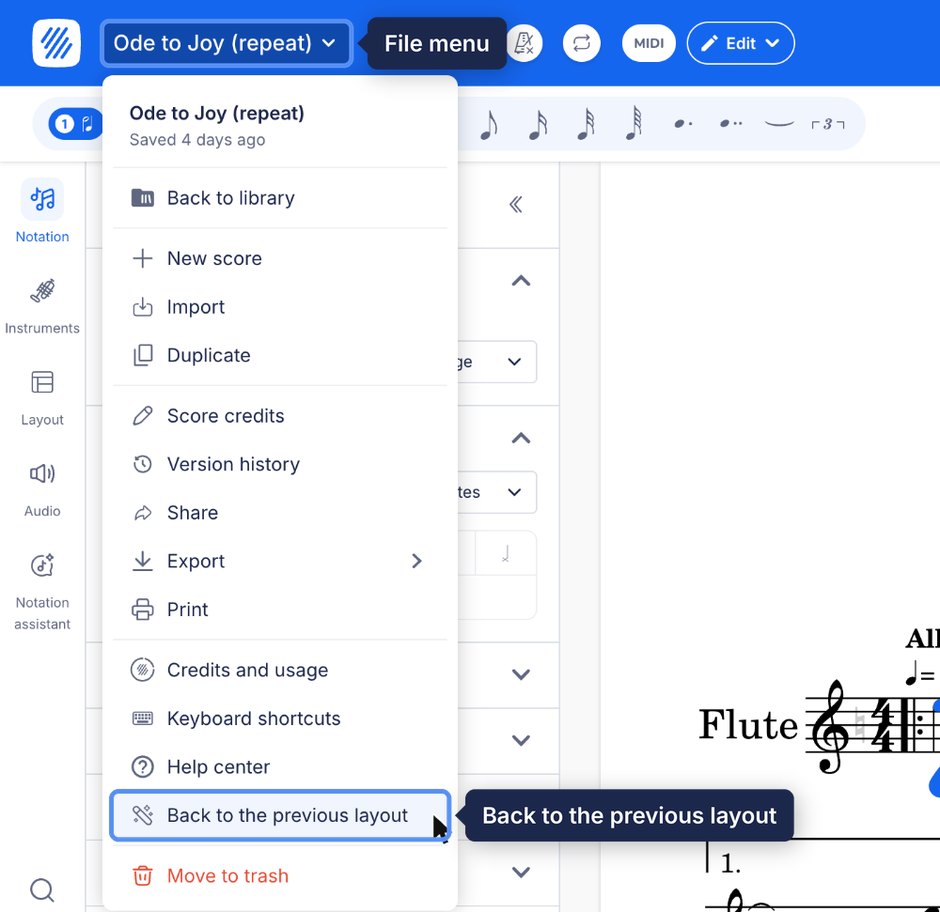
Going back also turns off the notation assistant beta, because the assistant comes with the new layout. Your choice is saved on your account, so the editor opens in the previous layout on every computer until you switch again.
How do I switch to the new layout?
In the previous layout, a banner at the top of the editor offers the notation assistant with the new layout. Click Try it: the editor switches at once, on the score you have open.
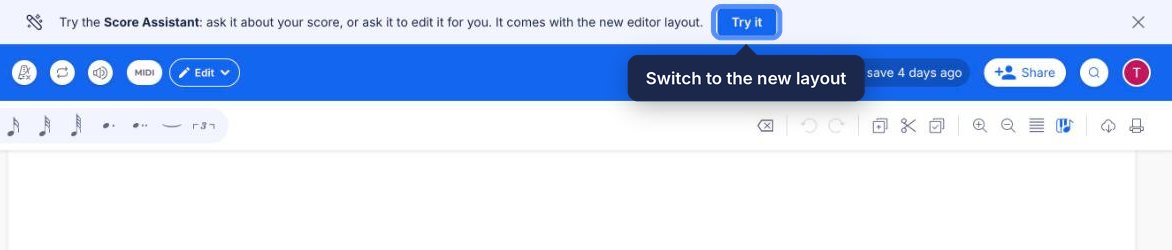
If you closed the banner, use this button instead:
New editor layout: the rail on the left of the editor, the File menu under the score title, and the notation assistant. Turning it off brings back the previous layout.
Checking your Flat account…
What changes between the two layouts?
Both layouts have the same notation tools, in the same sections. The difference is around them:
| New layout | Previous layout | |
|---|---|---|
| Notation, Instruments, Layout | Icons in the rail on the left | Tabs above the left panel |
| Audio settings | Audio in the rail | Buttons next to the play button |
| Notation assistant | Notation assistant in the rail | Not available |
| Search, shortcuts, feedback | At the bottom of the rail | Search button at the top right |
| Import, duplicate, score credits, move to trash | File menu under the score title | From your library, or the pencil next to the title for the credits |
How do I go back to the classic editor?
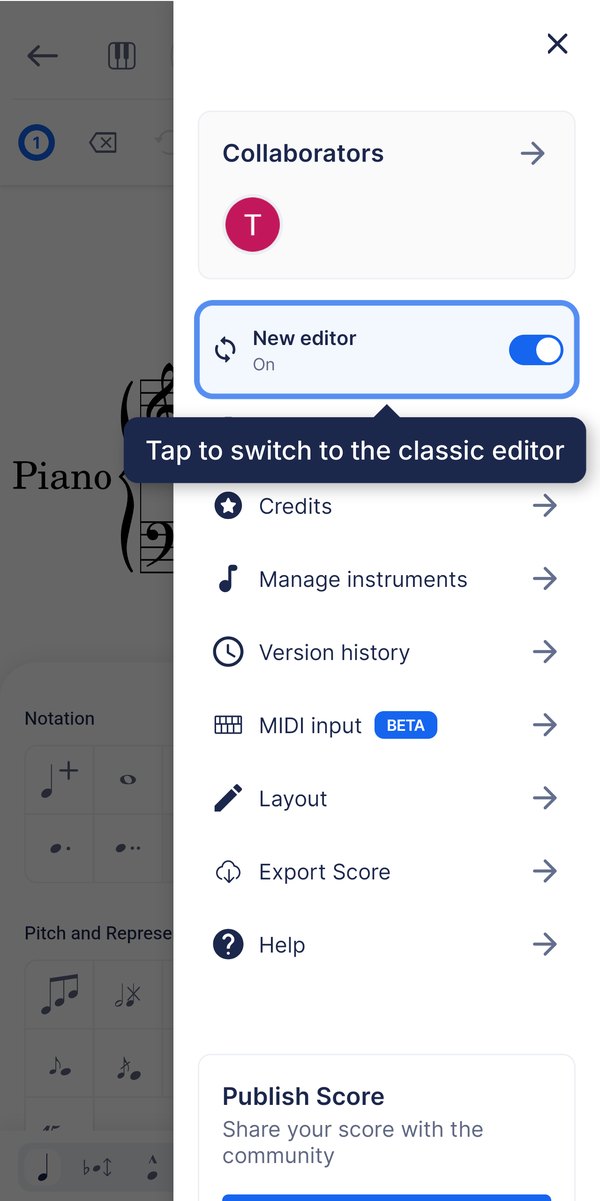
In the Flat app for iPhone, iPad and Android, the switch is in the editor's side menu. The app calls the two versions the new editor and the classic editor.
Open a score, tap the menu button at the top right of the editor, then tap the New editor row, just under the collaborators. The editor restarts on the same score in the classic editor and confirms with "Switched to the classic editor".
The notation assistant is not in the mobile app yet, so switching does not change anything about it.
How do I switch to the new editor?
In the classic editor, open the same side menu at the top right: the first row reads Try the new editor!. Tap it and the editor restarts on the same score in the new editor, with "Switched to the new editor".
Where is my choice saved?
The app keeps your choice on the device you switched on, and every score you open uses it. If you log out, the app starts again on the new editor the next time you sign in.
Frequently asked questions
Does switching layout change my scores?
No. The layout only changes how the editor looks around your score. Your scores, their notation and their settings stay the same, and you can switch back and forth as often as you want.
Can I keep the notation assistant with the previous layout?
No. On the website, the notation assistant comes with the new layout, so going back to the previous layout turns it off. Switch to the new layout again to get it back.
Why don't I have the switch in my mobile app?
The switch is offered to accounts created before October 3, 2026, when the new editor became the default in the app. Accounts created since then always use the new editor. If your account is older, update the app to its latest version.