How to add brass fingerings in Flat
Last updated October 13, 2026
Brass fingerings in Flat are the valve numbers printed above the notes of a brass part. Flat generates them from the pitch of each note and keeps them synchronized as you edit the score, so the notation never drifts from the music. Flat supports brass fingerings on trumpet and on Horn in F, D, and C.
How do I turn on brass fingerings?
Flat enables brass fingerings per part, from that part's instrument settings. Open the settings for the brass part you want, select Brass Fingerings, and tick Enable brass fingerings for this part. Flat then prints a valve number above every note in that part.
Open the instrument settings
In the left panel, open the Instruments tab and open the settings for the brass part. You can also click the instrument name directly in the score.
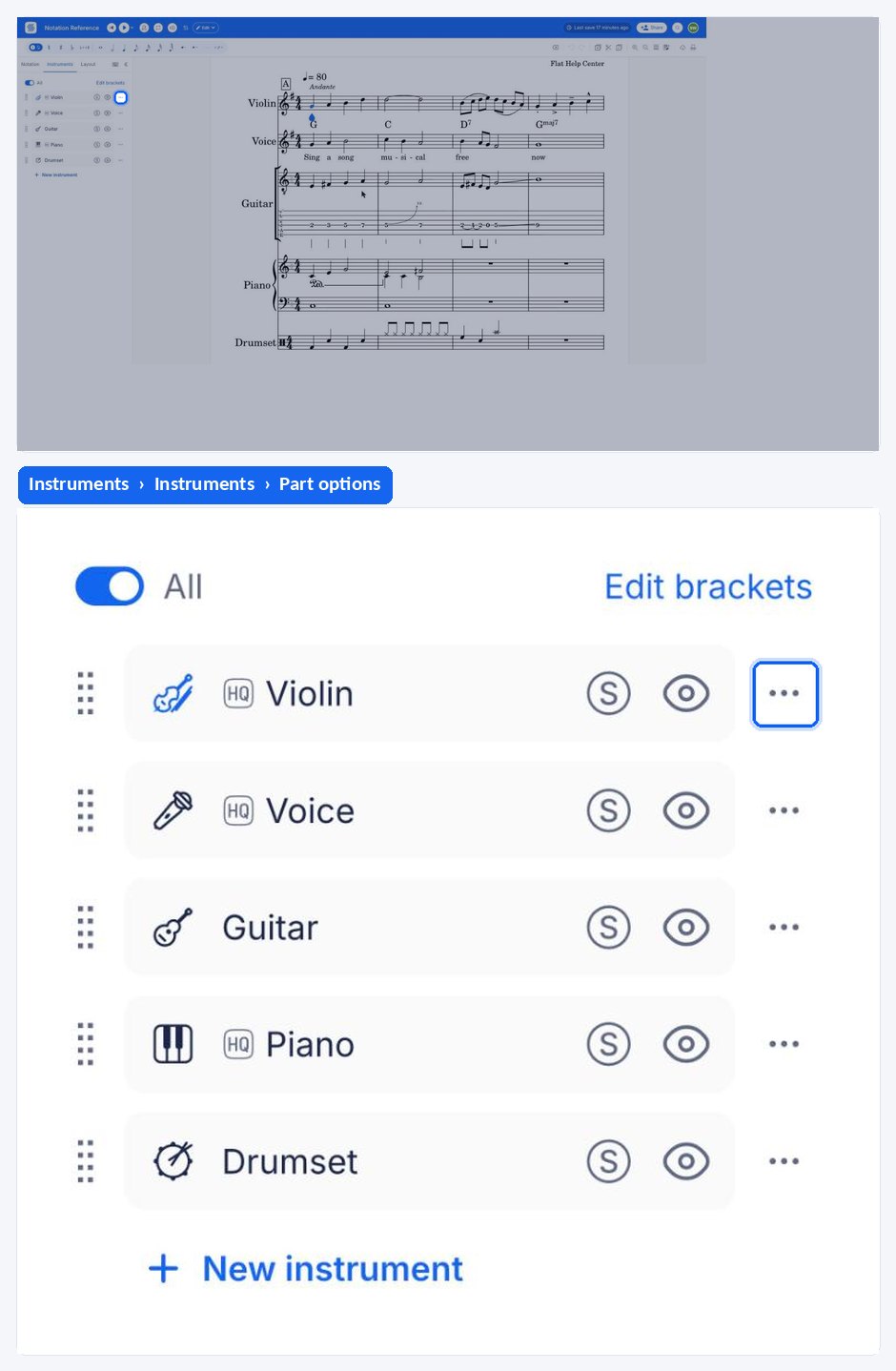
Enable brass fingerings
Select Brass Fingerings, then tick Enable brass fingerings for this part.
Let Flat keep them in sync
The valve numbers are automatically synchronized with the pitch of the notes, so they update as you write, transpose, or correct the part.

Brass fingerings are a display option on the part. Turning them off leaves the notes themselves untouched.
Which instruments support brass fingerings?
Flat generates brass fingerings for the instruments whose valve combinations it knows. Brass fingerings are available for the following instruments:
- Trumpet
- Horn in F
- Horn in D
- Horn in C
Frequently asked questions
Do I have to update the valve numbers when I change a note?
No. The valve numbers are automatically synchronized with the pitch of the notes, so editing, correcting, or rewriting a passage updates the fingerings with it. There is no separate fingering layer to maintain and nothing to re-enter by hand after an edit.
Why don't I see Brass Fingerings for my instrument?
Flat generates brass fingerings for trumpet, Horn in F, Horn in D, and Horn in C only. If the part uses another brass instrument, the option is not offered. Check the instrument assigned to the part and change it if the part is really one of the four supported instruments.
Are brass fingerings enabled for the whole score or for one part?
For one part. The setting lives in the instrument settings of a single part, and the tick box is worded "Enable brass fingerings for this part". Turn it on again on each brass part that needs valve numbers.
Can I get fingering diagrams for other instruments?
Yes, for recorder. Flat draws fingering diagrams for soprano and alto recorder from the notes in the part - see recorder fingerings for the instrument and layout options.