How to add, remove, or re-order score parts in Flat
Last updated September 16, 2026
A score part in Flat is one instrument in your score, with its own staff, clef, and configuration. Flat lets you change the line-up after the score is created: add a part from the instrument list, remove a part you no longer need, and re-order the parts so they appear in the order you want.
Where do I manage the parts of a score?
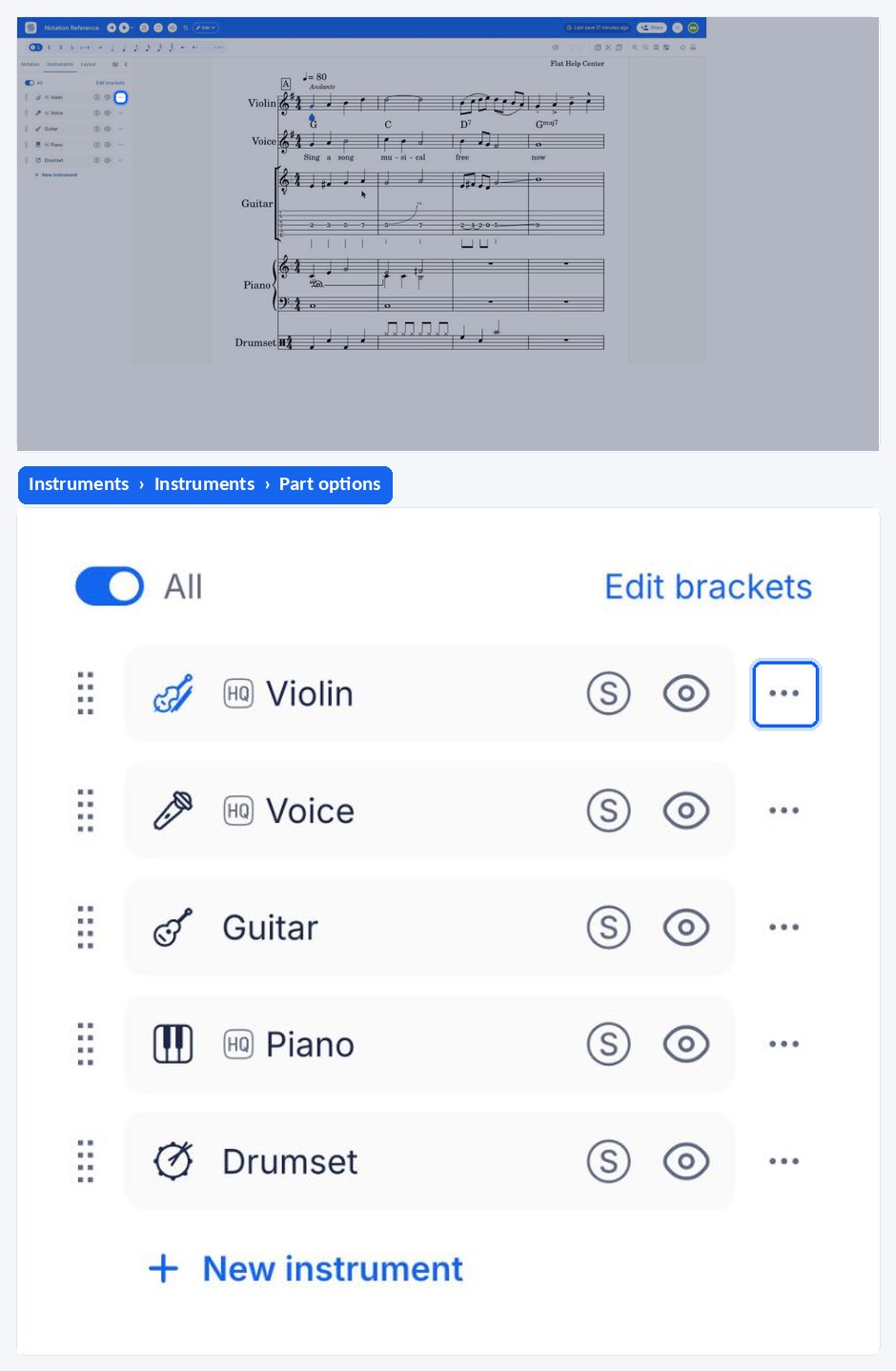
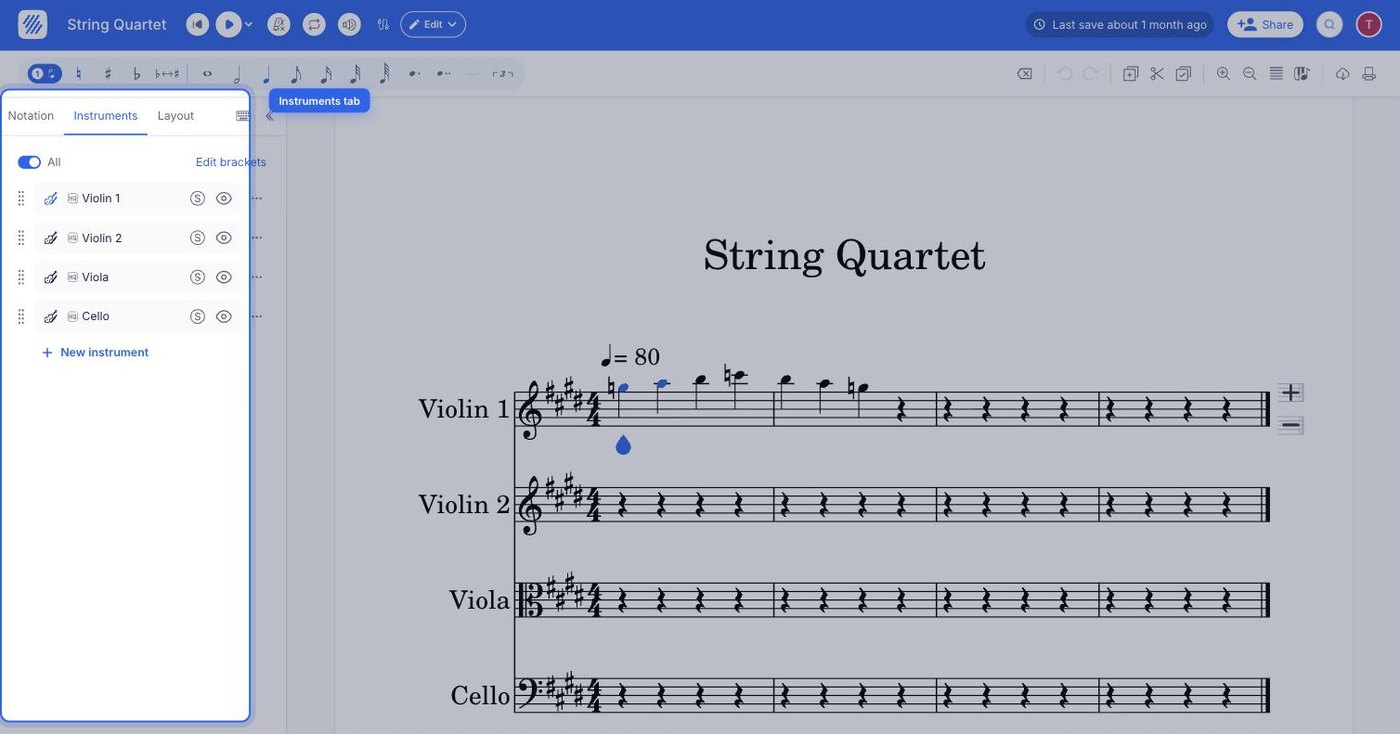
After you've made a score, you can easily add, remove, or rearrange the parts. In the left panel, open the Instruments tab to see every part in the score, then open Manage instruments to reach the instruments settings, where you add, remove, re-order parts and adjust the settings of each one.
How do I add a new part to a score?
Flat adds a part from the instruments settings: choose Add an instrument, pick the instrument you want from the list, and it is added to the score. You can customize its configuration once the part is added, so you are never locked into the default setup of the instrument you picked.
Open the instruments settings
In the left panel, open the Instruments tab, then open Manage instruments.
Add an instrument
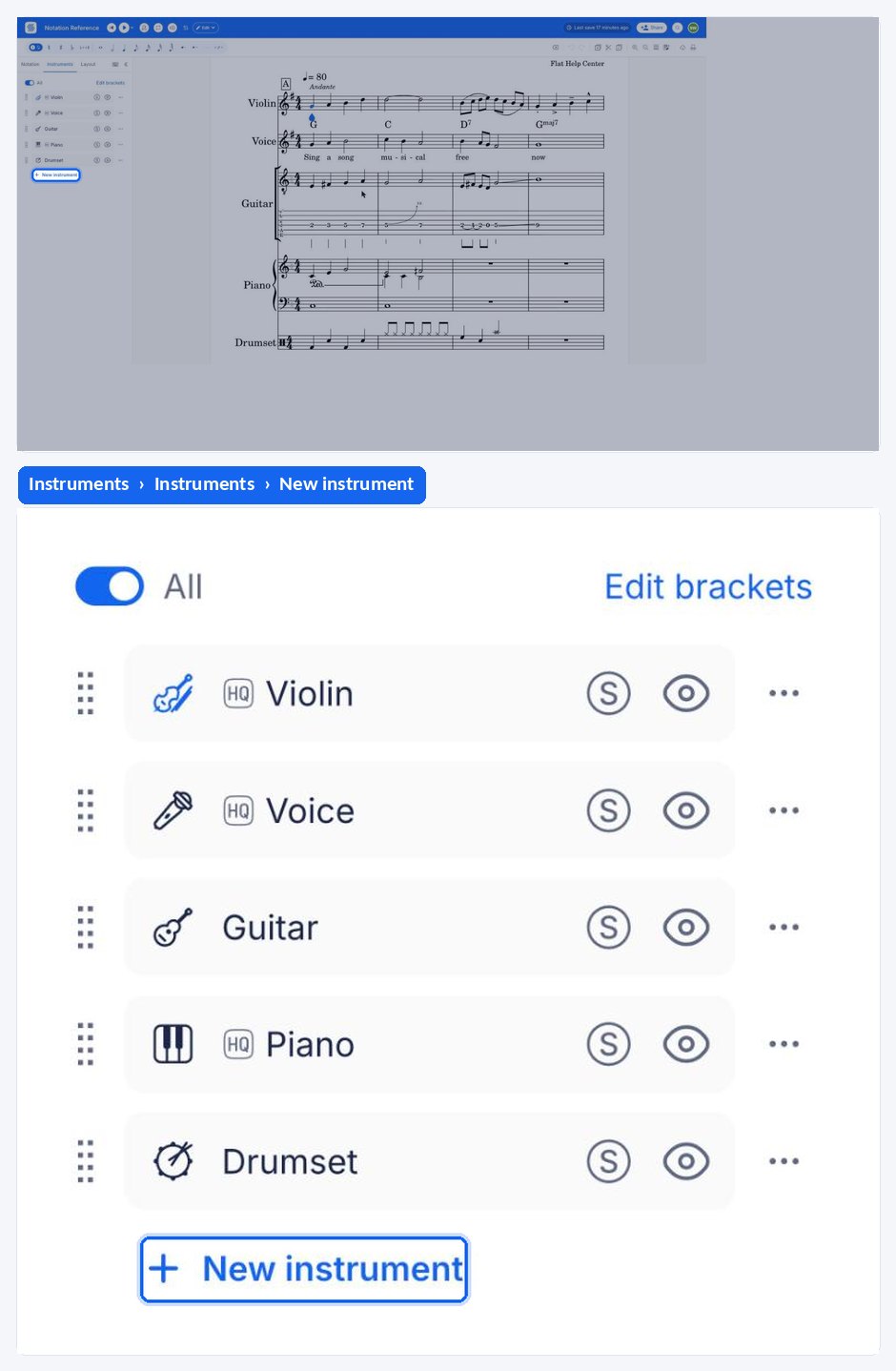
Once you get to the instruments settings, click on Add an instrument, and choose the instrument from the list.
Customize the part
You will be able to customize the configuration once the part is added.
A configuration you have adjusted once does not have to be rebuilt on every score — see custom instruments configurations.
How do I remove a part?
To remove a part from the score, click on Remove next to the part you want to remove, in the instruments settings. The part and its music leave the score. If you only want the part out of your way while you work, hide it instead of removing it.
How do I re-order the parts?
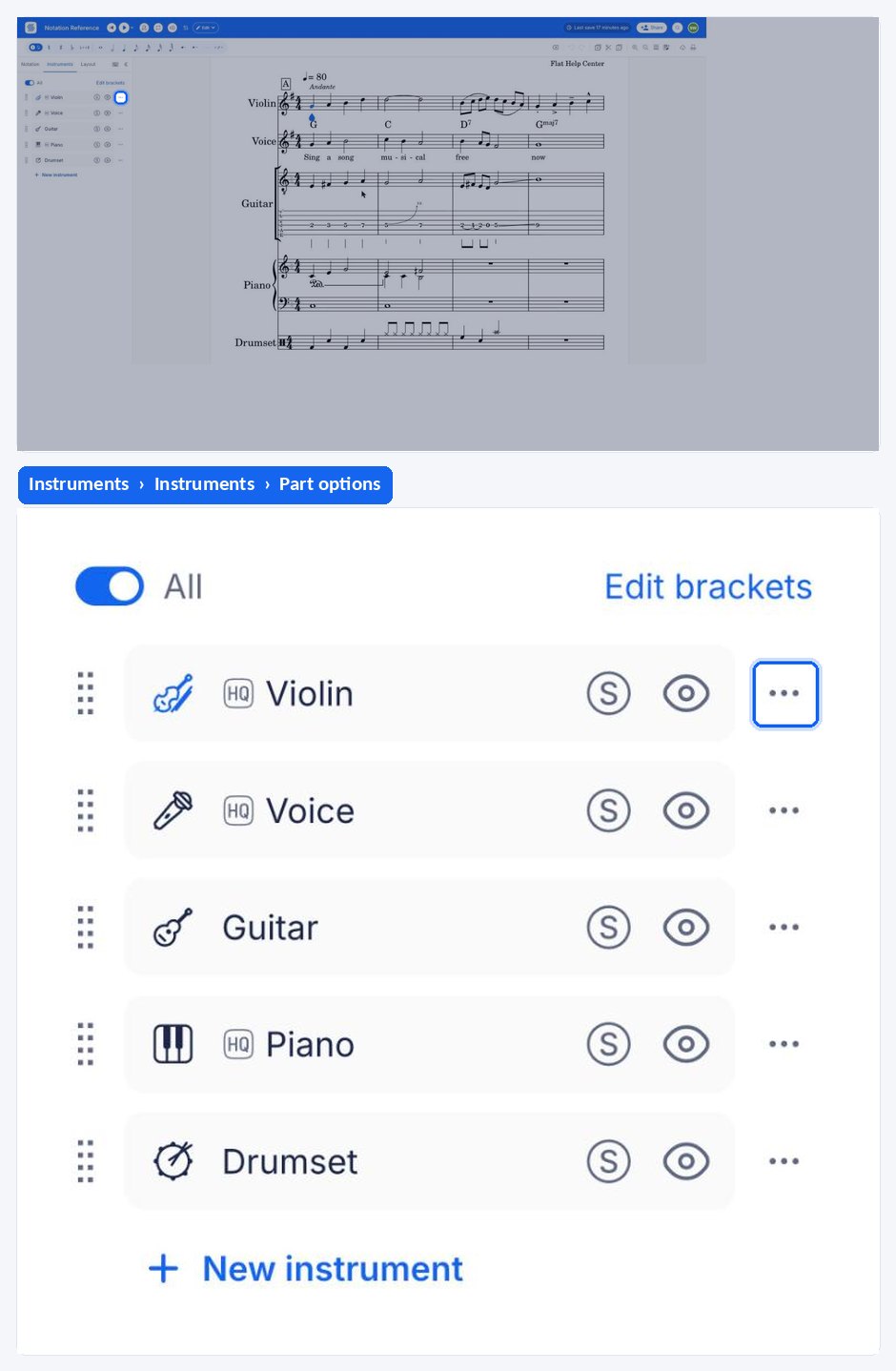
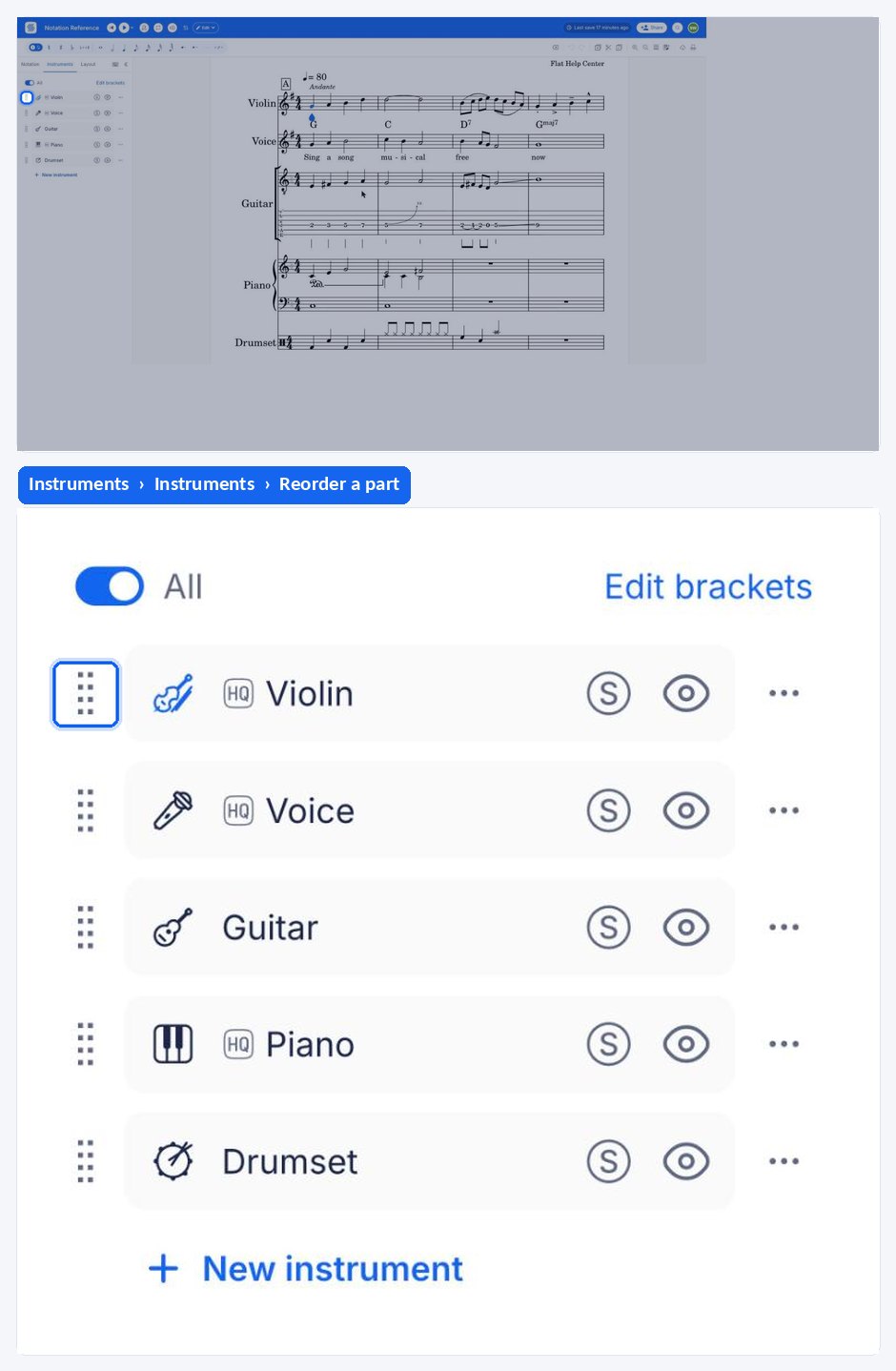
Click on the drag & drop icon next to a part to re-organize it in the score. Parts appear in the score in the order they have in the instruments settings, so dragging a part up or down moves its staff up or down in every system of the score.
Frequently asked questions
Can I change a part's instrument instead of removing and adding one?
Yes. Replacing the instrument keeps the part and its music in place, swaps the whole instrument configuration, and transposes the notes when the old or new instrument is a transposing one — see how to transpose a part for a different instrument.
Can I hide a part instead of removing it?
Yes, and it is usually the better option while you are working. Hiding takes the staff off your screen without touching the music it contains, so nothing is lost and you can bring it back at any time — see display and hide parts.
How do I rename a part?
The part name shown at the start of the staff is edited separately from the instrument itself, so you can call a part "Solo" or "Tenor 1" while keeping its instrument configuration and sound. See rename a score part for the steps.
Can I keep a part configuration I set up for another score?
Yes. A configuration you adjusted once can be saved and reused instead of rebuilt part by part on every new score. See custom instruments configurations for how to save one and add it to a score later.