How to add custom brackets to group parts in Flat
Last updated October 13, 2026
A bracket in Flat is the vertical line that joins several staves at the left of a system to show they belong together - the flutes, the clarinets, a choir. Flat lets you customize those groupings yourself, with a switch between each pair of parts and a preview of the score as you go.
Where do I find the brackets editor?
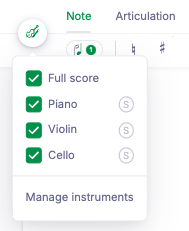
Once you created a score, you can customize the brackets in the document settings. Open the Instruments tab in the left panel and click Manage instruments, then click the Add/Edit Brackets button at the bottom of your instruments list.

How do I add and edit brackets?
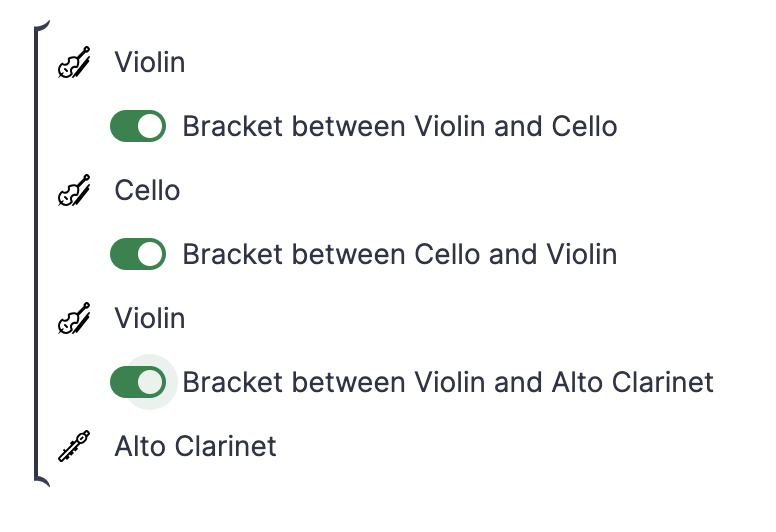
You can then add and edit your existing custom brackets on this page. Click on the switches to enable/extend or disable a bracket. You also have a quick overview of the group on the left of the interface, and the preview of the score on the right part of the screen.
For example, you want to create two brackets: Flutes and Clarinets. Click on the switches between the parts to create the two brackets.
Frequently asked questions
How do I group three or more parts in one bracket?
Switch on the grouping between each neighbouring pair inside the group. The switches enable, extend, or disable a bracket, so turning on two consecutive switches puts three parts in one bracket - and the preview on the right of the screen confirms it before you leave the page.
How do I remove a bracket?
Click the switch that created it again. The switches are toggles, so disabling the grouping between two parts ends the bracket there - and the preview on the right of the screen shows the score without it before you leave the page.
Do brackets follow the parts when I reorder them?
Brackets group neighbouring parts, so they are defined by the switches between the parts as they are currently ordered. After reordering your instruments, check the brackets page and adjust the switches so the groups still match the families.