How to browse and restore your score history in Flat
Last updated November 4, 2026
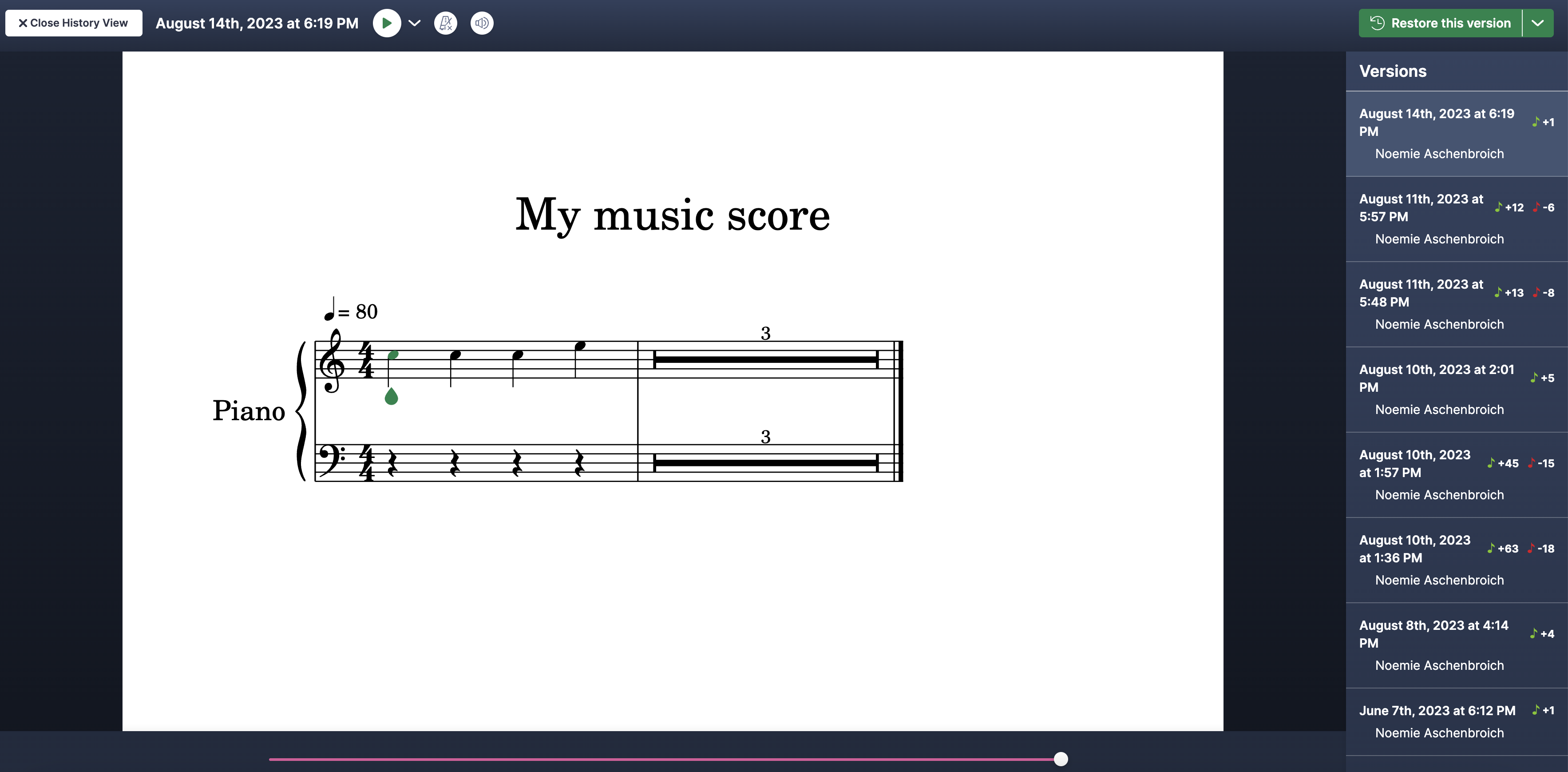
History in Flat is the record of every change made to a score. When you make changes to your music scores on Flat, we automatically store every change you make, so you can browse the older versions of your creations, see who changed what, replay the edits one by one, and restore them at any modification that you want.
Does Flat save my score automatically?
Yes, continuously. When using Flat, every single change you make is automatically synchronized to our servers, so you will never lose a single note. That's why you won't see a save button in our editor, new versions are automatically created.
We display the date of the last modification synchronized to our servers on the top of the screen and create a full save of your document more often and faster than before (e.g., a few seconds after you stop working on a document). And you can click on this last modification date to open the history of your document.

What is the difference between the free and full history?
Both give you a browsable history; the full version goes deeper and further back. The free history allows you to:
- Browse major versions of your score (a major version is created every 50 modifications or less)
- Restore one of the 10 last major versions of your score (that's about the last 500 modifications of your score)
With the full history, you can:
- Browse major versions and every single change you made in your score, since the first note you added
- Easily see what changed in the versions, and "rewind" or "replay" the changes
- Restore, Copy, and Export (MusicXML/MIDI) your score at any single modification you made
The full history is included with Flat for Education.
What does the versions list show?
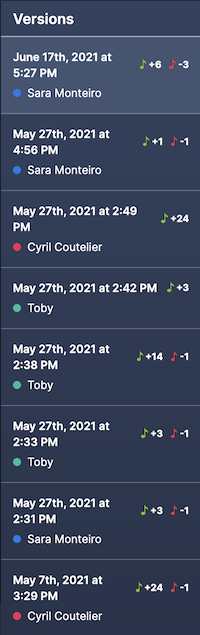
On the right of your screen, you have the list of main versions of your document, and who made the changes to the different versions. The colors next to the names are used to display the modifications on the score and are the same across the different versions.
The small notes in green and red next to a version indicate how many additions and deletions have been made in the version.
How do I replay individual changes?
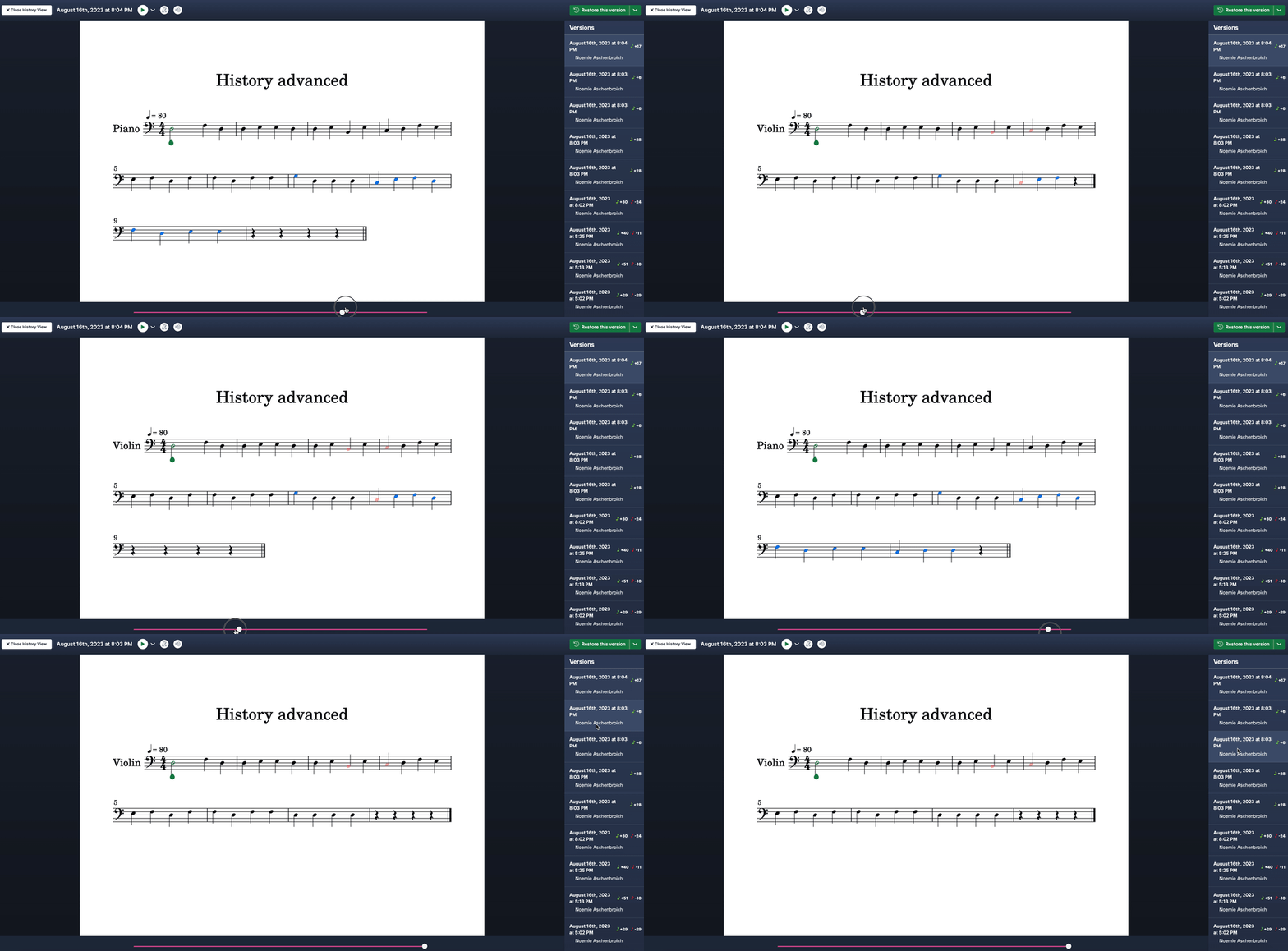
When you are viewing a version of the document, you can see how this version has been made, and replay every single change:
- On the bottom of your screen, you will have a slider to rewind and replay the different changes. This one basically works like a video player.
- On the left of your score, you have a minimal scrollbar that displays where the changes of the version are located. This allows you to quickly jump and see what changed in the version.
- On the music notation, the modifications are highlighted with different colors corresponding to the people who worked on the version (listed on the right of your screen).
How do I restore, copy, or export an old version?
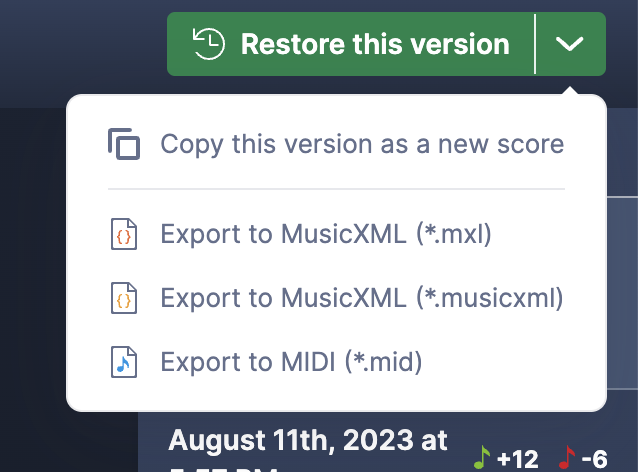
When viewing older modifications that you made to a document, you can recover this version by using the tools at the top of the history.
Click on Restore this version to replace the current score with the displayed score (the history will be kept intact, so you can still recover the last modification you made any time).
Flat for Education users can also copy the displayed score as a new score in their accounts, or export it to MusicXML (.musicxml,.xml) or MIDI (.mid).
Frequently asked questions
What is a major version?
A checkpoint Flat creates every 50 modifications or less. The free history browses those checkpoints and can restore one of the last 10, which covers roughly the last 500 modifications of your score.
Does restoring an old version erase everything since?
No. Restoring replaces the current score with the displayed one, but the history will be kept intact, so the modifications you made afterwards are still there and you can recover the last one at any time.