Canvas integration in Flat for Education
Last updated October 21, 2026
The Canvas integration in Flat for Education lets teachers and students sign in from Canvas, creates your classes automatically, and sends assignments and grades back to the Canvas gradebook. Flat for Education supports two setups: LTI 1.3, set up once by a Canvas admin and then added to each course by teachers with a Client ID, and LTI 1.1 (Legacy), which is added course by course with a Consumer Key and Shared Secret.
Which setup do I need?
The right guide depends on your role and on whether Flat for Education is already installed in your Canvas. Find your situation below to go straight to it.
| I am... | Situation | Go to |
|---|---|---|
| A Canvas admin | Setting up for the whole school or district (recommended) | LTI 1.3 setup |
| A Canvas admin | Already using LTI 1.1 and moving to LTI 1.3 | LTI 1.3 vs LTI 1.1 |
| A teacher | My admin already set up Flat for Education with LTI 1.3 | Add it to your course with the Client ID from your admin |
| A teacher | No admin help, or a single course only | LTI 1.1 setup |
Still deciding? See LTI 1.3 vs LTI 1.1 for a side-by-side comparison.
Is Flat for Education already installed in my course?
Open one of your Canvas courses and look for Flat for Education in the course navigation on the left. You can also create an assignment, choose External tool as the submission type and click Find: if Flat for Education is in the list, it's installed.
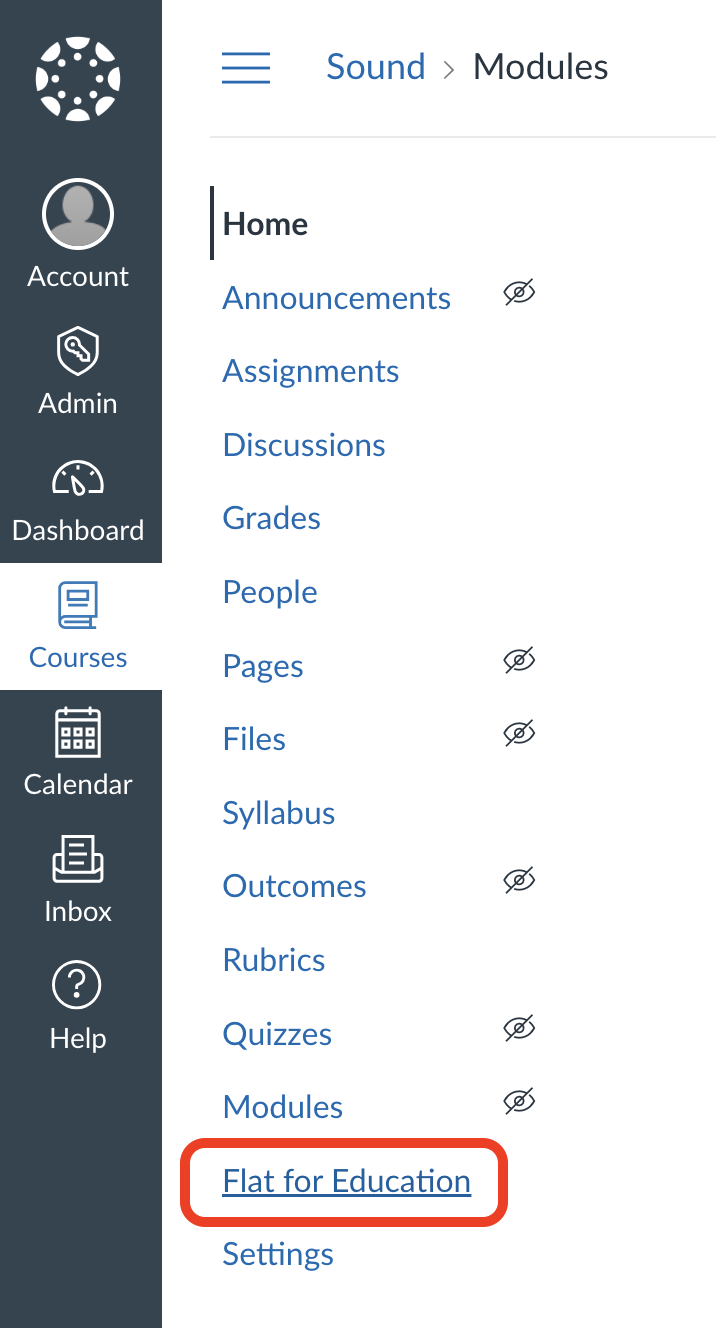
If it's there, you can go straight to creating an assignment. If it isn't, ask your Canvas admin for the Client ID and add it to your course. If your admin hasn't set up LTI 1.3 yet, ask them to install it, or set up LTI 1.1 in your own course.
You'll need the Consumer Key and Shared Secret. Only Flat for Education admins can see them, so ask your Flat for Education admin to share them. Then follow the LTI 1.1 setup steps.
What can I do with Flat for Education in Canvas?
Flat for Education works inside your Canvas courses, so you and your students don't need a separate login or class list.
- Sign in from Canvas: teachers and students open Flat for Education from their course and are signed in automatically.
- Automatic classes: your Canvas courses become classes in Flat for Education, and students are added when they first open it.
- Assignments from your Assignment Library: add any Flat for Education assignment (composition, worksheet, performance and more) to a Canvas course. See how to create Canvas assignments.
- Grades in SpeedGrader: review student work and grade it in Canvas SpeedGrader. Grades go to the Canvas gradebook.
- Scores in your pages: embed interactive sheet music in Canvas pages, assignments and quizzes.
How do sign-in and classes work?
When you or your students open Flat for Education from Canvas, Flat for Education signs you in with your Canvas account and sets up the class for you. There's no password to remember and no student list to type in.
Signing in from Canvas
Click Flat for Education in your course navigation, or open any Flat for Education assignment or linked score. Flat for Education opens and signs you in to the account linked to your Canvas account.
If someone doesn't have a Flat for Education account yet, one is created automatically in your school's Flat for Education organization.
Automatic class creation on Flat for Education
The first time you open Flat for Education from a Canvas course, Flat for Education creates a matching class for you. You'll find it in your Flat for Education classes.
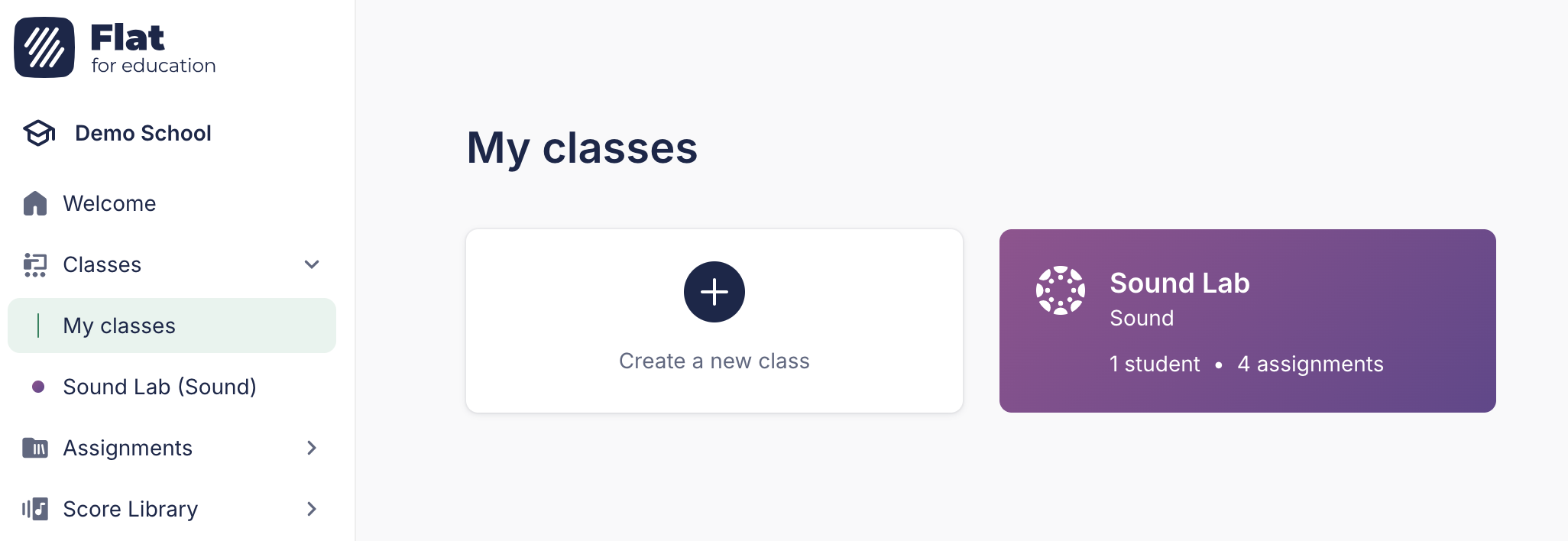
Open Flat for Education from your Canvas course before your students do. Students can only join once the class exists, so if they try first, Flat for Education can't let them in. Once you've opened it, ask them to try again.
After that, each student is added to your class the first time they open Flat for Education from your Canvas course. If a student is missing, ask them to open the assignment or the course link once, and they'll appear straight away.
Guides by role
For admins
- Set up Canvas with LTI 1.3, recommended for schools and districts
- Set up Canvas with LTI 1.1 (Legacy)
- LTI 1.3 vs LTI 1.1
- Roles and permissions, including the Support admin role for IT staff
For teachers
- Create Canvas assignments with Flat for Education
- Embed sheet music in Canvas
- Set up LTI 1.1 in your own course
- Canvas FAQ
Frequently asked questions
Do teachers need to install anything with LTI 1.3?
Yes, once per course. Ask your Canvas admin for the Client ID, then in your course open Settings > Apps, click + App, choose By Client ID and paste it. See how to add Flat for Education to your course.
Where do I find the Consumer Key and Shared Secret?
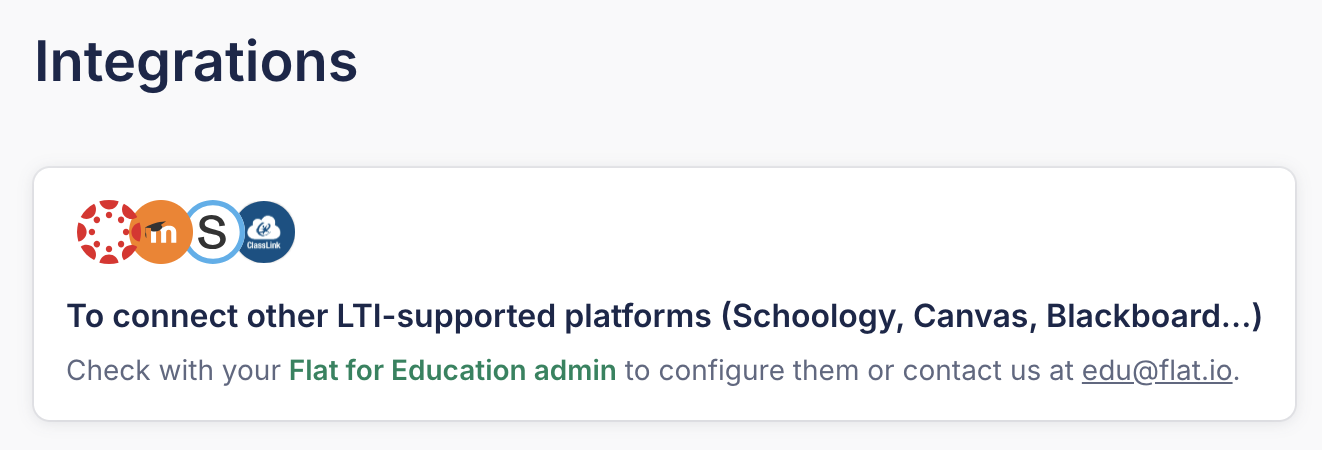
You only need them for LTI 1.1. LTI 1.3 uses a registration link instead. The key and secret are in Flat for Education under Settings > Integrations > Canvas, and only Flat for Education admins can see them. If you're a teacher, ask your school's Flat for Education admin.
Is the Canvas integration included in my plan?
Yes. The Canvas integration is included in every Flat for Education plan, including the Teacher plan, the School & District plan and free trials. It isn't available with an individual Flat subscription, because the integration works through your school's Flat for Education account.
Will my students lose their work if we switch from LTI 1.1 to LTI 1.3?
No. Student scores and assignments are stored in their Flat for Education accounts, and Flat for Education matches each student to their existing account when they first open it with LTI 1.3. Both setups can run side by side while you test, so you can switch when you're ready.
I see an error when opening Flat for Education from Canvas. What should I do?
Check the Canvas FAQ, which explains the most common setup and sign-in issues and how to fix each one. If your error isn't listed, contact our support team with a screenshot of the message, your Canvas domain and the course where it happened.