How to set up Canvas with LTI 1.1 in Flat for Education
Last updated October 22, 2026
LTI 1.1 in Flat for Education is the older way to connect Flat for Education to Canvas, set up course by course with a Consumer Key and Shared Secret. Flat for Education supports single sign-on, automatic classes, assignments and grade sync with LTI 1.1. This guide is for teachers and admins.
LTI 1.1 still works, but LTI 1.3 is more secure. LTI 1.1 relies on one Shared Secret that gives access to your school's Flat for Education organization, so anyone who gets hold of it can connect. Use LTI 1.1 if you don't have a Canvas admin to help, or only need Flat for Education in one or two courses. Not sure? See which setup you need.
How do I get my Consumer Key and Shared Secret?
Canvas needs your school's Consumer Key and Shared Secret to sign users in to Flat for Education. Only Flat for Education admins can see them.
Open the Canvas integration in Flat for Education
In Flat for Education, open Settings > Integrations, then click Canvas.
The LTI 1.3 window opens first. To get the LTI 1.1 credentials, find the sentence "If you prefer to use the legacy version (LTI 1.1), you may switch to it here" and click here.
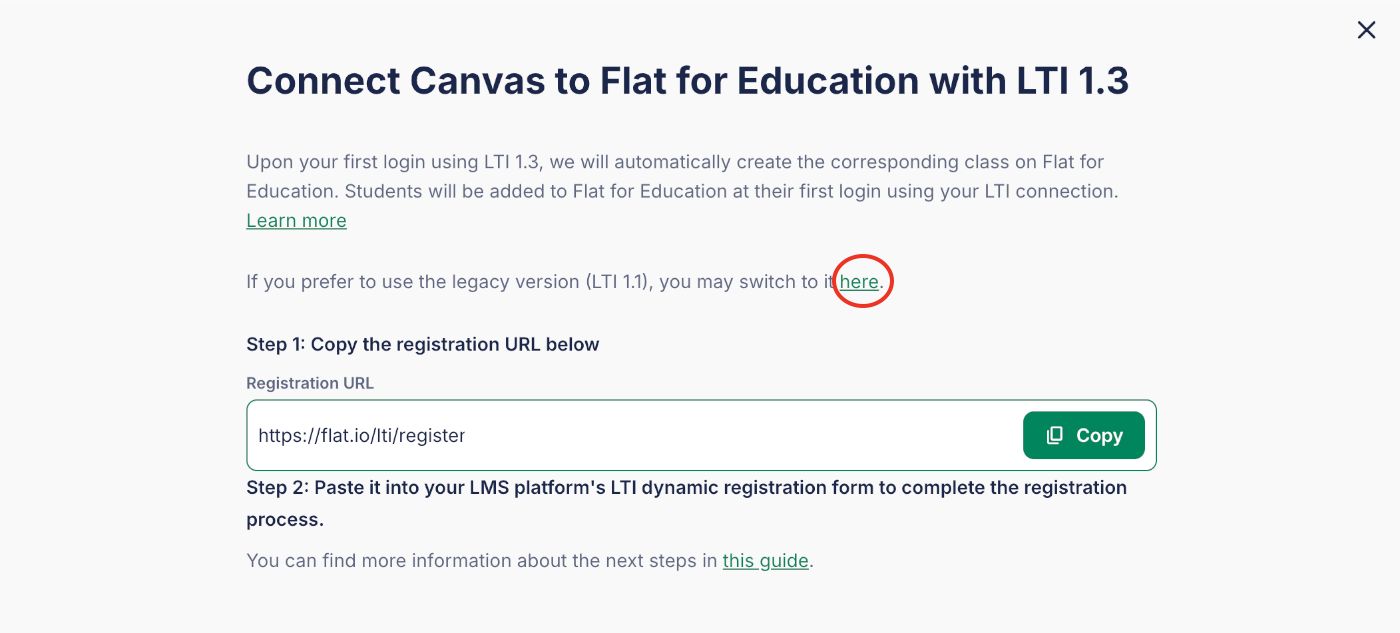
If you're a teacher, the Integrations page asks you to check with your admin instead. Ask your school's Flat for Education admin to share the key and secret with you.
Copy the Consumer Key and Shared Secret
Copy the Consumer Key and the Shared Secret one at a time. You'll paste them into Canvas in the next section. Keep them private: they give access to your school's Flat for Education organization.
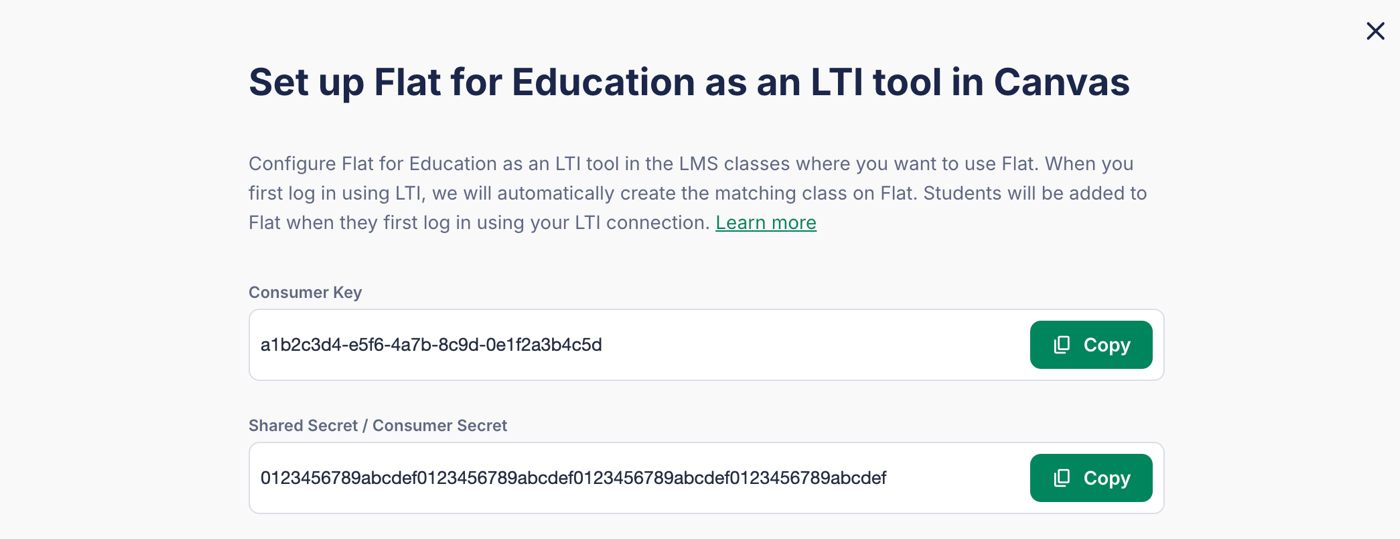
How do I add Flat for Education to my Canvas course?
Add Flat for Education in your Canvas course settings, under the Apps tab, by URL. It takes about two minutes, and you repeat it for each course where you want to use Flat for Education.
Open the Apps settings of your course
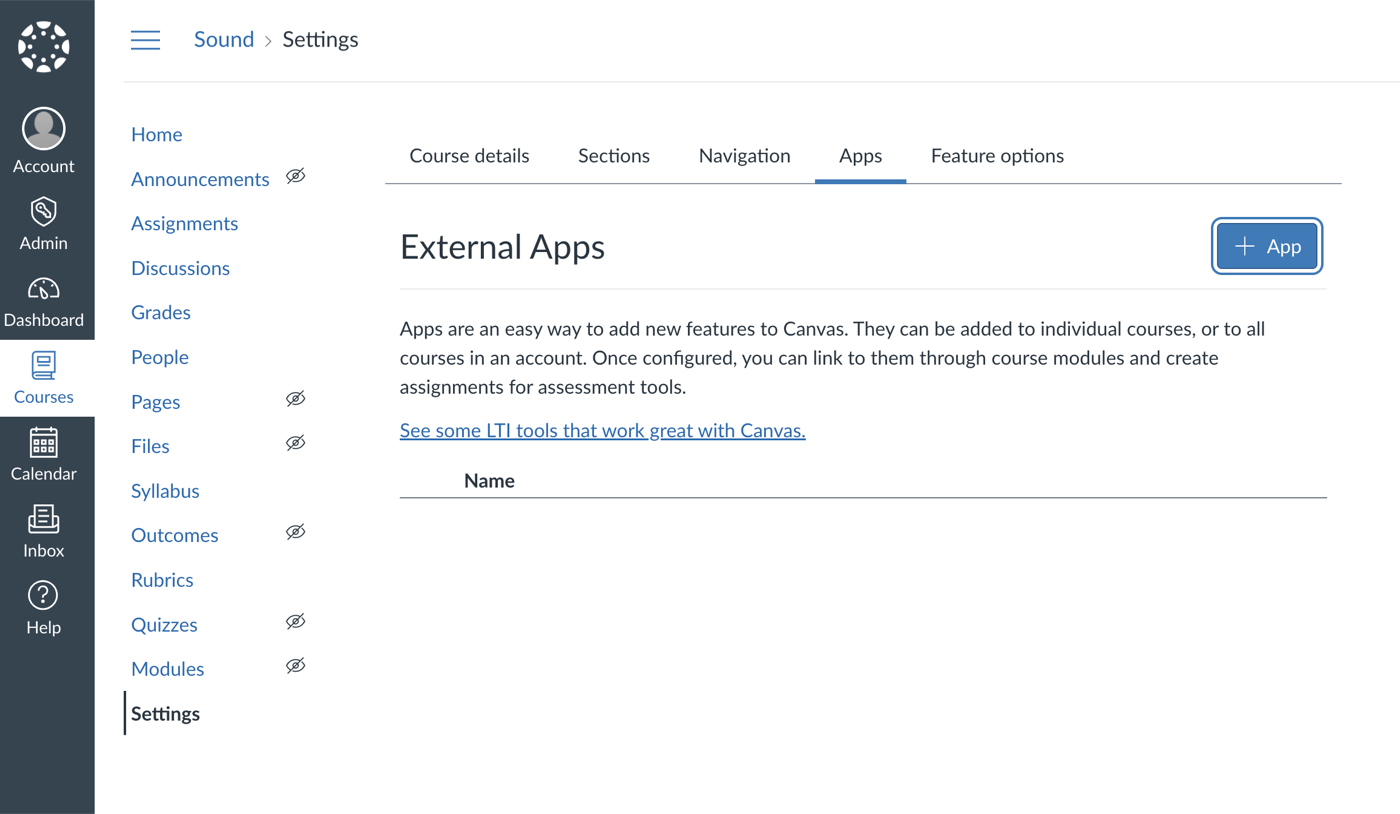
Open your Canvas course, click Settings in the course navigation and open the Apps tab. Click + App.
Add the app by URL
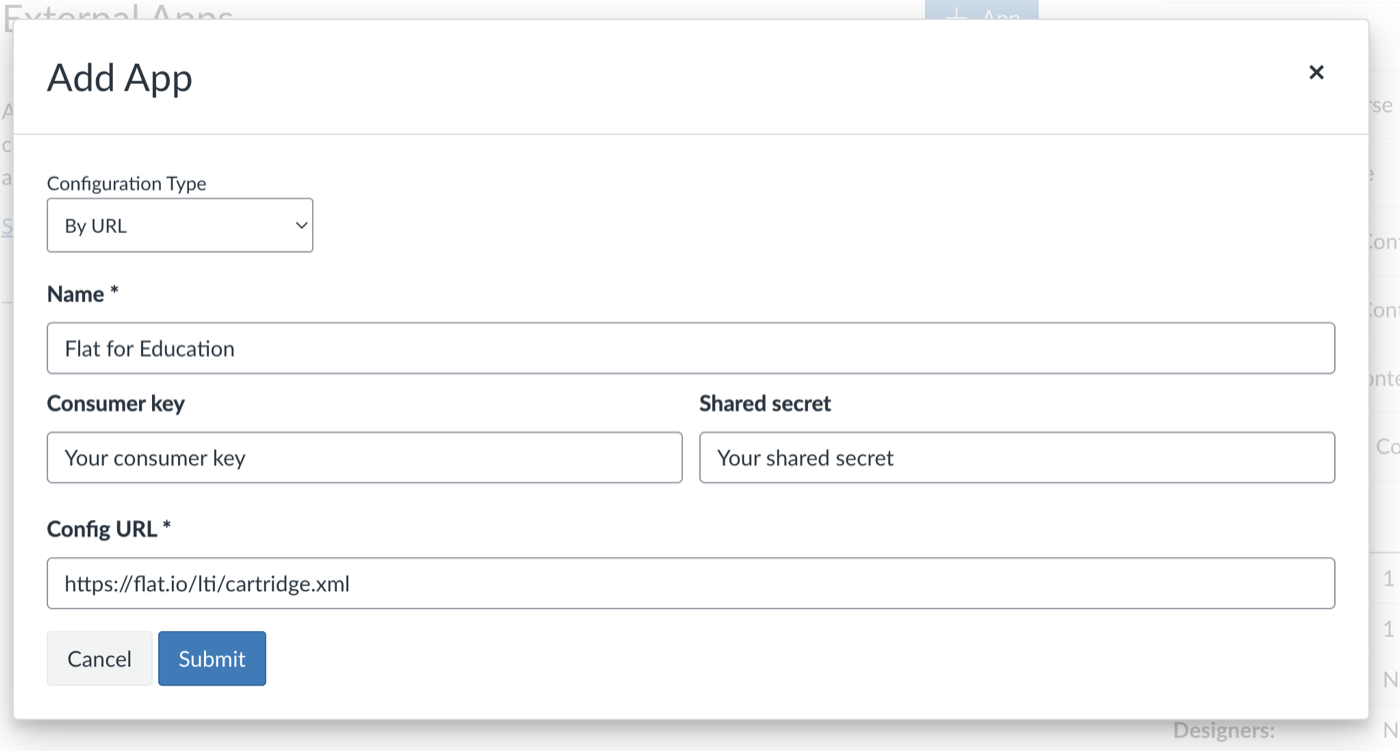
In Configuration Type, choose By URL, then enter these settings:
| Field | What to enter |
|---|---|
| Name | Flat for Education |
| Consumer Key | Your Consumer Key |
| Shared Secret | Your Shared Secret |
| Config URL | https://flat.io/lti/cartridge.xml |
Save the app
Click Submit.
And you're all set! Flat for Education now appears in your course navigation, and you can create Flat for Education assignments.
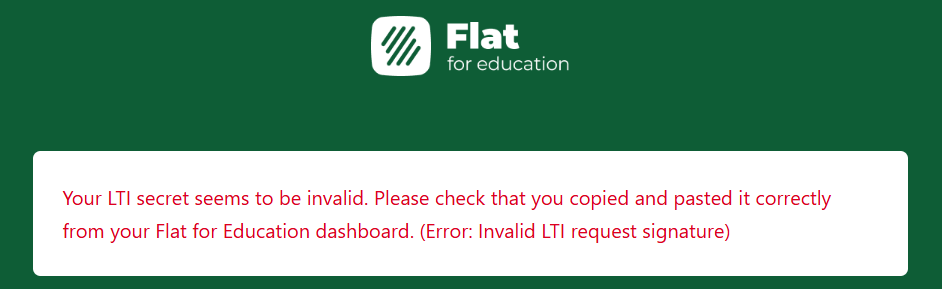
Copy your Consumer Key and Shared Secret one at a time. A stray space at the start or end of a pasted value, or the key and secret swapped into the wrong fields, is the most common cause of an "Invalid LTI request signature" error.
If you see the error below, it's most likely that the Shared Secret wasn't copied correctly. Copy it again from Settings > Integrations > Canvas in Flat for Education and paste it into Canvas.
How do I change the privacy settings?
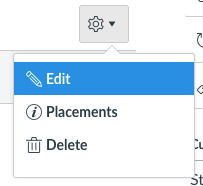
You can change the name, description and privacy settings of Flat for Education in Canvas. Open your course Settings > Apps, click the gear icon next to Flat for Education and choose Edit.
To use Flat for Education without any personal information, set Privacy to Anonymous. Canvas then sends only an anonymous ID, so Flat for Education can recognize the same user each time without knowing their name or email address.
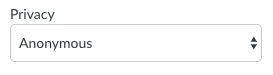
With Anonymous, Flat for Education can't match students to their existing accounts, because Canvas doesn't share their email address. Use the default privacy setting if your students already have Flat for Education accounts.
Can students keep their existing Flat for Education accounts?
Yes. If your students already used Flat for Education without Canvas, Flat for Education matches them to their existing accounts by email address the first time they open it from Canvas. If no account is found, a new one is created automatically.
For the match to work, check that:
- Students use the same email address in Flat for Education and in Canvas.
- Their accounts are in your school's Flat for Education organization, not individual Flat accounts. For security, Flat for Education only matches accounts that belong to your school.
- Canvas uses the default privacy setting, so it shares students' email addresses.
You can try with one student account before the whole class signs in. If you need help matching accounts, contact our support team.
Video tutorial
Frequently asked questions
Can I set up LTI 1.1 if I'm not a Canvas admin?
Usually, yes. In most schools, teachers can add apps to their own Canvas courses under Settings > Apps. If Canvas doesn't let you add an app, ask your Canvas admin. You also need the Consumer Key and Shared Secret, which your Flat for Education admin can share.
Do I need a new Consumer Key for each course?
No. Your school uses one Consumer Key and Shared Secret for all its Canvas courses, but with LTI 1.1 you add Flat for Education to each course separately. To set it up once for your whole school, ask your Canvas admin to set up LTI 1.3 instead.
What does the LTI consumer key not found error mean?
The Consumer Key or Shared Secret in Canvas doesn't match your school's Flat for Education account. Copy both again from Settings > Integrations > Canvas and paste them into the app settings in Canvas. If it worked before, the person who set it up may have left your school, so ask your admin or contact our support team.
Should we switch from LTI 1.1 to LTI 1.3?
We recommend it. With LTI 1.3, your Canvas admin sets it up once, then teachers add it to each course with a Client ID. There's no Consumer Key or Shared Secret to share, and your students keep all their work. You can test LTI 1.3 in one course before removing LTI 1.1.