Setup a Microsoft Teams Class on Flat for Education
Last updated September 2, 2026
You will need a Flat for Education account to use this feature.
Adding a Microsoft Teams class on Flat for Education will automatically provision or update your students' accounts in your private Flat for Education website, then enroll them in your Flat for Education class. Once a course is synchronized on Flat for Education, future roster updates will be automatic - you don't have anything else to do!
Admin consent
For admins
Before teachers can sync their Microsoft Teams classes with Flat for Education, a Microsoft 365 admin must grant consent once for the whole organization. Teachers who try to connect without it will see a permissions error.
Complete this before your teachers start setup.
There are two ways to grant consent:
Option 1 - Direct link
As a Microsoft 365 admin, open or share this link: Grant consent for Flat for Education.
Option 2 - Azure Console
- Open Enterprise applications in the Microsoft Azure Console.
- Find Flat for Education in the list.
- Go to Security > Permissions.
- Click Grant admin consent.
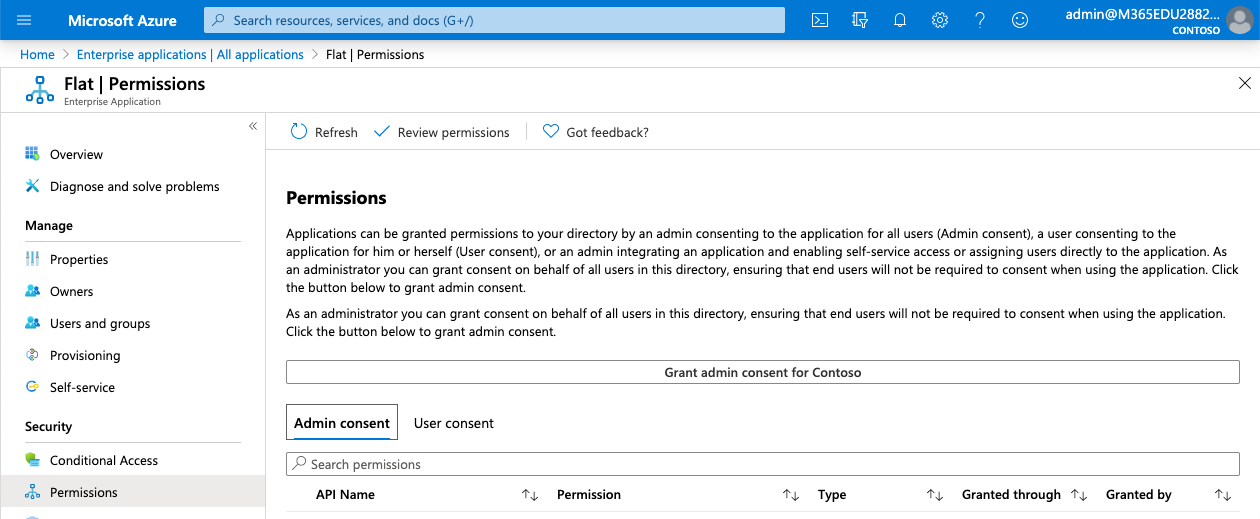
Permissions
Flat for Education requests the following permissions:
| Permission | Purpose |
|---|---|
| User.ReadBasic.All | Display student names and photos on the teacher dashboard before students sign in. |
| EduRoster.ReadBasic / EduRoster.Read.All / Member.Read.Hidden | Read class lists and memberships to create and update student accounts in Flat for Education. |
| EduAssignments.ReadWrite / EduAssignments.ReadWrite.All | Create assignments and write grades back to the Teams gradebook. |
Flat for Education only reads data from the classes the teacher chooses to sync. Teachers can only access their own classes, never those of a colleague.
Sync your Microsoft Teams classes
Follow these steps to connect your Microsoft Teams classes to Flat for Education.
Open the Classes tab
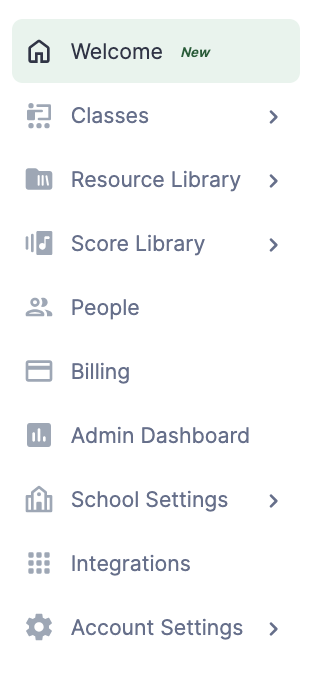
Once you are logged into Flat for Education, click Classes on the left of any dashboard page.
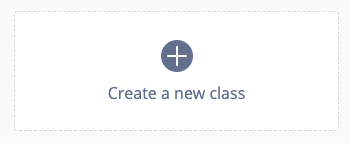
Then click Create a new class in the centre of your screen.
Choose Use Microsoft Teams
You don't need to enter a class name. Click Use Microsoft Teams.
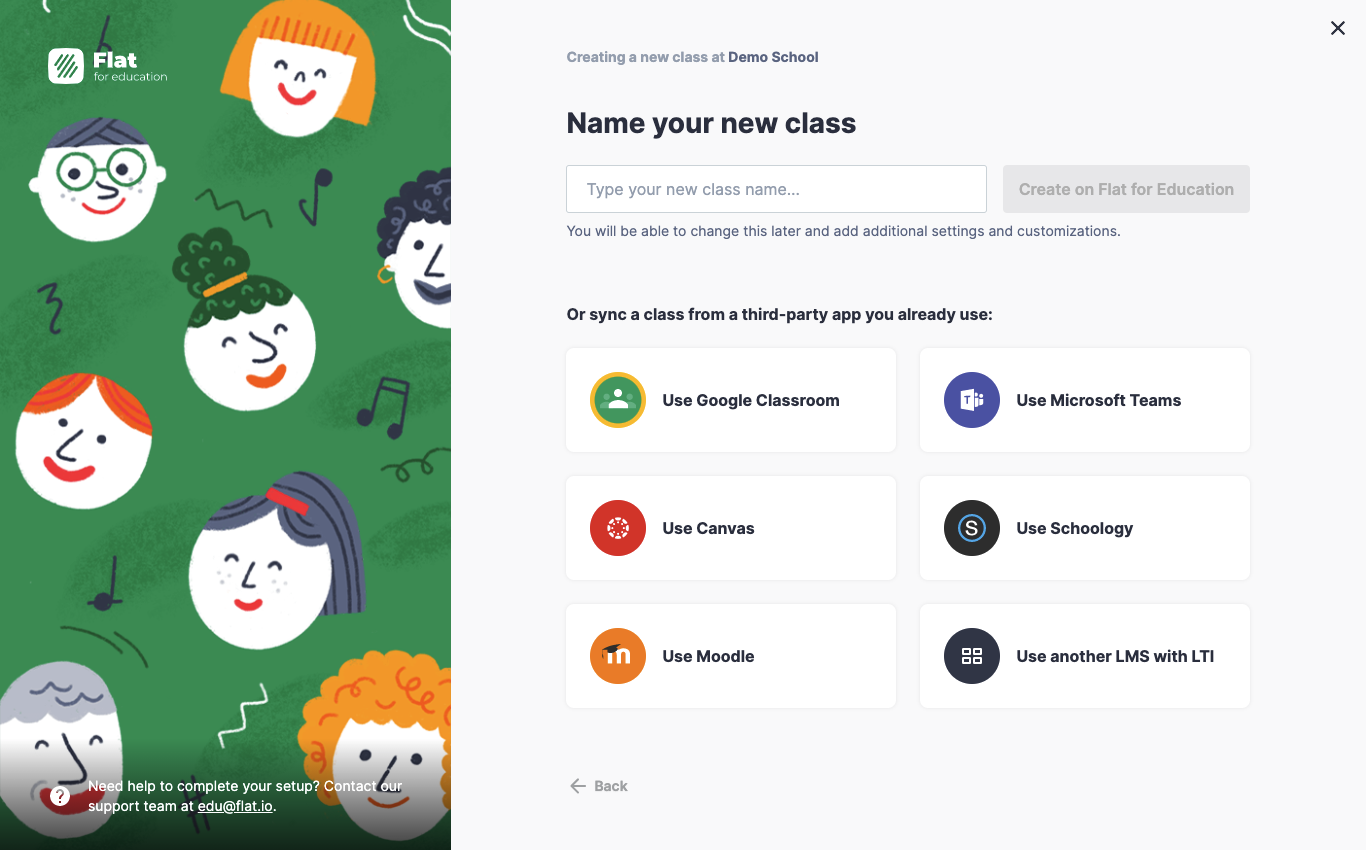
If you haven't authorized Flat for Education to access your Microsoft Teams classes yet, you will be prompted to do so. If you are not a Microsoft 365 admin, share the admin consent section above with your admin before continuing.
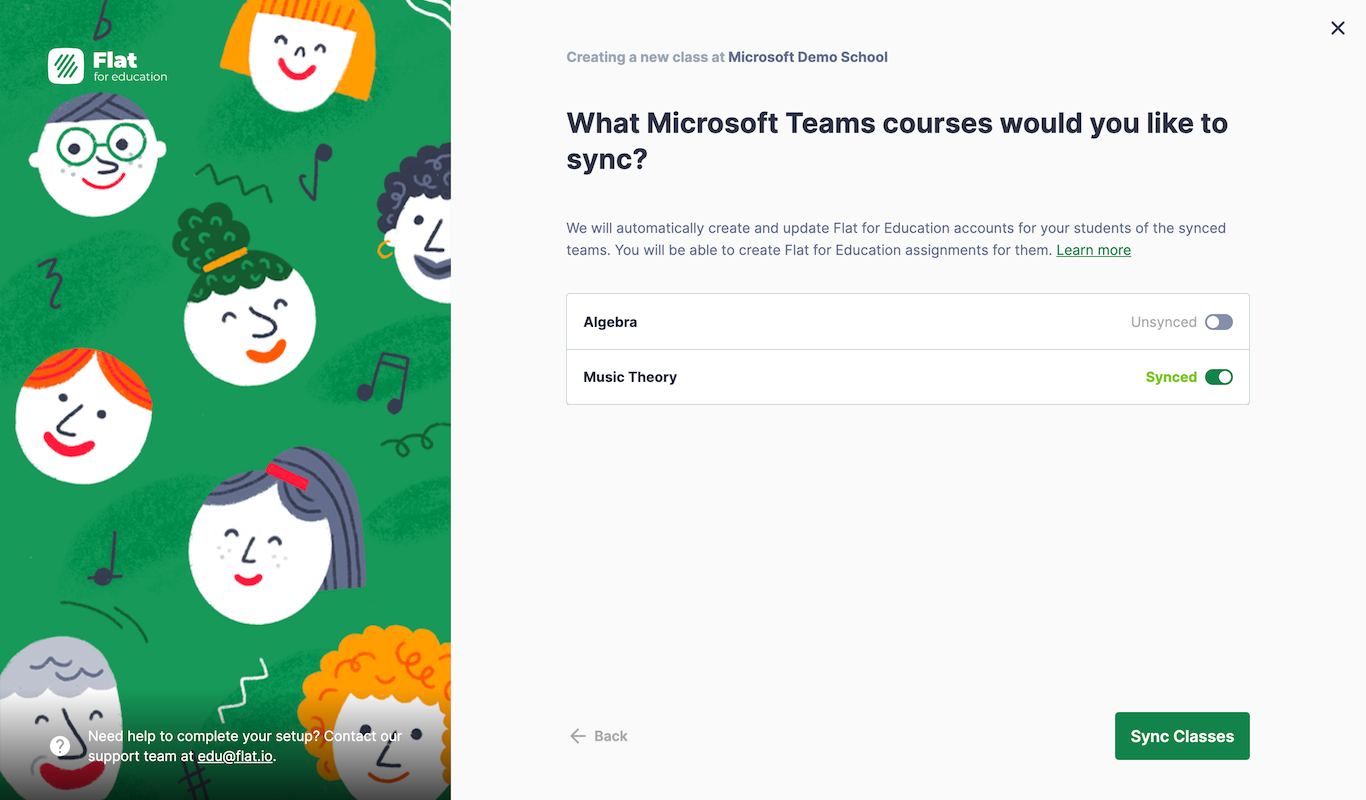
Select your classes
Once your Microsoft account is connected, you'll see all your teams. Select the ones you want to use with Flat for Education.
Your classes are ready
Your classes are now synchronized with Microsoft Teams. Student accounts are automatically created and enrolled — your students can sign in with their Microsoft accounts straight away.
Video tutorial
For more information on how to get started, check out the video tutorial.