Create a music notation assignment with Microsoft Teams
Last updated September 2, 2026
This page walks you through creating and posting a Flat for Education assignment to your Microsoft Teams.
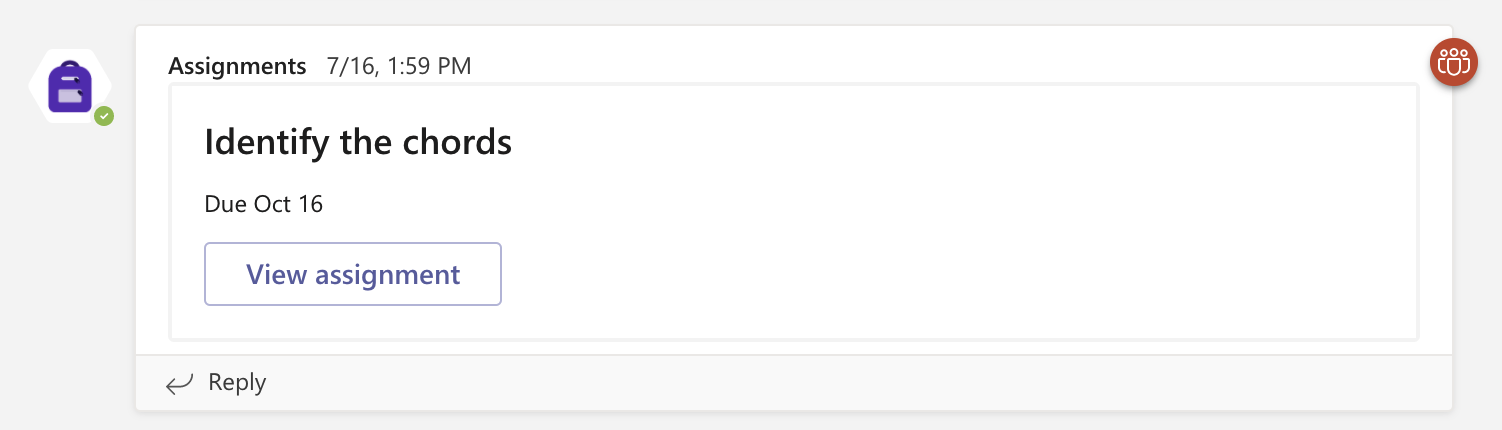
Once your Microsoft Teams class is set up on Flat for Education, you can create music notation assignments — compositions, auto-graded worksheets, or performance activities — and post them directly to your Teams channel. Students open them from their Teams feed with one click, and their grades sync back to your Teams gradebook automatically.
Make sure you've connected your Microsoft Teams classes to Flat for Education first. See the class setup guide →
Creating an assignment
Flat for Education offers a wide range of activities, all sync-ready with Google Classroom:
- Composition — music notation projects using the score editor
- Shared Writing — students co-create and edit the same score together in real time
- Worksheet — auto-graded music theory exercises
- Performance — recorded audio submissions
- Text Responses — open-ended written reflections and analysis of musical concepts
Once your class is set up, go to your Assignment Library and create the assignment there. This lets you assign it to multiple classes at the same time using bulk assignment.
The following elements will be added to your Classroom when creating a Flat for Education assignment:
- Title and instructions
- Grading options
- Due dates
Post your assignment
Now that your assignment is ready you can post it. If you want to see how your students will experience Flat for Education, check out our dedicated article. Their submissions made with Flat for Education will be sent to Teams, as well as their grades.
Re-use an assignment in other classes
You can easily re-use assignments created on Flat for Education to assign them to new classes throughout the years. To do so, open Flat for Education, go to the Resource Library where your assignment is saved and "Re-assign" it as needed.
Reviews and follow up
Now that your assignment is available to your students you can follow their progress. Check out our dedicated article to learn more about reviewing and giving feedback to your students.
Video tutorial
Need more information? Check out this video tutorial on how to create assignments on Microsoft Teams.