How to set up Schoology with LTI 1.1 (Legacy) in Flat for Education
Last updated October 14, 2026
Flat for Education also connects to Schoology with LTI 1.1 (Legacy), the older version of the LTI standard that lets Schoology open other learning tools. Teachers can set it up in their own courses without Schoology admin access, using the Consumer Key and Shared Secret from their Flat for Education admin. It's the right choice for a single class or for connecting several Flat for Education organizations.
For teachers
Set up LTI 1.1
The Consumer Key and Shared Secret are in Settings > Integrations > Schoology, and only Flat for Education admins can see them. If you're a teacher and can't see them, ask your school's Flat for Education admin.
Install from the App Center
It only takes a couple of minutes to set up Schoology for your Flat for Education account.
- Go to Settings > Integrations > Schoology in Flat for Education and copy the Consumer Key and Shared Secret. Keep these details private: they allow Schoology to access your Flat for Education school account.
- Open Flat for Education in Schoology's App Center. On the app page, click Install LTI App and choose the course where you'll use Flat for Education.
- Open the course, click Course Options, then External Tools. Choose the Flat for Education app you just installed and enter the Consumer Key and Shared Secret from step 1.
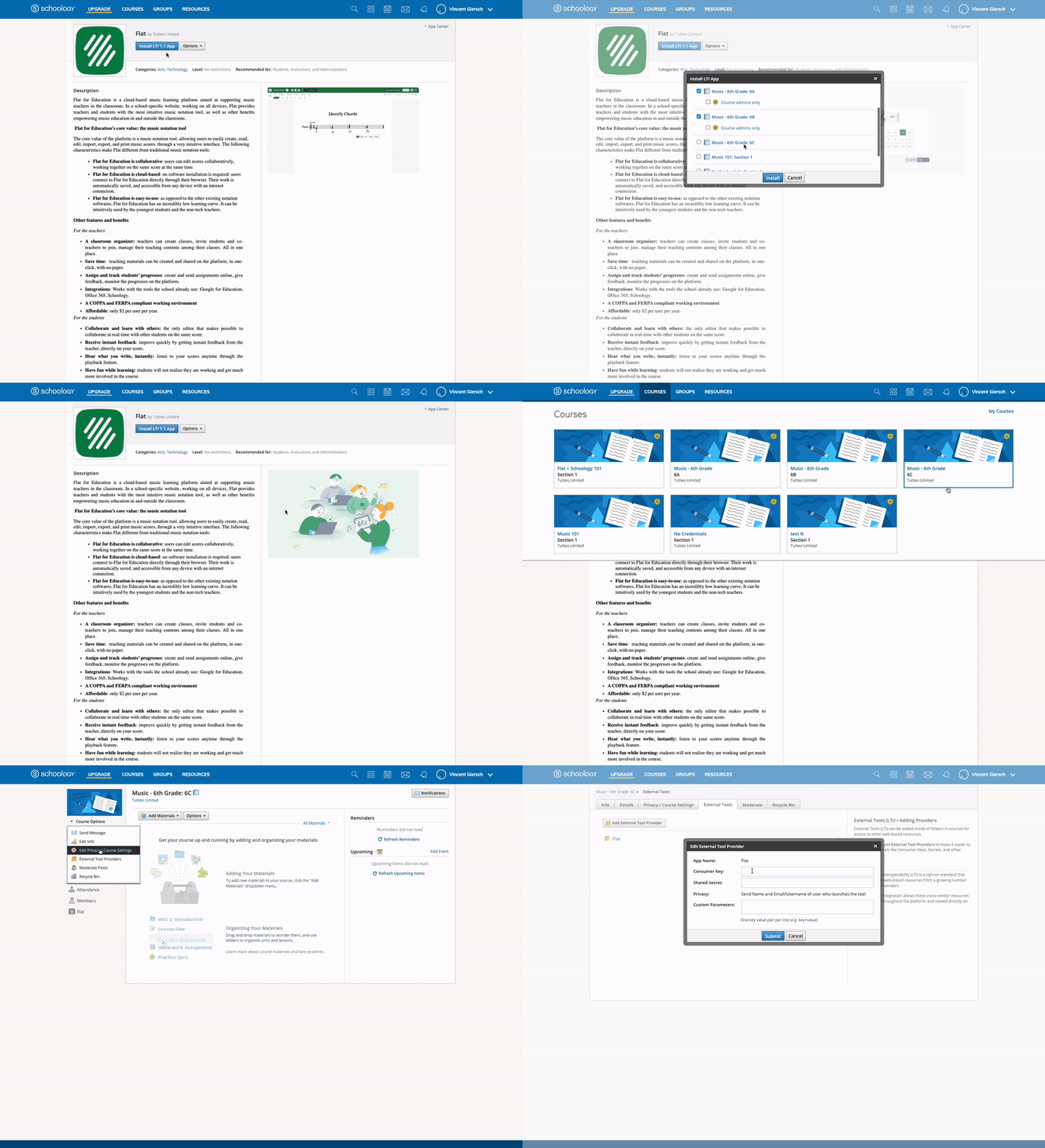
Install manually
If you don't have access to Schoology's App Center, you can add Flat for Education to your Schoology course manually:
- Open your course in Schoology.
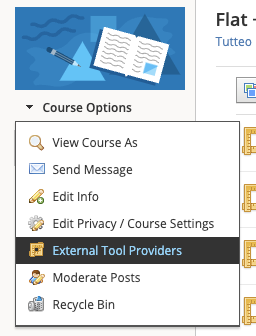
- Under Course Options, choose External Tool Providers.
- Click Add External Tool Provider and enter the settings from the table below.
- Click Submit.
| Setting | What to enter |
|---|---|
| Tool name | Flat for Education |
| Consumer Key | Your Consumer Key |
| Shared Secret | Your Shared Secret |
| Privacy | The option you want |
| Configuration Type | Manual |
| Match By | URL |
| Domain/URL | https://flat.io/lti/launch |
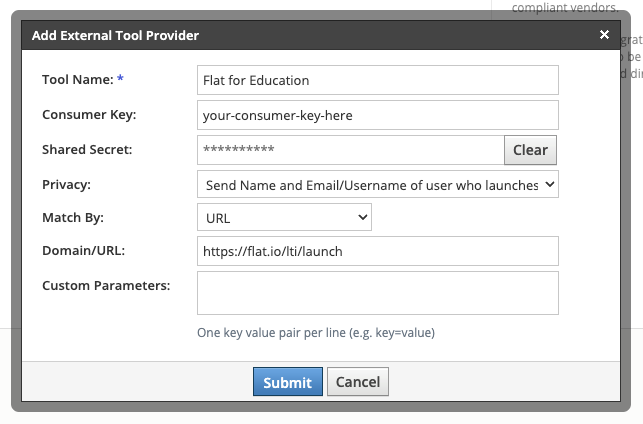
You can then use your integration to add Flat for Education assignments to your Schoology course.
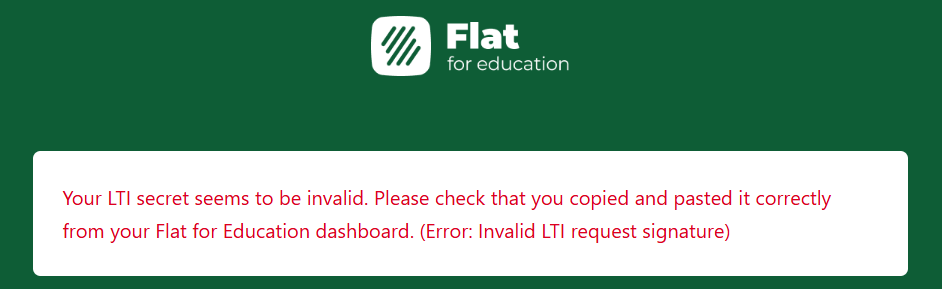
Copy your Consumer Key and Shared Secret one at a time — don't select both fields together. A stray space at the start or end of a pasted value, or the Key and Secret swapped into the wrong fields, is the most common cause of the error below.
If you see it, go back to Settings > Integrations > Schoology, copy the Shared Secret again, and paste it into Schoology.
How are my classes created?
When you open Flat for Education from your Schoology course, it creates a class for that course, so you can start making assignments and sharing scores right away. Your students are added to the class automatically the first time they open Flat for Education from Schoology, so they won't appear in your class until then.
Create an assignment
Create a new material in Schoology
You can create Flat for Education assignments directly in Schoology. Open your course, go to your Materials tab, then click Add Materials and choose Add File/Link/External Tool.
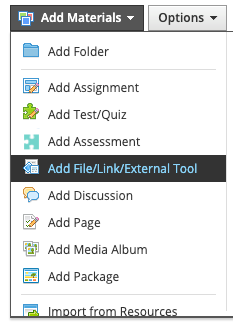
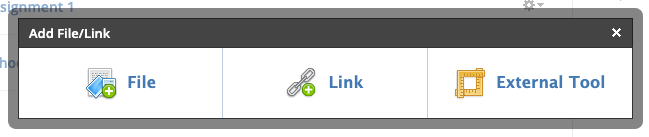
Choose External Tool:
As Tool Provider, choose Flat for Education, then add at least a title for your new assignment. You can use options like Grading and Due Date if you want. Click Submit to create your assignment in Schoology.
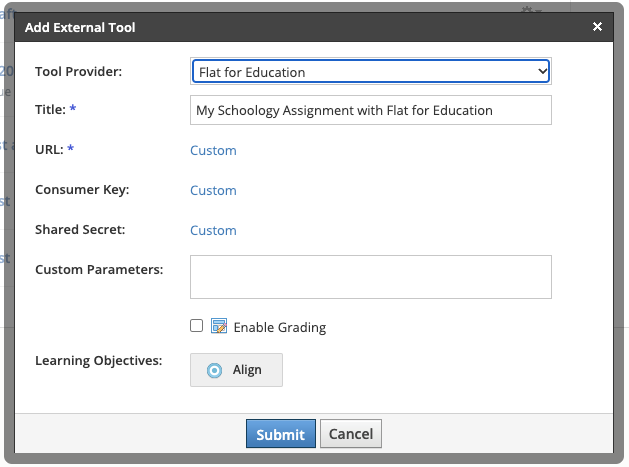
Don't add any URL, Consumer Key or Shared Secret here, and don't click any Custom links. Otherwise, Schoology won't let you submit the form.
Configure the Flat for Education assignment
Once you click Submit, the assignment is added to your course Materials in Schoology. Next, finish setting up your new Flat for Education assignment: click the material you just created, and it opens in Flat for Education.
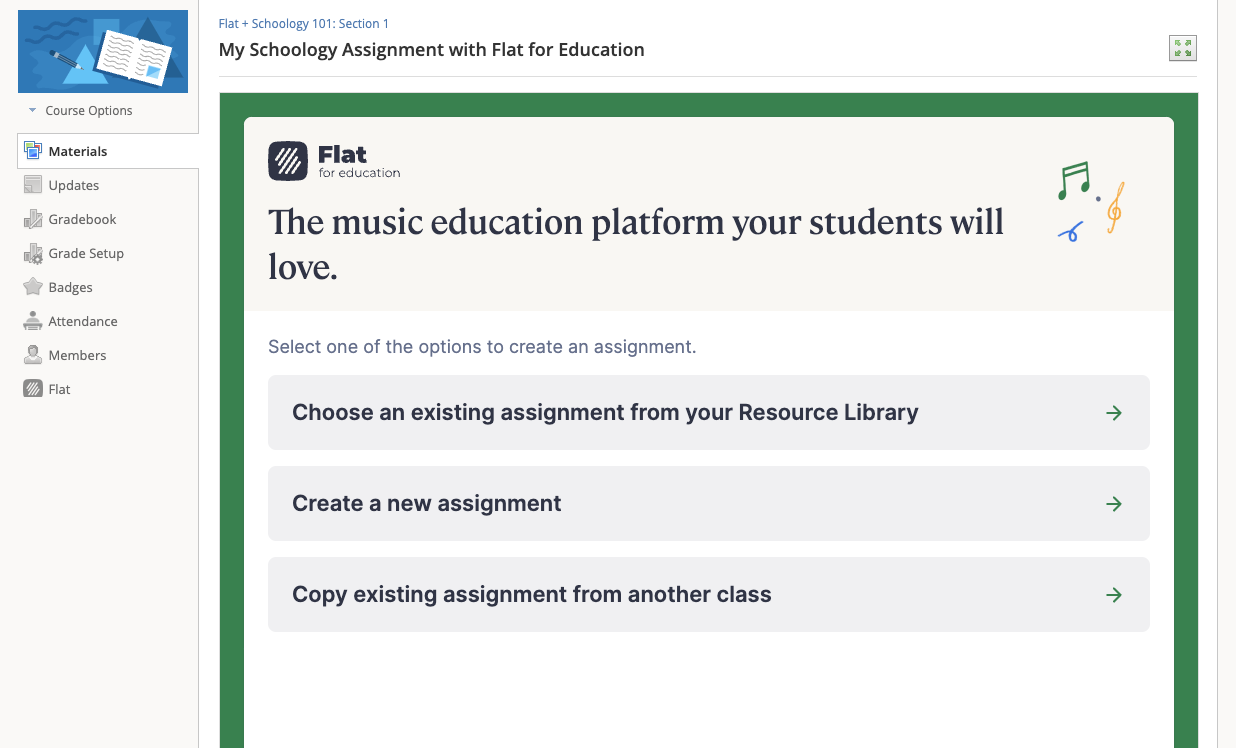
On this first page, you can add an existing assignment from your Assignment Library or a previous class, or create a new assignment for this class.
We recommend using your Assignment Library to easily reuse content across classes. Here, select Choose an existing assignment from your Assignment Library, pick an assignment in the list and click Next at the bottom of the screen:
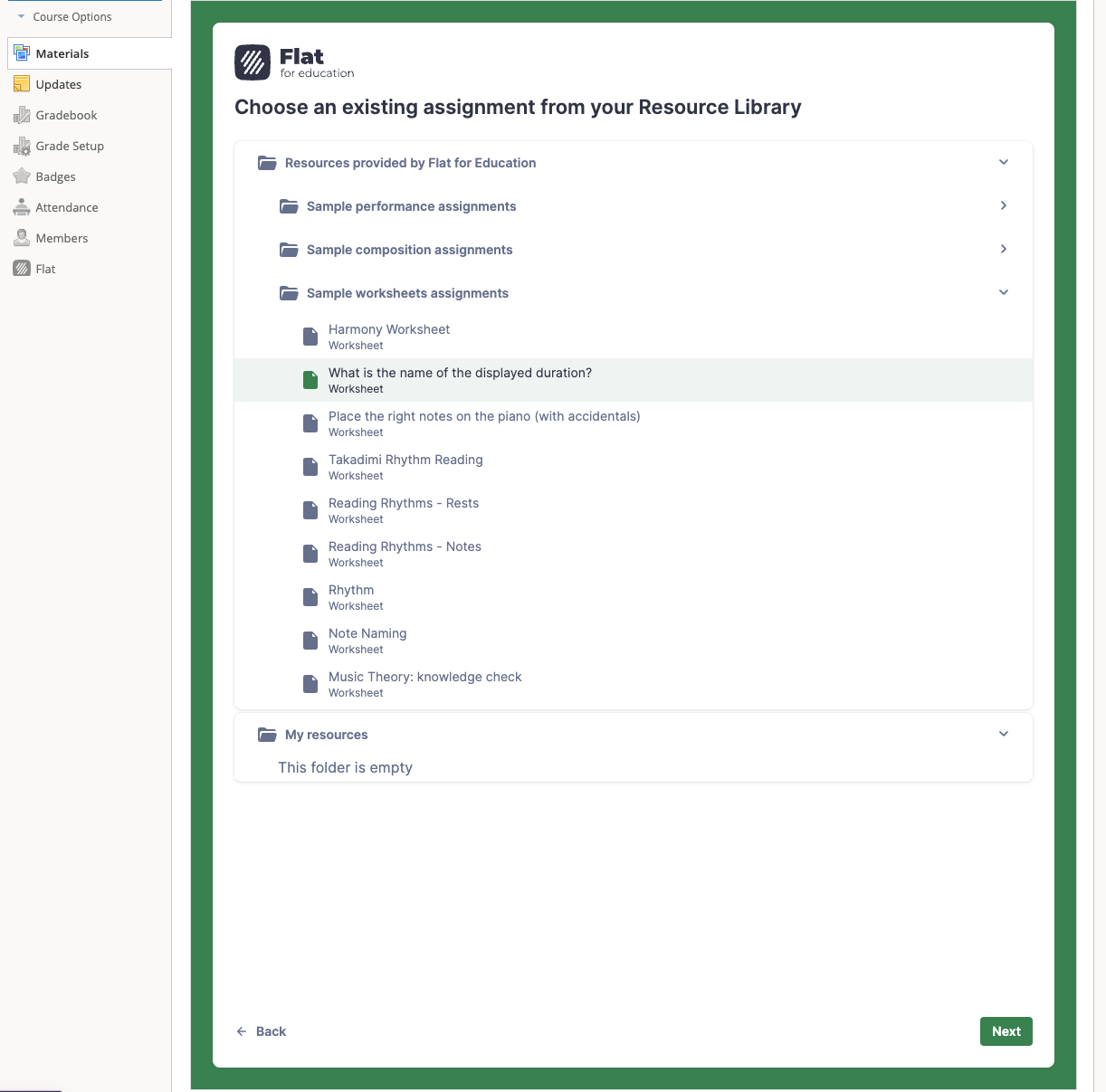
Then adjust the assignment content and settings for this course and click Publish to make it available to your students.
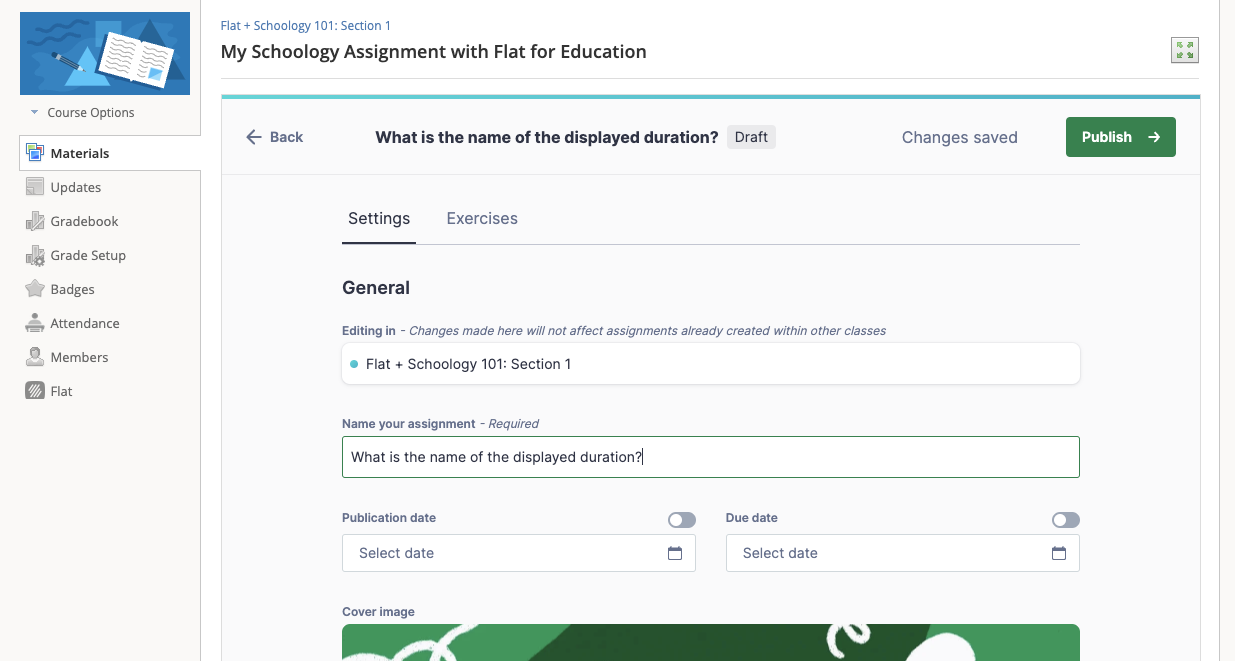
That's it, your assignment is ready! As soon as your students open the assignment from this Schoology page, you'll see their names on the assignment page, and you'll be able to see their work and give them live feedback.
Embed sheet music
Embed on your Materials page
You can embed interactive sheet music on your Materials page in Schoology. Students can play it, but they can't edit it.
Click Add Materials, then Flat:
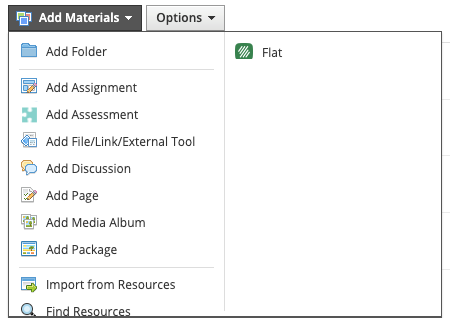
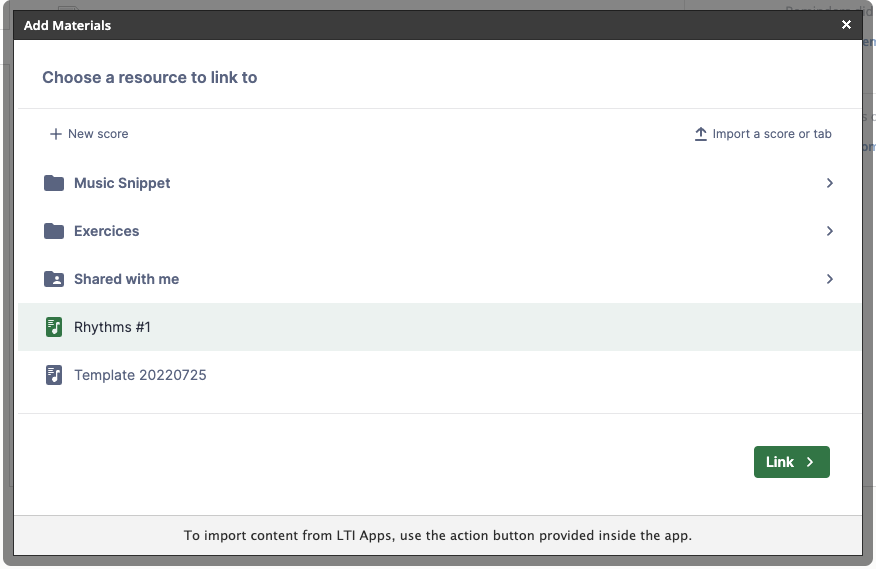
Choose the score you want to share with your class. Choose Link to insert a simple link, or Embed to insert an interactive player on your Materials page.
Here's how the embedded score looks on your Schoology Materials page.
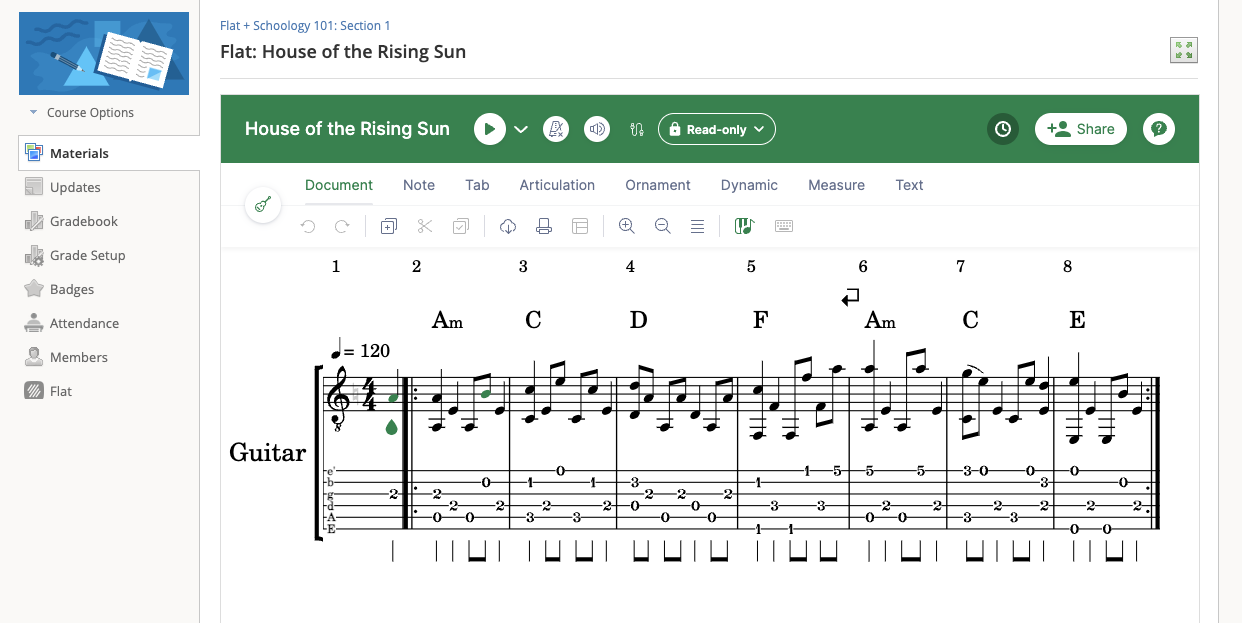
Schoology doesn't allow bigger embeds on the Materials page. For a longer score, use a link, or embed it on a Schoology Page instead (see below).
Embed on a Schoology page
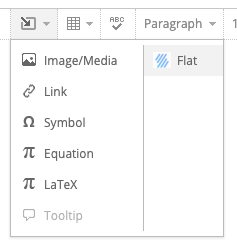
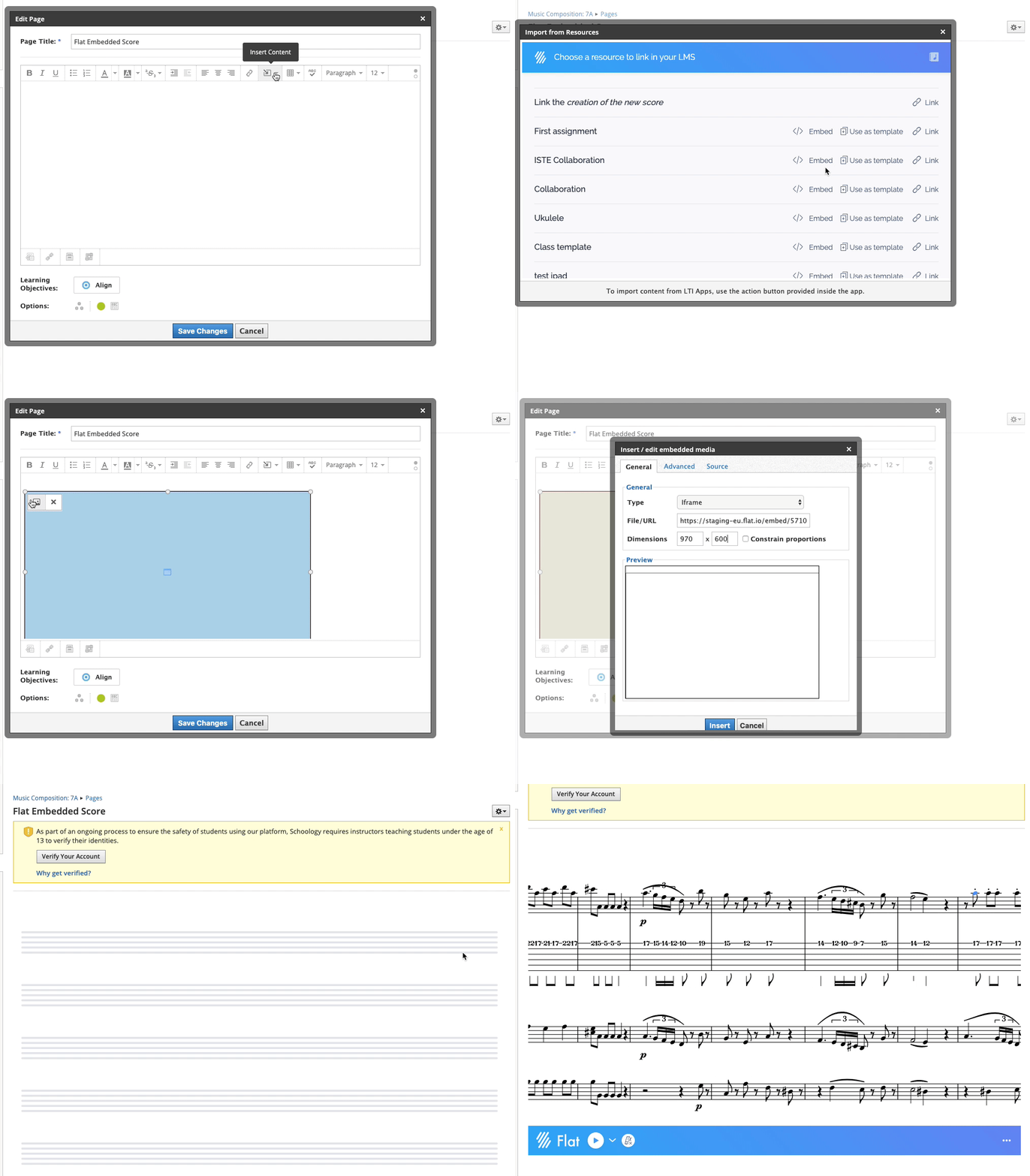
You can also embed a score on a dedicated Schoology Page alongside other content. First, create a new Page in Add Materials > Add Page and give it a title. To insert a score, click Insert content > Flat and choose Embed next to the score.
Once it's inserted, you can resize the embed to display your music comfortably on the page.
Frequently asked questions
Do I need to set up LTI 1.1 in every course?
Yes. LTI 1.1 is set up course by course: install it from the App Center for the courses you choose, then add your Consumer Key and Shared Secret in each course's External Tools. To make Flat for Education available in every course at once, ask your Schoology admin to install LTI 1.3.
What happens to my students' existing Flat for Education accounts?
They're kept, as long as the email addresses match. When students open Flat for Education from Schoology, their existing account is linked only if it uses the same email address as their Schoology account. Students without a matching account get a new one. Their classes are created in Flat for Education and they're enrolled automatically.
Why is my embedded score so small on the Materials page?
Schoology limits the size of embeds on the Materials page. For a longer score, insert a link instead, or embed it on a Schoology Page. On a Page you can resize the embed to show the music comfortably.
Why can't my students see a new assignment in Flat for Education?
At the moment, a new assignment only appears for students in Flat for Education after you've opened it once from your course Materials in Schoology. Click the assignment and let Flat for Education load. Students already in the class will then see it straight away.