Schoology FAQ and error messages in Flat for Education
Last updated October 14, 2026
Flat for Education works with Schoology through LTI 1.3 or LTI 1.1 (Legacy). This page lists the error messages teachers and admins may see when opening Flat for Education from Schoology, what each one means and how to fix it, plus answers to common setup questions.
Schoology error messages
1. "LTI consumer key not found. Please check that you correctly copied our consumer key, or that the consumer key you are using is the one displayed in your account"
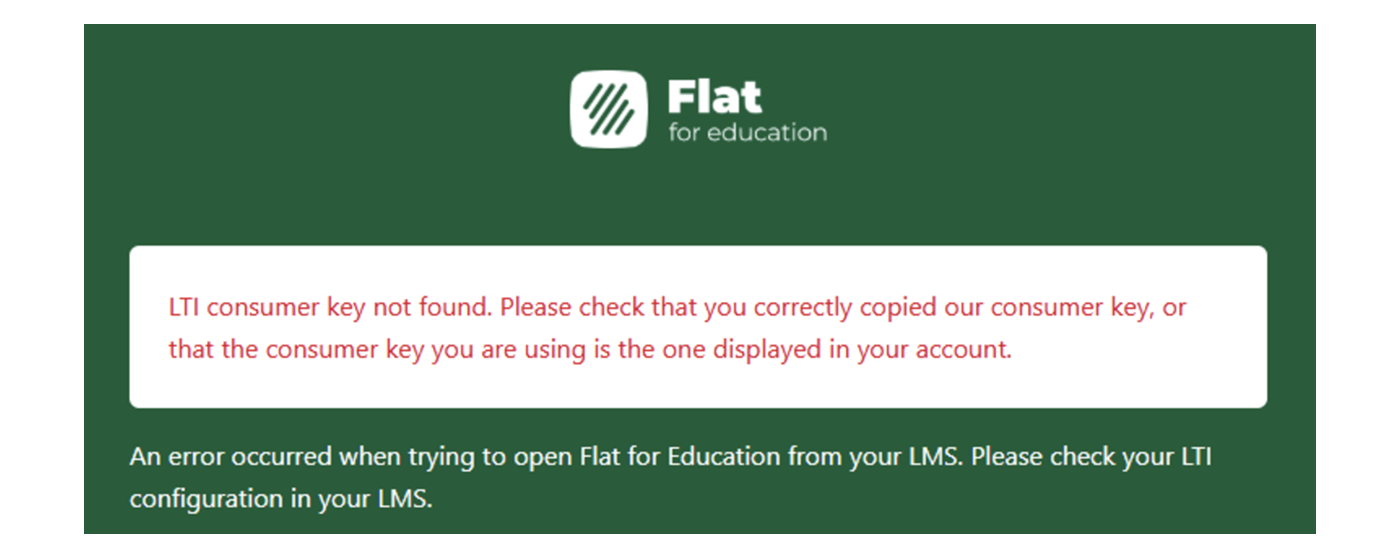
What it means: the Consumer Key or Shared Secret entered in Schoology doesn't match your Flat for Education account. This error comes from the LTI 1.1 (Legacy) setup.
How to fix it: Check that the Consumer Key and Shared Secret you entered in Schoology match the ones in your Flat for Education account. If the integration worked until recently, the teacher who set it up may have left your school, which removes the configuration. Ask your current admin to set up the LTI integration again and enter the new credentials in Schoology.
2. "Invalid OIDC state. All our LTI 1.3 requests require a valid OIDC login"
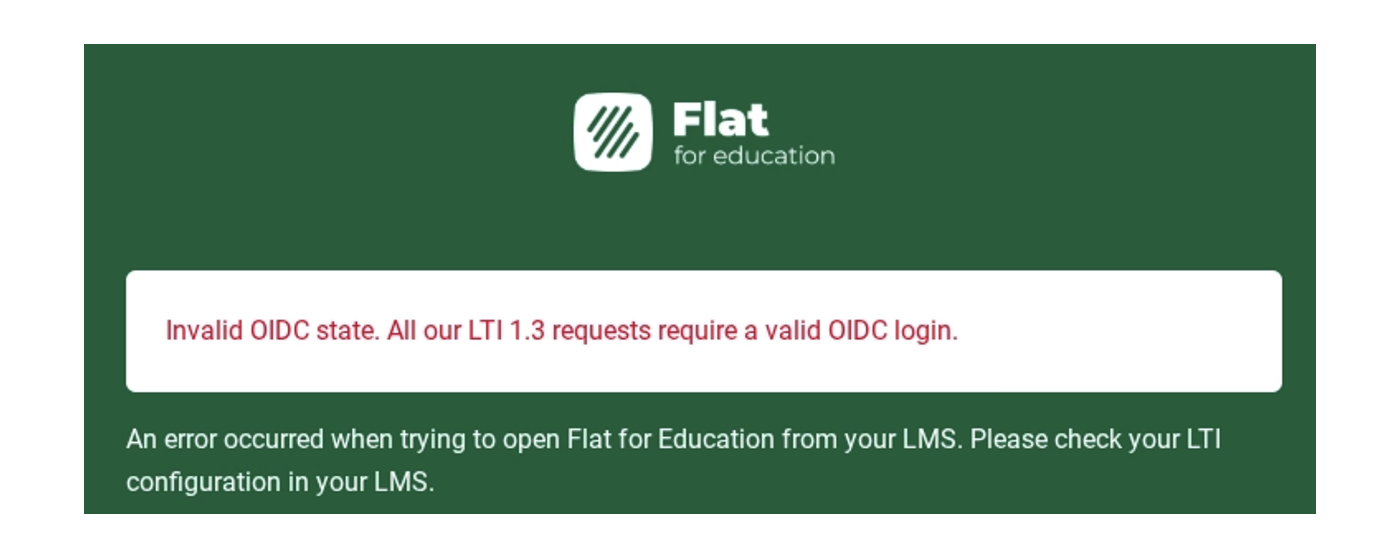
What it means: Schoology didn't send a properly authenticated LTI request. This is usually caused by a failed security handshake, resulting from a setting in your Schoology environment. This error comes from the LTI 1.3 setup.
How to fix it: try these two steps.
- Check course access: make sure All courses was selected when the app was installed. You can check this in your Schoology Organization Apps: find Flat for Education (LTI 1.3) and click Install/Remove.
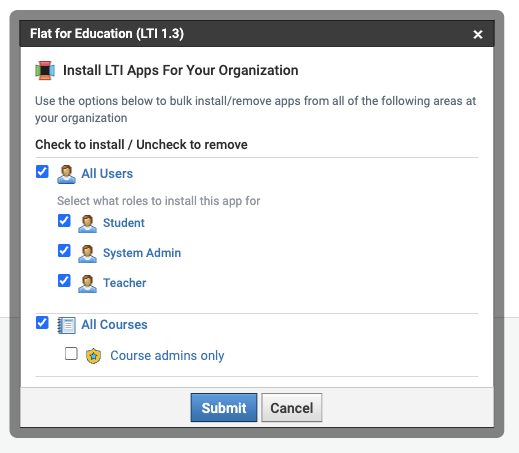
- Reinstall the app: sometimes a fresh installation is needed to reset the LTI 1.3 security tokens between Schoology and Flat for Education.
If you've tried both and still see the error, please contact Schoology support. This error comes from Schoology's side, so they can see more about it than we can.
Still stuck? Our support team is happy to help you get Schoology working.
Frequently asked questions
What does "Invalid LTI request signature" mean?
This LTI 1.1 error usually means the Shared Secret wasn't copied into Schoology correctly, for example because of a stray space or because the Key and Secret were swapped. Copy each value again, one at a time, from Settings > Integrations > Schoology, and paste it into Schoology. See the tip in the LTI 1.1 setup guide.
Why can't my students access their class or assignment in Flat for Education?
Usually, the teacher hasn't opened the class from Schoology yet. Before students can access it, the teacher needs to launch Flat for Education from within the Schoology course first, which creates the class in Flat for Education. Students then open the assignment, or Flat for Education in the course sidebar, from Schoology, and they're signed in and added to the class automatically.