How to add, remove, replace, or re-order score parts in Flat
Last updated November 4, 2026
A score part in Flat is one instrument in your score, with its own staves, clef, and music. Flat lets you change the line-up of a score at any time: add a part from the instrument list, replace its instrument while keeping the music, remove a part you no longer need, and re-order the parts.
Where do I manage the parts of a score?
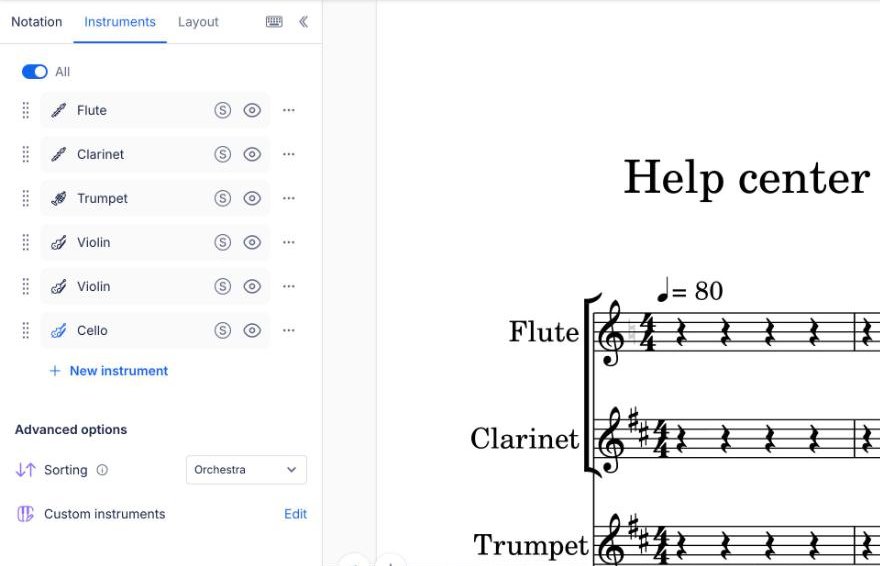
Every change to the line-up happens in the Instruments tab in the left panel of the editor. New instrument under the list adds a part, the handle on the left of a part moves it, and ⋯ next to a part shows the arrows that replace its instrument and the bin that removes it. To change the settings of a part instead, such as its name, staves, or tablature, see how to edit an instrument's settings.
How do I add a new part to a score?
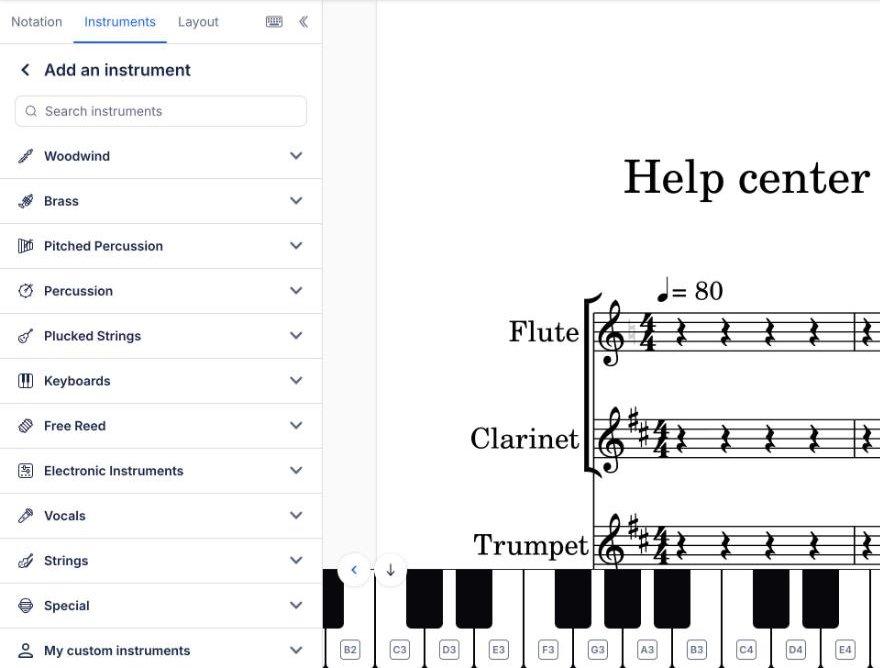
Click New instrument under the list of parts in the Instruments tab. Flat opens the instrument list in the same panel, grouped by family, with a search field at the top. Click an instrument to add it to the score; a message confirms it, with Undo if you picked the wrong one.
Open the instrument list
In the left panel, open the Instruments tab, then click New instrument under the list of parts.
Find the instrument
Type its name in the search field, or open a family such as Woodwind or Plucked Strings. Your own custom instruments are in My custom instruments, at the bottom of the list.
Add it
Click the instrument to add it. The play icon next to each name lets you hear it first. You can edit the settings of the new part at any time.
On the free plan, Flat can first offer to sort new instruments automatically with Flat Power. Click Add without auto-sorting to add the instrument at the bottom of the list.
With Flat Power and a sorting style on, the new part lands in its place in the score order instead of at the bottom, with its bracket. Instruments marked HQ are Flat Power instruments.
How do I replace an instrument?
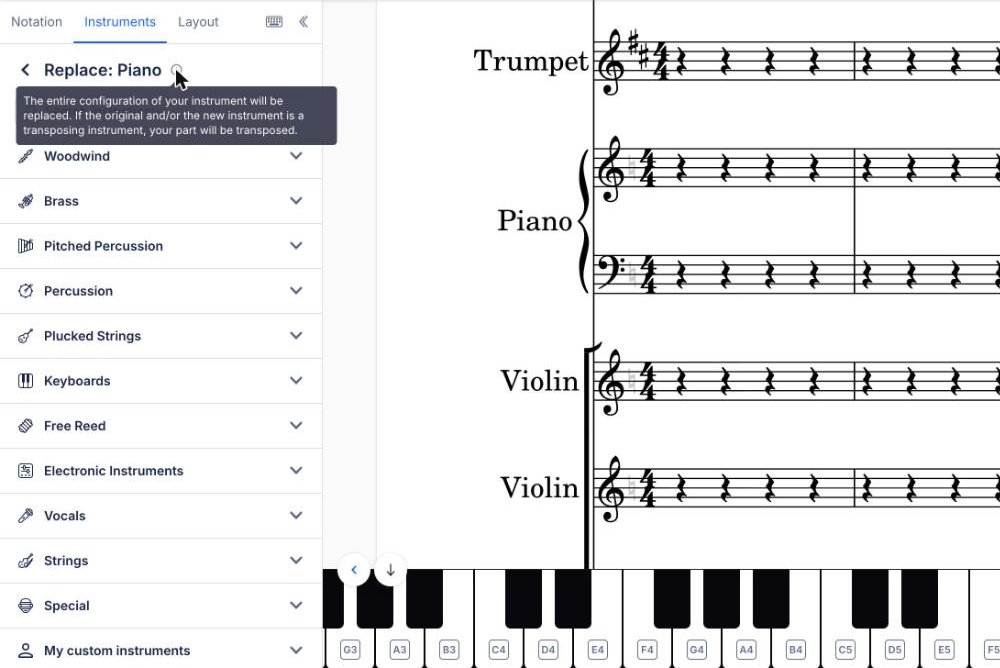
Replacing an instrument keeps the part and its music, and swaps the whole configuration of the old instrument for the new one: staves, clefs, sound, transposition, and tablature. If either instrument is a transposing instrument, Flat transposes the part for you.
In the Instruments tab, click ⋯ next to the part, then the arrows. Flat opens Replace with the same instrument list: click the new instrument. A message confirms the change, with Undo to go back.
When you replace an instrument that has a tab, Flat asks you to confirm first. An instrument with a different tuning or number of strings can't keep the fret positions, and an instrument without tablature permanently removes all the tab notation of the part. Click Replace anyway to go on, or Cancel to keep the instrument.
How do I remove a part?
In the Instruments tab, click ⋯ next to the part, then the bin. The part and its music leave the score. If you only want the part out of your way while you work, hide it with the eye icon instead: the music stays in the score.
How do I re-order the parts?
In the Instruments tab, drag a part by the handle on its left to a new position in the list. Parts appear in the score in the order they have in this list, so moving a part moves its staff up or down in every system of the score.
Dragging a part switches the sorting style of the score to Custom: Flat stops placing new instruments in the standard order for you. Pick a sorting style again to restore it.
How do I add a new part to a score?
Adding a part puts a new instrument in the score, with its own staff. You choose the instrument from Flat's instrument list, and you can customize the part's configuration once it is added, so the default setup of the instrument you picked is only a starting point.
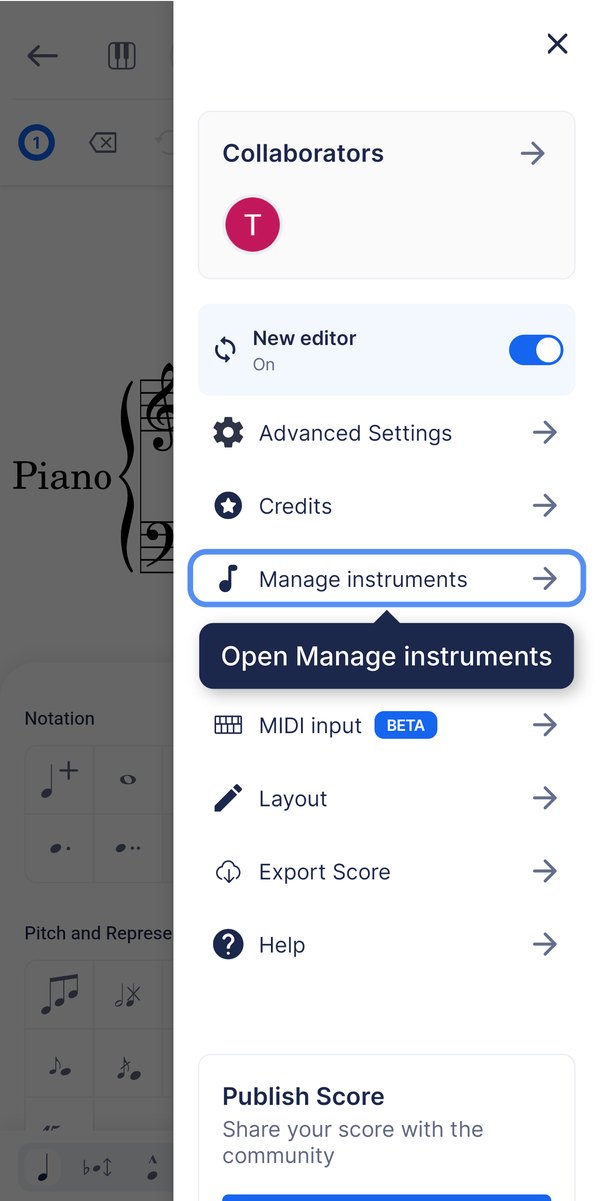
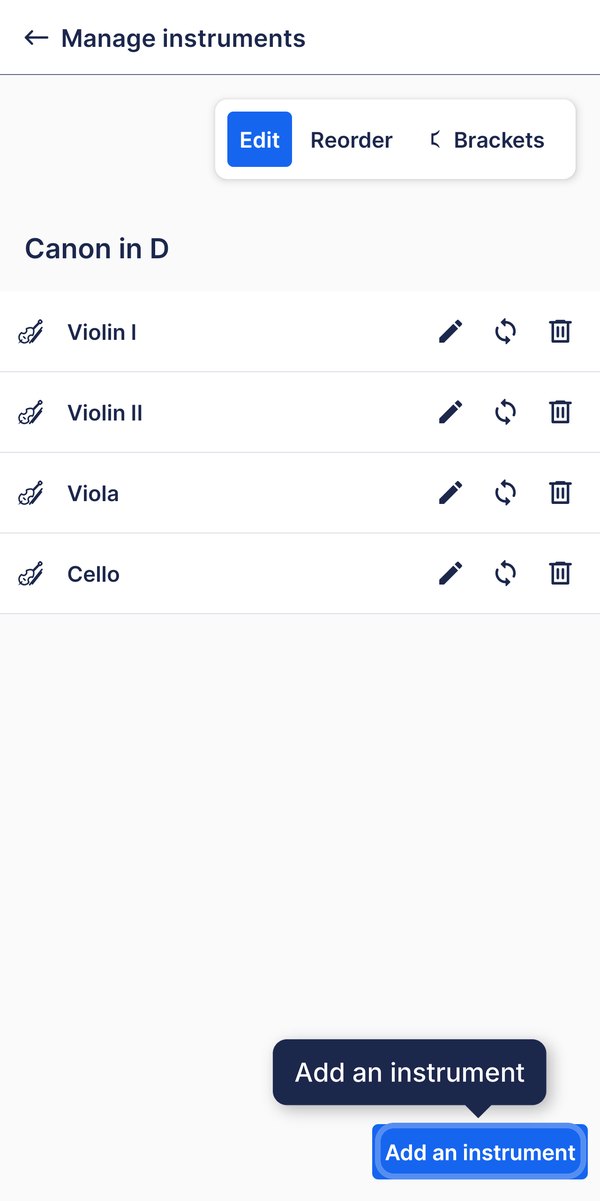
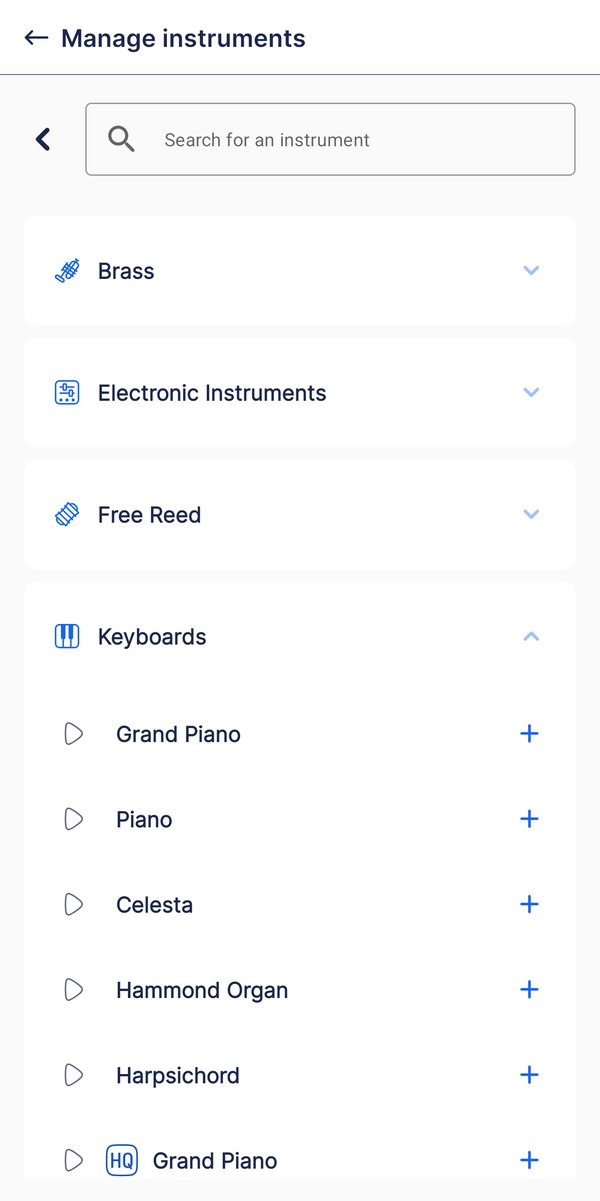
Open the menu at the top right and tap Manage instruments, then tap Add an instrument at the bottom. Pick the instrument from the list and it joins the score; its configuration can be changed afterwards, so the default setup is not binding.
How do I remove a part?
Removing a part takes an instrument and its music out of the score. If you only want the part out of your way while you work rather than gone, hiding it is the other option — that keeps the music in the document and only changes what is displayed.
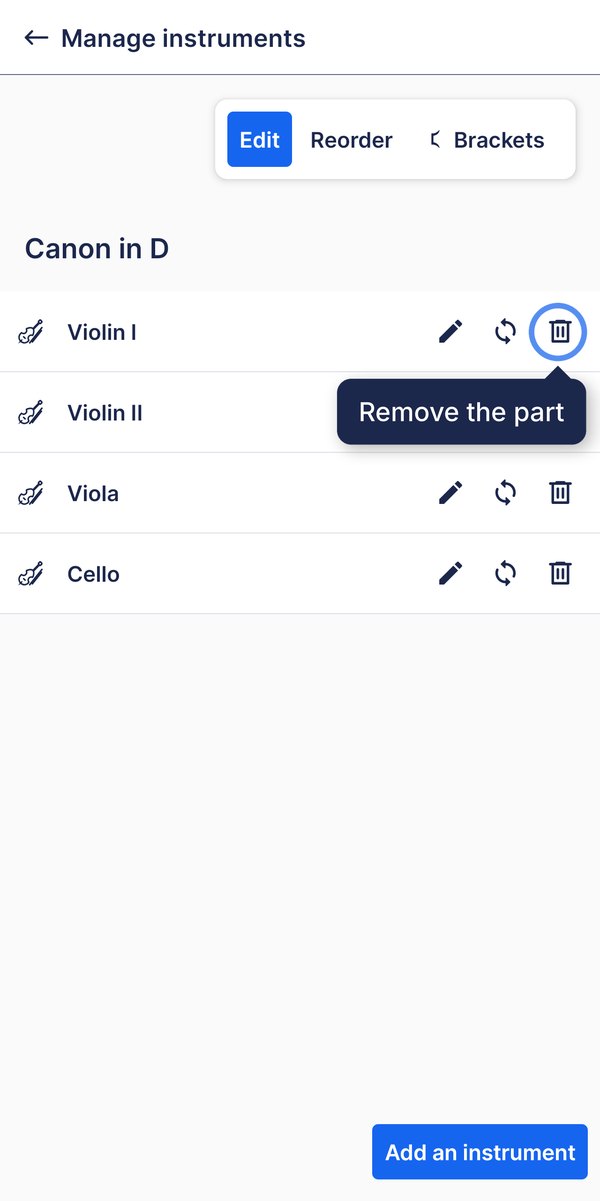
Open the menu at the top right and tap Manage instruments, then tap the bin next to the part. The part and its music leave the score. If you only want it out of the way while you work, hide it instead.
How do I re-order the parts?
Parts appear in the score in the order they have in the instruments settings, so re-ordering them moves a part's staff up or down in every system of the score. It is how you get the conventional score order — woodwinds, brass, percussion, strings — after the parts are in.
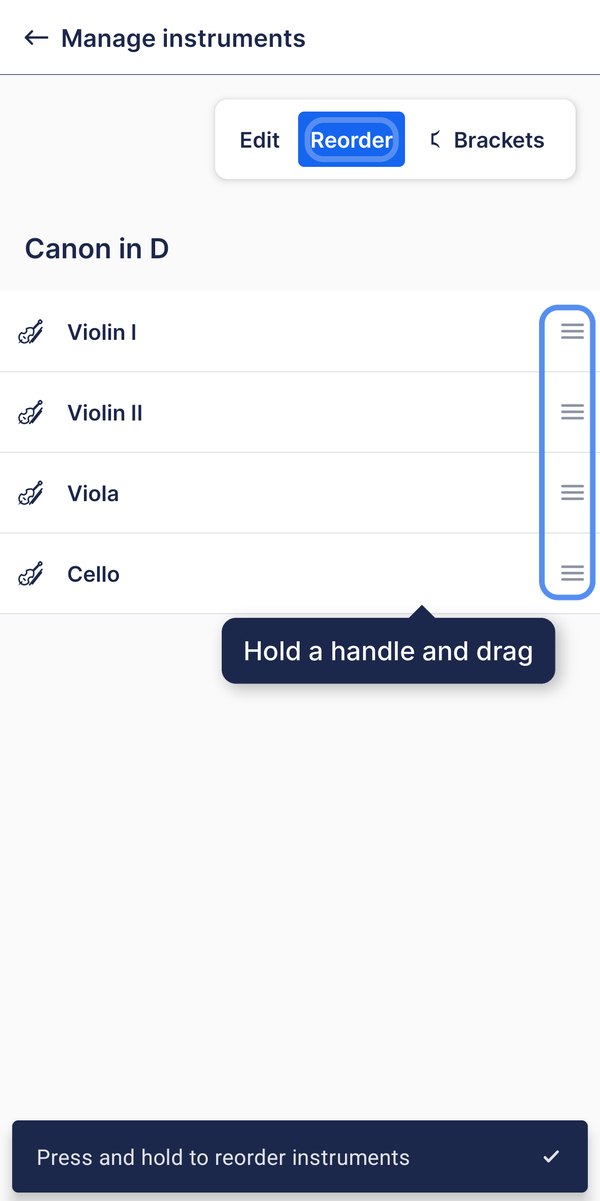
Open the menu at the top right and tap Manage instruments, tap Reorder, and drag a part up or down. Parts appear in the score in the order they have here, so moving one moves its staff in every system.
Frequently asked questions
Can I hide a part instead of removing it?
Yes, and it is usually the better option while you are working. Hiding takes the staff off your screen without touching the music it contains, so nothing is lost and you can bring it back at any time — see display and hide parts.
How do I rename a part?
The part name shown at the start of the staff is edited separately from the instrument itself, so you can call a part "Solo" or "Tenor 1" while keeping its instrument configuration and sound. See rename a score part for the steps.
Can I keep a part configuration I set up for another score?
Yes. A configuration you adjusted once can be saved and reused instead of rebuilt part by part on every new score. See custom instruments configurations for how to save one and add it to a score later.