How to display and hide parts in Flat
Last updated September 23, 2026
Displaying and hiding parts in Flat controls which staves of a multi-instrument score you see while you edit. When working on a score with multiple instruments, it's often easier to only display some specific parts - the hidden ones stay in the score untouched, they are simply not drawn on screen.
How do I choose which parts are displayed?
Open the Instruments tab in the left panel, which lists the score's parts, and check the parts you want to display. Unchecking a part removes its staff from the view you are editing, and checking it again brings it straight back.
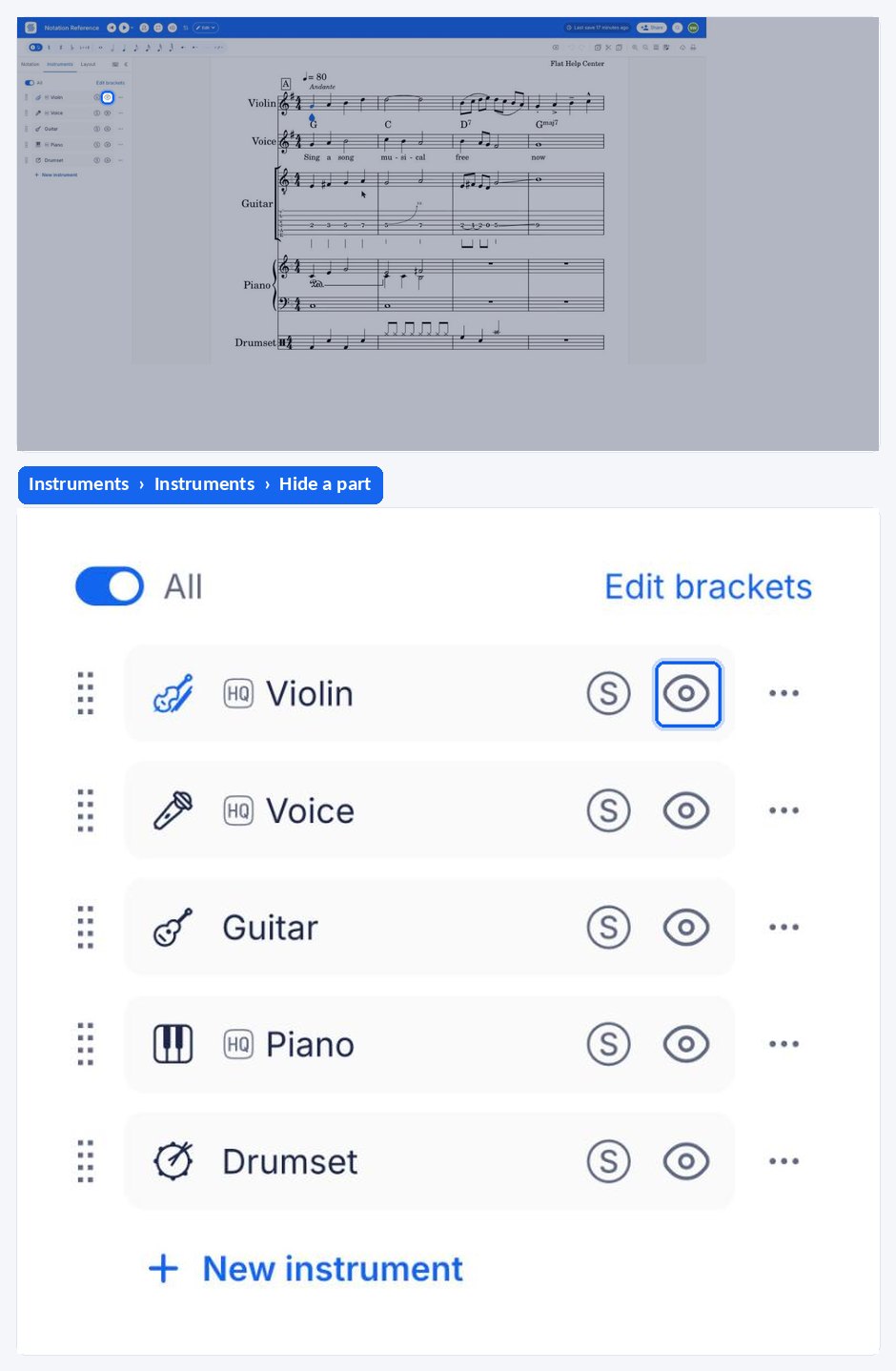
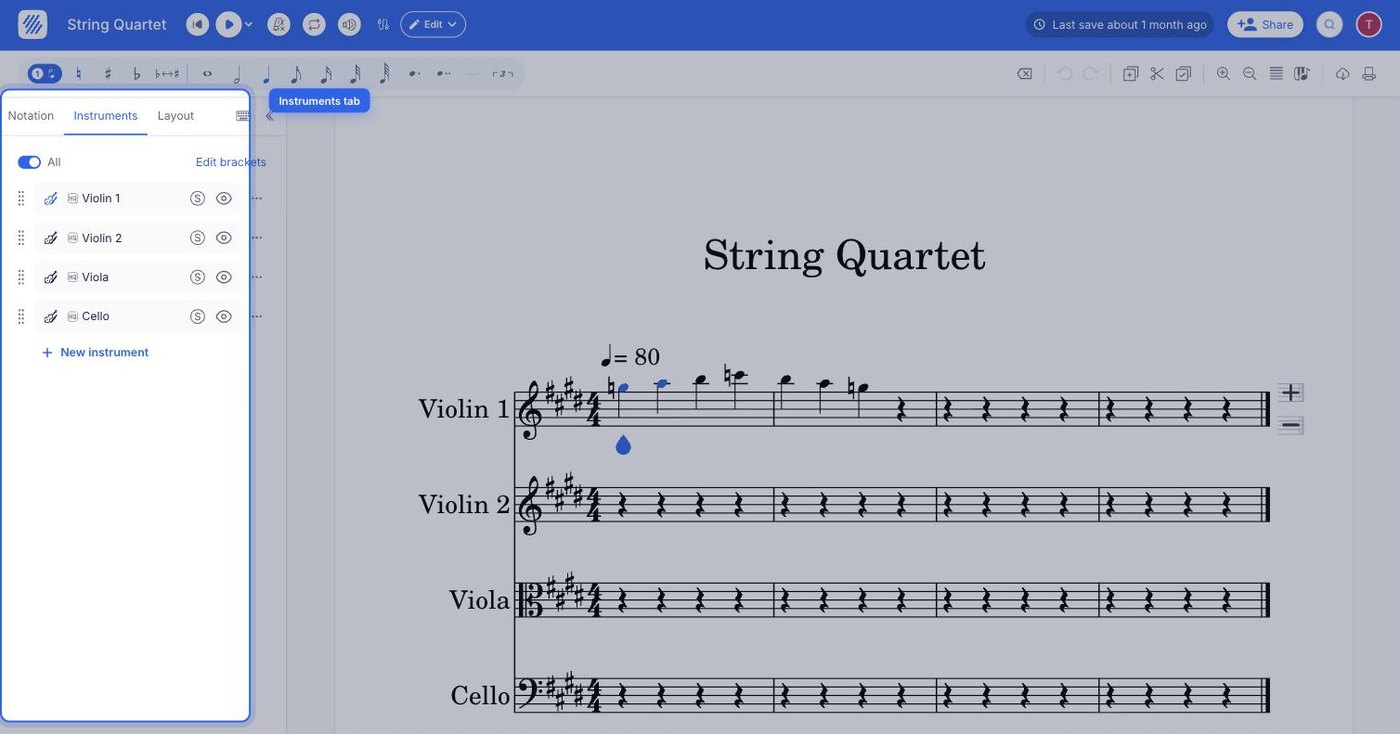
How do I choose which parts are displayed?
When working on a score with multiple instruments, it's often easier to only display some specific parts. Each part in the score's instrument list can be shown or hidden, and hiding one only changes what is drawn on screen - nothing is removed from the score itself.
Tap the instruments button at the top left of the editor. It lists the parts of the score, each with its own visibility control, and Edit instruments at the bottom opens the full instruments panel.
Frequently asked questions
Does hiding a part delete it from the score?
No. Hiding a part only changes what you see while editing - the music, the instrument configuration, and the part itself are all still in the score. To remove a part for good, remove the instrument from the instruments settings instead.
Is this the way to print only some of the parts?
No. Displaying and hiding parts changes the view you edit in. What goes on the page is decided in the print and export options, which is also where you choose to export only the tablature of a part.
What is the difference with hiding non-playing instruments?
This setting is about what you see while editing. Hide non-playing instruments is a layout option that removes empty staves from systems where an instrument has nothing to play, which changes the engraved score itself.