How to sort instruments automatically in Flat
Last updated October 30, 2026
Instrument sorting in Flat puts the parts of a score in the standard order of an ensemble and adds the brackets that go with it. Flat offers five sorting styles, from Orchestra to British brass band, plus a Custom order of your own, and places every instrument you add or replace in the right position automatically.
Sorting styles and automatic brackets are included with Flat Power. On a free plan, scores keep the Custom order you set by dragging the parts.
How do I choose a sorting style?
Open the Instruments tab in the left panel, then pick a style in the Sorting menu under Advanced options. Flat reorders the parts of the score and rebuilds their brackets to follow the new style. If the score was in a Custom order, Flat first asks you to confirm: click Continue to apply the style, or Cancel to keep your order.
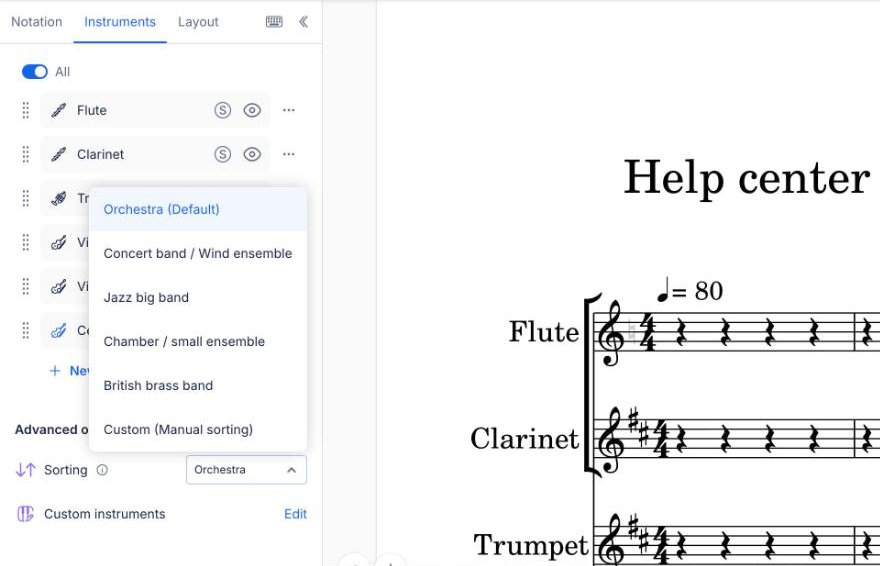
A message confirms the change once it is applied. Click Undo in that message to put back the previous order, brackets, and sorting style in one step.
What order does each sorting style use?
Each sorting style follows the score order engravers use for that ensemble, from the top of the system to the bottom, and brackets the instruments by family. Flat bases these orders on the standard references for score layout, so a score printed from Flat reads the way musicians of that ensemble expect.
| Sorting style | Order, from top to bottom | Brackets |
|---|---|---|
| Orchestra (default) | Woodwinds, brass, timpani, percussion, harp and keyboards, soloists and voices, strings | One bracket per family. Timpani, harp, and keyboards sit outside the brackets. |
| Concert band / Wind ensemble | Woodwinds (flutes to saxophones), brass (trumpets and cornets above horns), string bass, timpani, percussion | One bracket per family, with sub-brackets per instrument type. |
| Jazz big band | Vocals, saxophones, trumpets, trombones, then the rhythm section (guitar, piano, bass, drums) | Saxophones, trumpets, trombones, and the rhythm section each get their own bracket. |
| Chamber / small ensemble | From high to low, winds above strings, keyboard at the bottom | One bracket across the ensemble, with the keyboard outside it. |
| British brass band | Cornets, flugelhorn and tenor horns, baritones, trombones, euphonium and basses, timpani and percussion | One bracket per section of the band. |
| Custom (Manual sorting) | The order you set by dragging the parts | Brackets are not managed for you. |
A bracket always groups at least two instruments, so a family with a single instrument in your score, such as one trumpet, stays outside any bracket.
What happens when I add or replace an instrument?
While a sorting style is on, every instrument you add or replace lands in its place in the score order instead of at the bottom of the list, and its bracket is updated with it. A clarinet added to an orchestra score goes with the woodwinds, above the brass, without any dragging.
Why did my sorting switch to Custom?
Flat switches a score to Custom as soon as you take over the order yourself: when you drag a part to a new position, or when you add or edit a bracket. From then on, new instruments are added at the bottom of the list and brackets are no longer updated for you. A message tells you when this happens.
To go back to automatic sorting, pick a sorting style again in the Sorting menu. Flat asks you to confirm, because your own order will be replaced, then reorders the parts and rebuilds the brackets to match the style.
Can I choose a sorting style when I create a score?
Yes. When you create a score, the Sorting style menu sits under the instruments you picked, set to Orchestra by default. The instruments you add are placed in that order as you pick them, and the score opens with its brackets already in place.
On a free plan, the score creation window has no Sorting style menu: instruments are added in the order you pick them, and you can drag them into another order.
Frequently asked questions
Will Flat reorder the instruments of my existing scores?
No. Scores created before sorting styles existed keep their order and are set to Custom. Nothing moves until you pick a sorting style in the Sorting menu yourself, and Flat asks you to confirm before it replaces your order and rebuilds the brackets.
Can I undo a sorting style?
Yes. Applying a sorting style is a single step: click Undo in the message that confirms it, or use the editor's usual undo. The previous order of the parts, their brackets, and the previous sorting style all come back together.
Can I move one instrument without losing automatic sorting?
Not on its own. Dragging a part tells Flat you want your own order, so the score switches to Custom and new instruments are no longer placed for you. Pick the sorting style again whenever you want Flat to restore the standard order.
Is there a sorting style for choirs?
Yes, when you create a score: the Sorting style menu of the score creation window includes Choir. The Sorting menu of the editor does not list it, so for a choir score you already have, use Custom order with the voices from the highest to the lowest and the accompaniment at the bottom, or Chamber / small ensemble, which also sorts from high to low with the keyboard at the bottom.