How to use Quick Search in Flat
Last updated October 28, 2026
Quick Search in Flat is a search bar inside the editor that finds any action, tool, or setting by name and runs it on your selection. Flat also lists the matching help articles in the same results and opens them in a side panel next to your score, so you never leave the document to find an answer.
How do I open Quick Search?
Quick Search opens from anywhere in the Flat editor: click the search icon at the top right of the editor, next to your profile picture, or press / on your keyboard. A search field appears over the score with the cursor already in it, so you can start typing straight away.
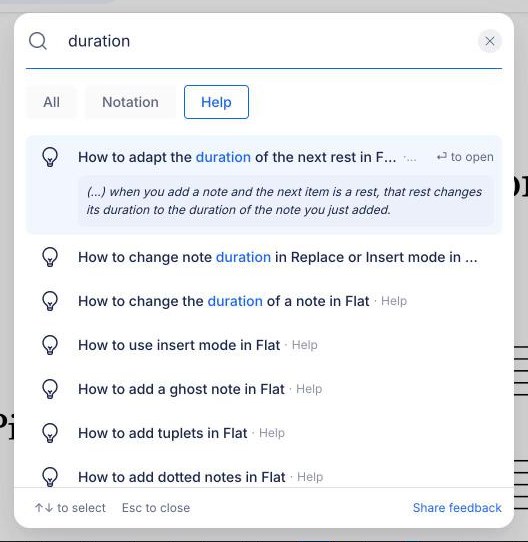
How do I find and run an action?
Type a few letters of what you want to do, such as "duration", "tuplet", or "transpose". Flat lists every matching action and tool, with the section it belongs to (for example Notation · Durations) and its keyboard shortcut when it has one. The action runs on whatever you have selected in the score.
- Use ↑ and ↓ to move through the results, then press Enter to run the highlighted one, or click it.
- Press Esc to close Quick Search without running anything.
- Click the cross at the end of the search field to clear what you typed.
The keyboard shortcut shown next to a result is the same one you can press in the score. If an action has no default shortcut, you can assign your own.
How do I filter the results?
Filter buttons sit under the search field as soon as you type: All, plus one button for each kind of result that matches your search, such as Notation, Instruments, or Help. Click one to keep only that kind of result, and click All to see everything again. A filter only appears when your search has results in it.
What does Quick Search show before I type?
Before you type anything, Quick Search shows a short list of Suggested actions, such as Undo, Redo, Copy, and Paste, and a Recent list with what you opened recently, help articles included. Picking an item from either list works exactly like picking it from the search results.
How do I read a help article without leaving my score?
Help articles appear in the results with a light bulb icon and the Help label. When an action and an article match your search equally well, the action comes first. Highlight an article with the arrow keys or your mouse to see a one-sentence tip from it, then press Enter or click to open the whole article in a panel on the right of the score.
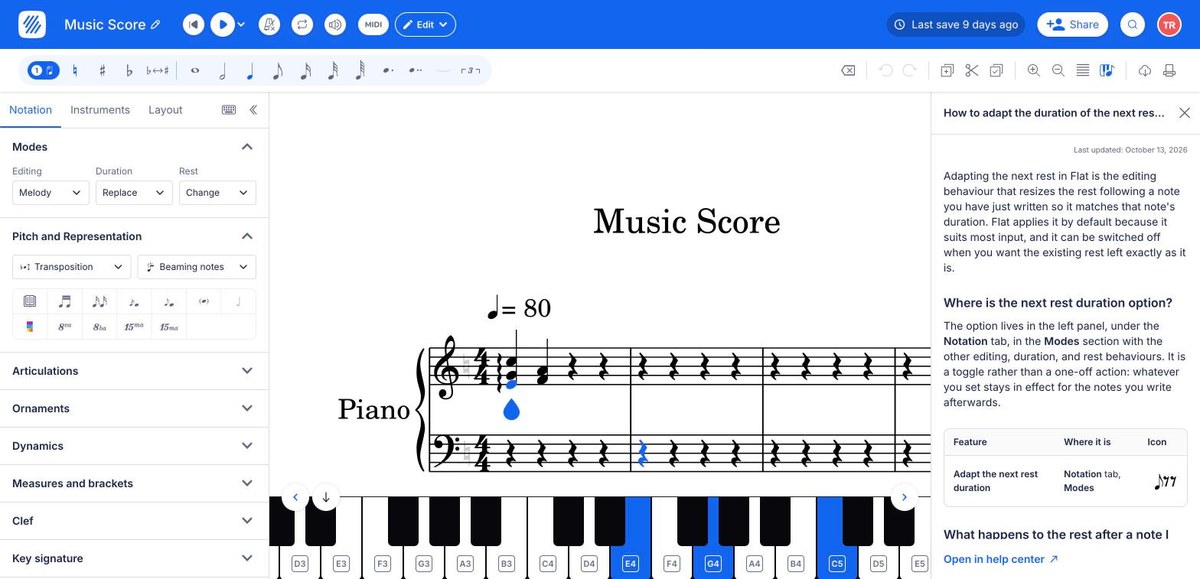
The side panel shows the full article, the same one as on help.flat.io, with the date it was last updated:
- Links to other help articles open in the same panel. Use the back arrow at the top of the panel to return to the previous article.
- Open in help center, at the bottom of the panel, opens the article on help.flat.io in a new browser tab.
- The cross at the top right closes the panel and gives the space back to the score.
Opening another article from Quick Search replaces the one in the panel.
How does Quick Search work on a phone or tablet?
When the Flat editor uses its compact layout, on a phone, a tablet, or a narrow browser window, Quick Search opens from the menu: tap the menu icon at the top right of the editor, then tap Search. In this layout, Quick Search lists actions and tools only. Help articles appear in the full desktop layout, and on help.flat.io.
Frequently asked questions
Why doesn't Quick Search show a help article for my search?
Quick Search lists actions first, so the articles can sit further down the results. Pick the Help filter to see only articles. Articles match on their title, the actions they explain, and their key terms, so the name of the feature, like "tuplet" or "lyrics", works better than a description. Every article is also on help.flat.io.
Why can't I see help articles in Quick Search on my tablet?
Help articles only appear in Quick Search when the editor uses its full desktop layout. On a phone, a tablet, or a narrow browser window, the editor switches to its compact layout, where Quick Search lists actions and tools only. Widen the window, or open help.flat.io in another tab.
Can I add a keyboard shortcut to an action I found in Quick Search?
Yes. Quick Search shows the shortcut next to every action that has one. For actions with no default key, such as moving a note by a semitone, you can assign your own in the custom keyboard shortcuts settings, or keep running them from Quick Search.
Is Quick Search available on every plan?
Yes. Quick Search and the help articles inside it are included in every Flat plan, Flat Free included, at no extra cost. Some of the actions it finds may still require a paid plan, exactly as they do from the toolbar.