How to transpose sheet music in Flat
Last updated October 13, 2026
Transposition in Flat changes the pitch of your music while keeping its intervals intact. Flat transposes by interval, key, or semitones, retransposes a part automatically when you replace its instrument, and shifts pitch note by note with keyboard shortcuts. Transpose a selection in one or several parts, or the whole score at once.
If you want to learn how transpositions work, check out our blog post about Transposition.
How do I transpose a part for a different instrument?
The simplest way to transpose a part for another instrument is to replace the instrument itself. Flat swaps the entire instrument configuration, applies any transposition the new instrument needs, and updates the playback sound at the same time.
Some examples when you can use this feature:
- You have a Violin part and want to transpose it for a Trumpet in Bb.
- You have a transposed part for a Trumpet in Bb and want to have the part for Violin.
- You have a transposed part for a Trumpet in Bb and want to transpose it for an Alto Saxophone.
Open the Instruments panel
In the left panel, open the Instruments tab, then hover the part you want to transpose and click the Replace icon.
Choose the new instrument
Flat opens Document settings. Search for the instrument you want, or browse the families, then click + next to it.
Let Flat transpose the part
If the original instrument, the new instrument, or both are transposing instruments, Flat transposes the part for you. The preview on the right shows the result before you commit.
If your initial part doesn't have the correct transposition configuration, use the transposition tool below to apply a custom transposition on the part.
How do I transpose a selection by interval, key, or semitones?
Select the notes you want to transpose, then open the Notation tab in the left panel and click Transposition under Pitch and Representation. Choose how you want to transpose, check the preview, and click Apply transposition. The selection can span a single part or several parts.
The tool offers three ways to transpose:
| Tab | What it does |
|---|---|
| Interval | Transposes by a named interval. Set the interval, its quality, any extra octaves, and the direction. |
| Key | Transposes from one key to another. Set the From and To notes, accidentals, and octaves. |
| Semitones | Transposes by a number of semitones. Flat shows the matching interval as you change the value. |
The transposition tool is a premium feature, included with Flat Power. Transposing a part by replacing its instrument and the pitch keyboard shortcuts are available to everyone.
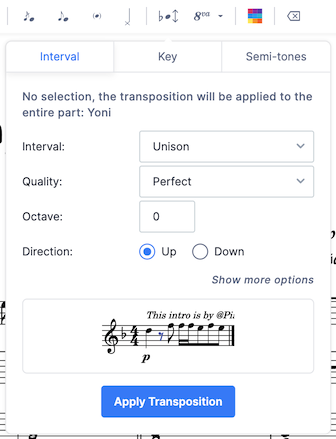
If you don't select anything first, Flat applies the transposition to the entire part where your cursor is located, and tells you which one at the top of the tool.
Click Show more options to reveal the Update key signature and Update chords toggles. Both are on by default, so Flat rewrites the key signature and any chord symbols to match the new pitch level. Turn one off to leave it untouched.
How do I transpose an entire score to a new key?
Select the whole score with Ctrl + Shift + A / Cmd + Shift + A, then transpose following the steps above.
What are the keyboard shortcuts for transposing?
You can quickly transpose one note or a selection of notes using keyboard shortcuts:
| Action | Windows | Mac |
|---|---|---|
| Increase pitch by a diatonic interval | ↑ | ↑ |
| Decrease pitch by a diatonic interval | ↓ | ↓ |
| Increase by an octave | Ctrl + ↑ | Cmd + ↑ |
| Decrease by an octave | Ctrl + ↓ | Cmd + ↓ |
Click the keyboard icon next to the Layout tab to open the Keyboard shortcuts window. The pitch shortcuts above are listed under Add note.
How do I transpose a part for a different instrument?
The simplest way to transpose a part for another instrument is to replace the instrument itself. Flat swaps the entire instrument configuration, applies any transposition the new instrument needs, and updates the playback sound at the same time.
Some examples when you can use this feature:
- You have a Violin part and want to transpose it for a Trumpet in Bb.
- You have a transposed part for a Trumpet in Bb and want to have the part for Violin.
- You have a transposed part for a Trumpet in Bb and want to transpose it for an Alto Saxophone.
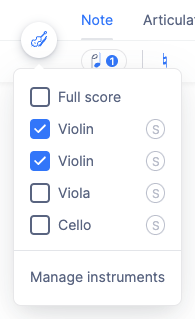
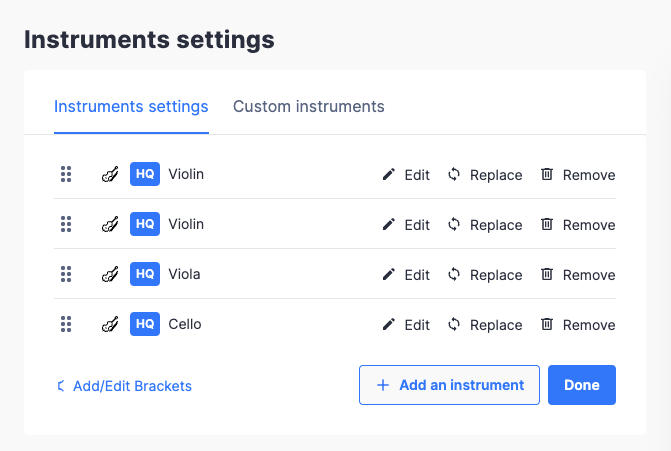
Open the menu at the top right, tap Manage instruments, then tap the replace icon next to the part you want to transpose and pick the new instrument.
If your initial part doesn't have the correct transposition configuration, use the transposition tool below to apply a custom transposition on the part.
How do I transpose a selection by interval, key, or semitones?
Select the notes you want to transpose, then drag the tool palette up and tap Transposition under Pitch and Representation. Choose how you want to transpose, check the preview, and tap Apply transposition. The selection can span a single part or several parts.
The tool offers three ways to transpose:
| Tab | What it does |
|---|---|
| Interval | Transposes by a named interval. Set the interval, its quality, any extra octaves, and the direction. |
| Key | Transposes from one key to another. Set the From and To notes, accidentals, and octaves. |
| Semitones | Transposes by a number of semitones. Flat shows the matching interval as you change the value. |
The transposition tool is a premium feature, included with Flat Power. Transposing a part by replacing its instrument is available to everyone.
If you don't select anything first, Flat applies the transposition to the entire part where your cursor is located, and tells you which one at the top of the tool.
Tap Show more options to reveal the Update key signature and Update chords toggles. Both are on by default, so Flat rewrites the key signature and any chord symbols to match the new pitch level. Turn one off to leave it untouched.
Frequently asked questions
Why did only part of my score transpose?
If nothing is selected, Flat applies the transposition to the whole part where your cursor sits, not to the whole score. Select every part first with Ctrl + Shift + A / Cmd + Shift + A, then open the transposition tool.
What is the difference between transposing notes and changing the instrument?
Replacing an instrument changes the part's transposition configuration and its playback sound, so Flat rewrites the notes for the new instrument. The transposition tool instead shifts the notes you selected by a fixed interval, key, or number of semitones, leaving the instrument untouched.
Is the transposition tool free?
No. The tool that transposes a selection by interval, key, or semitones is a premium feature, included with Flat Power. Transposing a part by replacing its instrument, and shifting pitch with the arrow-key shortcuts, remain available to everyone.
Does transposing change the key signature?
Yes, by default. The transposition tool has an Update key signature toggle under Show more options, switched on out of the box, so Flat rewrites the key signature to match the new pitch level. Switch it off to transpose the notes and leave the key signature as it is.
How do I see the sounding pitch instead of the written pitch?
Flat displays transposing instruments using their written notes by default. In the Notation panel, click Toggle Concert Pitch - the first icon under Pitch and Representation - to switch to sounding pitch. This changes the display only, not the underlying music. See display the score in concert pitch.
Can I transpose guitar tablature?
Yes. Changing a tablature part's tuning or capo transposes it: Flat can keep the current frets and strings while transposing the pitches and the key signature. See tablature tuning and capo.