Schoology integration in Flat for Education
Last updated October 21, 2026
The Schoology integration in Flat for Education lets teachers and students sign in from Schoology, creates your classes automatically, and sends assignments and grades back to Schoology. Flat for Education supports two setups: LTI 1.3, installed once by a district admin for every course, and LTI 1.1, which a teacher can set up for their own courses.
Which setup do I need?
Find your situation below to go straight to the right guide.
| I am... | Situation | Go to |
|---|---|---|
| A district admin | Setting up for the whole district (recommended) | LTI 1.3 setup |
| A teacher | My admin already installed Flat for Education | Nothing to set up. Go to creating an assignment |
| A teacher | No admin access, or a single class only | LTI 1.1 setup |
| Admin or teacher | Several Flat for Education organizations in one Schoology instance | LTI 1.1 setup, or contact support |
Still deciding? See LTI 1.3 vs LTI 1.1 for a side-by-side comparison.
Is it already installed?
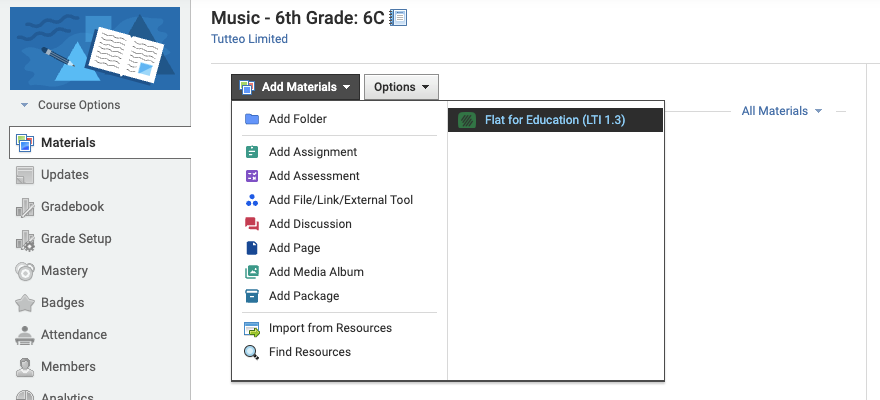
Open one of your Schoology courses and look for Flat for Education (LTI 1.3) in the course sidebar, or under Add Materials on your course Materials page. If it's there, your admin has already installed it and you can go straight to creating an assignment. If it isn't, ask your Schoology admin, or set up LTI 1.1 for your own courses.
What can I do with it?
- Sign in from Schoology: teachers and students open Flat for Education from their course and are signed in automatically.
- Automatic class lists: your classes are created in Flat for Education, and each student is added the first time they open Flat for Education from Schoology.
- Assignments from your Assignment Library: add any assignment from your Assignment Library to a Schoology course.
- Grades sent back to Schoology: the grades you give in Flat for Education go straight to the Schoology gradebook.
Guides by role
For admins
- Set up Schoology with LTI 1.3, recommended for districts
- Set up Schoology with LTI 1.1 (Legacy)
- LTI 1.3 vs LTI 1.1
For teachers
- Create a Flat for Education assignment in Schoology
- Set up LTI 1.1 in your own courses
- Embed sheet music in Schoology (LTI 1.1)
- Schoology FAQ and error messages
Frequently asked questions
Do teachers need to install anything with LTI 1.3?
No. Once your Schoology admin has installed Flat for Education with LTI 1.3, it's available in every course. To create an assignment, teachers click Add Materials in their course and choose Flat for Education (LTI 1.3). There's nothing to install.
Where do I find the Consumer Key and Shared Secret?
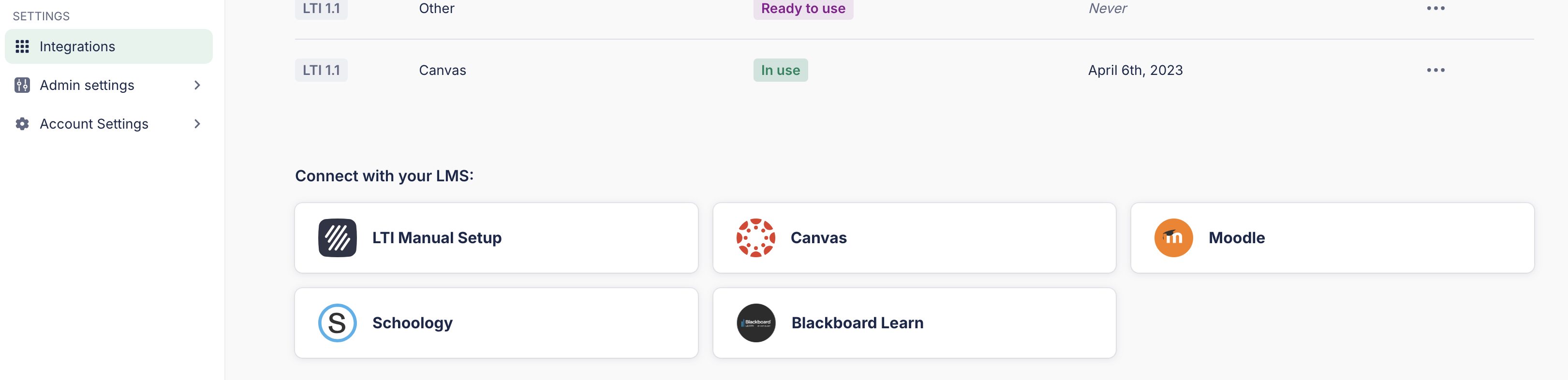
You only need them for LTI 1.1. They're in Flat for Education under Settings > Integrations > Schoology, and only Flat for Education admins can see them. If you're a teacher and don't see them, ask your Flat for Education admin to share them. To set up LTI 1.3 instead, ask your Schoology admin.
Can I connect more than one Flat for Education organization to Schoology?
Not with LTI 1.3, which supports one Flat for Education organization per Schoology instance. If your district has several organizations, use LTI 1.1 (Legacy), which each organization sets up in its own courses.
I see an error when opening Flat for Education from Schoology. What should I do?
Check the Schoology FAQ and error messages page. It explains the most common errors, such as "LTI consumer key not found" and "Invalid OIDC state", and how to fix each one. If your error isn't listed, contact our support team with a screenshot of the message.