How to use the right-click menu in the Flat editor
Last updated November 19, 2026
The right-click menu in Flat is a menu that opens next to the pointer when you right-click the score in the editor. Flat lists the editing actions for what you clicked, with the keyboard shortcut of each one: cut, copy and paste, duplicate, insert or remove measures, select a measure or a part, and remove. It works in the editor on the website and in the desktop app for Windows.
The right-click menu is reaching Flat accounts progressively, so you may not see it yet. The Mac desktop app gets it in a later update: on a Mac, use the editor on the website in the meantime.
How do I open the right-click menu?
Right-click a note or a rest in the score. On a Mac trackpad, click with two fingers, or hold Control and click. Flat moves the cursor to what you clicked and opens the menu next to the pointer. Click an action to apply it, or press Esc or click outside the menu to close it without changing anything.
What can I do from the right-click menu?
On a note, the menu groups the actions you use most while writing. Each shortcut is shown next to its action, so the menu is also a quick way to learn them.
| Action | What it does | Shortcut (Mac / Windows) |
|---|---|---|
| Cut, Copy, Paste | Move or duplicate music, see copy, cut, and paste | ⌘ / Ctrl + X, C, V |
| Duplicate | Repeats the note or the selection right after it | R |
| Insert Measure Before, Insert Measure After | Adds an empty measure before or after the current one | After: ⌥ / Alt + Enter |
| Remove Measure | Deletes the current measure and its music | ⌘ / Ctrl + Backspace |
| Add measure at the end | Adds an empty measure at the end of the score | ⌘ / Ctrl + Shift + Enter |
| Select the current measure | Selects the measure under the cursor | ⌥ / Alt + A |
| Select the entire current part | Selects the whole part | ⌘ / Ctrl + A |
| Select all displayed parts | Selects every part shown on the score | ⌘ / Ctrl + Shift + A |
| Remove | Removes the note or the selection | Delete |
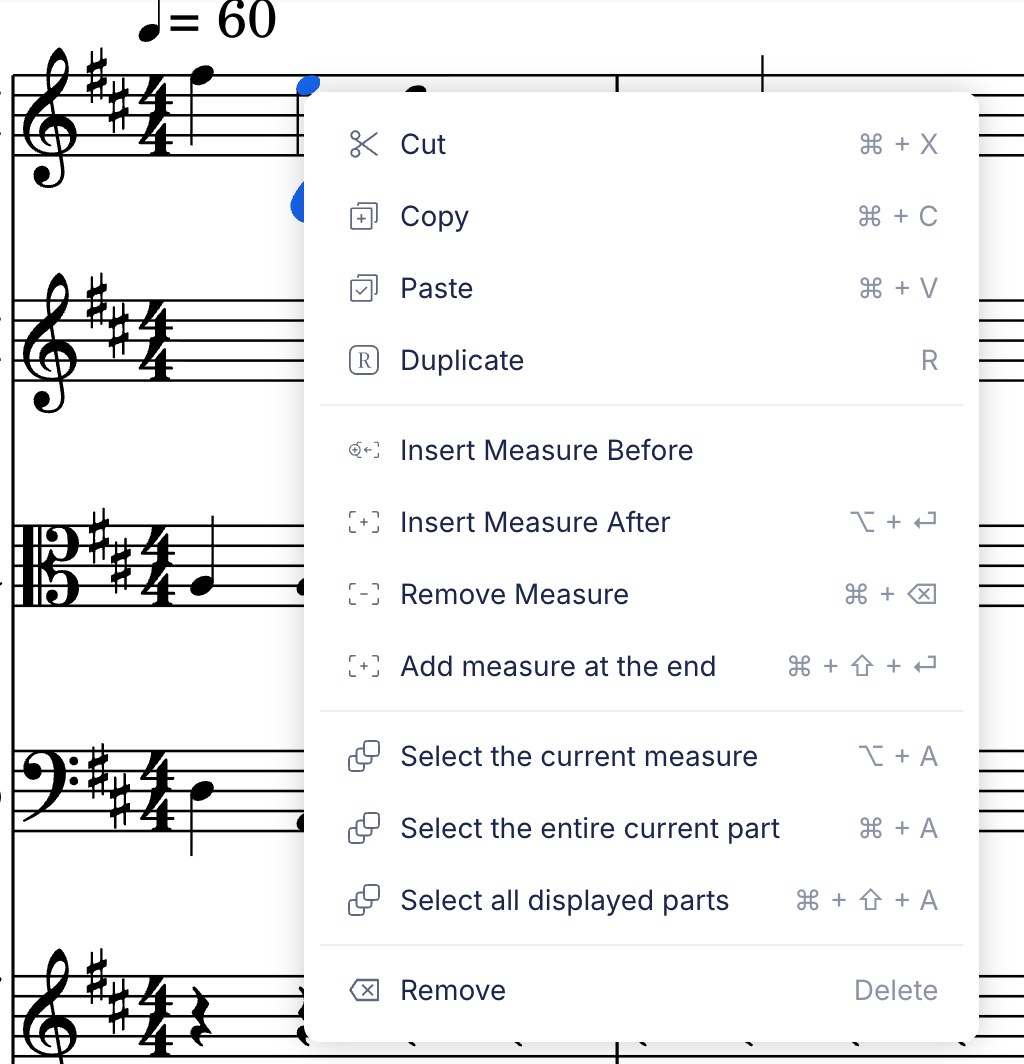
The menu adapts to what you right-click, so a selection or another element can show a different set of actions. To add or remove measures in other ways, see how to add or remove measures.
Does the right-click menu work on a tablet or a phone?
No. On a touch screen there is no right-click: press and hold the score to open the quick actions menu instead. The right-click menu is for a mouse or a trackpad.
Frequently asked questions
Can I keep using keyboard shortcuts instead?
Yes. Every action in the menu keeps its shortcut, shown next to it in the menu. The full list is in keyboard shortcuts, and you can change them in custom keyboard shortcuts.