How to add or remove measures in Flat
Last updated October 13, 2026
Measures in Flat are added and removed one at a time or by range. Flat appends a new measure automatically as you enter notation at the end of a score, and offers tools to insert a measure before or after the cursor, or to delete the measure or the range of measures you have selected.
Where do I find the measure tools?
The measure tools live in the left panel: open the Notation tab and go to the Measure section. It holds the buttons that insert a measure before or after the current one and the button that removes the selected measures, all acting on wherever your cursor or selection sits.
| Feature | Where to find it | Icon |
|---|---|---|
| Insert measure before | Notation tab, Measure section |  |
| Insert measure after | Notation tab, Measure section |  |
| Remove measure | Notation tab, Measure section |  |
How do I add a new measure?
Usually, when you enter your notation, Flat automatically adds a new measure to the end of your score. But sometimes you might want to insert one at the end of the document or in the middle of the score, and there are two ways to do it: from the Measure section of the Notation tab, or straight from the score.
- Go to the Measure section of the Notation tab and click the + icon:
- Click the + icon next to the last measure on your score:
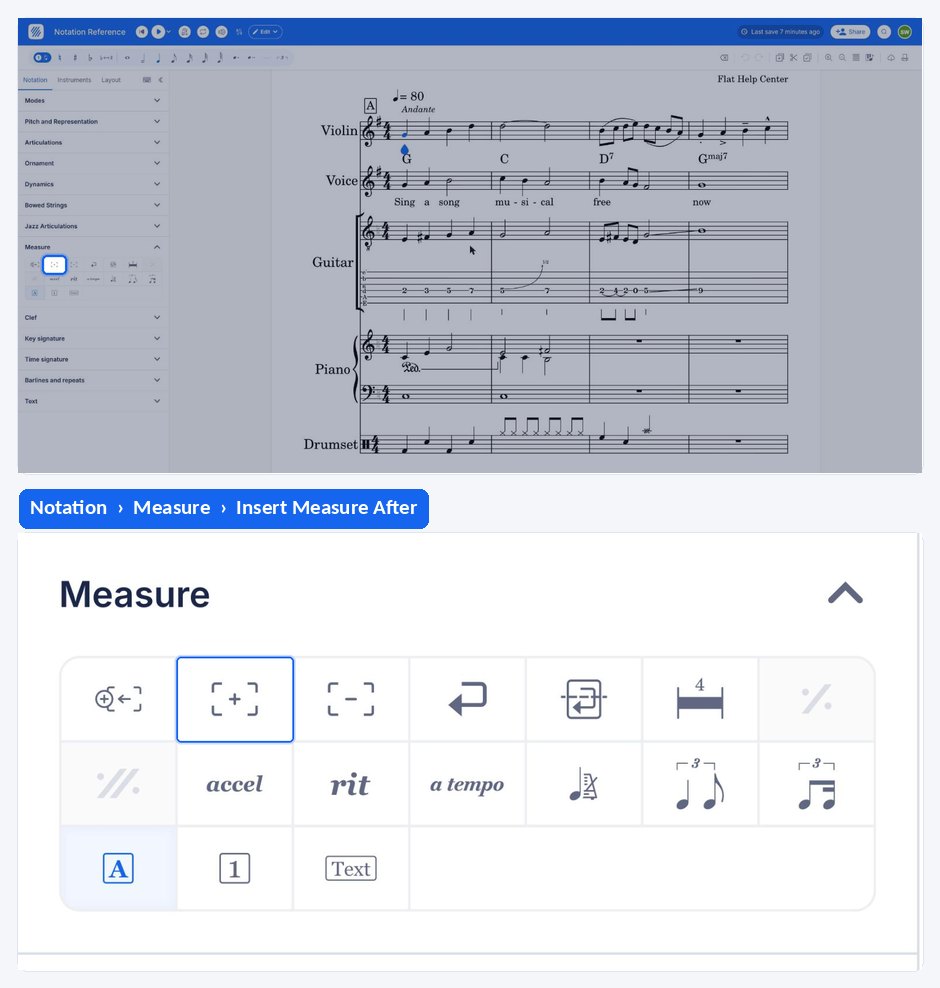
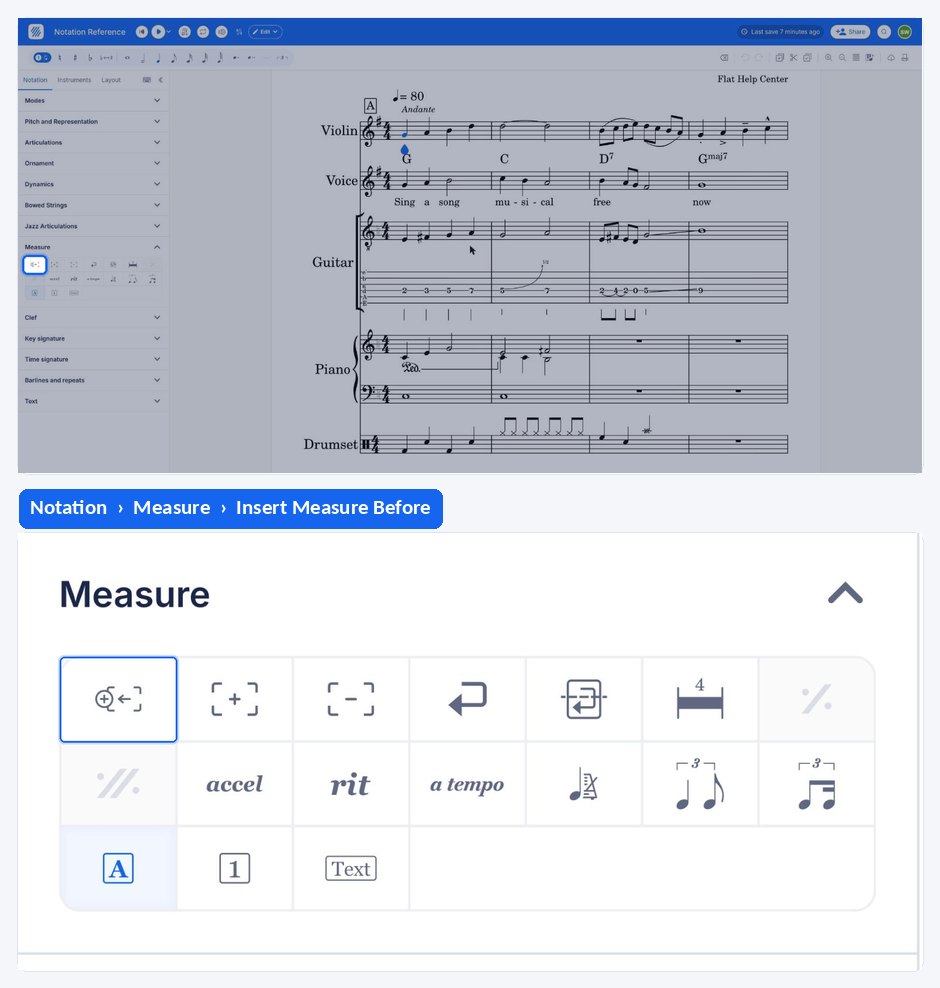
As you probably noticed, the measures were added on the right side. If you want to add a measure on the left, position yourself and click on the corresponding icon to add a measure before:
How do I remove a measure?
To remove a measure or a range of measures, you also have two options: the Measure section of the Notation tab, or the score itself. Select the measure or the range first, so Flat knows exactly what to delete.
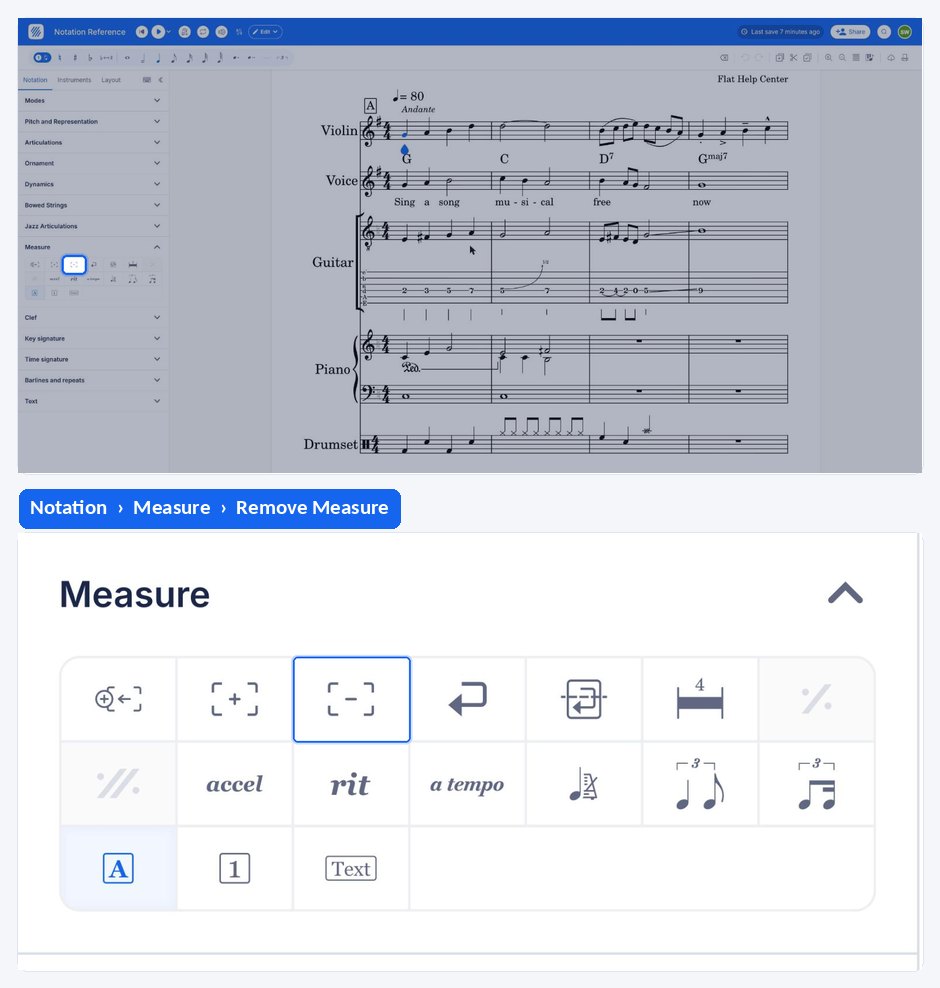
- Select the measure or range of measures you want to remove, go to the Measure section of the Notation tab and click the - tool.
- Click the - icon next to the last measure on your score:
How do I add a new measure?
Flat automatically adds a new measure to the end of your score as you enter notation, so most of the time you never have to add one by hand. Inserting is for the other cases: an extra bar at the end of the document, or one in the middle, placed before or after the measure you are on.
Tap the measure you want to insert next to, drag the tool palette up from the bottom of the screen, and tap Insert Measure After or Insert Measure Before under Measure. Flat adds a measure to the end of the score on its own as you write, so this is for inserting one in the middle.
How do I remove a measure?
Removing works on a selection rather than on a single fixed bar: select the measure, or the range of measures, that you want to remove, and Flat deletes them together with the music they contain.
Select the measure, or the range of measures, then drag the tool palette up and tap Remove Measure under Measure. Selecting first is what tells Flat exactly what to delete.
Frequently asked questions
How do I add a pickup measure at the start of my score?
A pickup, or anacrusis, is not a normal measure: it is set with the time signature. Place yourself in the first measure, open the time signature tool, choose Customize and set the duration of the pickup — see time signatures for the full flow.
Can I repeat a measure instead of adding an empty one?
Yes. A measure repeat tells the player to repeat the previous bar, so you get the music without writing it again. For longer sections, barline repeats wrap several measures and can be played a set number of times.
How do I change the measure numbers after adding measures?
Measure numbering is a layout setting rather than a property of the measure itself. You can change how measure numbers are displayed, including shifting them so a pickup measure is not counted as the first bar of the piece.
Can I control how many measures fit on each line?
Yes. The Layout tab of the left panel holds the page and system settings, including Max. number of measures per line, so you can force a fixed number of bars per system instead of letting Flat fit them to the available width.