How to add Roman numeral notation in Flat
Last updated October 13, 2026
Roman numeral analysis in Flat labels each chord by the degree of the key it is built on - I, ii, V7, N6. Flat writes Roman numerals from the Text section with two input methods, a free text field and a step-by-step editor, and understands triads, sevenths, inversions, alterations, secondary dominants, and Neapolitans.
Where is the Roman numerals tool?
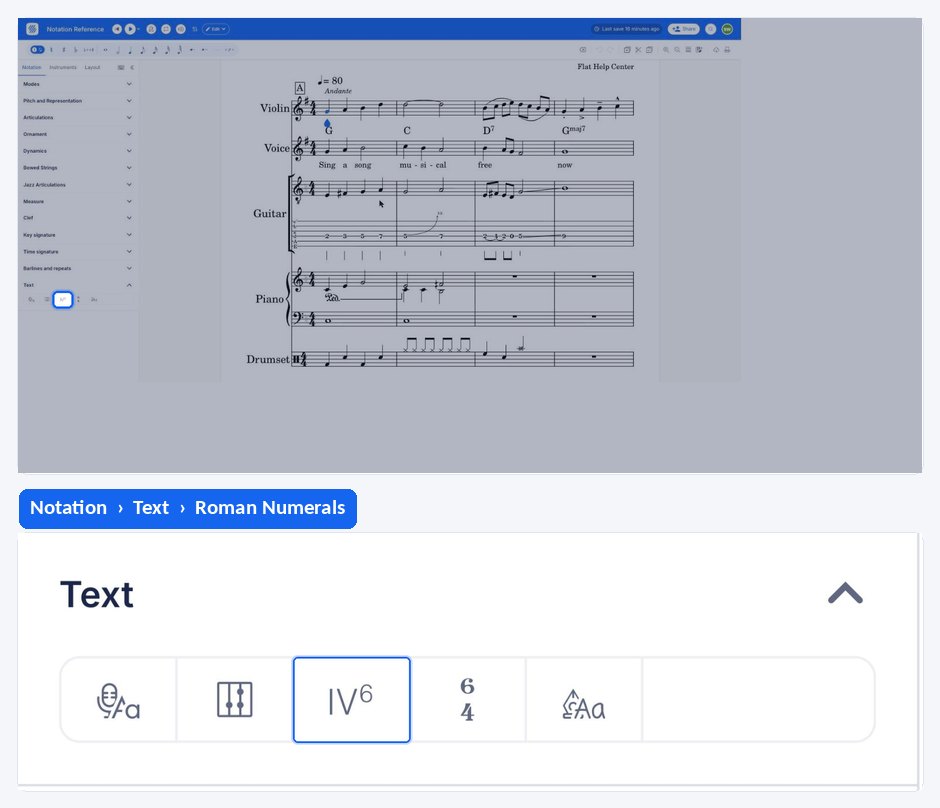
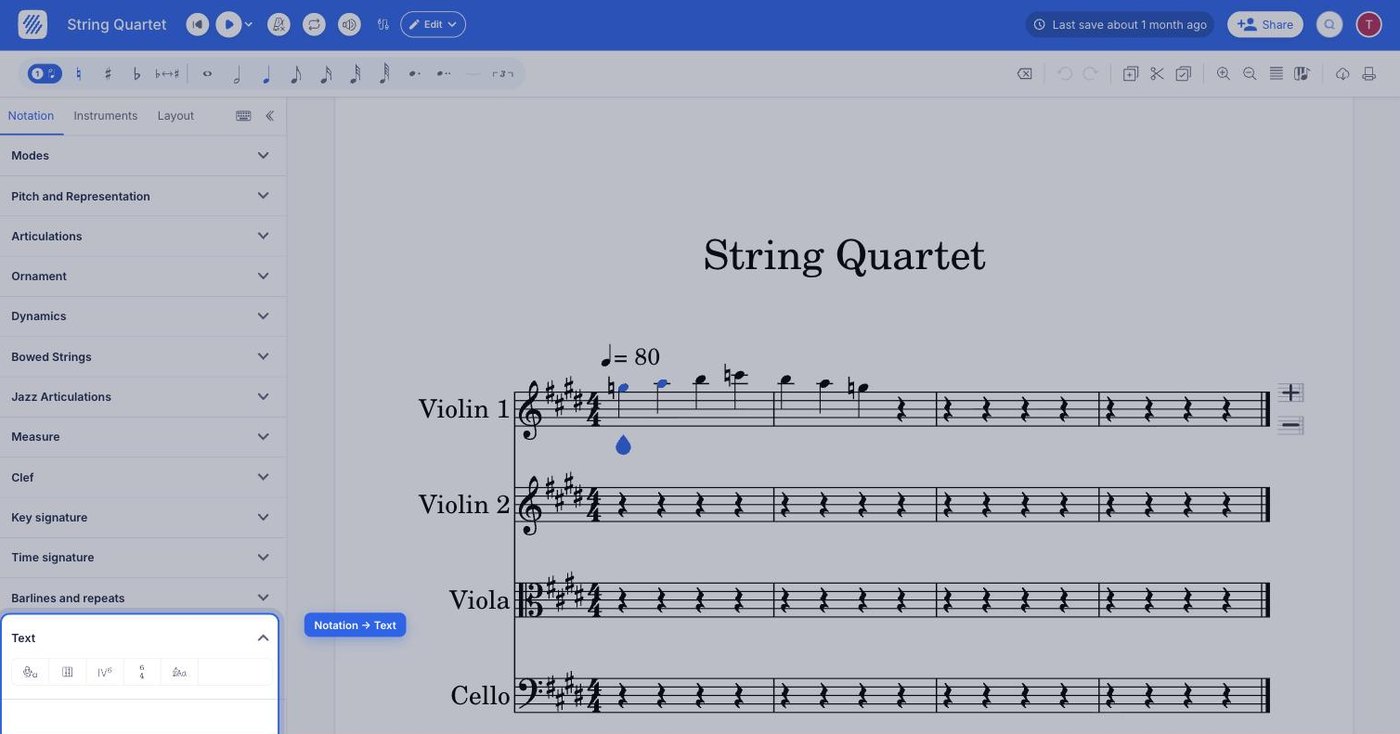
The Roman numerals tool - the Classic Chord icon - sits in the left panel, in the Notation tab, under Text. Select the position you want the numeral above, then click the icon or press the keyboard shortcut.
| Feature | Location | Icon | Default Keyboard shortcut |
|---|---|---|---|
| Roman Numerals | Notation > Text |  | Ctrl + Shift + K or ⌘ + Shift + K |
What is Roman numeral analysis?
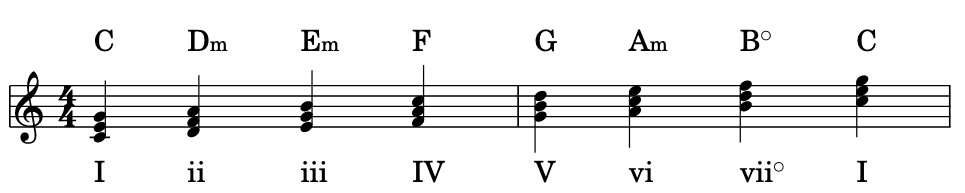
Roman numeral analysis is a way to represent chords based on the key signature. The Roman numeral shows the degree of the key that serves as a root for the chord. For instance, if you use the key of C, the first Roman numeral I will be a C. Then II will be a D, then III an E and so on.
Here is an image of the complete C major scale, with notes, jazz and Roman numeral notation.
How do I add a Roman numeral in Flat?
Select the note where you want to start adding your chord, then open the Notation tab in the left panel and click the Classic Chord icon under Text; alternatively, use the keyboard shortcut Ctrl / ⌘ + Shift + K. A dialog box appears at the selected location, and from there you can input the Roman numeral.
Flat has two methods of input, a unique text input and a step-by-step system. You can change between the two systems with this button:
How does the unique text input work?
You can freely input Roman numerals in the text input. The Roman numerals understood by the system will be displayed on the left of the input. When you are happy with the result, press Enter to insert the Roman numeral in the score and move on to the next position.
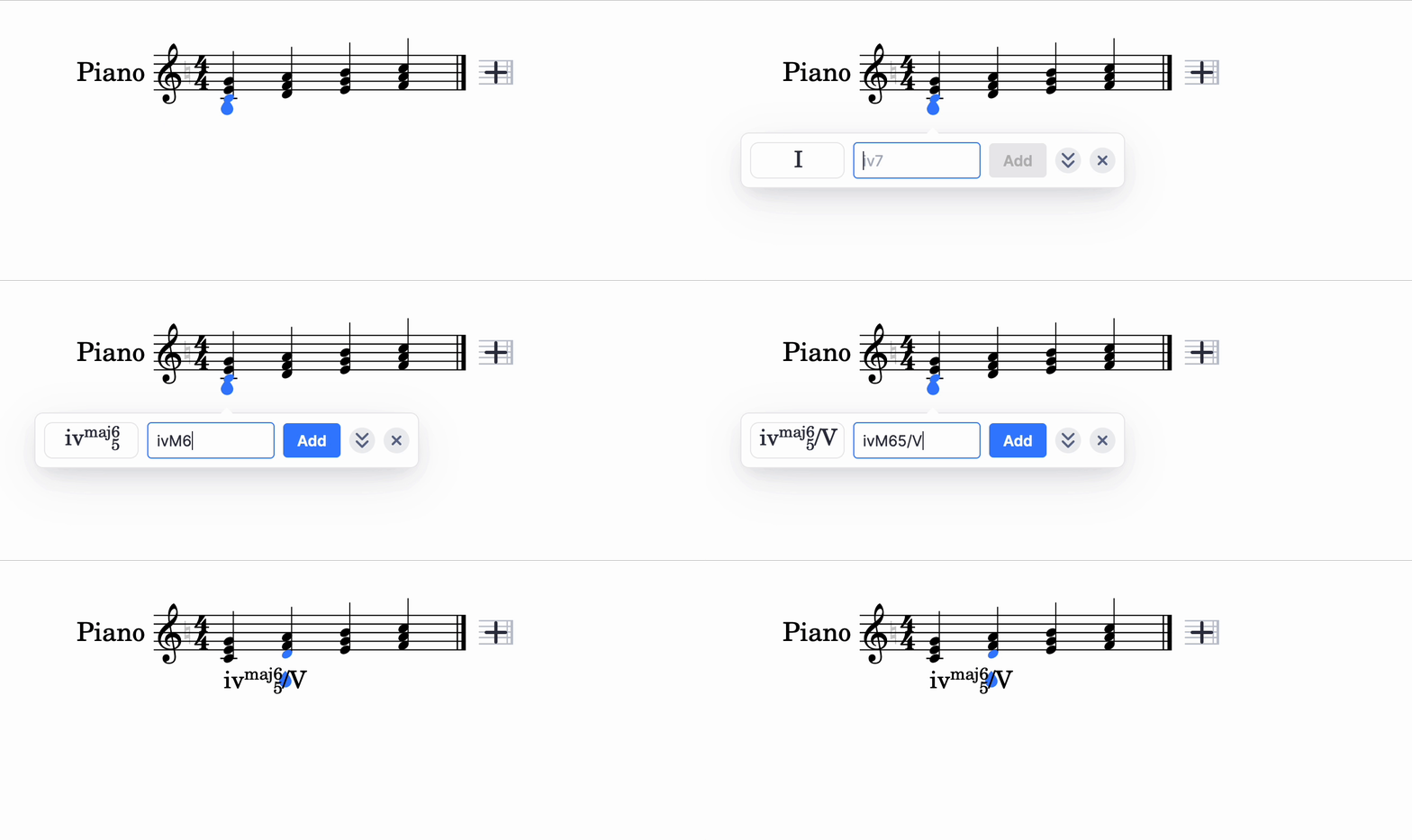
You can navigate in the score using the left/right arrows, which will change the selected position when at the edge of the text input.
You can also remove a Roman numeral by completely erasing the content in the text input, then pressing backspace one more time.
Here are the types of text you can insert:
Triads
- I - Major
- ii - minor
- iiio - diminished
- IV+ - augmented
Triad inversions
- I6 - 1st inversion
- I64 - 2nd inversion
Seventh
- I7 - dominant
- ii7 - minor 7th
- IIIM7 - major 7th
- ivM7 - minor major 7th
- vo7 - diminished 7th
- vi1/27 - half diminished 7th
- VII+7 - augmented 7th
Seventh inversions
- I65 - 1st inversion
- I43 - 2nd inversion
- I42 or I2 - 3rd inversion
Alterations
- bI
- IIb
- III#
- #IV
Secondary dominants
- v/IV
Neapolitans
- N
- N6
How does the step-by-step input work?
With this input method, you edit each part of the Roman numeral separately: the root, the quality, the inversion. On desktop, you will have the possibility of using a text input as well, while on mobile devices you will have to rely on the buttons only.
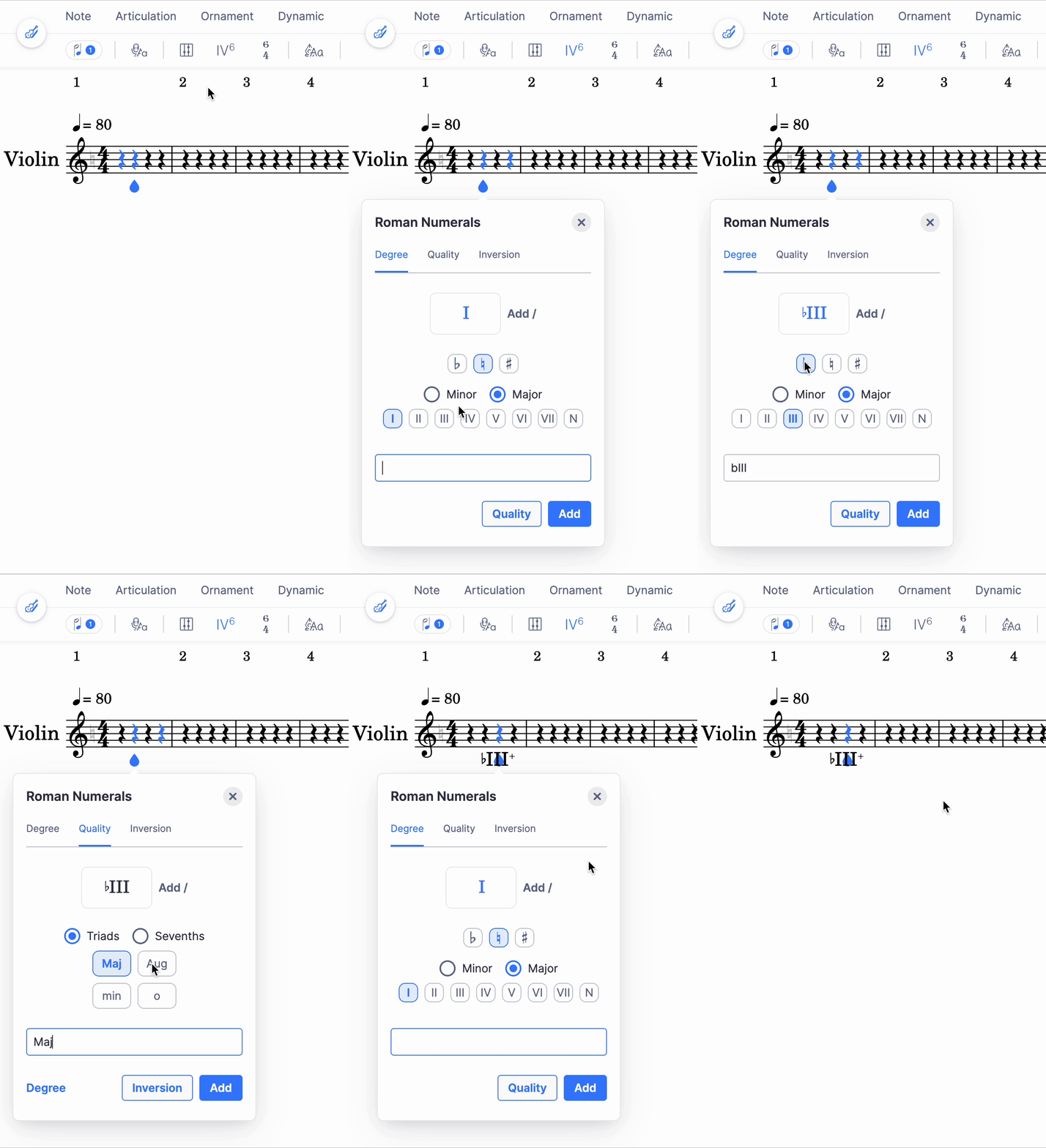
Choice of degree
First you need to choose the degree that will be the root of the chord. You also have the possibility of selecting an alteration for the root.
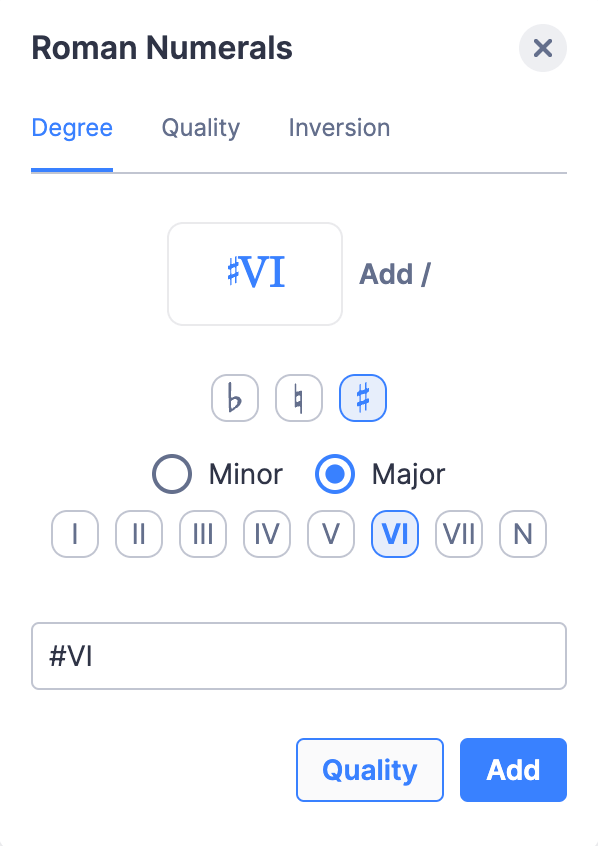
If you're working on a desktop, you can input the degree and the alteration directly in the provided text input, typing things like:
- IV
- iii
- II#
- iib
- N
Choice of quality
Now you can select the quality of the chord.
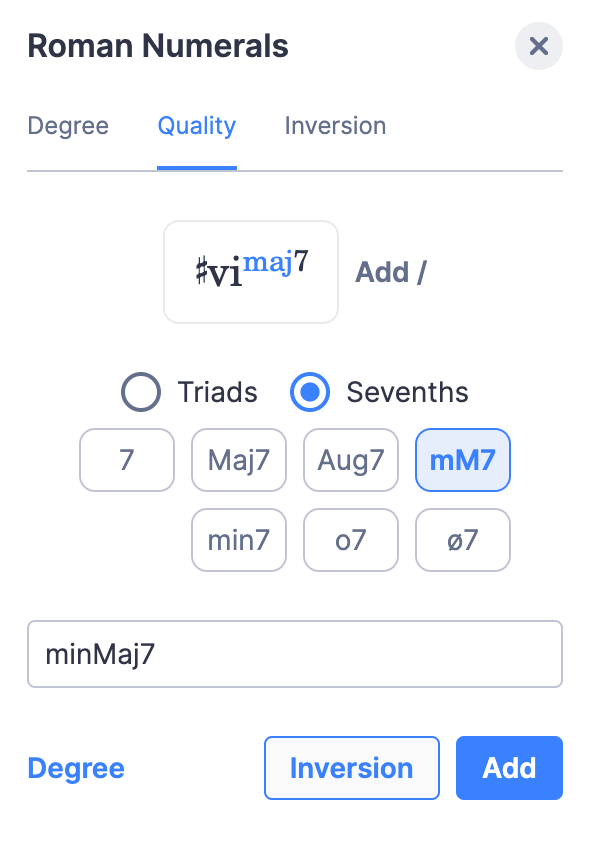
On a desktop, you can input the quality in the provided text input. You can type things like:
- Maj
- dim7
- Aug
- m
Choice of inversion
The next step is the choice of inversion for the chord.
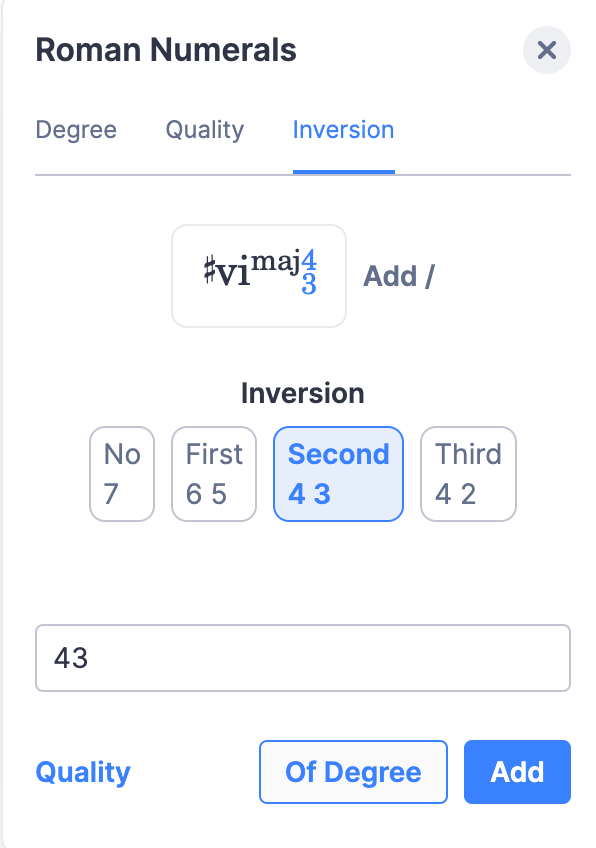
On a desktop, you can input the inversion in the provided text input. You can add things like:
- 42
- 64
- 65
Choice of secondary dominant
If you need to input a secondary dominant, you can click on Add /. Then you will be able to select the degree to which the chord will be relative.
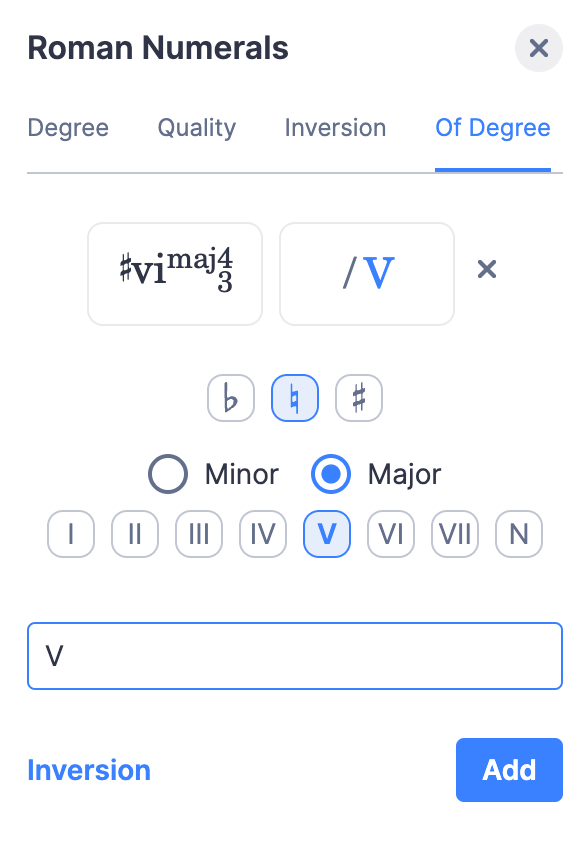
The input works the same way as for the choice of degree.
Neapolitan
Neapolitan chords are built from a major triad, whose root note is the lowered second degree of the scale.
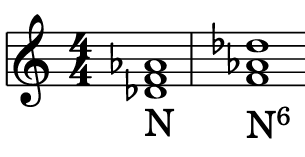
In this example, we are in the key of C. Thus the root note of the major triad is a D flat.
You can input these chords by selecting the N in the Choice of Degree step.
Shortcuts
| Action | Shortcut |
|---|---|
| Go to the next step | Space |
| Add a secondary dominant | / |
| Validate the edited Roman numeral | Enter |
| Remove the edited Roman numeral | Ctrl + Delete (on empty text input) |
| Go to the next Roman numeral | Ctrl + → |
| Go to the previous Roman numeral | Ctrl + ← |
| Exit the dialog | Esc |
What's next for Roman numerals?
Our next goals for Roman numerals are Augmented 6th (It/Fr/Ger+6), key signature and pivot chords!
Where is the Roman numerals tool?
The Roman numerals tool is the Classic Chord icon, in the Text section. Select the position you want the numeral above, then open the tool to type the numeral into the dialog that appears at that position.
| Feature | Icon |
|---|---|
| Roman Numerals | |
Drag the tool palette up and tap Roman Numerals under Text. The dialog opens at the selected position.
What is Roman numeral analysis?
Roman numeral analysis is a way to represent chords based on the key signature. The Roman numeral shows the degree of the key that serves as a root for the chord. For instance, if you use the key of C, the first Roman numeral I will be a C. Then II will be a D, then III an E and so on.
How do I add a Roman numeral in Flat?
Flat has two methods of input, a unique text input and a step-by-step system, and a button in the dialog switches between them. Whichever you use, the numeral is inserted at the position you selected, and Flat moves on to the next position when you validate it.
Select the note you want the numeral above, drag the tool palette up, and tap Roman Numerals under Text. A dialog opens at that position, with a button that switches between the two input methods.
How does the unique text input work?
You can freely input Roman numerals in the text input. The Roman numerals understood by the system will be displayed on the left of the input, so you can check what Flat recognised before you validate. Erasing the content of the input and pressing backspace once more removes the Roman numeral.
Here are the types of text you can insert:
Triads
- I - Major
- ii - minor
- iiio - diminished
- IV+ - augmented
Triad inversions
- I6 - 1st inversion
- I64 - 2nd inversion
Seventh
- I7 - dominant
- ii7 - minor 7th
- IIIM7 - major 7th
- ivM7 - minor major 7th
- vo7 - diminished 7th
- vi1/27 - half diminished 7th
- VII+7 - augmented 7th
Seventh inversions
- I65 - 1st inversion
- I43 - 2nd inversion
- I42 or I2 - 3rd inversion
Alterations
- bI
- IIb
- III#
- #IV
Secondary dominants
- v/IV
Neapolitans
- N
- N6
Type the numeral into the field. What Flat recognises is shown beside the input as you go, so you can check it before you validate; clearing the field and pressing backspace once more removes the numeral.
How does the step-by-step input work?
With this input method, you edit each part of the Roman numeral separately: the root, the quality, the inversion. On mobile devices you rely on the buttons only, choosing the degree and its alteration, then the quality, then the inversion, and adding a secondary dominant with Add / when you need one.
Neapolitan chords are built from a major triad, whose root note is the lowered second degree of the scale. You can input these chords by selecting the N in the Choice of Degree step.
Build the numeral one part at a time - root, then quality, then inversion - using the buttons. This is the input method to use on a phone: the free text field is a desktop-only alternative.
What's next for Roman numerals?
Our next goals for Roman numerals are Augmented 6th (It/Fr/Ger+6), key signature and pivot chords!
Frequently asked questions
What is the difference between a Roman numeral and a chord symbol?
A Roman numeral names the degree of the key the chord is built on, so the same chord is written differently in another key. A chord symbol names the chord by letter - C, Am7 - independently of the key. Flat writes both from the Text section.
Why is Flat not recognising the Roman numeral I typed?
The unique text input shows the numerals it understood on the left of the field, so if nothing appears there the text is not one Flat recognises. Check it against the supported triads, sevenths, inversions, alterations, secondary dominants, and Neapolitans listed above, and adjust the spelling.
How do I delete a Roman numeral I already wrote?
In the unique text input, erase the content of the field completely, then press backspace one more time. In the step-by-step editor, press Ctrl + Delete while the text input is empty. Both remove the numeral from the score rather than leaving an empty label.
Can I write augmented sixth chords or pivot chords?
Not yet. Augmented 6th chords (It/Fr/Ger+6), key signature support, and pivot chords are the next goals for Roman numerals in Flat. In the meantime, secondary dominants, Neapolitans, alterations, and every triad and seventh inversion listed above are supported.
Can I use Roman numerals and figured bass in the same score?
Yes. They are separate tools in the Text section and can be written above and below the same passage. See figured bass for how Flat writes the figures under the bass line.