How to add text to a score in Flat
Last updated October 21, 2026
Text in Flat is added with the annotation tool, which attaches a free line of text above the score at the note you choose — a tempo indication, an expression mark, a performance note. Flat keeps the text bound to that note, and moves the input to the next note as you type.
How do I add text to my score?
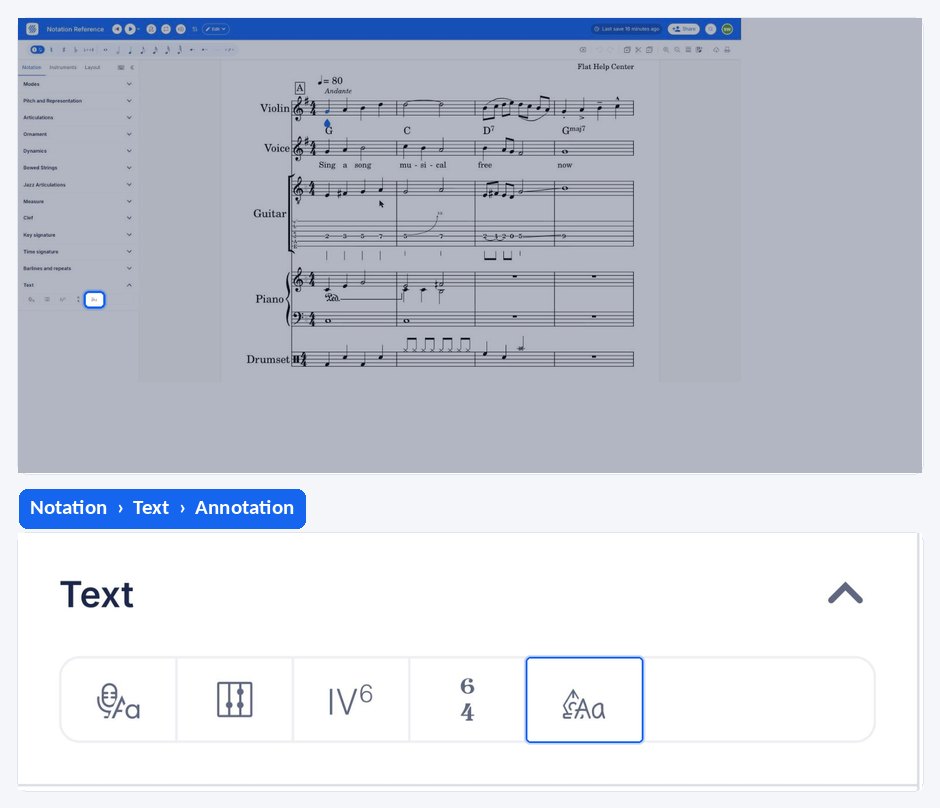
To add text above your score, use the annotation tool. Go to where you want to add the text, open the Notation tab in the left panel, click the annotation icon under Text, and start typing. Press enter or use your right keyboard key to move to the next note.
You can edit or delete the text as needed.
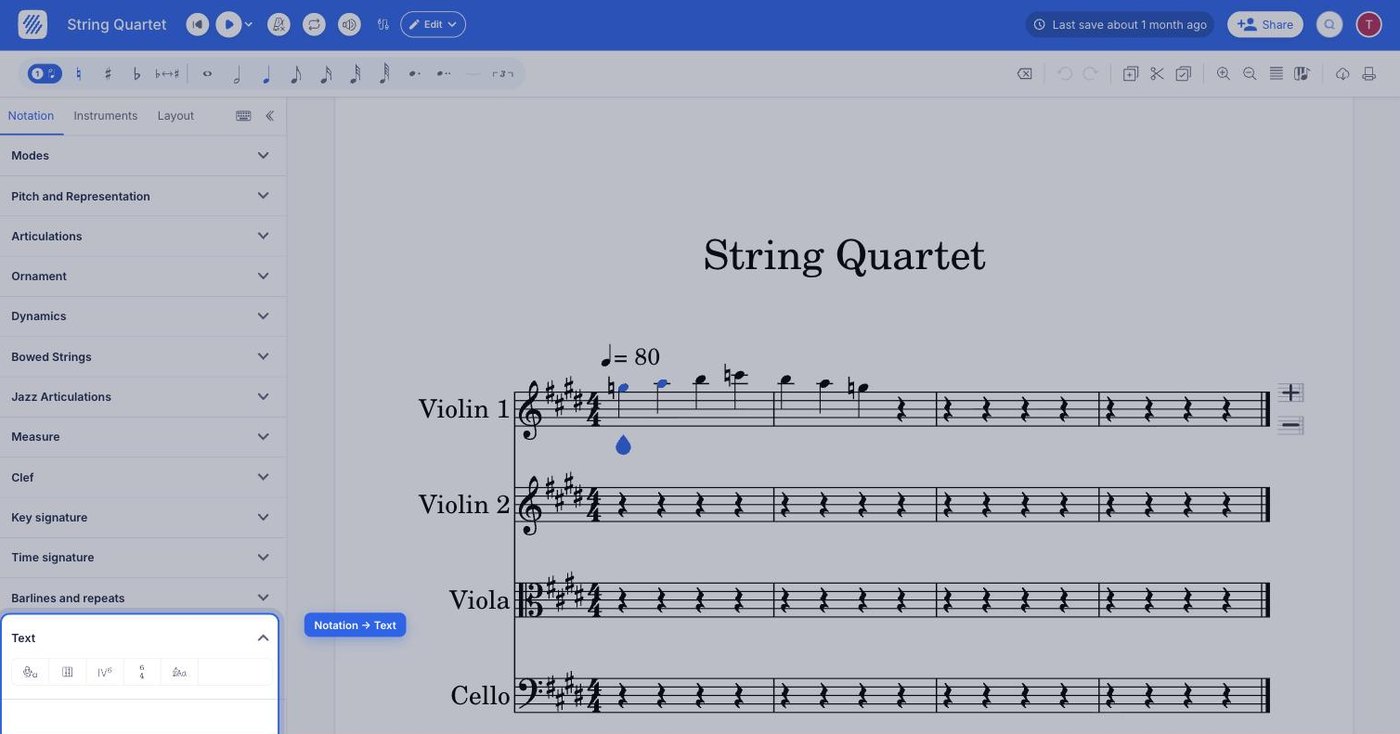
Press Esc to close the annotation tool and go back to note editing. The teardrop-shaped note cursor comes back on the selected note.
What other kinds of text can I add?
The Text section of the Notation panel holds several text tools, each attached to the music in a different way. The annotation tool is the general-purpose one; the others are built for a specific job.
- Add lyrics — words written under the notation, one syllable per note.
- Add chord symbols — chord names above the staff, with playback semantics.
- Add Roman numeral notation — harmonic analysis below the staff.
- Add figured bass notation — figures stacked under a bass line.
- Add inline comments — contextual feedback for collaborators, which is not part of the printed score.
How do I add text to my score?
Select the note the text belongs above, drag the tool palette up from the bottom of the screen, and tap Annotation under Text. Type the words, then tap the next note to carry on. Tap Close on the input bar to leave the tool.
What other kinds of text can I add?
The Text section holds several text tools, each attached to the music in a different way. The annotation tool is the general-purpose one; the others are built for a specific job.
- Add lyrics — words written under the notation, one syllable per note.
- Add chord symbols — chord names above the staff, with playback semantics.
- Add Roman numeral notation — harmonic analysis below the staff.
- Add figured bass notation — figures stacked under a bass line.
- Add inline comments — contextual feedback for collaborators, which is not part of the printed score.
Frequently asked questions
How do I move to the next note while typing an annotation?
Press enter, or use your right keyboard key. The input jumps to the following note and stays open, so you can write a run of indications across a passage without leaving the annotation tool and reopening it at every note.
What is the difference between an annotation and a lyric?
An annotation is free text placed above the score for indications a player reads — tempo, expression, a performance note. Lyrics are written under the notation and follow the music syllable by syllable, with hyphens and melismas linking words across several notes.
What is the difference between an annotation and an inline comment?
An annotation is part of the music: it prints with the score and every reader sees it. An inline comment is collaboration feedback attached to a point in the score, shared in real time with the people you work with, and it is not printed notation.
Can I change the font of the text I add?
Yes. Text appearance is set per text type rather than per annotation — see text styles to change the default font family, weight, style, and size used across the score.