How to change the duration of a note in Flat
Last updated September 23, 2026
Note duration in Flat is the rhythmic value given to a note or a rest, from a whole note down to a sixty-fourth. Flat uses one unified set of duration tools that work before or after a note is written, so the same buttons set the value of the note you are about to add and of the one already on the staff.
Where are the duration tools?
The duration buttons sit in the compact strip above the left panel, next to the accidentals, so they stay reachable whichever tab of the left panel you are working in. Each duration also has a number-key shortcut, which is the fastest way to write rhythm while your other hand stays on the staff.
| Duration | Icon | Keyboard shortcut |
|---|---|---|
| Whole |  | 1 |
| Half |  | 2 |
| Quarter |  | 3 |
| Eighth |  | 4 |
| Sixteenth |  | 5 |
| Thirty-second |  | 6 |
| Sixty-fourth |  | 7 |
How do note durations work?
A note's duration is carried by its head, its stem, and its flags: changing the head, adding a flag, or removing the stem alters how long the note lasts. A quarter note usually corresponds to one beat, a half note lasts twice as long, and a whole note four times as long. Each flag halves the value again.
How do I change the duration of a note or rest?
Select the note or rest you want to modify, then click the duration you want in the strip above the left panel, from the whole note to the sixty-fourth. The duration tools are unified and use the same icons whether you are editing an existing note or choosing the value of the next one you add.
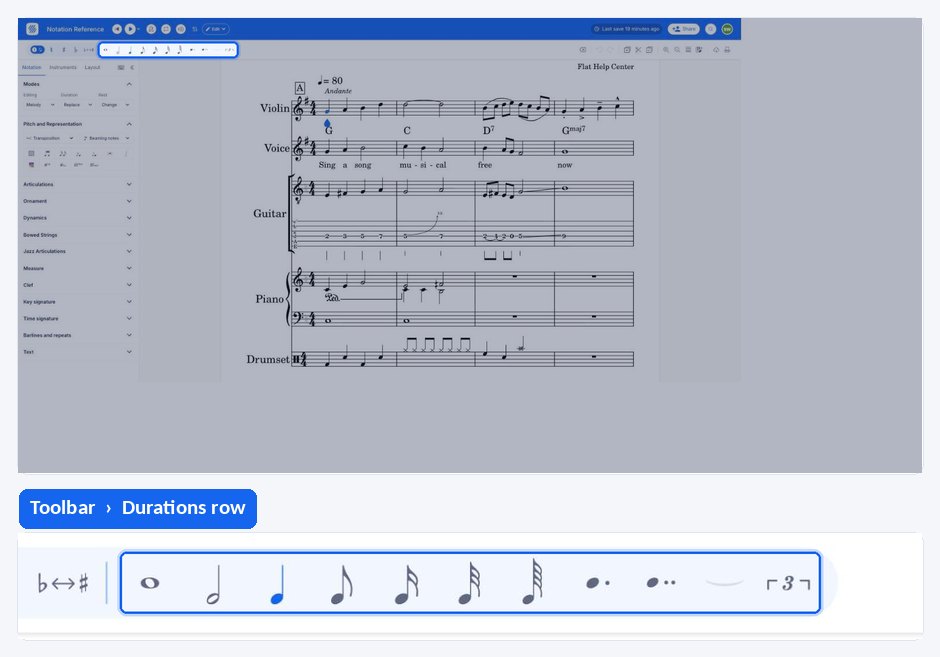
Because the tools are unified, you can pick a duration before writing anything: the next note or rest you add takes the value you selected.
Can I choose whether changing a duration replaces or inserts content?
Yes. The duration tools can behave in two ways when a value changes: removing the extra content around the note, or pushing the content to the right to make room. Both behaviours are described on the dedicated page about changing duration in Replace or Insert mode.
Frequently asked questions
Can I choose a note duration before I write the note?
Yes. Flat uses the same duration tools for editing and for input, so selecting a value with nothing written applies it to the next note or rest you add. That is why the icons never change between the two situations, and why the number-key shortcuts are useful while entering a passage.
How do I write a note longer than a whole note?
Extend it instead of looking for a longer value. Adding a dot adds half the note's duration, and tying two notes of the same pitch creates a single sound lasting the sum of both values, which is how durations that cross a barline are written.
Why did the music after my note move or disappear when I changed its duration?
Because the duration tools have two behaviours. In Replace mode, lengthening a note consumes what follows it and shortening it adds rests; in Insert mode, the following content is pushed to the right or pulled back instead. See change duration, Replace or Insert mode.
Do the duration tools work on rests as well as notes?
Yes. Rests take exactly the same values as notes and use the same icons, so selecting a rest and clicking a duration rewrites it at the new length. Flat can also resize the rest that follows a note automatically - see adapting the duration of the next rest.