How to add or remove multimeasure rests in Flat
Last updated October 13, 2026
A multimeasure rest in Flat is a single symbol standing for several bars of silence, used above all in instrumental parts. Flat produces them two ways: automatically, by collapsing consecutive empty measures when you export a part, or manually, by adding a rest of 3 to 100 measures to a score.
Where do I find the multimeasure rest tool?
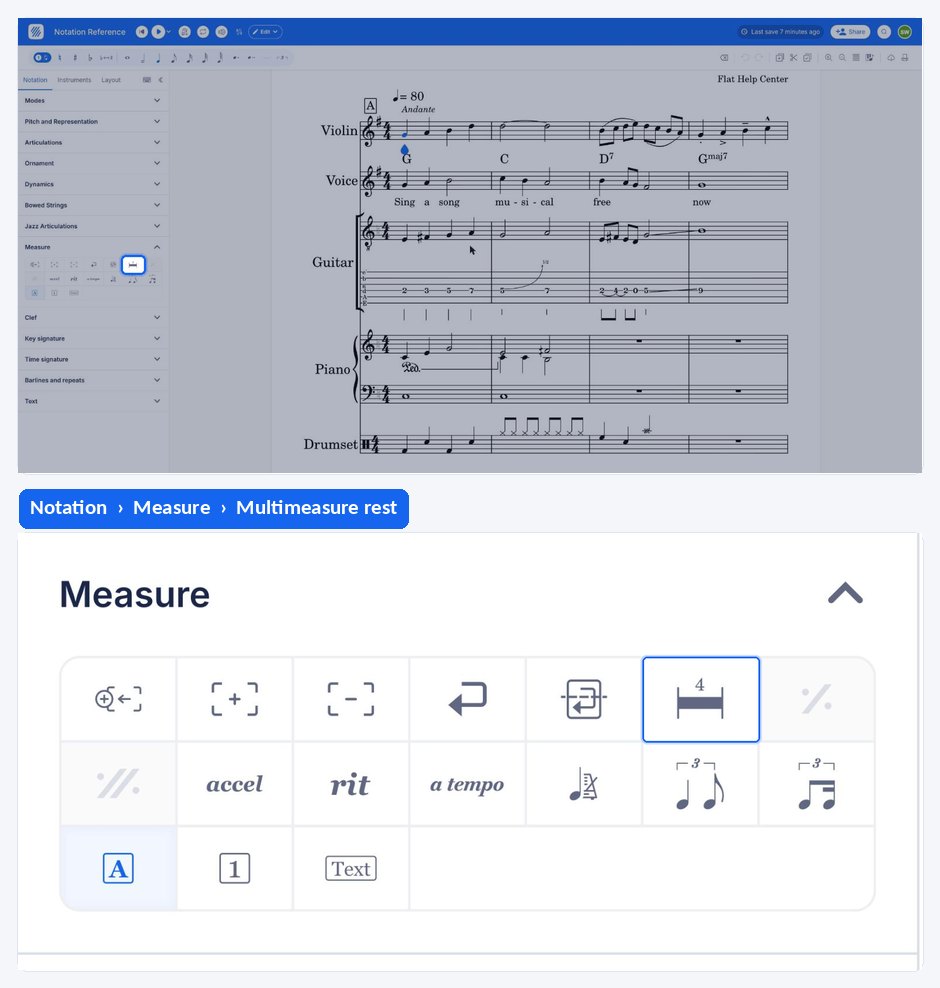
The multimeasure rest tool lives in the left panel: open the Notation tab and go to the Measure section. It adds a rest to the highlighted measure, and opens the edit window again when that measure already carries one.
| Feature | Where to find it | Icon |
|---|---|---|
| Multimeasure rest | Notation tab, Measure section |  |
What is a multimeasure rest?
Multimeasure rest indicates rest of more than 3 bars. It is specifically useful in instrumental parts, where a player may be silent for a long stretch: instead of counting a page of empty bars, they read one symbol with the number of measures written above it.
Which method should I use?
There are two ways of adding multimeasure rests on Flat, depending on if you are working on a score that has several parts, or a single part. Scores with several parts are best handled on export, where Flat collapses the empty measures for you; a single-part score is where you add the rest by hand.
1. Multimeasure rests automatically inserted on export
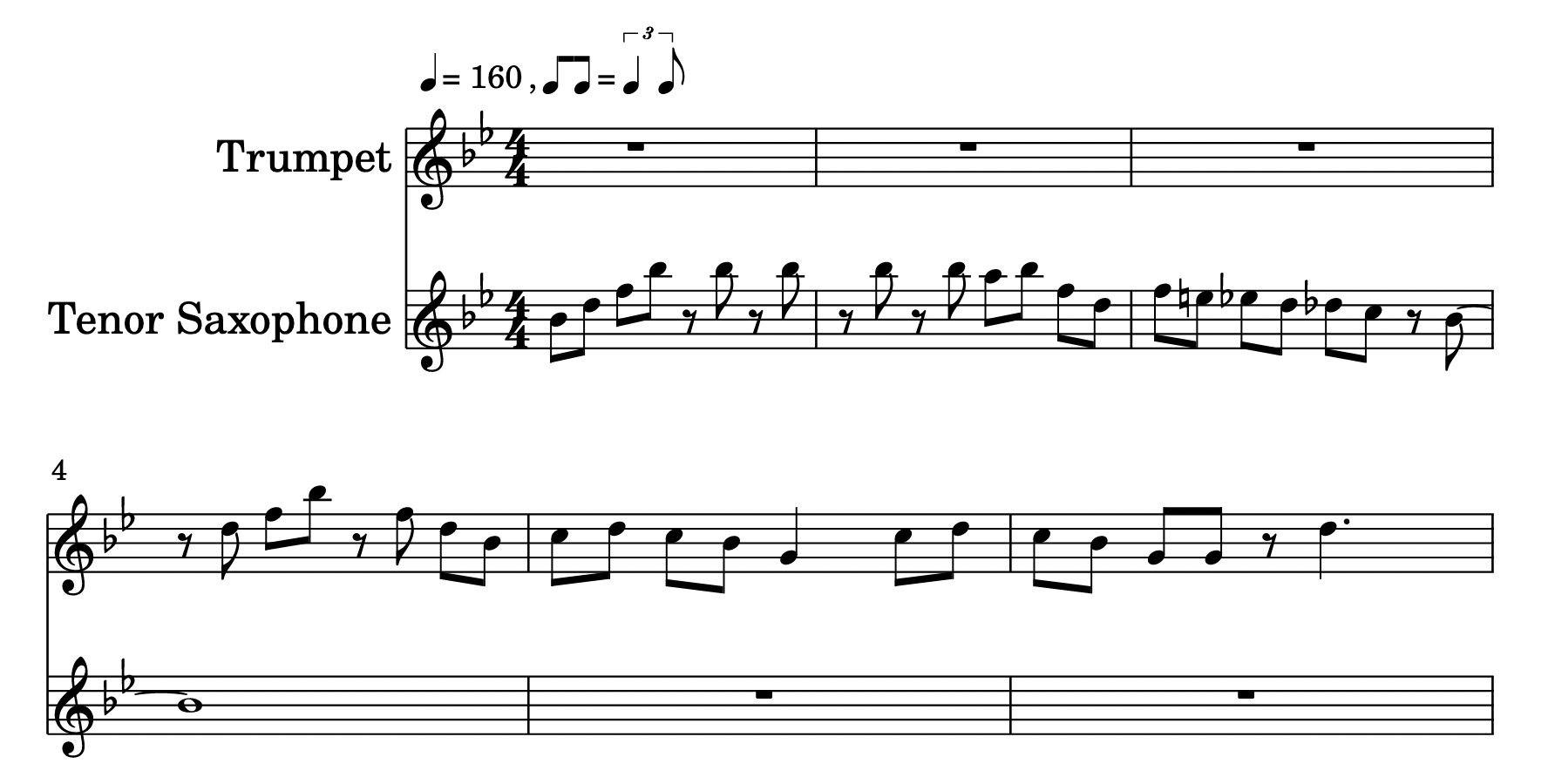
This is what you might want to use if you want to print a single part out of a score that has several parts. Here is a score with a Trumpet and a Tenor Sax. As you can see, the intro is played by the Sax, thus the Trumpet is not playing during the first 3 measures.
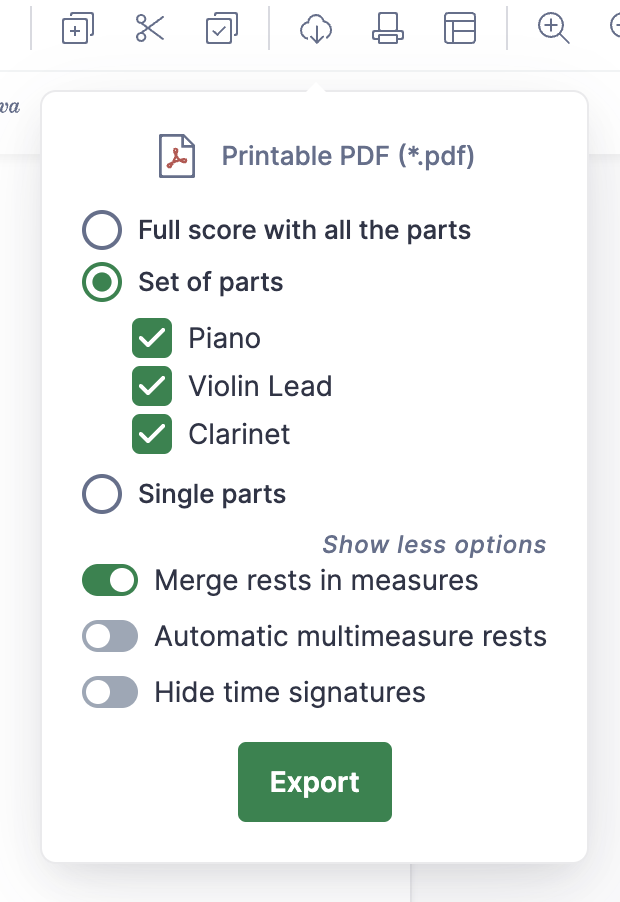
When you print or export the score as a PDF, you have the possibility of having the consecutive empty measures getting automatically collapsed into multimeasure rests. To do so, you need to select the option Automatic multimeasure rests.
For instance, here is how it looks when I only print the Trumpet part: the 3 first empty measures are collapsed into a multimeasure rest.

2. Manually add multimeasure rest
If you are working on a score that has only one part, and you don't want to add many empty measures, this is how you can manually add a multimeasure rest.
Click the multimeasure rest icon and a dropdown will appear. There, you can choose the number of measures the rest will go on for (from 3 to 100) and add it to the highlighted measure.
How do I edit or remove a multimeasure rest?
If the highlighted measure already has a multimeasure rest in it, the same icon will open the edit window, where you can either edit the number of measures the rest goes on for or remove it. Additionally, the same window appears if you click on the multimeasure rest itself.
Removing a multimeasure rest is also possible by pressing the remove button (backspace shortcut) while the rest is highlighted.
Frequently asked questions
How many measures can a multimeasure rest cover?
From 3 to 100 when you add one by hand: the dropdown where you set its length covers that range. The automatic route has no figure to choose — Flat collapses whatever run of consecutive empty measures it finds in the part you are exporting.
Do I have to add multimeasure rests before printing individual parts?
No. For a score with several parts, tick Automatic multimeasure rests when you print or export, and the consecutive empty measures of each part are collapsed for you. Adding them by hand is meant for a score with a single part, where there is no export step doing the work.
How do I print just one part of my score?
Export or print the part you need rather than the full score, with the automatic multimeasure rests option enabled so the player's empty bars are collapsed. See print and export your scores for the available formats and settings.