How to set the tuning and capo of a tablature in Flat
Last updated October 28, 2026
The tuning and capo of a tablature in Flat define which pitch each string carries and where the capo sits. Flat writes tabs and chord grids for plucked string instruments with up to 14 strings, with your own tuning and capo, always synced with the music notation so you can input whichever you prefer.
You can change the tuning and capo of your tabs and chord grids at two places on Flat:
- In the editor, you can change the configuration of existing tabs. When changing the tuning or capo configuration, your existing tablature will be updated accordingly.
- With a custom instrument: you create the configuration with the tuning/capo you want and save it in your account. Then, you will be able to use these instruments when creating new scores/tabs or adding new instruments in existing scores.
How do I change the tuning of a tab?
Flat sets the tuning in the settings of the part. In the left panel, open the Instruments tab, open the menu next to the part, and click the pencil icon. You can also click the name of the part on the score to edit it directly.
Edit the part
In the Instruments tab, open the menu next to the part you want to change and click the pencil icon, or click the part name on the score.
Open Tablature, Chord Grids and Tuning
Open Tablature, Chord Grids and Tuning. If the part has no tab yet, turn on Use a tablature first.
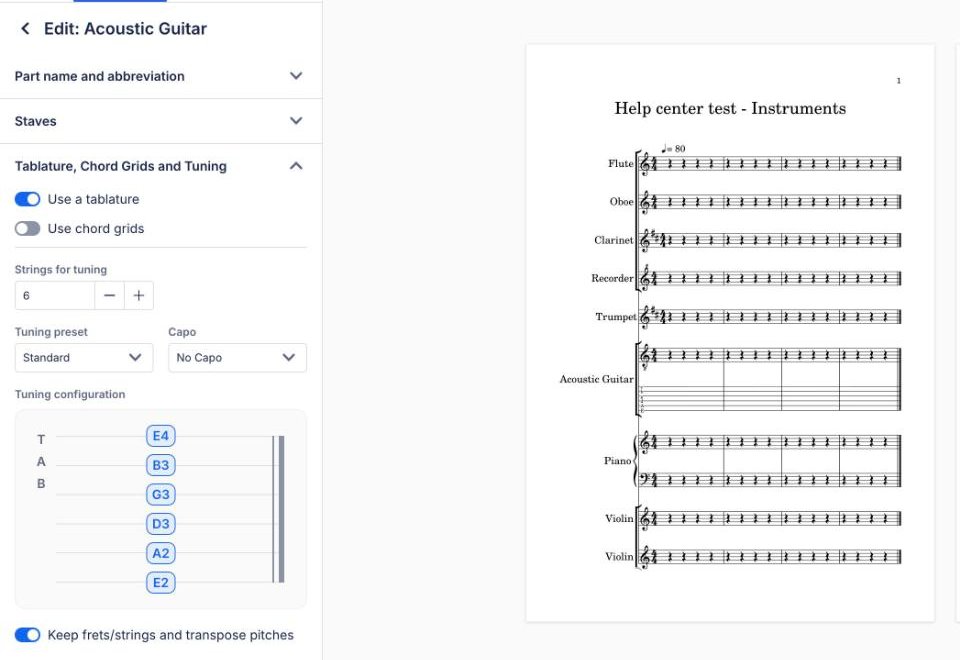
Set the strings, tuning, and capo
Start by adjusting the number of strings of your instrument (between 3 and 14), then choose the new tuning in Tuning preset, or set each string yourself in Tuning configuration. The capo is set in Capo, at the same place. Each change applies to the score right away.
When updating the tuning, your existing tab will be updated to use the new settings. If you didn't have a tab enabled before, we will generate the tablature based on your music notation. You can then make the changes you want on the tab.
What happens when I change the capo?
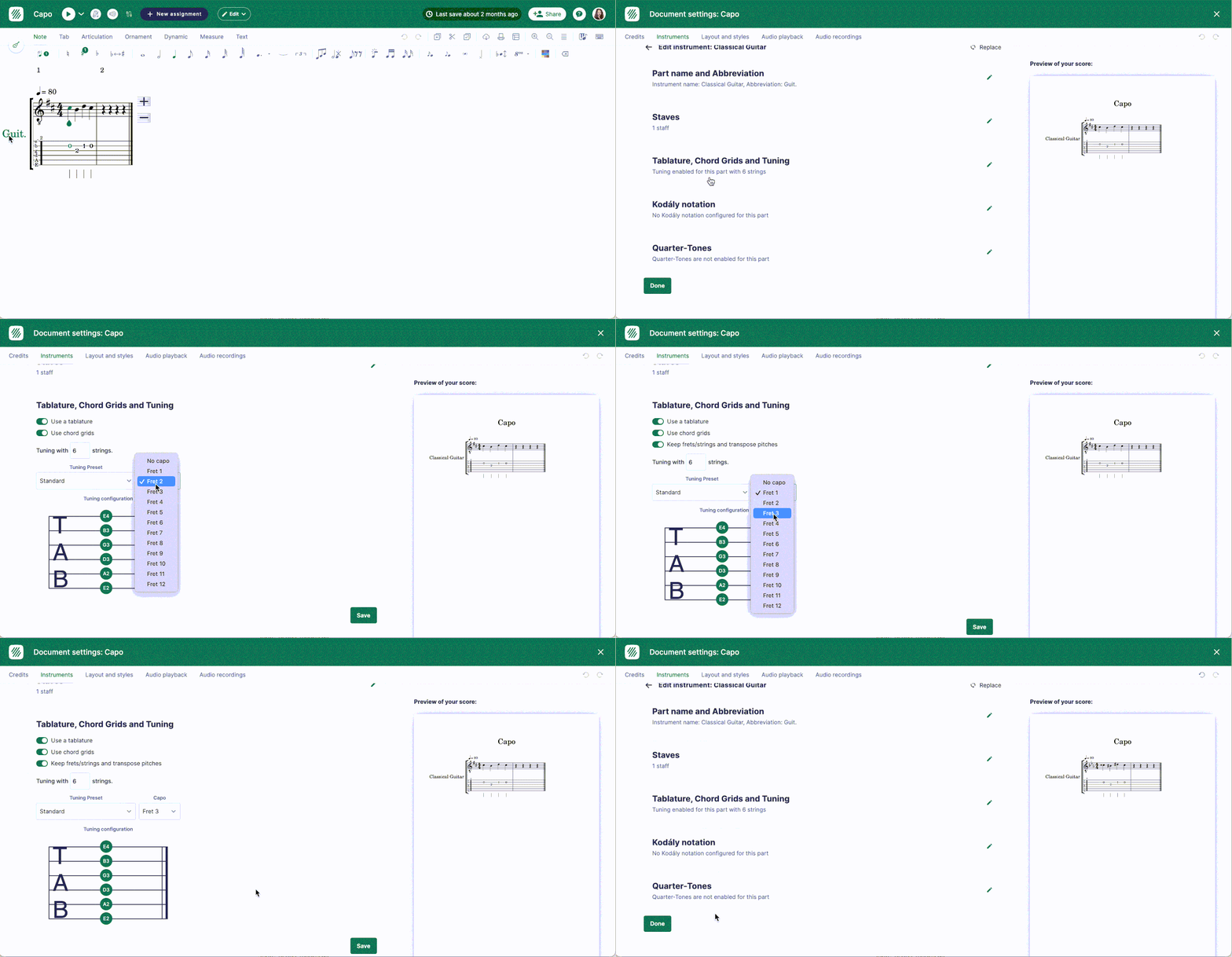
If you only change the capo of a part, you have the possibility to keep the current fret/strings of notes, and have the pitches and key signature transposed. This makes the capo a quick way to transpose a guitar part without rewriting a single fret.
Frequently asked questions
How many strings can I configure on a tab?
Between 3 and 14. You set the number of strings first, in Tablature, Chord Grids and Tuning, in the settings of the part, and then pick a tuning preset or build your own string-by-string configuration. The same range applies to chord grids, which follow the part's tuning.
Will changing the tuning rewrite my existing tab?
Yes. Flat updates the existing tablature to use the new settings, so the frets move to match the new string pitches. If the part had no tab enabled before, Flat generates one from the music notation instead, and you can adjust it afterwards.
Can I reuse the same tuning on every new score?
Yes - save it as a custom instrument. A custom instrument stores the number of strings, the tuning, and the capo in your Flat account, so the configuration is available whenever you create a score or add an instrument to an existing one.
Does changing the capo change the sound of the part?
It can. When you change only the capo, Flat lets you keep the current frets and strings and transpose the pitches and the key signature instead - so the tab reads the same but sounds at the new pitch. That is the behaviour to pick when a guitarist plays capoed.