How to add accelerando and ritardando in Flat
Last updated October 13, 2026
An accelerando in Flat is a gradual tempo increase and a ritardando a gradual tempo decrease, both notated over a range of music rather than at a single point. Flat engraves the marking from the cursor to the end of the measure, and the range can then be moved, shrunk, or expanded along the part.
Which tempo change markings does Flat offer?
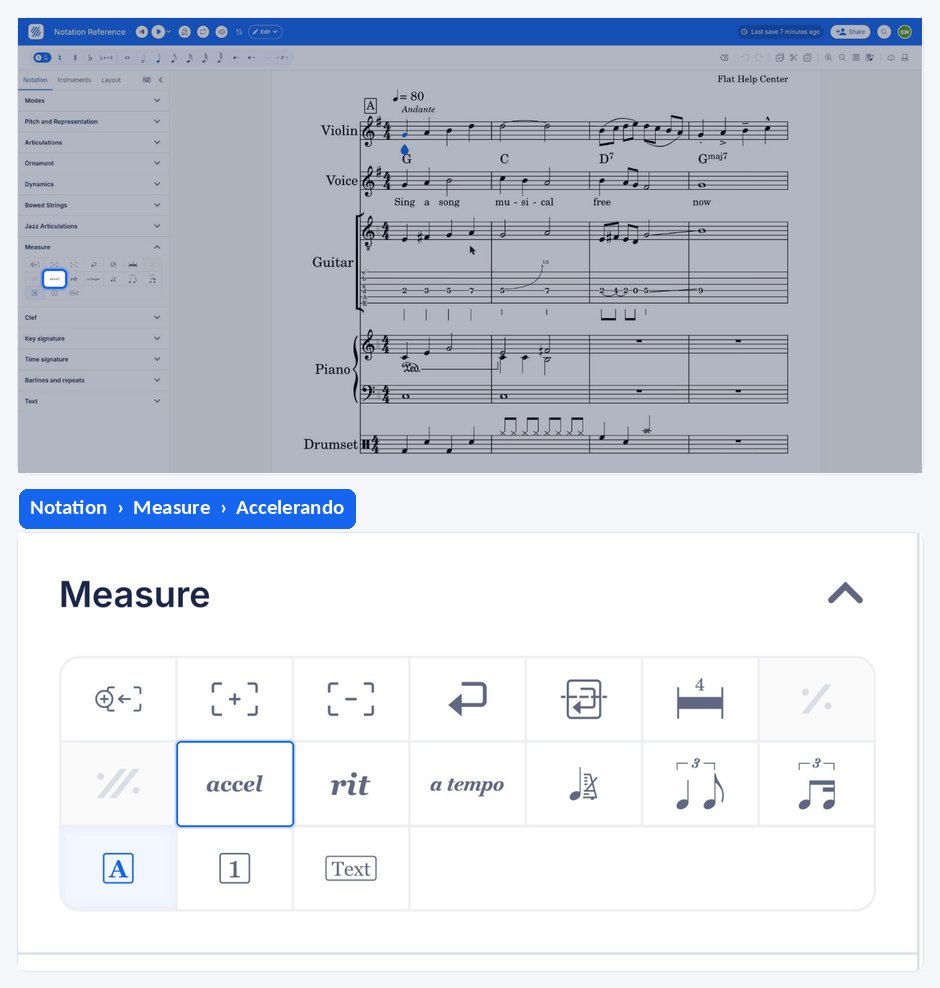
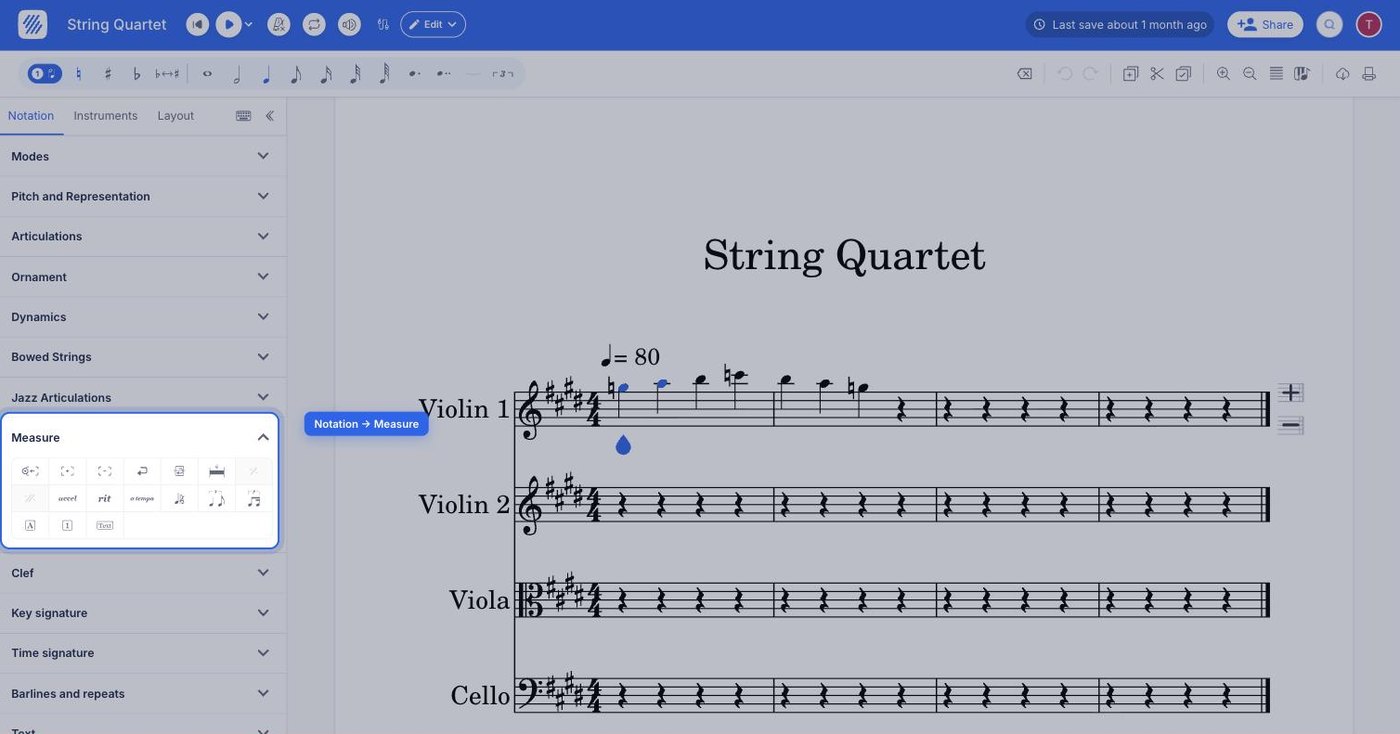
Flat offers two gradual tempo markings, accelerando and ritardando. Both live in the Measure section of the Notation tab in the left panel, and both are range markings, so each one covers a span of music instead of applying at a single beat like a tempo mark does.
| Feature | Where to find it | Icon |
|---|---|---|
| Accelerando | Notation tab, Measure section |  |
| Ritardando | Notation tab, Measure section |  |
What is an accelerando?
An accelerando is a gradual tempo increase. While a classic tempo marking will change the tempo immediately, an accelerando will increase the tempo gradually during all the duration of the accelerando, sometimes across multiple measures. The final tempo is often specified at the end of the accelerando range. Once played, the final tempo should be kept.
What is a ritardando?
A ritardando is exactly the same thing as an accelerando but with a gradually decreasing tempo. It spans a range in the same way, it is written with the same kind of marking, and the tempo reached at the end of the range is the one the music keeps afterwards.
How do I add, move, or remove an accelerando or ritardando?
Accelerando and ritardando are available in the Measure section of the Notation tab and are manipulated in the same way as most Measure tools. Place your cursor where the marking should start and click the tool: the desired marking will be added from the cursor location to the end of the measure.
Like other range markings on Flat, accelerandos and ritardandos have the ability to be moved horizontally along the part through drag and drop. They can also be shrunk or expanded using one of the two round handles on both extremities of the marking.
To remove accelerandos and ritardandos, you can either click on the accel/rit button while the cursor is located in the range of the marking, or you can directly select the marking and press Delete on your keyboard, or use the Remove an element button under Measure.
Frequently asked questions
What is the difference between an accelerando and a tempo mark?
A tempo mark changes the tempo immediately, at the point where it sits. An accelerando changes it gradually across its whole range, sometimes over several measures, and the tempo reached at the end is the one the music keeps afterwards.
Can an accelerando span several measures?
Yes. The marking is added from the cursor to the end of the measure, then you expand it with the round handle at its right extremity until it covers the passage you want. Accelerandos and ritardandos regularly run across multiple measures.
Which tempo applies after the accelerando ends?
The tempo reached at the end of the range. The final tempo is often specified at the end of the accelerando with a tempo mark, and once played, that final tempo should be kept until the next tempo indication in the score.