How to beam notes in Flat
Last updated October 13, 2026
Beaming in Flat is how consecutive notes shorter than a quarter are joined into rhythmic groups. Flat beams notes by beat automatically, and lets you replace that rule with your own beaming pattern for a whole score or a selection, include rests inside beams, or force individual groups to beam and un-beam.
Where are the beaming tools?
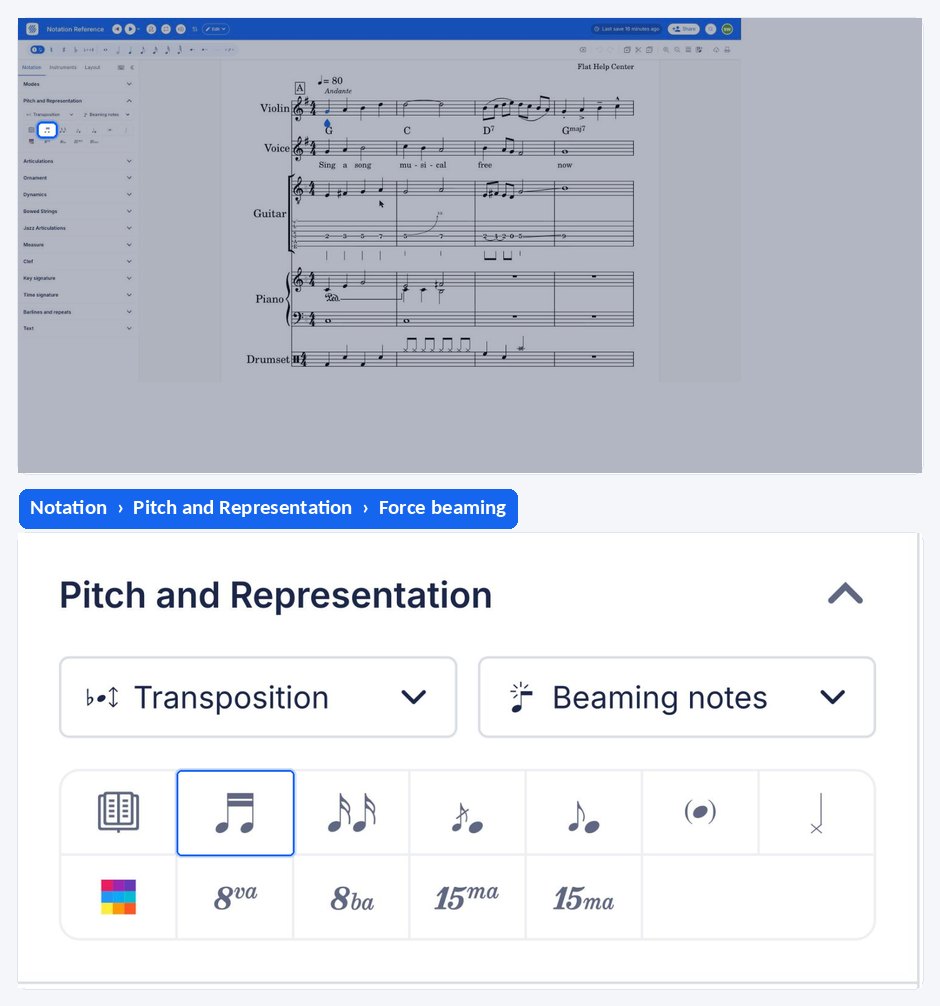
Flat splits beaming across two places in the left panel, under the Notation tab: the beaming pattern rules live in the Beaming notes section, while the manual force beam and force un-beam controls sit in Pitch and Representation with the other note tools.
| Feature | Where it is | Icon |
|---|---|---|
| Custom automatic beaming | Notation tab, Beaming notes |  |
| Force beam | Notation tab, Pitch and Representation |  |
| Force un-beam | Notation tab, Pitch and Representation |  |
What is a beam?
A beam is a horizontal or diagonal line used to connect multiple consecutive notes to indicate rhythmic grouping. On Flat, notes are beamed by beat by default. You can customize this by changing the automatic beaming policy, or by beaming and un-beaming notes manually where a passage needs a different grouping.
How do I set a custom automatic beaming rule?
Rather than setting beams note by note, you can create your own automatic beaming rules and apply them either to a complete piece of sheet music or, by selecting a set of notes first, to a specific section of a score. The rules live in the Beaming notes section of the Notation tab.
Some examples:
- In 4/4, Flat uses the "1 + 1 + 1 + 1" beaming rule by default, which means the notes are beamed by beat. Changing it to "2 + 2" beams the eighth notes by four, that is by two beats.
- In 6/8, the most common notation is to group the eighths by three (3 + 3), or by two (2 + 2 + 2).
Can rests be included inside a beam?
Yes. The beaming pattern tool can also allow rests to become part of a beam, which helps make the beats easier to identify in a syncopated passage. The rest keeps its own value and position; only the beam above it is extended to cover the group.
How do I beam or un-beam notes by hand?
As an alternative to automatic beaming, beam or un-beam notes with the force beam and force un-beam tools in Pitch and Representation, under the Notation tab. With a single note selected, the setting applies to that note and the next one. Select several notes to beam or un-beam a whole group at once.
Frequently asked questions
How does Flat decide where to put beams by default?
Flat beams notes by beat. In 4/4 that means the rule "1 + 1 + 1 + 1", so eighth notes group in pairs, one group per beat. The default is a starting point rather than a constraint: a custom beaming rule replaces it for the whole score or for a selection.
Can I use a different beaming rule in one section only?
Yes. Select the notes you want the rule to cover before setting it, and Flat applies the new pattern to that passage rather than to the whole piece. This is how a single bar of 6/8 written as 2 + 2 + 2 can sit inside a movement grouped as 3 + 3.
Why are my notes still beamed after I un-beamed them?
A forced un-beam applied to a single note affects only that note and the one after it, so a longer group needs every note selected before the tool is applied. If the grouping keeps coming back across the whole score, it is the automatic beaming rule producing it, not the manual setting.