How to flip a stem up or down in Flat
Last updated November 26, 2026
Stem direction in Flat is the way a note's stem points, up or down. Flat chooses it automatically from the note's position on the staff and its voice, and lets you force it on a note, a chord or a selection with Stem up, Stem down or the K key, without adding a second voice.
How do I point a stem up or down?
Select the note, the chord or the passage, then click Stem up or Stem down in the Pitch and Representation section of the Notation panel, next to the beaming tools. The stem turns that way, the note stays in its voice, and the tool shows as active.
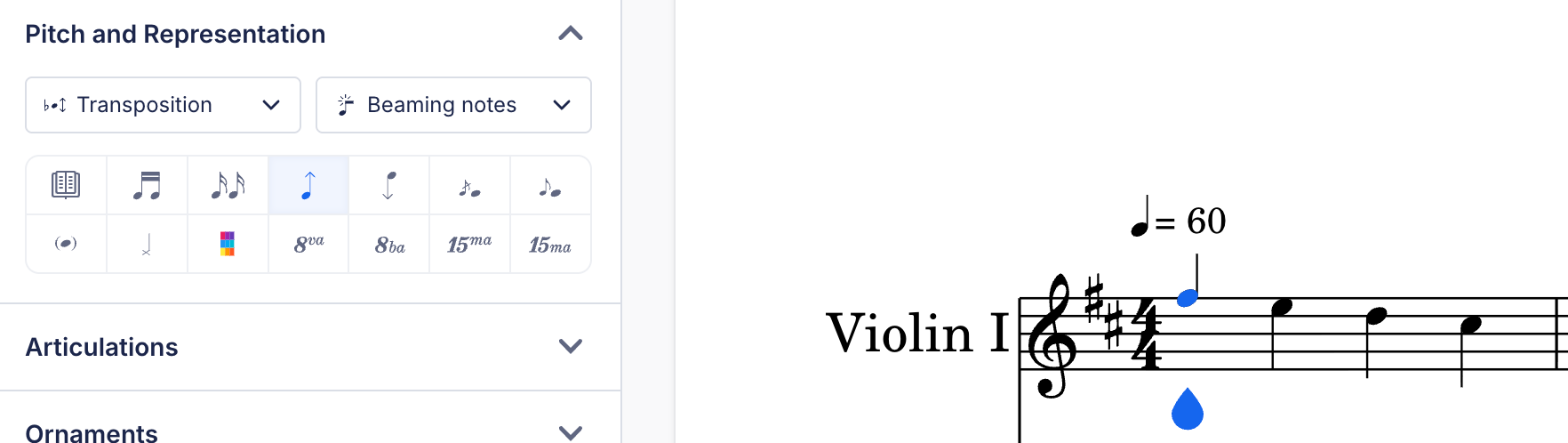
Stem up and Stem down are in the new editor layout on the website and in the desktop app. With the classic toolbar, use the K key or Quick Search. The mobile app doesn't have them yet.
How do I flip a stem with the keyboard?
Press K to flip the stem of the selected note to the opposite of what is drawn now. On a selection, each note or beam group flips the other way. You can change the key in your custom keyboard shortcuts.
You can also type "stem" in Quick Search: Stem up, Stem down and Flip stem act on the selection right away, whichever toolbar you use.
How do I put a stem back to automatic?
Use the active tool again. If a note is forced down, clicking Stem down a second time removes the setting, and Flat draws the stem automatically again. On a selection where every stemmed note is already forced that way, the tool resets the whole selection.
How do chords, beams and voices behave?
A forced direction applies to the whole chord, which keeps one stem, and to the whole beam group the note belongs to, since a beam never has stems both ways. On a selection, every stemmed note follows, and rests and whole notes are skipped.
- Two voices: in measures with more than one voice, only the selected voice changes, or voice 1 when the selection covers every voice. You can still flip a voice 2 note on its own.
- Edits: the direction stays when you change the pitch, transpose the score, or copy and paste the note.
- Parts and print: the direction shows in the full score, the extracted parts and the PDF.
- Not available: rests, whole notes and other notes without a stem, grace notes, and Kodály staves.
Frequently asked questions
Do I need a second voice to change a stem direction?
No. Stem up, Stem down and the K key change the stem of the notes you selected and leave them in their voice. A second voice is only needed when two independent lines share a staff.
Why are Stem up and Stem down greyed out?
Because the selection has no stem to flip: a rest, a whole note, a grace note or a note on a Kodály staff. Select a note with a stem, or a passage that contains some.
Does flipping a stem change the playback?
No. Stem direction only changes how the note is drawn, so the score sounds the same.