How to add or change a time signature in Flat
Last updated September 23, 2026
A time signature in Flat sets how many beats each measure holds and which note value counts as the beat. Flat suggests the common meters and the ones you used recently, lets you customize any other, and uses the same tool to set a pickup measure at the start of a piece.
Where do I find the time signature tool?
The time signature tool lives in the left panel: open the Notation tab and go to the Time signature section. It applies the meter you choose to the measure your cursor is in, or to the range of measures you selected beforehand.
| Feature | Where to find it | Icon |
|---|---|---|
| Time Signature | Notation tab, Time signature section |  |
How do I add a new time signature?
Open the Notation tab in the left panel, go to the Time signature section and choose the meter you want. If you don't select a specific range, the new time signature will apply until the next time signature or the end of the score. If you only want to change it for certain measures, select those measures first.
Open the Notation tab
In the left panel, open the Notation tab and scroll to the Time signature section.
Select where it applies
Place your cursor on the first measure that should get the new time signature, or select the range of measures you want to change.
Choose the time signature
Choose the new time signature you want. The suggestions include commonly used time signatures and the ones you've recently used.
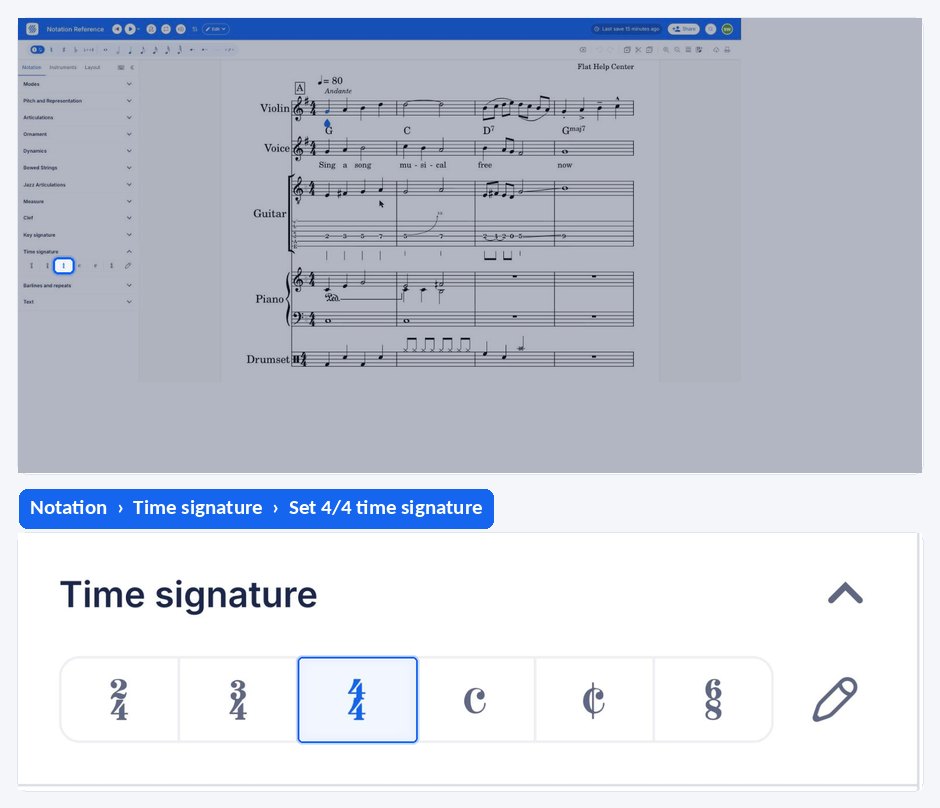
If you need a time signature that isn't in the suggestions, click Customize. The same dialog is where you can display a common time symbol instead of 4/4 and a cut time symbol instead of 2/2.
How do I change an existing time signature?
You can change an existing time signature by clicking on the time signature symbol in the score, or by using the tool in the Time signature section of the Notation tab, and then choosing the new time signature. The change applies from that measure until the next time signature.
How do I add a pickup measure (anacrusis)?
An anacrusis, also known as a pickup or upbeat, is a note or a series of notes that come before the first full measure in a piece of music. It is like a musical introduction that leads into the main melody, and it helps establish the rhythm and prepare the listener for the start of the piece.
To add a pickup note, place yourself and, when you are inserting the time signature, choose Customize and set the duration of the pickup.
In some cases, when you use an anacrusis in the first measure, you'll need to adjust the time signature in the last measure to compensate for the extra beats or notes in the anacrusis. To do so, place yourself in the last measure and follow the same steps you used to add the anacrusis in the first measure.
If you want to shift the measure numbers to skip the anacrusis, you can do that in the layout settings.
Frequently asked questions
What if the time signature I need isn't in the list?
Choose Customize and set the meter yourself. The suggestions only cover the commonly used time signatures plus the ones you have used recently, so anything unusual — an additive meter, an irregular bar — goes through the customize dialog instead.
Why does my pickup measure count as measure 1?
Because measure numbering and the pickup are separate settings. The anacrusis is set with the time signature, while the numbering is handled in the layout, where you can shift the measure numbers so the first full bar is counted as measure 1.
Do I have to shorten the last measure when I use a pickup?
In some cases, yes: the convention is that the beats missing from the anacrusis are made up at the end of the piece. Flat does not do it for you — place yourself in the last measure and set its time signature exactly as you set the pickup in the first one.